
The Account tab
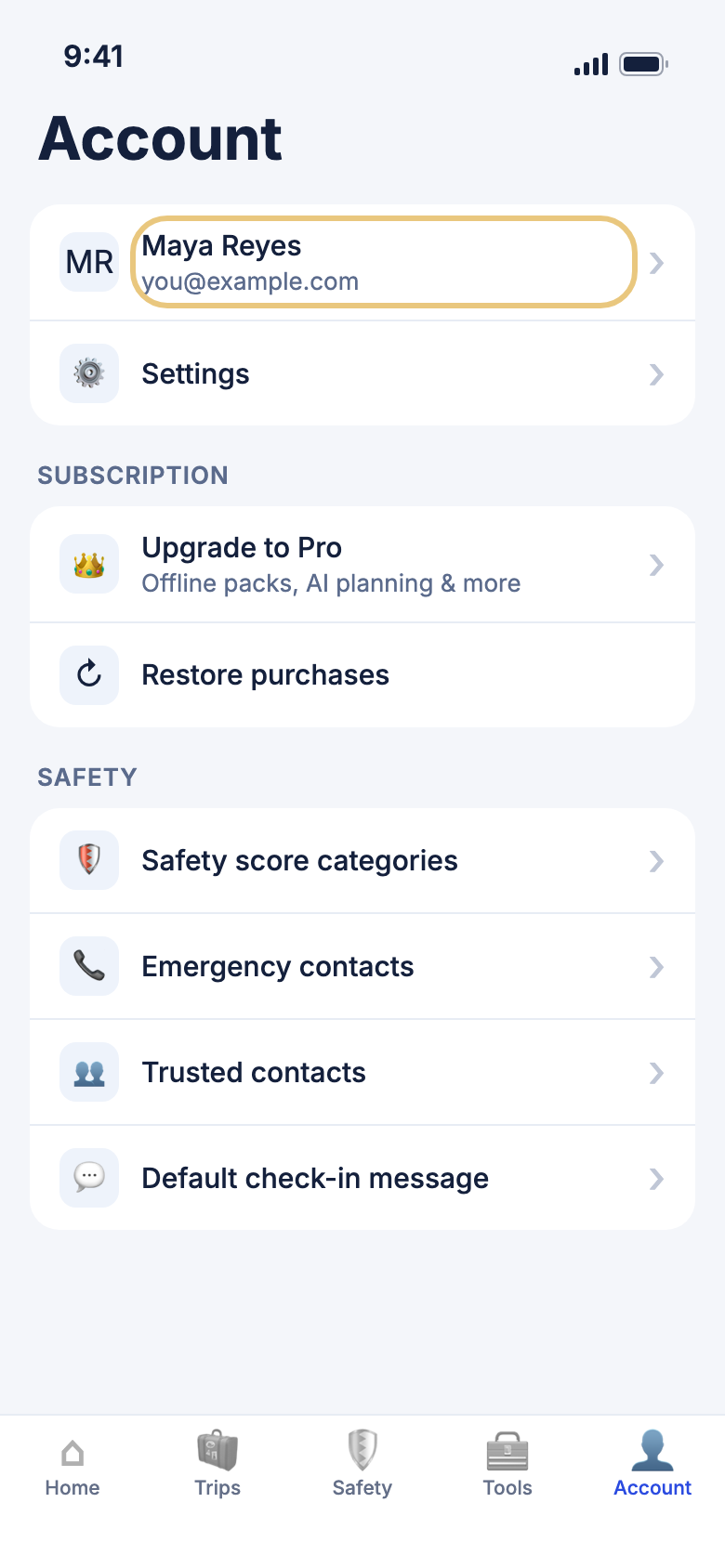
Account is where you keep your profile up to date, set how WeiiGo looks and talks to you, check your plan, and sign out.
Your profile
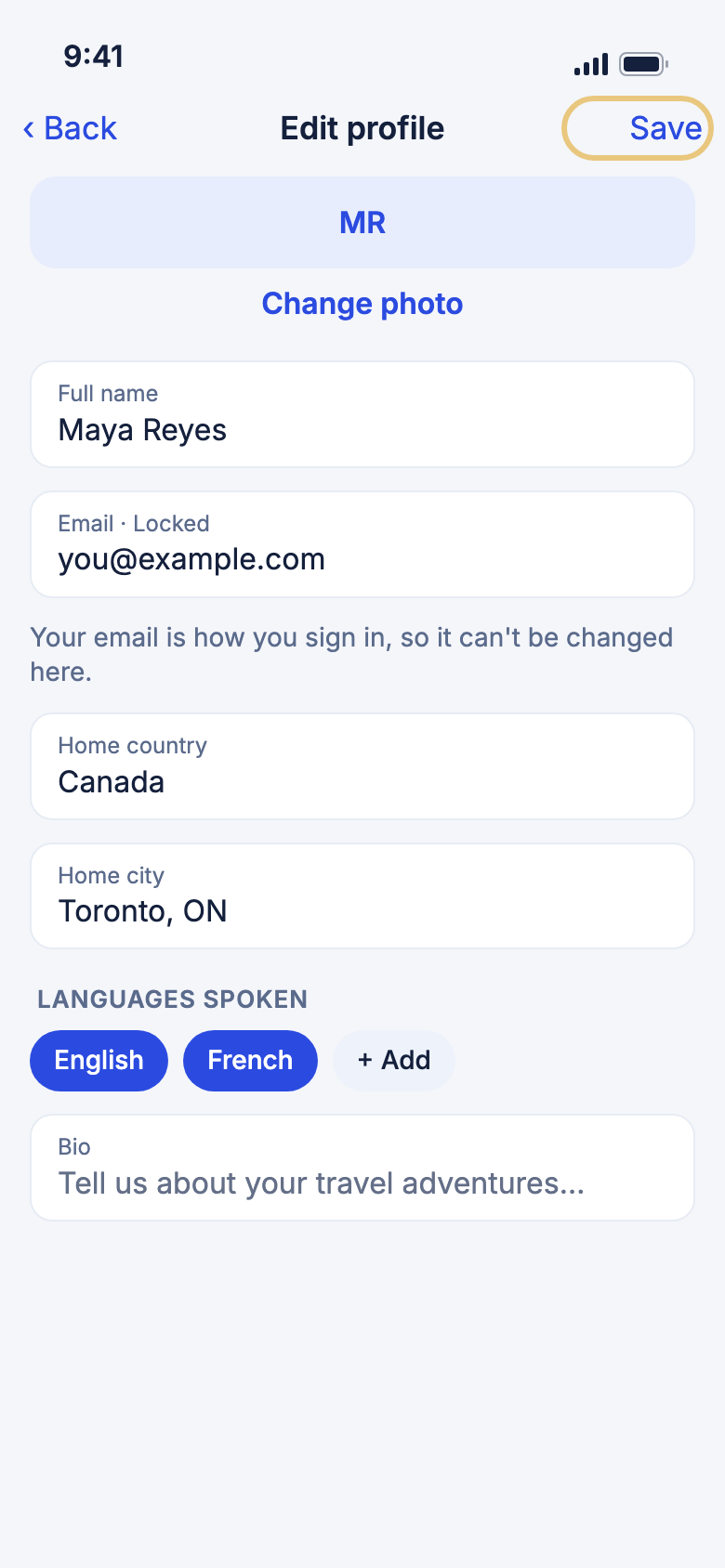
Change your name, photo or home city
Your home country and city help WeiiGo count your days abroad and plan trips from the right place.
- Tap the Account tab.
- Tap your name at the top.
- To change your picture, tap Change photo, then Take photo or Choose from gallery.
- Change your Full name, Home country or Home city.
- Under Languages spoken, tap + Add to pick the languages you speak.
- Tap Save.
Good to know
- Your email is how you sign in, so you can't change it here. Tap Contact support to change it and we will help.
- For Home city, just type your city. We never need your street address.
Settings
Choose which notifications you get
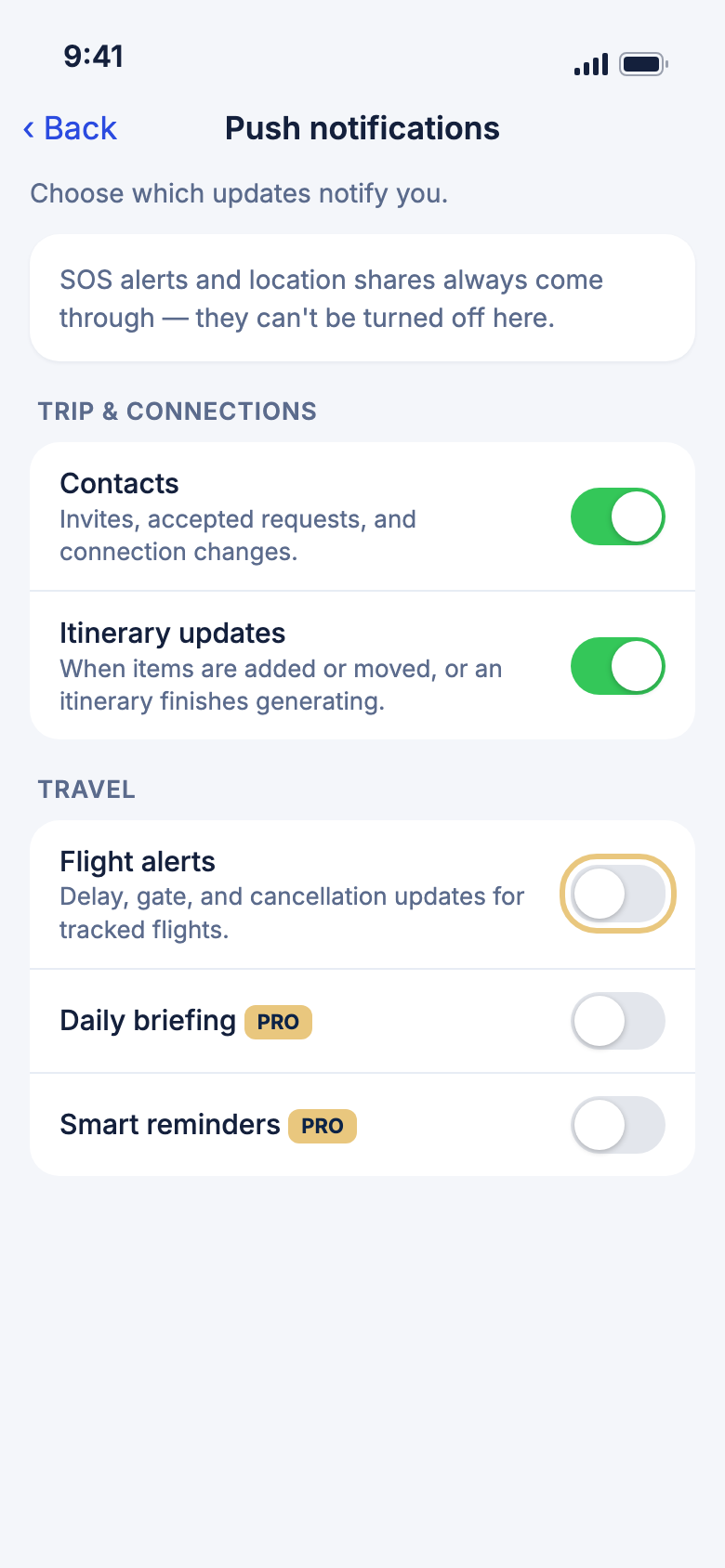
Turn off the alerts you don't want, and keep the ones that matter to you.
- Tap the Account tab.
- Tap Settings.
- Tap Push notifications.
- Tap the switch next to each kind of alert to turn it on or off.
WeiiGo Pro — Daily briefing, Smart reminders and Nearby saved places are part of Pro. On the Free plan their switches show a lock, and tapping one tells you what it does.
Good to know
- SOS alerts and location shares always come through. You can't turn them off here.
- If notifications are off for WeiiGo on your phone, none of these will arrive. Tap System notifications in Settings to open your phone's settings and allow them.
- To see alerts you already got, tap Notifications in Settings.
Change the app language
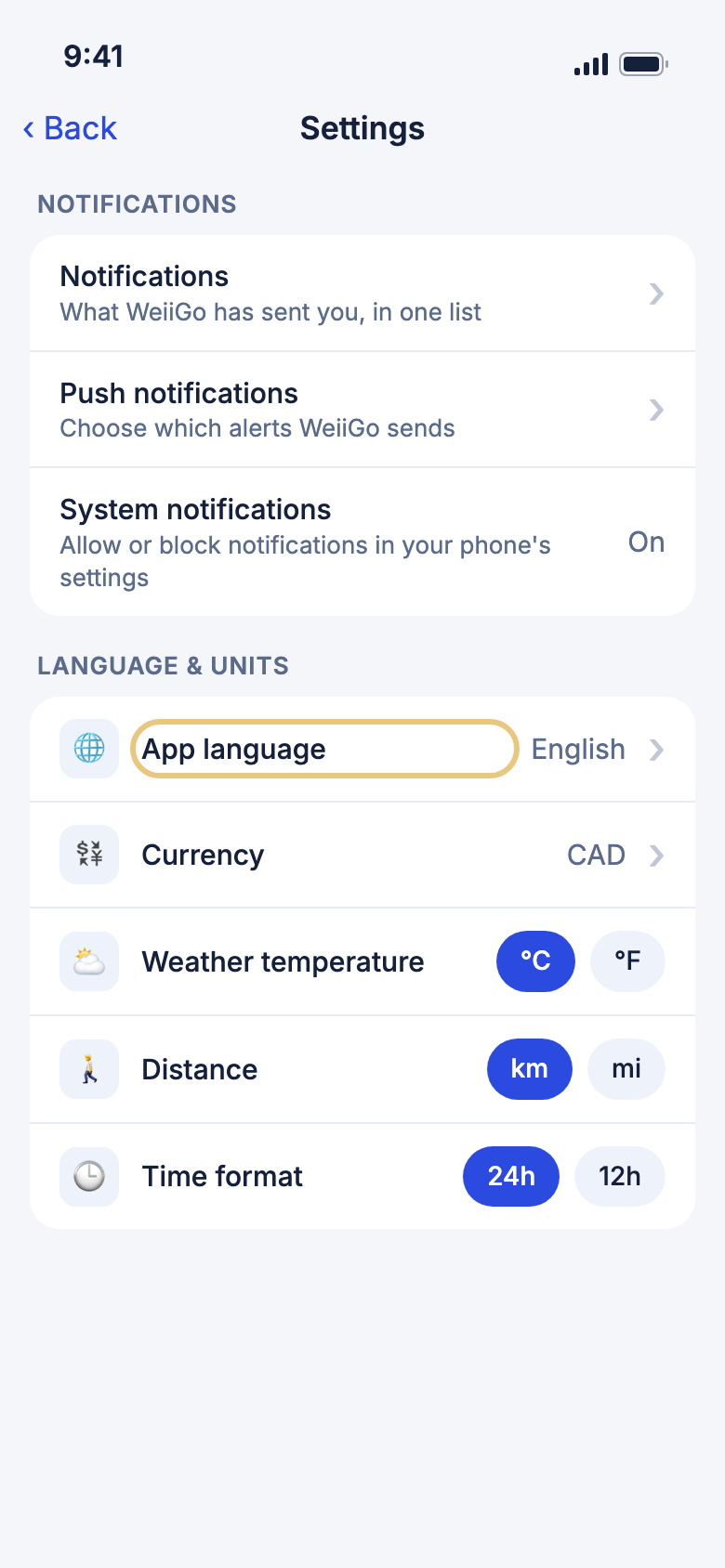
WeiiGo can show its buttons and screens in your language.
- Tap the Account tab.
- Tap Settings.
- Under Language & units, tap App language.
- Tap a language, or type in Search languages to find one.
- Tap OK to switch.
Set your currency and units
Pick the money, temperature, distance and time you're used to.
- Tap the Account tab.
- Tap Settings.
- Tap Currency, then tap your currency. Tap Show all currencies if you don't see it.
- Next to Weather temperature, tap °C or °F.
- Next to Distance, tap km or mi.
- Next to Time format, tap 24h or 12h.
Good to know
- Your currency is used for the currency converter, trip cost estimates and prices you add to bookings.
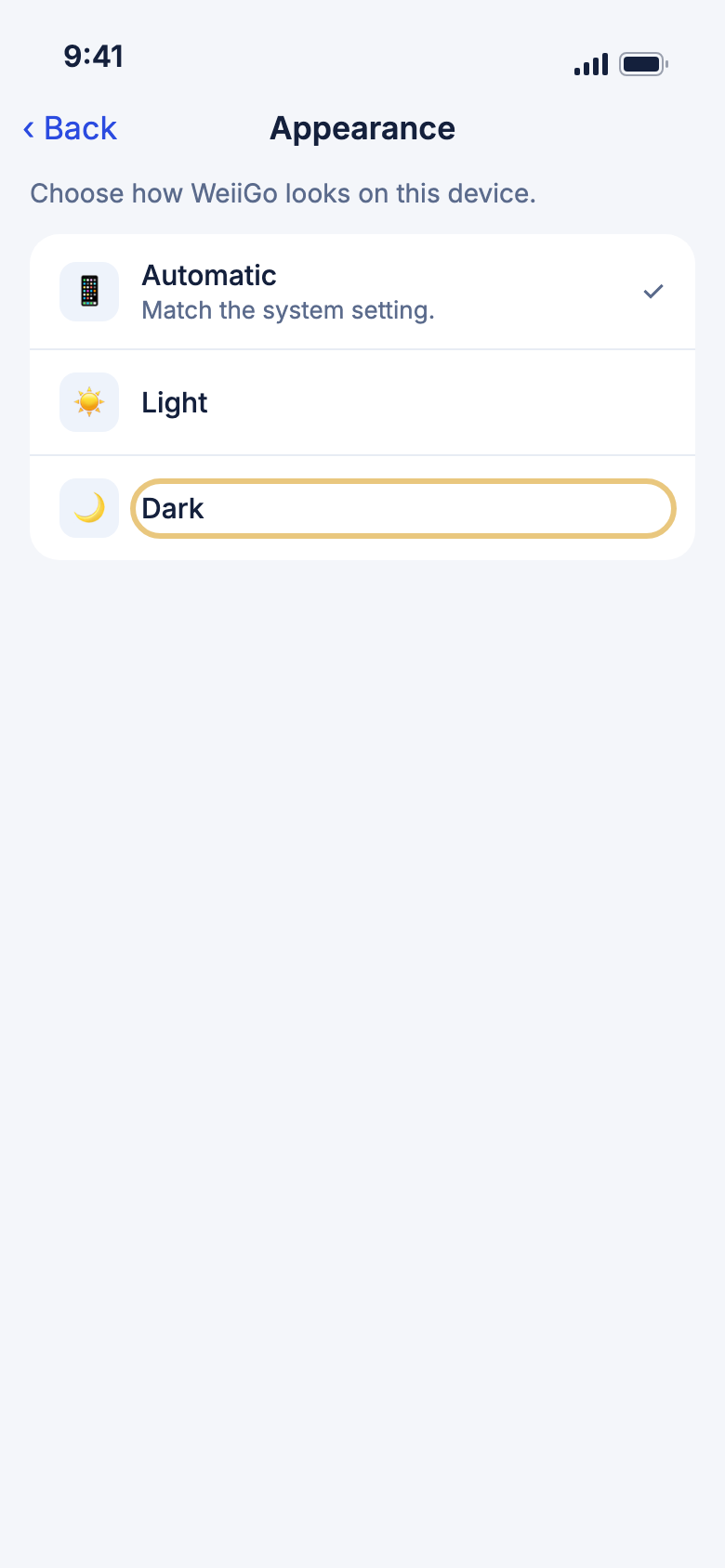
Switch between light and dark
Choose a look that is easy on your eyes.
- Tap the Account tab.
- Tap Settings.
- Tap Appearance.
- Tap Automatic, Light or Dark.
Good to know
- Automatic follows your phone's own light or dark setting.
- This only changes WeiiGo on this phone.
Your subscription
See your plan or upgrade
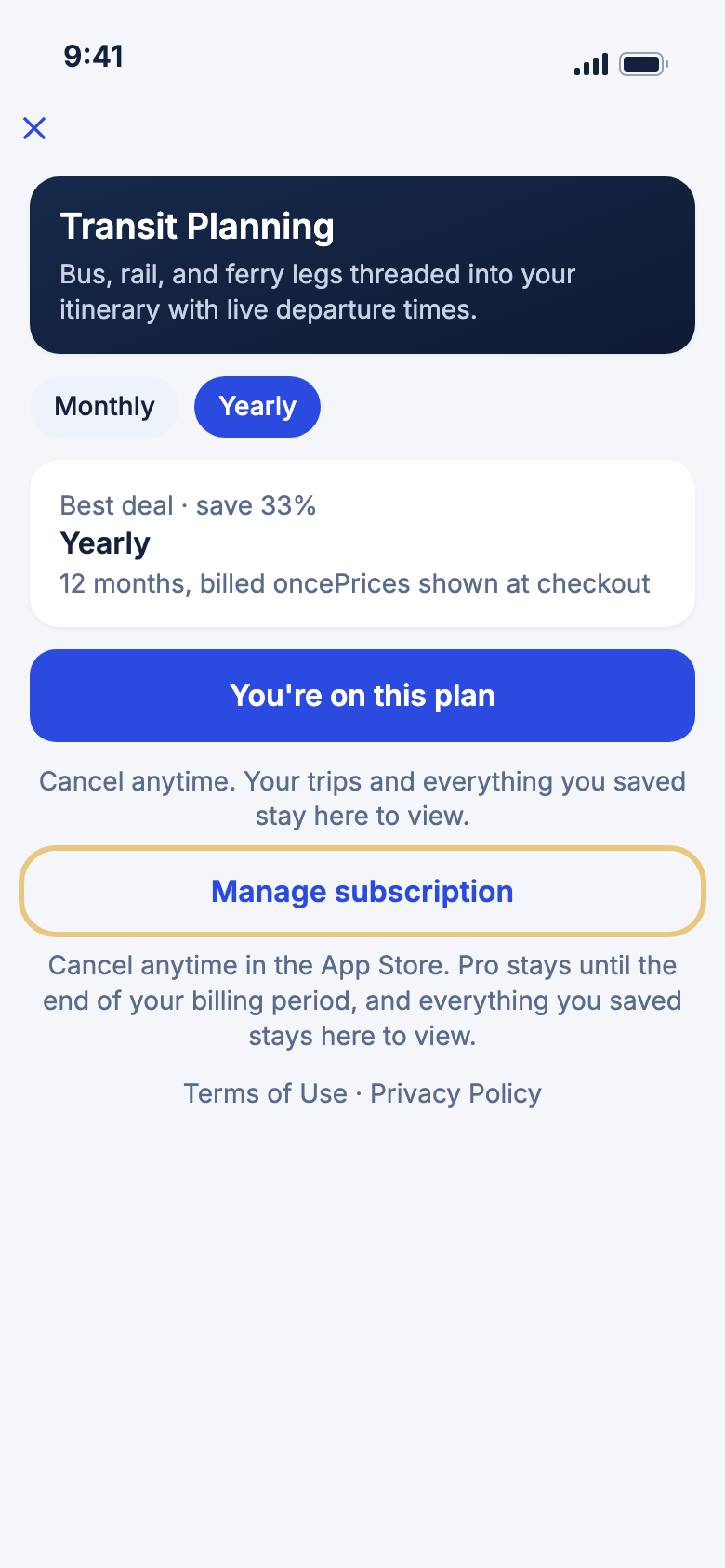
The Subscription row on Account shows which plan you're on.
- Tap the Account tab.
- On the Free plan, tap Upgrade to Pro to see what Pro adds and its prices.
- On Pro, tap Subscription to see your plan. The button says You're on this plan.
Get Pro back after changing phones
If you already paid for Pro, you can bring it back without paying again.
- Sign in with the same account you used before.
- Tap the Account tab.
- Tap Restore purchases.
- Wait for the message that tells you what was found.
Good to know
- Use the same App Store or Google Play account that bought Pro.
Cancel WeiiGo Pro
Subscriptions are cancelled in the App Store or Google Play, not in the app. WeiiGo takes you there.
- Tap the Account tab.
- Tap Subscription.
- Tap Manage subscription.
- Cancel in the App Store or Google Play screen that opens.
Good to know
- Pro stays on until the end of the time you've paid for. Then you move to the Free plan.
- Your trips and everything you saved stay in WeiiGo for you to view.
Signing out
Sign out
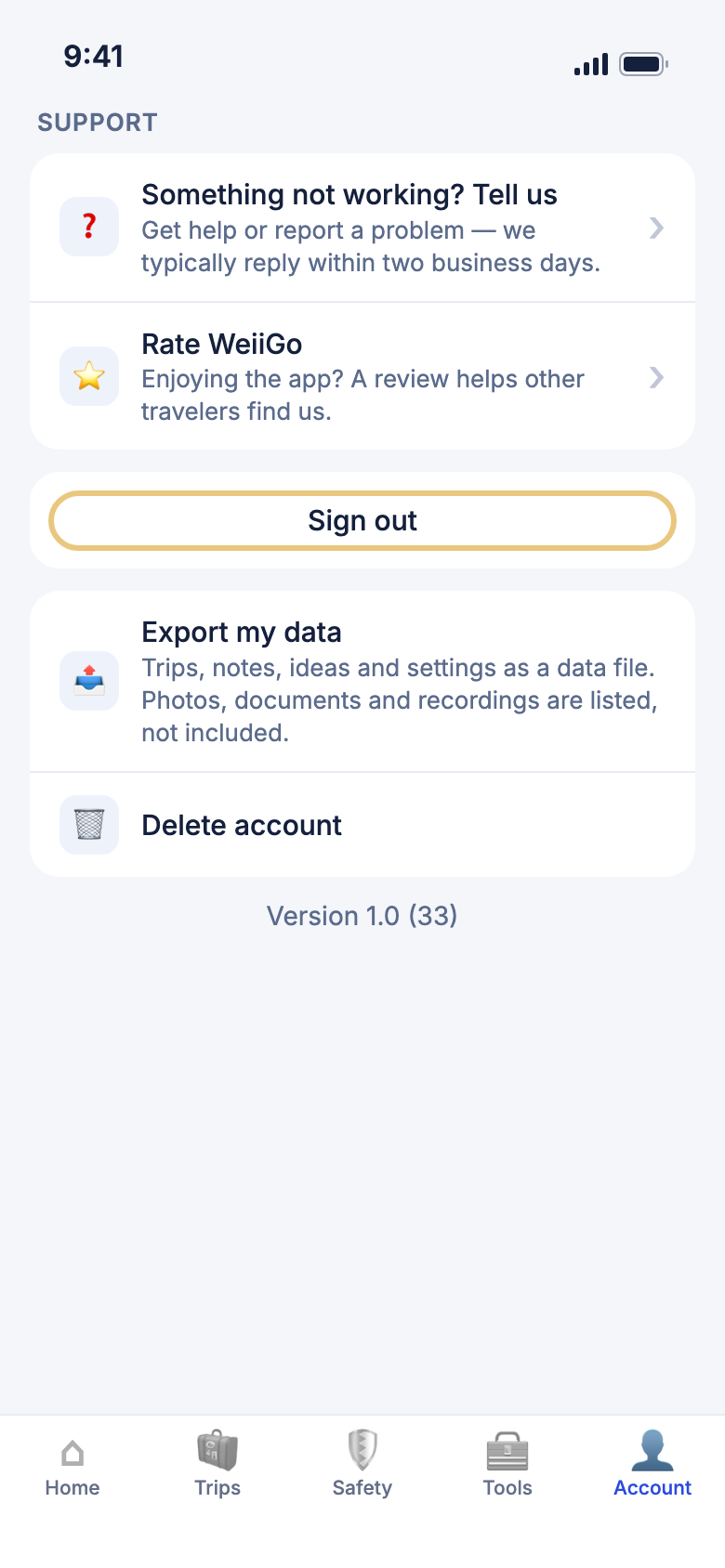
Sign out when you hand your phone to someone else or switch accounts.
- Tap the Account tab.
- Scroll to the bottom.
- Tap Sign out.
- Tap Sign out again to confirm.
Good to know
- Your trips are saved to your account. Sign in again and they are all there.
Delete your account
This removes your account and your trips for good. It can't be undone.
- Tap the Account tab.
- Scroll to the bottom and tap Delete account.
- Read what will be deleted, then tap Delete account.
- Type your email address.
- Tap Delete forever.
Good to know
- Deleting your account does not cancel Pro. Cancel it first in the App Store or Google Play, or you may still be charged.
- Want a copy first? Tap Export my data to save your trips, notes, ideas and settings as a file.