
Getting started
Get WeiiGo on your phone, create your account, set up your profile in a minute, and find your way around the five tabs.
Create your account
Sign up with Apple or Google
This is the quickest way in. You don't need to make up a new password.
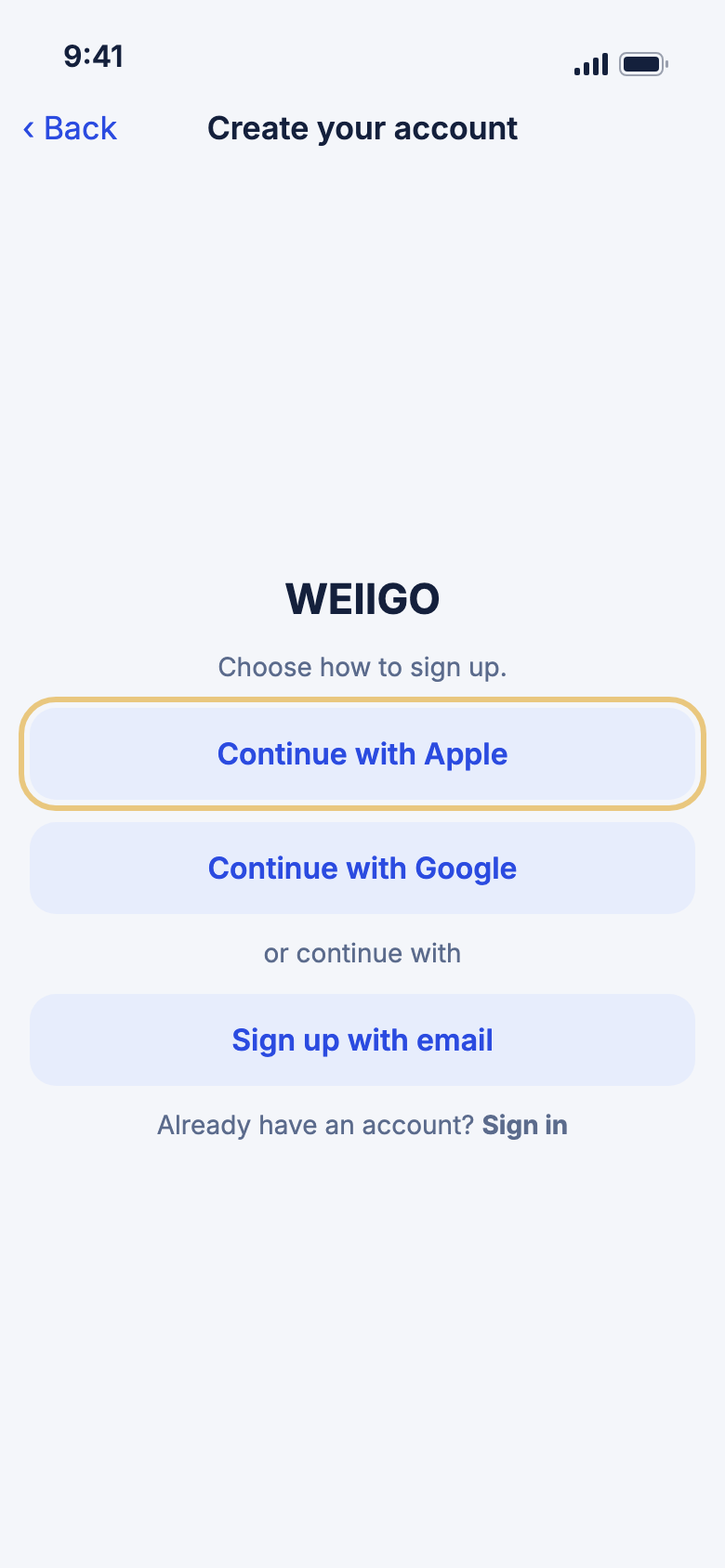
- Download WeiiGo from your phone's app store and open it.
- On Sign in, tap Sign up at the bottom.
- Tap Continue with Apple or Continue with Google.
- Follow the steps from Apple or Google to confirm it's you.
- WeiiGo then asks for your phone number. See Add your phone number.
Good to know
- Continue with Apple works on iPhone. On an Android phone, use Google or email.
Sign up with email
Use this if you'd rather sign in with an email address and a password.
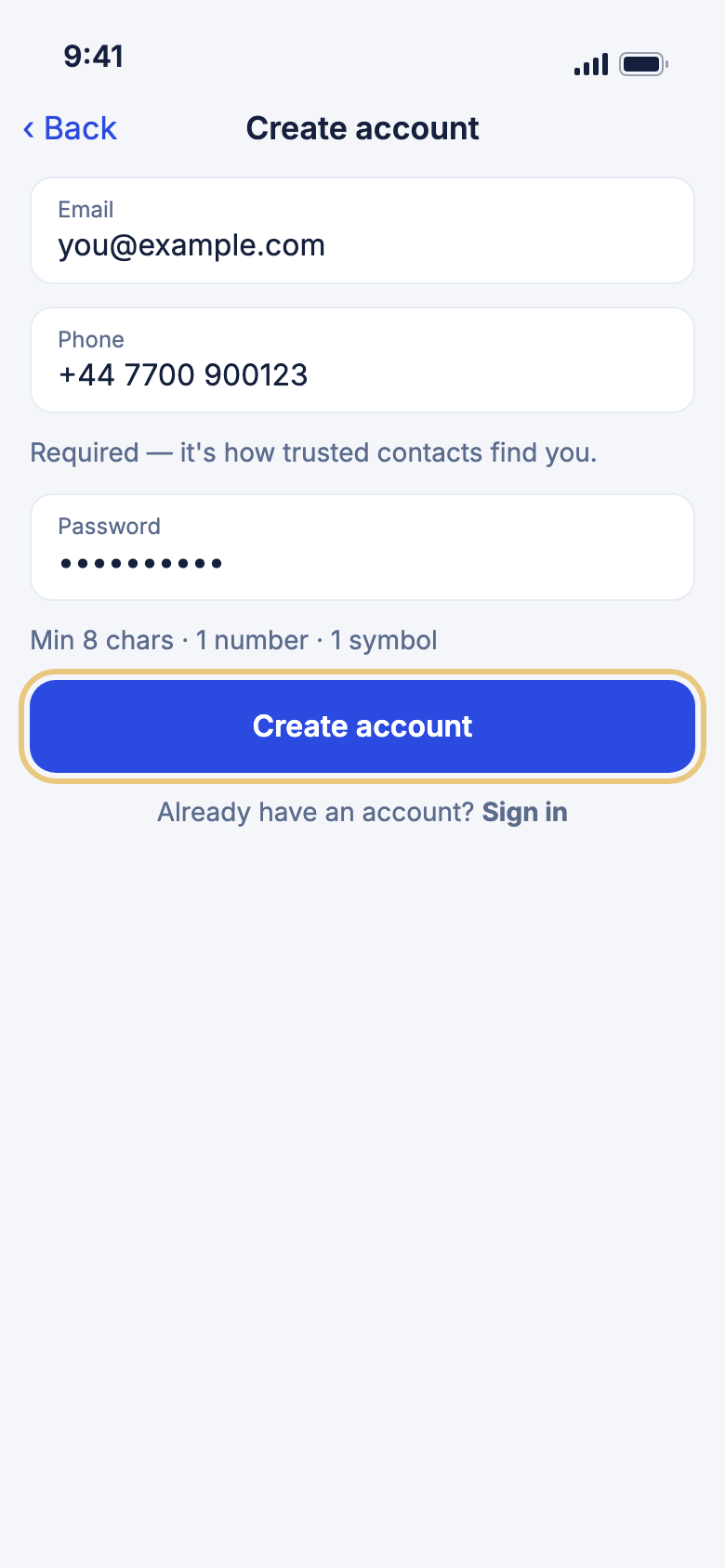
- On Sign in, tap Sign up.
- Tap Sign up with email.
- Type your Email and your Phone number.
- Choose a Password. It needs at least 8 characters, a number and a symbol.
- Tap Create account.
Good to know
- Each phone number can belong to only one WeiiGo account. If yours is already in use, try signing in instead.
Confirm your email
WeiiGo sends you an email to check the address is yours. You can sign in once you've confirmed it.
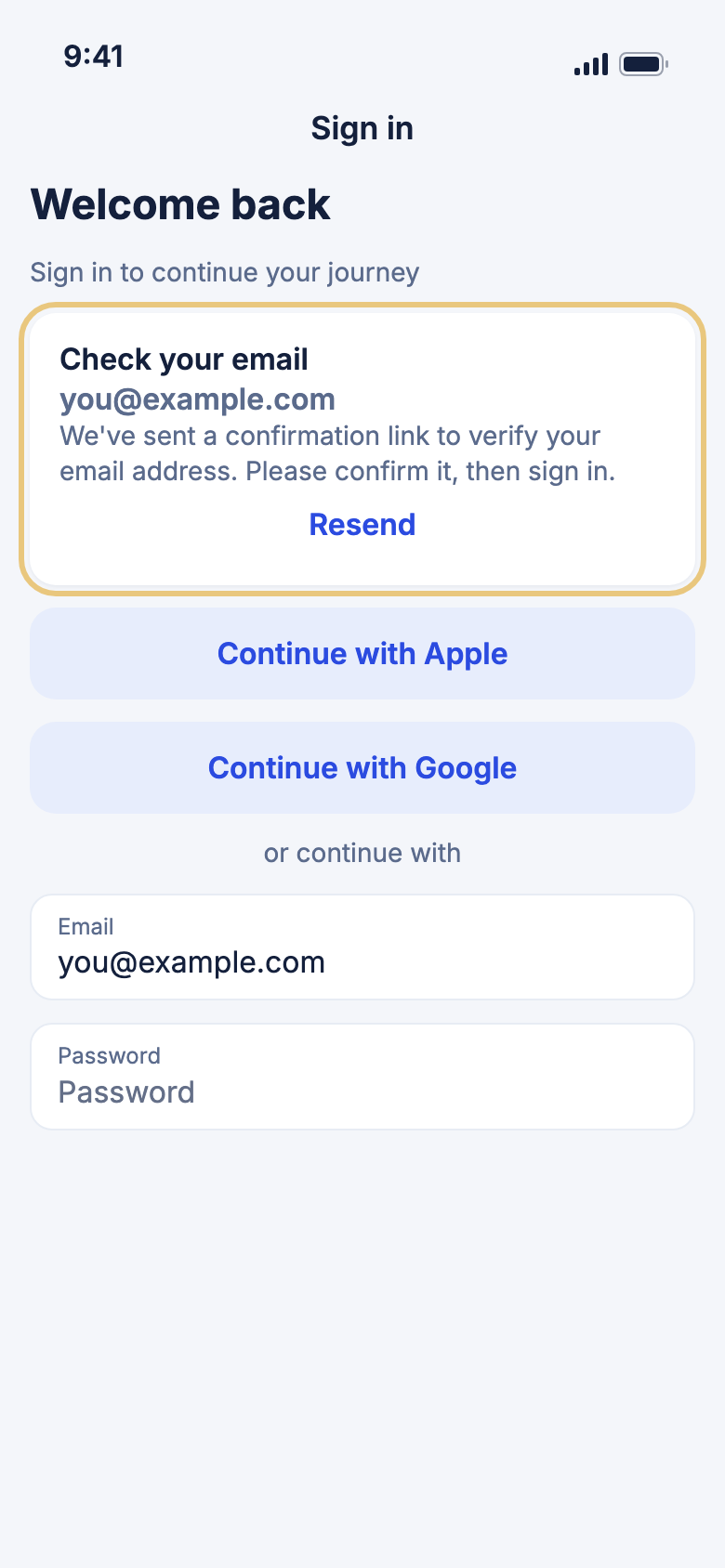
- Open the email from WeiiGo and tap the confirmation link.
- Go back to WeiiGo. Your email is already filled in on Sign in.
- Type your Password and tap Sign in.
- No email? Check your spam folder, then tap Resend on the Check your email card.
Add your phone number
Every WeiiGo account needs a phone number. It keeps one account per person, and it lets your trusted contacts find you. WeiiGo never uses it for marketing or shows it to other travellers.
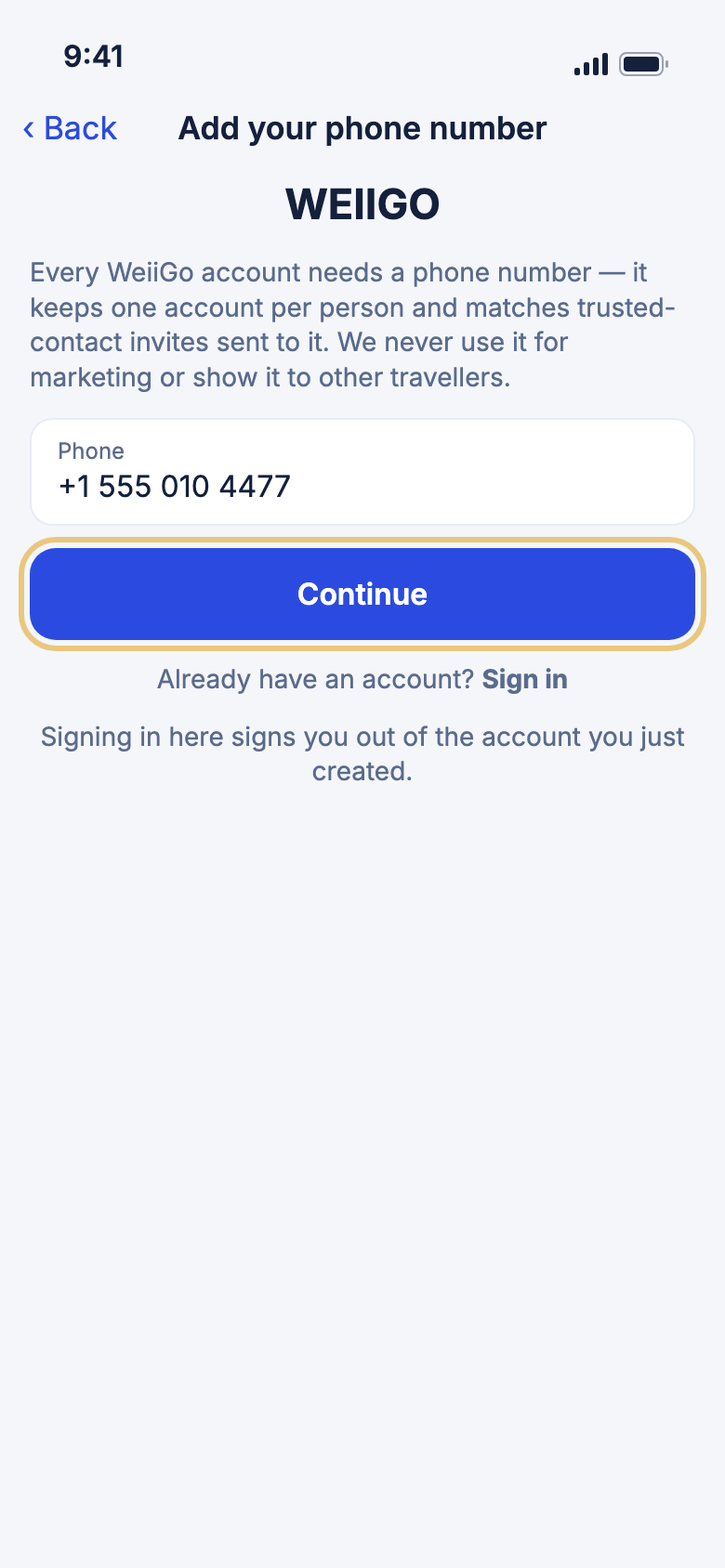
- Pick your country code and type your number.
- Tap Continue.
Good to know
- You see this screen after signing up with Apple or Google, and if your account doesn't have a number yet.
- If WeiiGo says the number is already in use, you may already have an account. Tap Sign in to use it. This signs you out of the account you just made.
Sign in
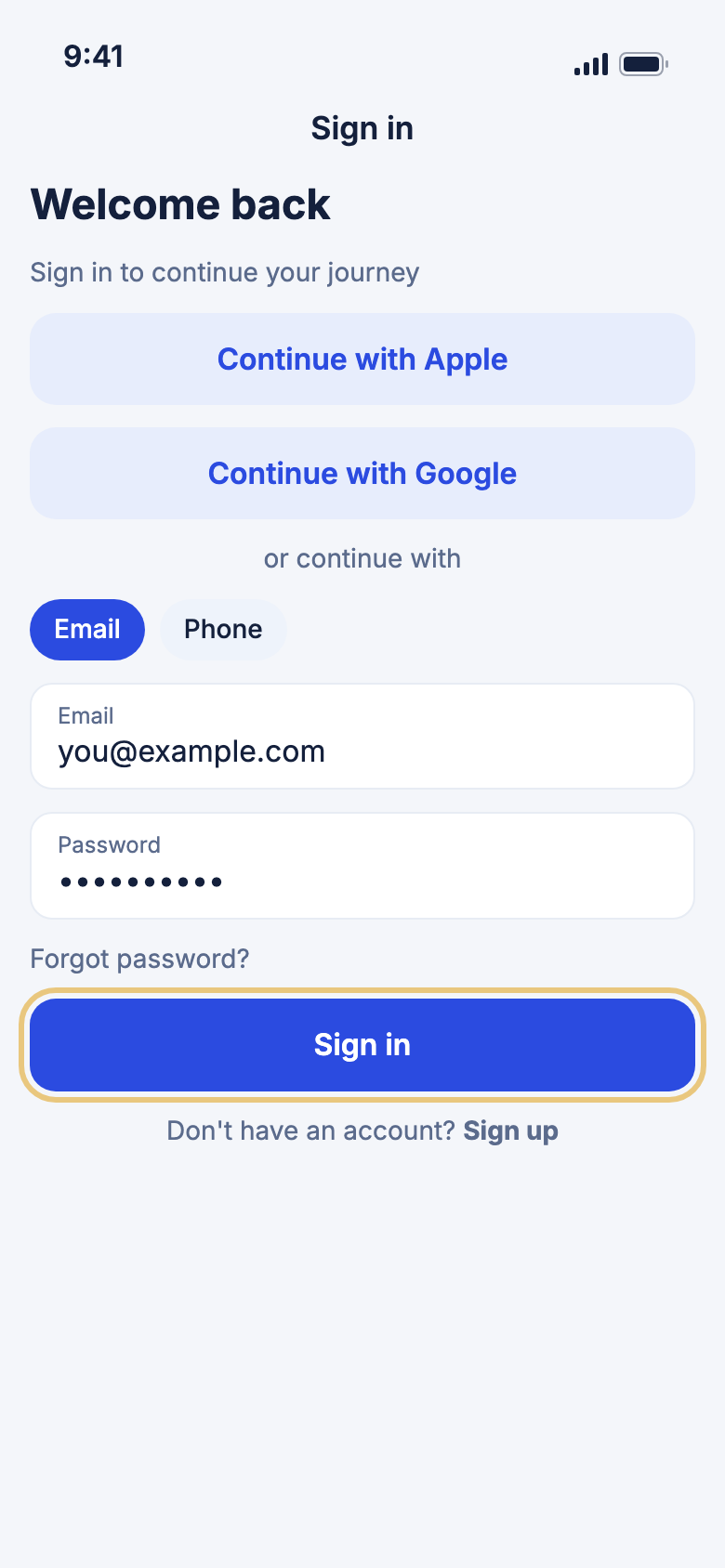
Sign in to WeiiGo
Sign in the same way you signed up.
- Open WeiiGo.
- Tap Continue with Apple or Continue with Google if that's how you signed up.
- Or, tap Email or Phone, then type your email or phone number.
- Type your Password.
- Tap Sign in.
Good to know
- After you sign in with your password once, Sign in with biometrics appears on this phone. It uses Face ID or your fingerprint, so you don't have to type your password next time.
- Signing out removes biometric sign-in from the phone. Sign in with your password once to turn it back on.
Reset your password
Use this if you've forgotten your password.
- On Sign in, tap Forgot password?.
- Type the email address on your account.
- Tap Send.
- Open the email from WeiiGo and tap the link to choose a new password.
- Go back to WeiiGo and sign in with your new password.
Good to know
- The link works once and expires after an hour.
- The reset always uses your email address, even if you normally sign in with your phone number.
Set up your profile
Answer a few quick questions
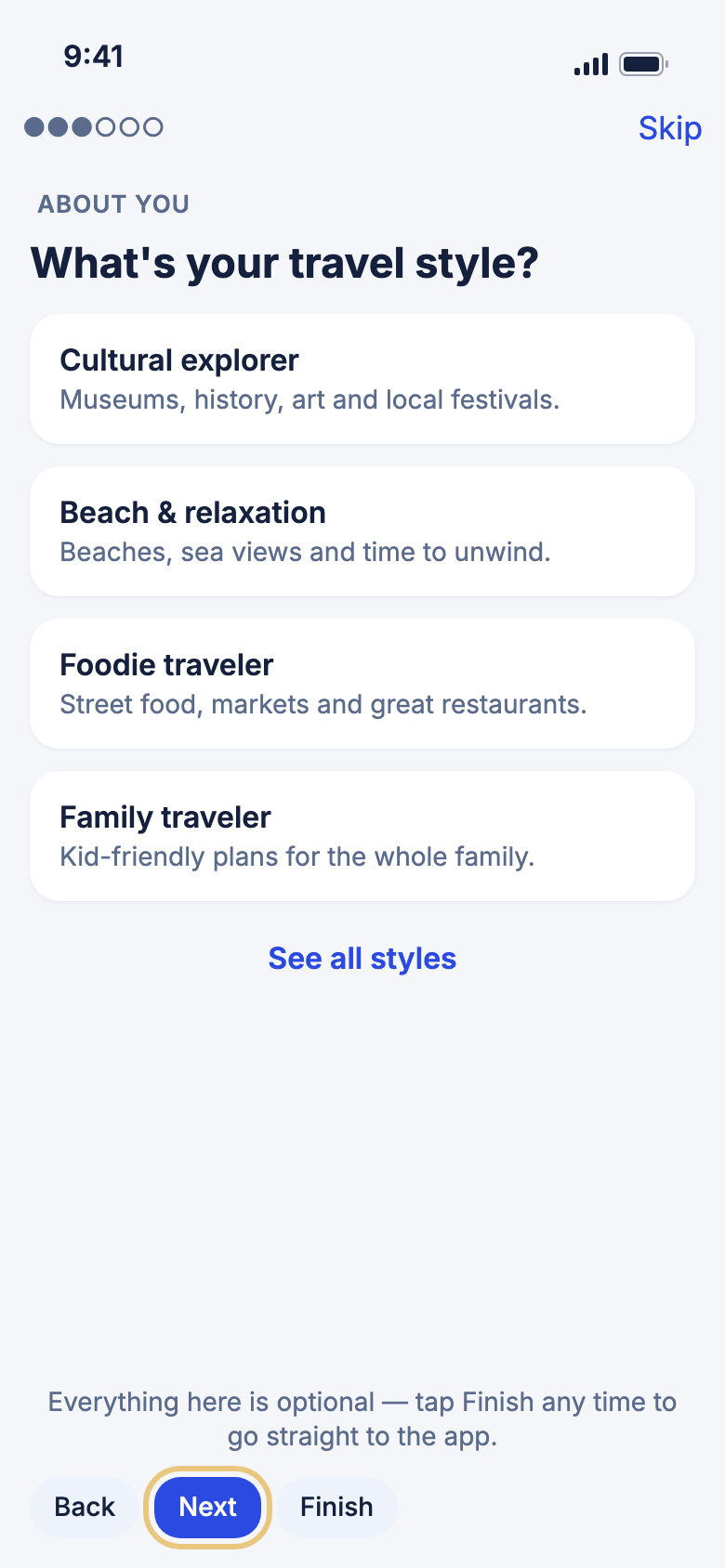
The first time you sign in, WeiiGo asks a few questions. Your answers help it suit trips, safety info and prices to you.
- Type the name travel companions will see, then tap Next.
- Read the welcome, then tap Next.
- Tap the travel style that fits you best. Tap See all styles for more. Then tap Next.
- Choose your Home country, your Home location and your Nationality, then tap Next.
- Choose your Default currency, Temperature, Distance and Time format, then tap Next.
- Tap Allow location if you want local safety info and weather, then allow it when your phone asks.
- Tap Finish.
Good to know
- Every question is optional. Tap Finish at any time to go straight to the app.
- Tap Skip at the top to leave without finishing. You can come back to it later.
- You can change any answer later on the Account tab.
Finish setting up later
If you skipped setup, WeiiGo keeps a reminder on the Home tab.
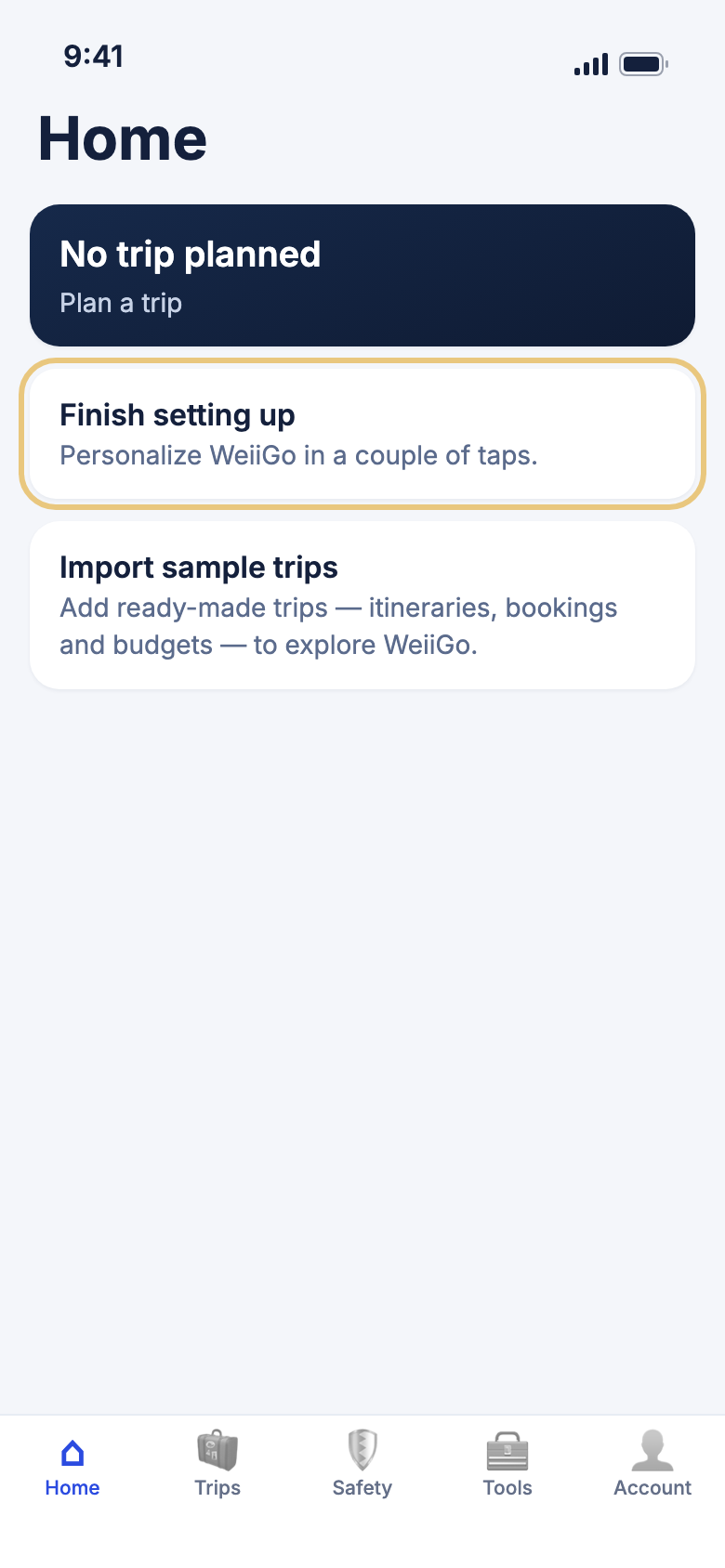
- Tap the Home tab.
- Tap Finish setting up.
- Answer the questions, then tap Finish.
Find your way around
WeiiGo has five tabs along the bottom of the screen. Tap one to switch.
- Home — your next trip and what's happening today.
- Trips — all your trips, and where you plan a new one.
- Safety — the SOS button, incidents near you, your embassy and other tools to stay safe.
- Tools — handy extras such as currency, translation, weather and your travel documents.
- Account — your profile, your settings and your WeiiGo plan.
WeiiGo Pro — Janet, your AI travel companion, is part of WeiiGo Pro. Setup introduces her, and you can finish setup and use the app without Pro.