
Ask Janet
Janet is WeiiGo's travel assistant. Ask her about your trips in your own words, let her suggest changes to your plans, or plan a whole new trip just by chatting with her.
WeiiGo Pro — Janet is part of WeiiGo Pro. On Free, the places to ask her are hidden, or show you what Pro adds when you tap them. If your Pro ends, you can still open and read your old chats with Janet, but you can't ask anything new. Tap Renew Pro to ask Janet. at the bottom of the chat to come back.
Where to find Janet
Ask Janet about all your trips
Use the card on Home when your question is not about one trip. You can ask about past trips, upcoming trips, or where to go next.
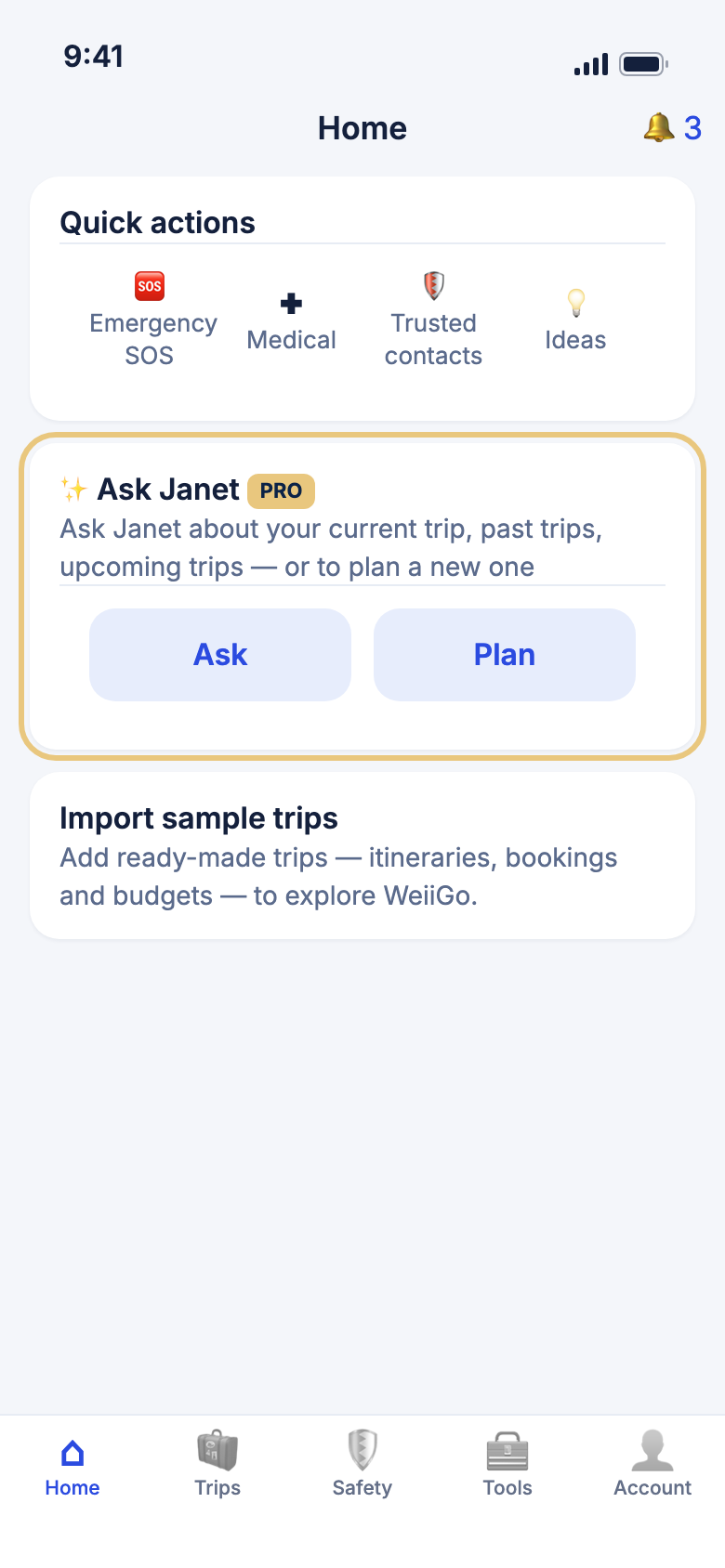
- Tap Home and scroll to the Ask Janet card.
- Tap Ask.
- Tap an idea, like What trips do I have? or Where should I go?, or type your own question.
- Tap Send.
Ask Janet about one trip
Ask from inside a trip when your question is about that trip. Janet can then read its plan, bookings and documents.
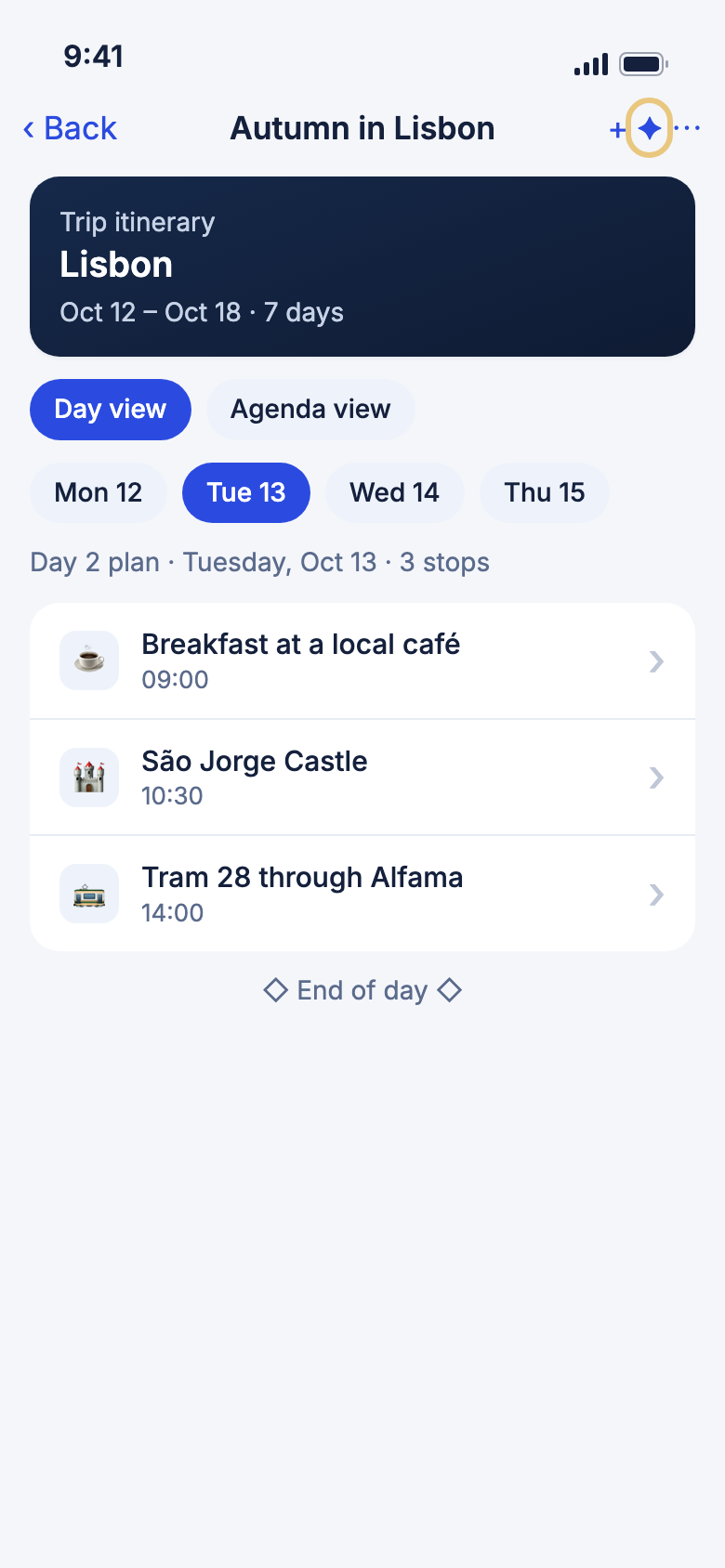
- Tap Trips, then tap your trip.
- Tap ✦ at the top of the screen.
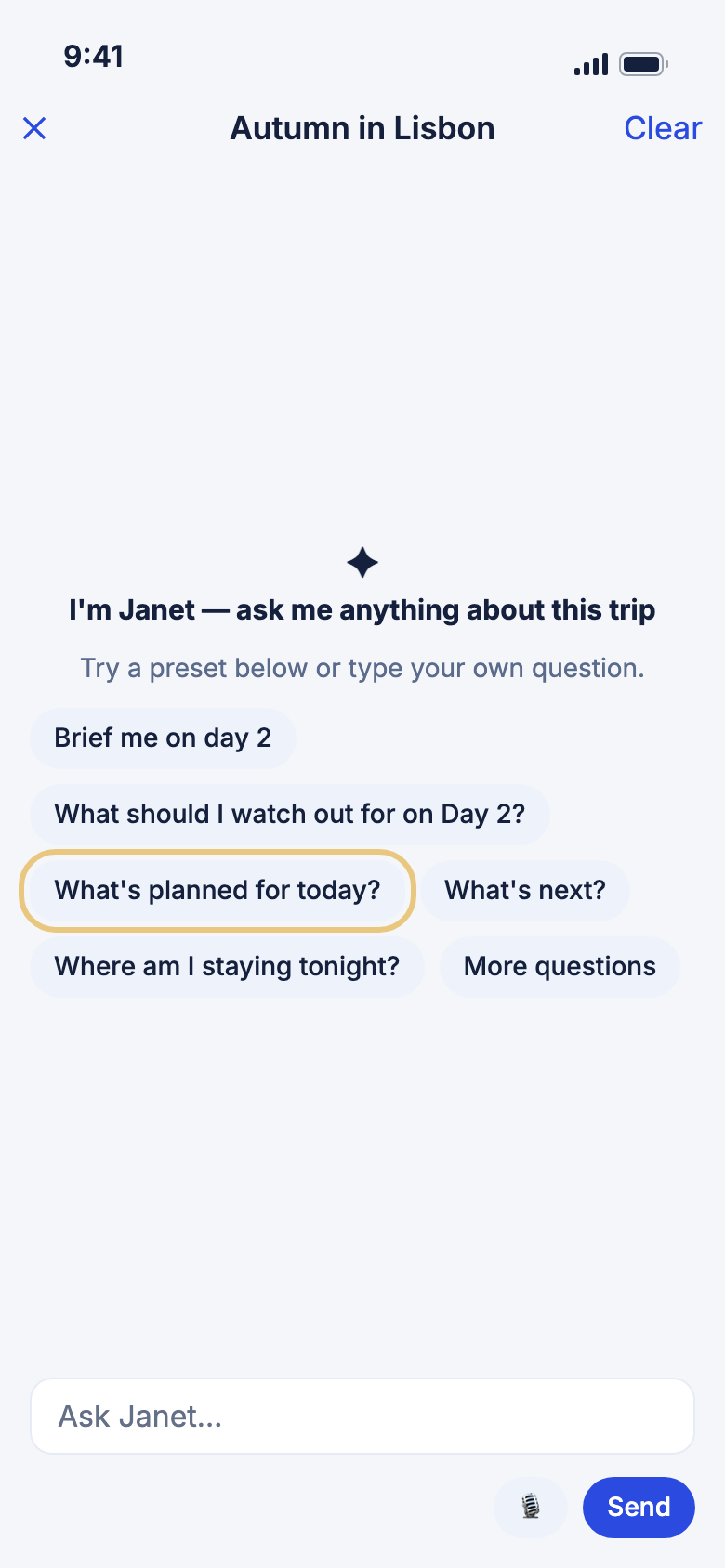
- Tap one of the question ideas, or type your own question in Ask Janet….
- Tap Send.
Good to know
- The ideas change with your trip. Before you go, you see ones like Help me get ready for this trip. While you're away, you see What's planned for today? and What's next?. Tap More questions to see the rest.
- Janet keeps one chat for each trip, and one on Home. Open it again and your chat is still there. A chat you haven't used for 30 days is deleted.
- Tap the 🎙 button to speak your question instead of typing. Nothing is sent until you tap Send.
- Janet needs the internet. When you're offline, the chat says so.
- There's a limit on how many questions you can ask in one day. It resets the next day.
What Janet can do on a trip
Get answers about your trip
Janet reads your trip for you, so you don't have to dig through it.
- Open the chat from your trip, as above.
- Ask what you want to know. For example:
- "What's planned for today?" or "Where am I staying tonight?"
- "Are my flights on time?" or "What time is my next flight?"
- "How many bags can I check?" (Janet reads your booking)
- "Do I need a visa?" or "Is it safe there?"
- "What's the weather like on Thursday?"
- "What's left on my checklist?"
- Tap Identify itinerary issues to have Janet check your whole plan for tight connections, overlaps or nights with nowhere to stay.
- Tap Save to trip under an answer to keep it in your trip notes.
Good to know
- Tap Something to do near me to get ideas close by. Only this button shares where you are, and only for that one question. Location must be turned on for WeiiGo.
- If your booking doesn't say something, Janet tells you so and suggests you check with the airline or hotel. She won't guess.
- Save to trip shows only if you can make changes to the trip.
Let Janet change your plan
Ask Janet to add, move, swap or remove things. She shows you the change first, and nothing happens until you say yes.
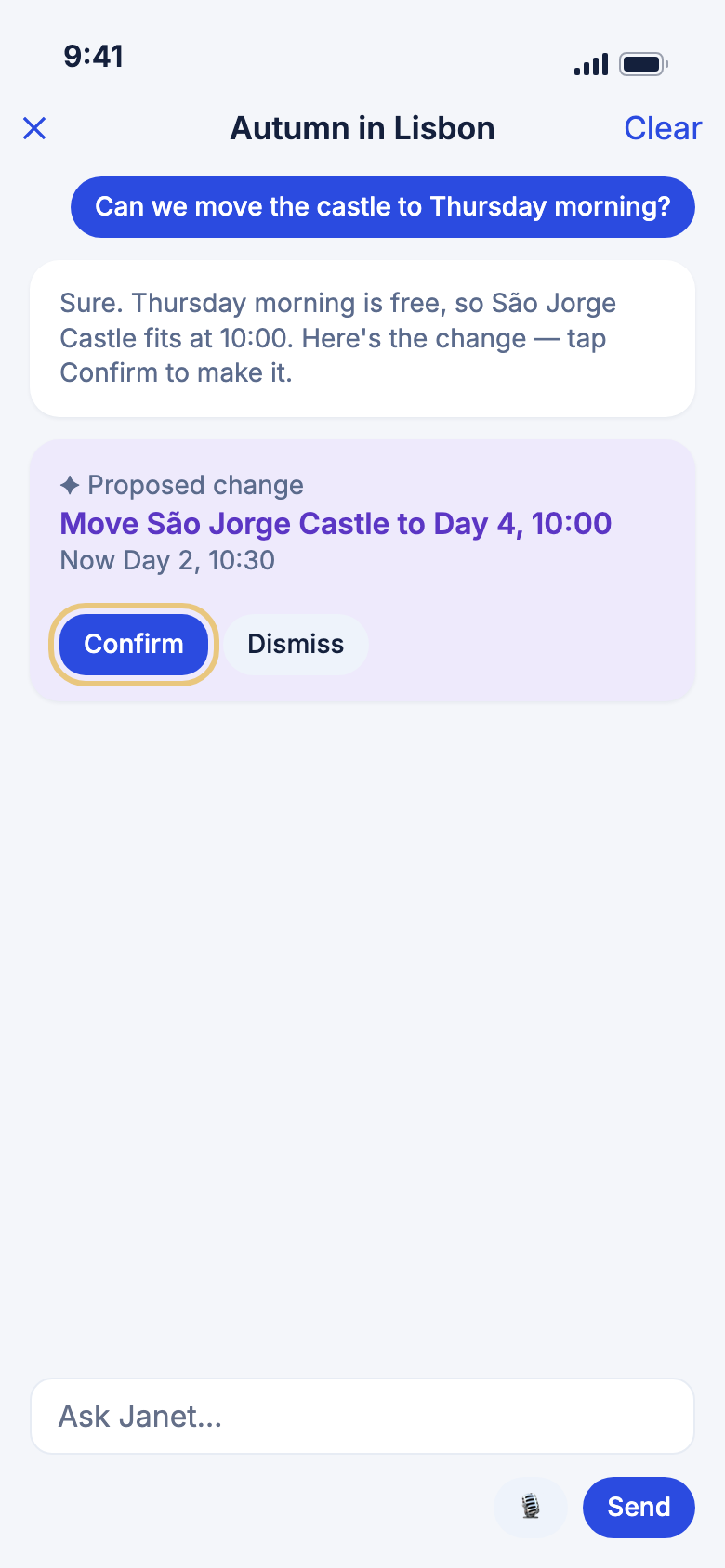
- Tell Janet what you want. For example, "Move the castle to Thursday morning" or "Find us a good lunch spot near the museum".
- Read the Proposed change card.
- Tap Confirm to make the change, or Dismiss to leave your trip as it is.
- Tap View in itinerary › to see the change in your trip.
Good to know
- Janet can also swap one activity for another and add a flight or hotel she found for you. On your own trips, she can fill an empty day with activities too. Filling a day takes a few minutes. You get a notification when it's done.
- Adding a flight or hotel puts it in your plan. It does not book it. You still book it yourself with the airline or hotel.
- When you tell Janet how you like to travel, like "we always walk rather than take taxis", she may offer to remember it for next time. Tap Confirm to add it to your preferences.
- If someone shared a trip with you and you can only view it, Janet can answer questions but can't change the trip.
Plan a new trip with Janet
Plan a trip by chatting
Tell Janet where and when you'd like to go, and she builds the whole trip for you.
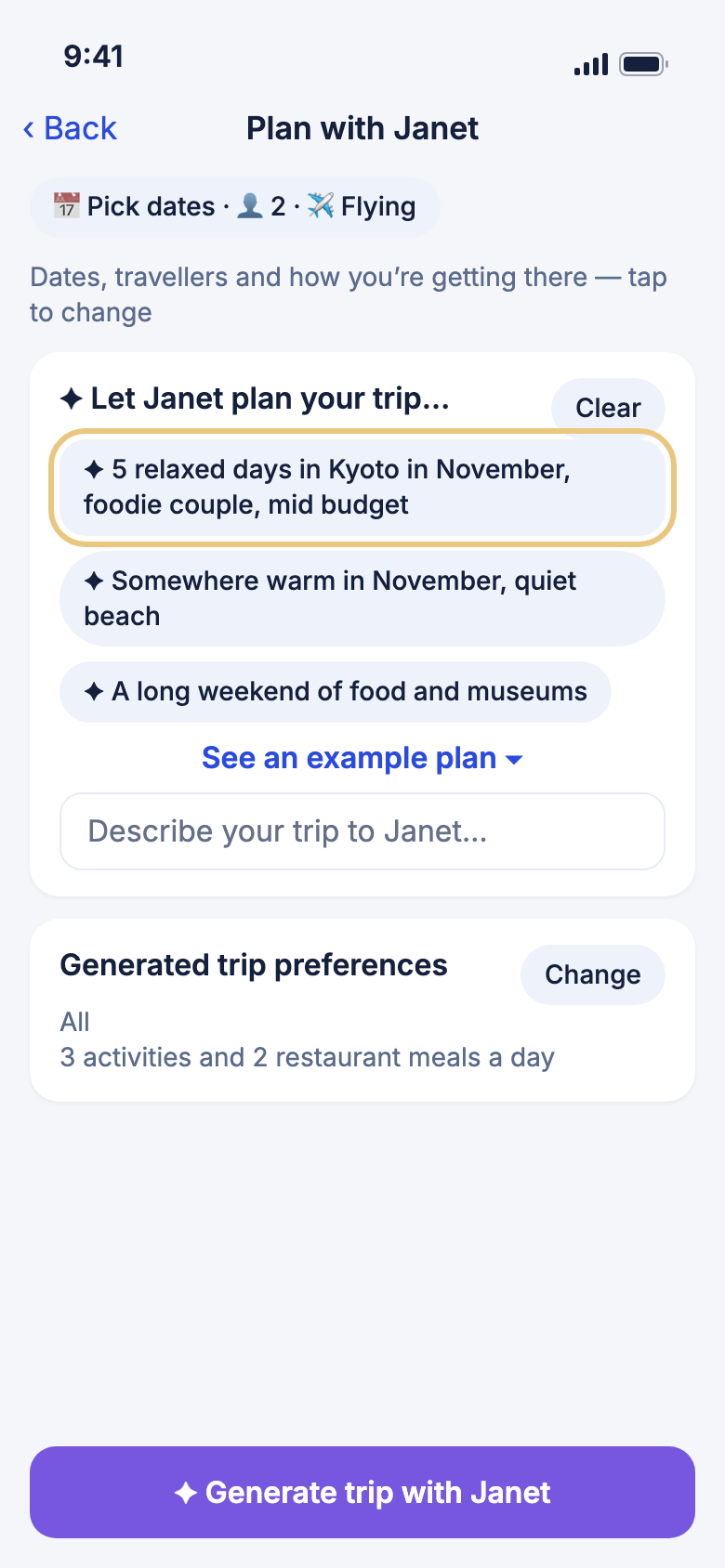
- Tap Home, then tap Plan on the Ask Janet card. Or tap Plan with Janet on the Plan a trip page.
- Tell Janet about your trip in Describe your trip to Janet…, then tap Send. Or tap one of the examples to start.
- Answer Janet's questions. She only asks for what she still needs, like where or when.
- Tap the bar at the top to check your dates, how many are going, and how you're getting there.
- Tap Change on Generated trip preferences to change how busy each day is, meals, or where you'll stay.
Build the trip
When Janet has what she needs, she shows your trip in a short card.
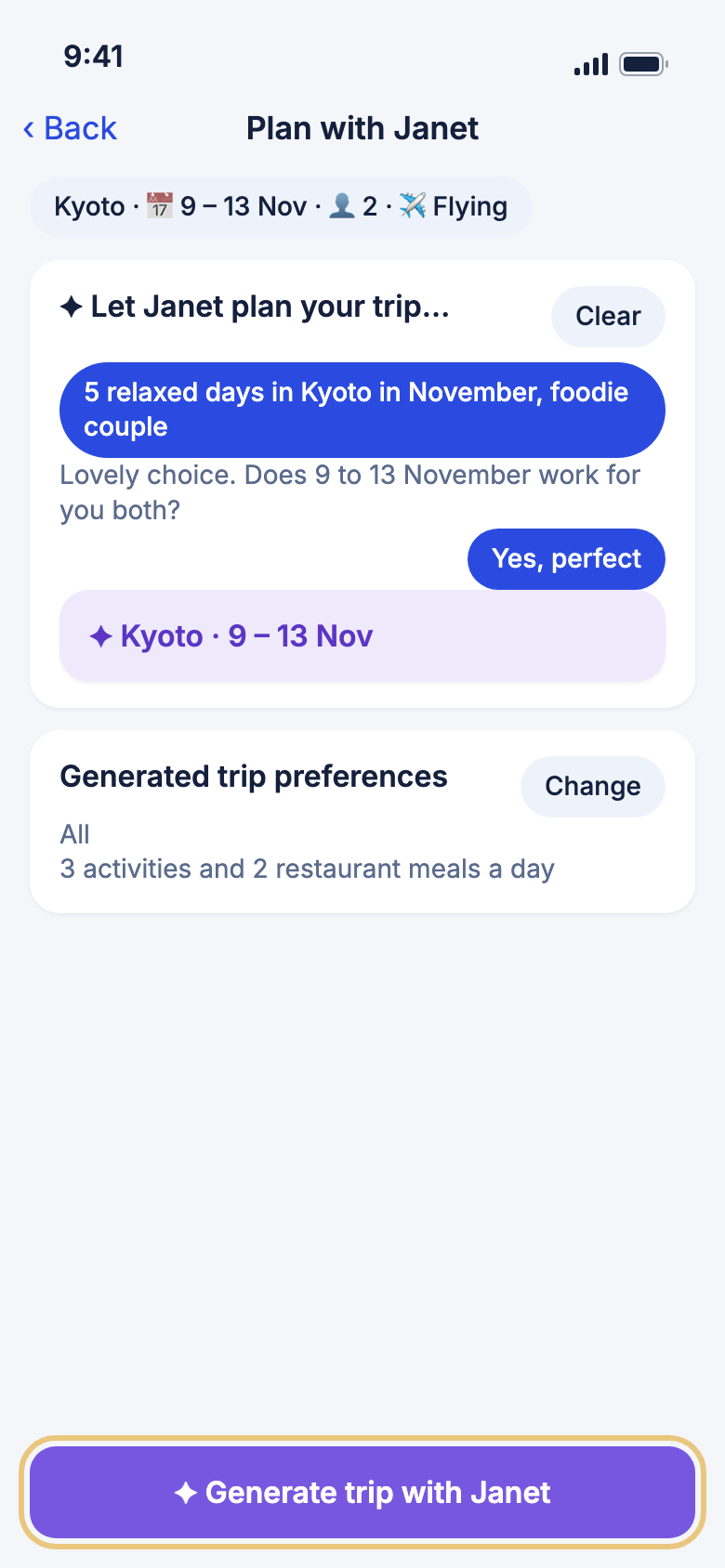
- Check the card. It shows where you're going and your dates.
- Tap ✦ Generate trip with Janet.
- Tap OK. WeiiGo takes you to Trips, where your new trip shows while it's being built.
Good to know
- Building a trip takes a few minutes. You can leave the page. You get a notification when it's ready.
- There's a monthly limit on how many trips WeiiGo can build for you.
- Janet doesn't keep this chat. Once you build the trip, or leave the page, the chat is gone.
- Tap Clear to start again. Your dates and preferences stay.
- Tap See an example plan to see what a finished day looks like.
What Janet won't do
- She won't book anything. She can find flights, hotels and hire cars, and add them to your plan. You always book them yourself with the provider.
- She won't change your trip without asking. Every change is a card you confirm or dismiss.
- She won't make things up. If she can't find an answer, she says so.
- She won't use your location unless you tap Something to do near me.
- She isn't an emergency service. In an emergency, use the Safety tab.
Good to know
- You can give Janet a different name. Tap Account, then Assistant name in the Janet AI section. Her new name shows everywhere in the app.
- To see what Janet has learned about how you like to travel, tap Account, then What Janet remembers. You can delete anything there.