
The Home tab
Home is the first screen you see when you open WeiiGo. It shows the one trip that matters right now, what is next today, and quick ways to get help.
Your trip at a glance
See your next trip
Before you leave, Home counts down to your trip and shows what still needs doing.
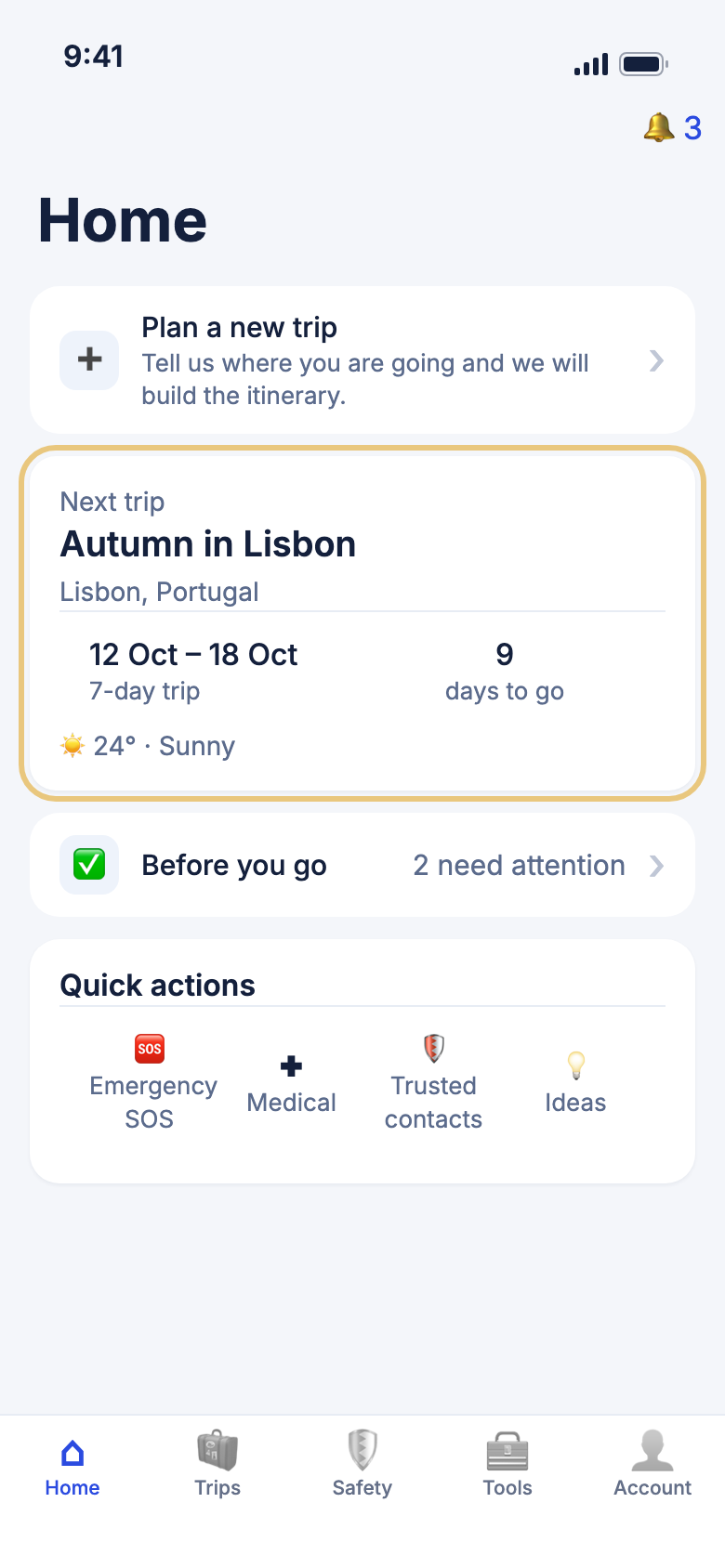
- Tap Home in the bar at the bottom.
- Look at the Next trip card. It shows the trip's name, place, dates, how long it is and how many days to go.
- Tap the card to open your trip's plan.
- Tap Before you go to see what to sort out before you leave.
Good to know
- Home shows the trip you are on today. If you are not on a trip, it shows your next one. If you have no trips coming up, it shows your most recent one.
- The card also shows the weather at your destination when WeiiGo has it.
- If a passport or other travel document you saved expires soon or has expired, a card at the top of Home tells you. Tap a document to open it, or tap ✕ to hide the card until tomorrow.
- With no internet, Home shows your last saved trips and says You're offline — showing your last saved trips.
WeiiGo Pro — Pro also adds a safety score for your destination to the trip card. On Free, the card shows everything except the score.
Follow your day while you travel
Once your trip starts, Home becomes your day: which day of the trip it is, and what is coming up next.
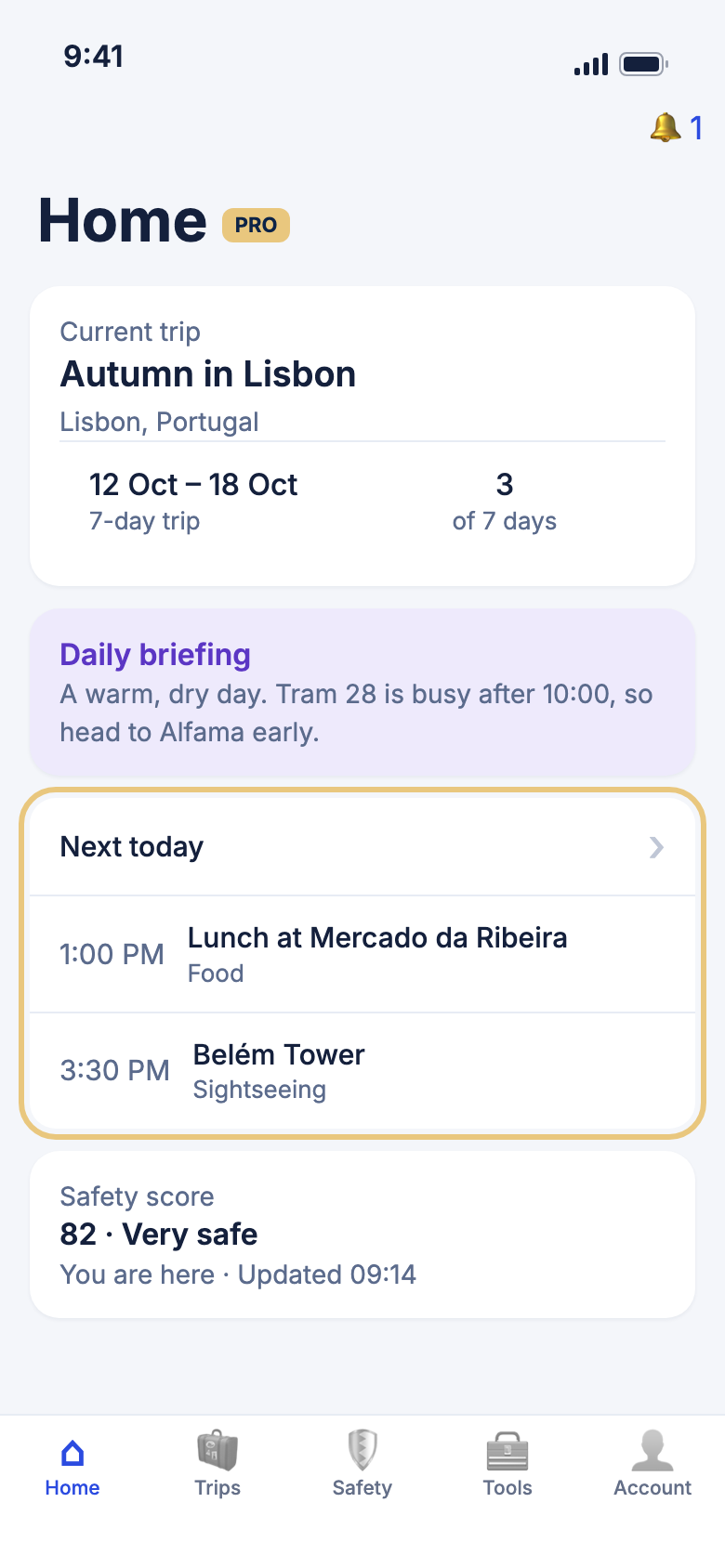
- Tap Home.
- Look at the Current trip card. It says which day you are on, for example "3 of 7 days".
- Look at Next today for the rest of today's plans.
- Tap Next today to open the full plan for your trip.
- Tap Daily briefing to read today's briefing in full.
WeiiGo Pro — The Daily briefing card and the Safety score card for where you are now are Pro. On Free, Home shows your trip and Next today without them.
Good to know
- When nothing else is planned today, Next today says Nothing scheduled for the rest of today.
- The safety score for where you are now needs your location. Tap it to open the Safety tab's details.
Plan your first trip
When you have no trips, Home helps you start one.
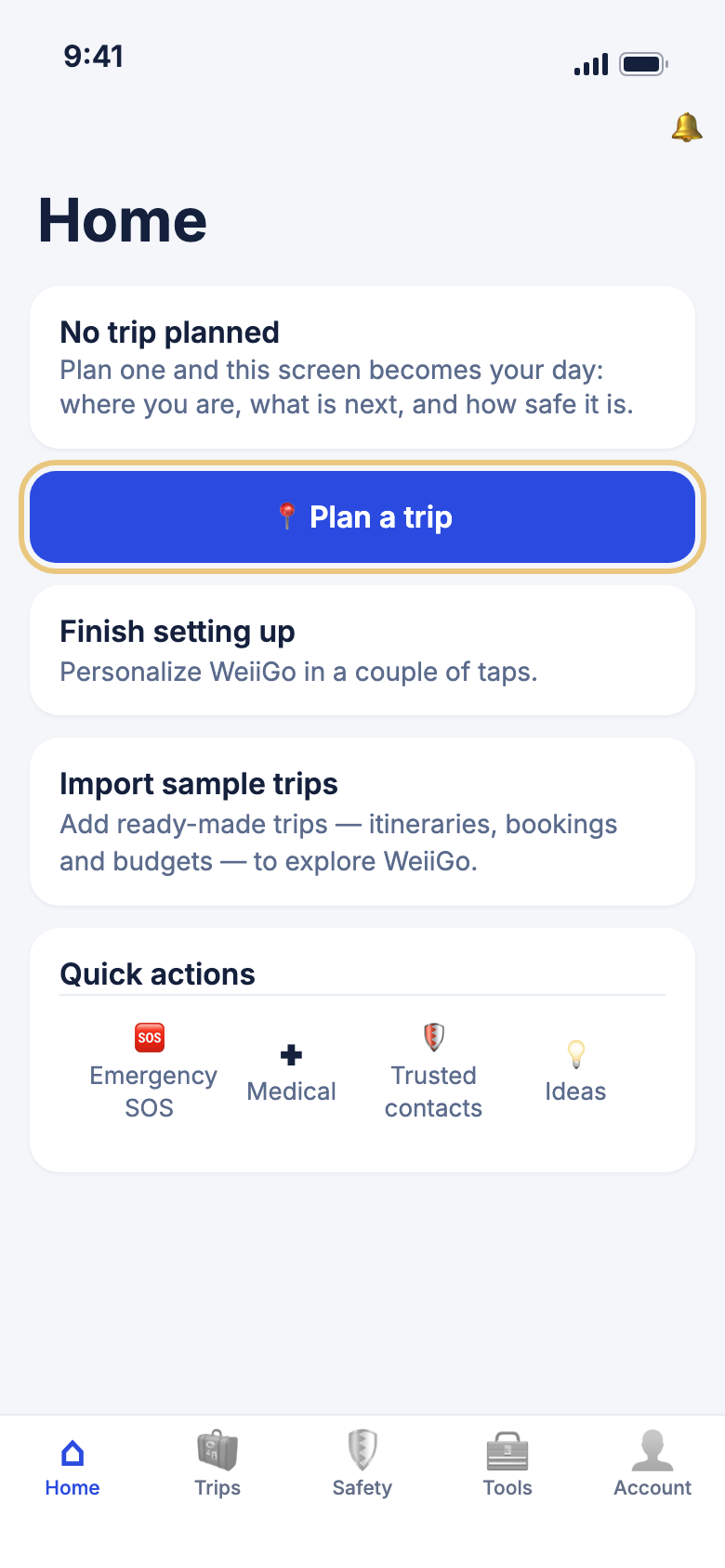
- Tap Home.
- Tap Plan a trip under No trip planned.
- Follow the steps to choose where and when you are going.
Good to know
- Want to look around first? Tap Import sample trips, then Import. WeiiGo adds ready-made trips you can explore. Trips you already have stay as they are.
- Finish setting up takes you back to the first-time setup. Tap ✕ on the card to hide it for good.
- Once you have a trip, a Plan a new trip card sits at the top of Home instead.
Quick help from Home
Use the quick actions
Four buttons let you reach help and ideas in one tap, from anywhere in your trip.
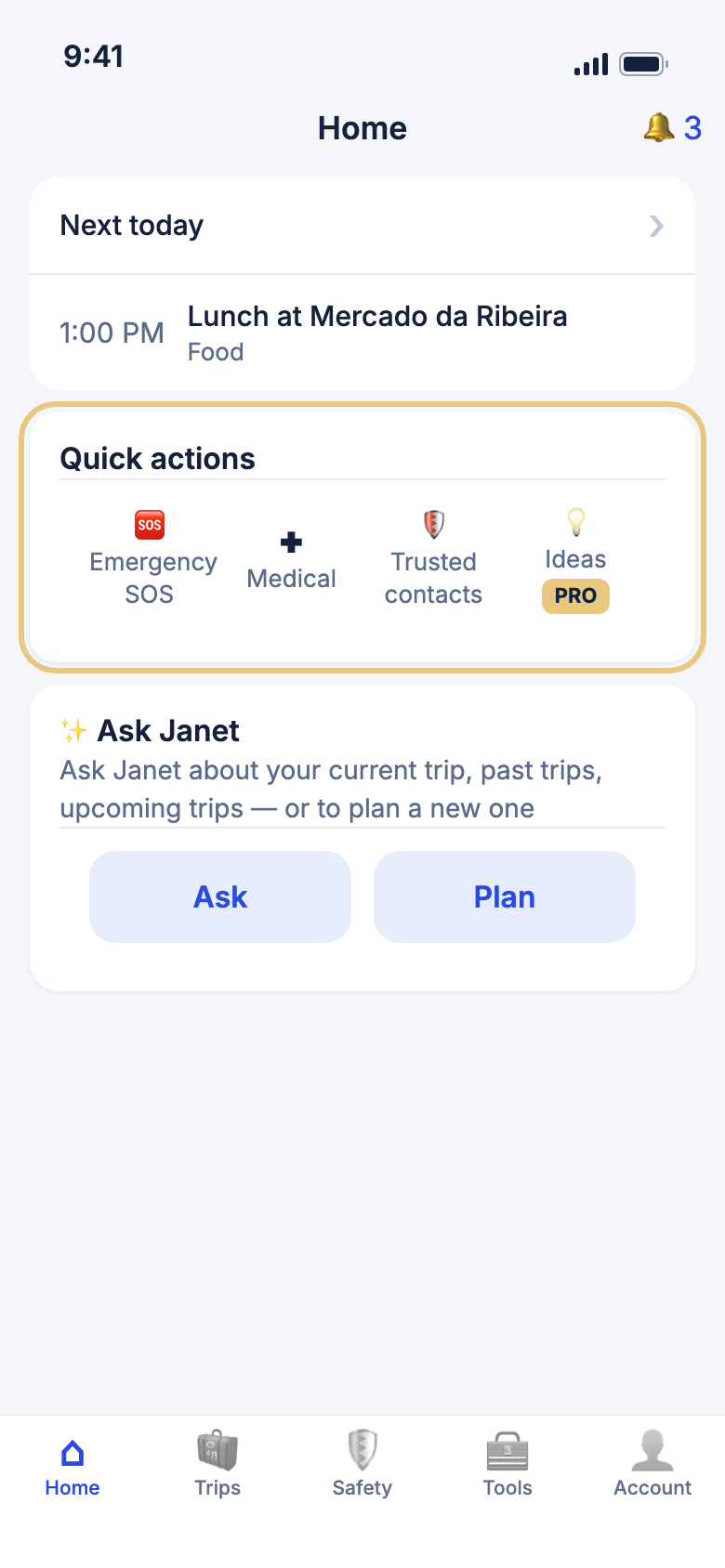
- Tap Home and scroll down to Quick actions.
- Tap Emergency SOS to open the SOS screen. Nothing is sent yet.
- On that screen, press and hold the button only if you need help. Your trusted contacts are then alerted in the ways you chose for each of them: a notification, a text or an email.
- Tap Medical to find hospitals and clinics near you.
- Tap Trusted contacts to see or add the people who get your alerts.
- Tap Ideas to find things to do near you.
WeiiGo Pro — Ideas is Pro. On Free, tapping it shows what Pro includes and how to upgrade.
Good to know
- If you leave the SOS screen without pressing and holding, no one is alerted. Tap Cancel to go back.
Ask Janet from Home
Janet is WeiiGo's travel assistant. The card on Home is a quick way to ask her anything about your trips, or to plan a new one.
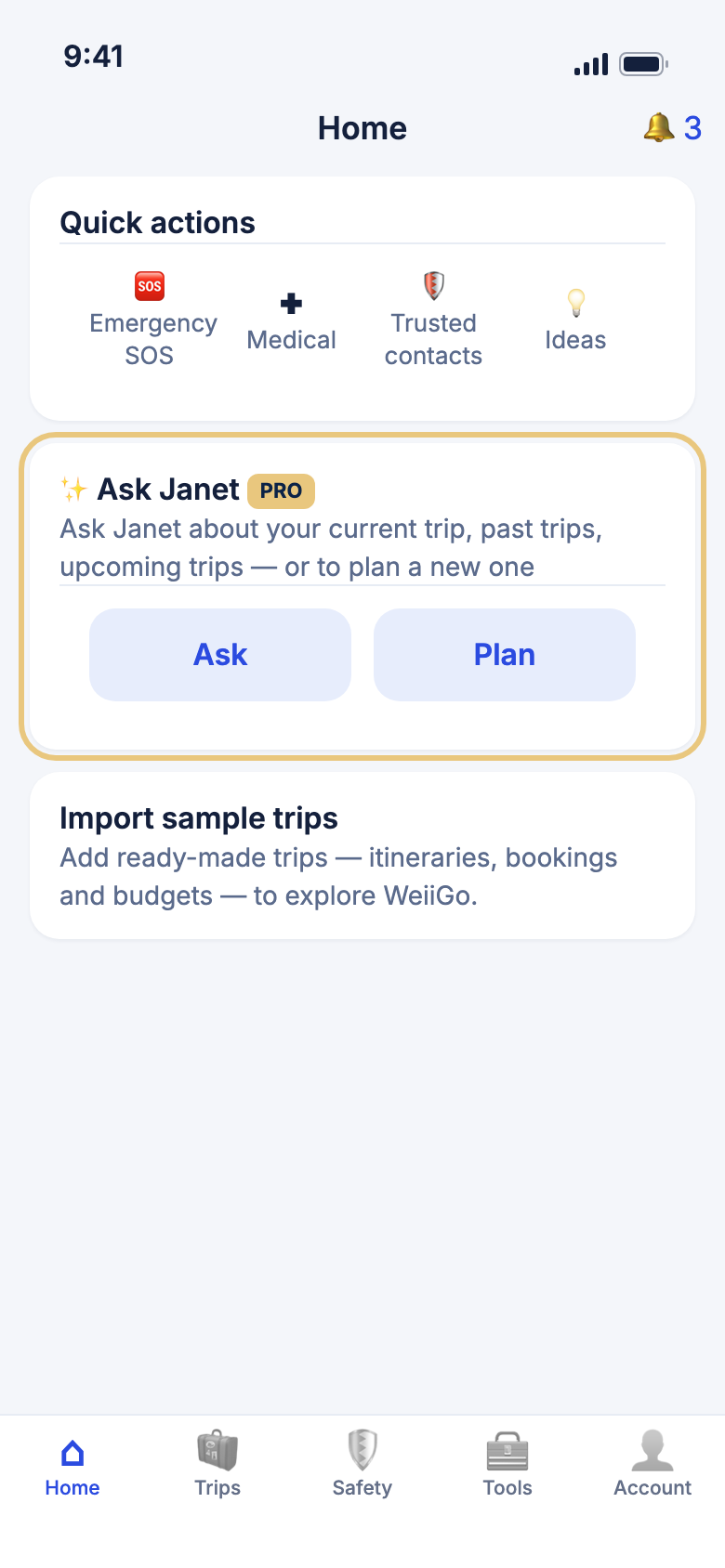
- Tap Home and scroll down to Ask Janet.
- Tap Ask to start a chat with Janet about any of your trips.
- Or tap Plan to plan a new trip by talking to Janet.
WeiiGo Pro — Janet is Pro. On Free, the Ask Janet card does not appear on Home. If your Pro has ended, you can still tap Ask to read your past chats, but not send new questions.
Notifications
Read your notifications
Your notifications list shows trip activity, contact invites and safety alerts, grouped by day.
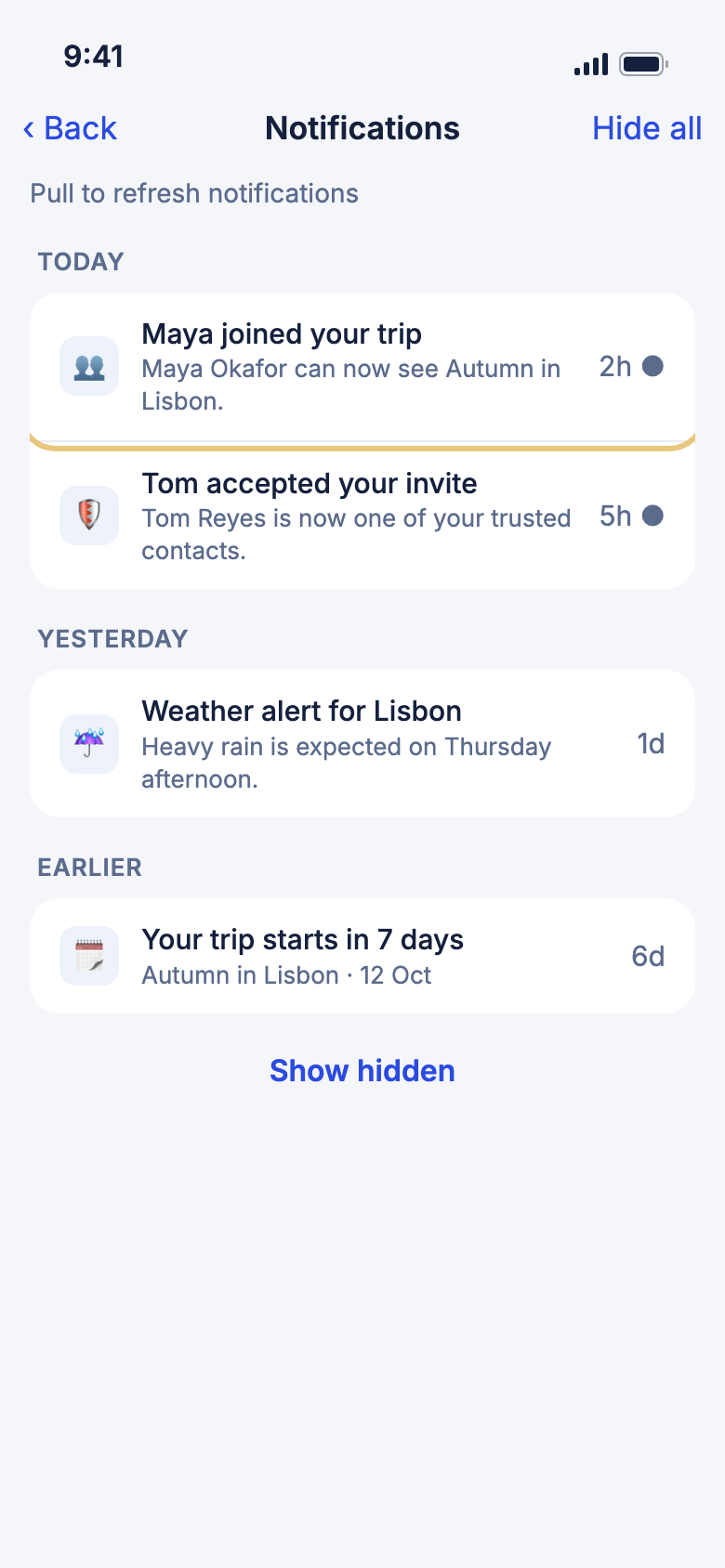
- On Home, look at the bell at the top right. A red number shows how many you have not read.
- Tap the bell.
- Tap a notification to open what it is about, such as the trip or the invite.
- Tap Mark all read at the top to clear the unread count.
Good to know
- A dot beside a notification means you have not read it yet.
- Pull down on the list to check for new notifications.
- You can also open this list from Account, then Settings, then Notifications.
Hide or delete a notification
Hide a notification to tidy your list. Delete it when you never want to see it again.
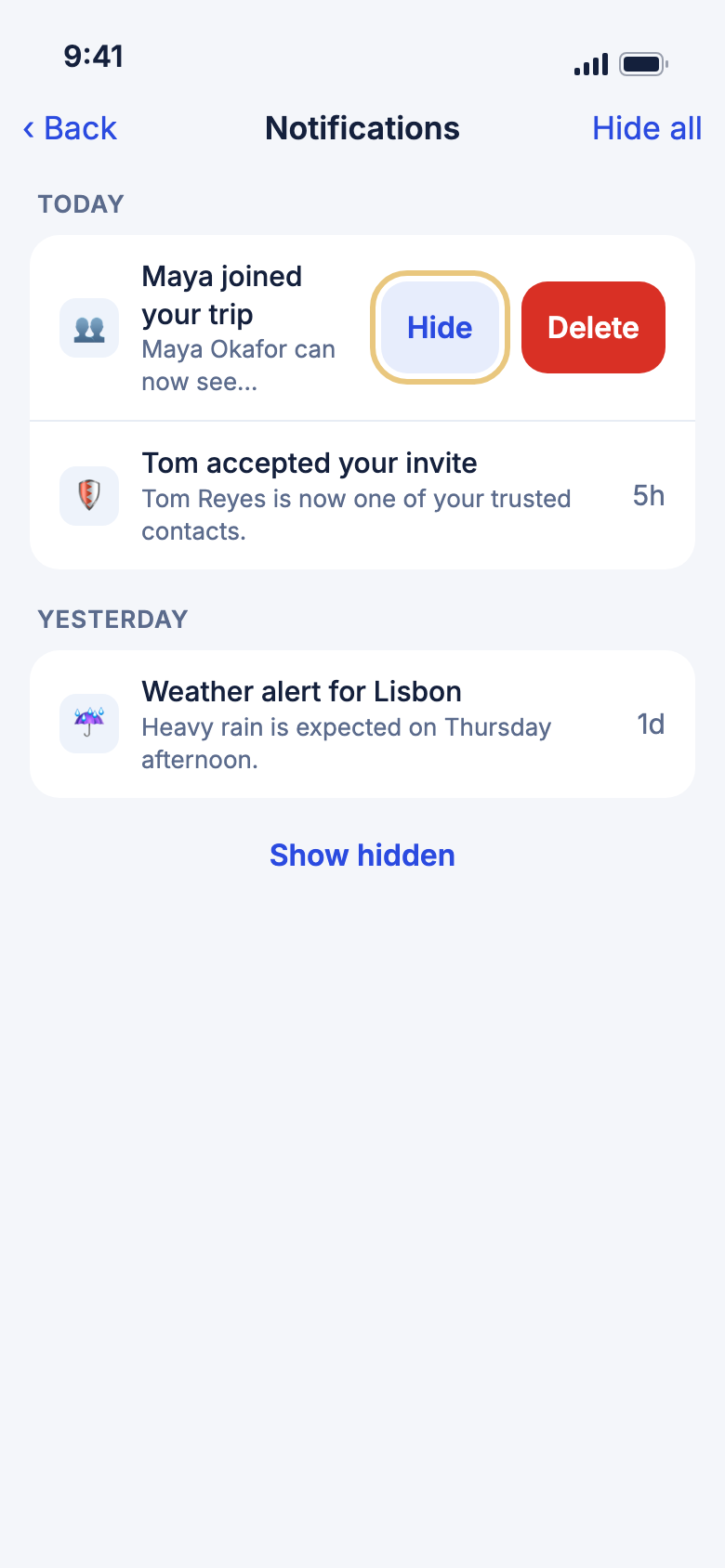
- Open Notifications.
- Swipe a notification to the left.
- Tap Hide to move it out of your list, or tap Delete and then Delete again to remove it for good.
- To hide a whole day, tap Hide beside the day's name, then Hide.
- To hide everything, tap Hide all at the top, then Hide all.
- To bring something back, tap Show hidden at the bottom of the list, then Unhide.
Good to know
- Deleting cannot be undone. Hiding can.
Choose what Home shows
Show, hide and reorder the cards on Home
You can turn off cards you do not use and put the ones you use most at the top.
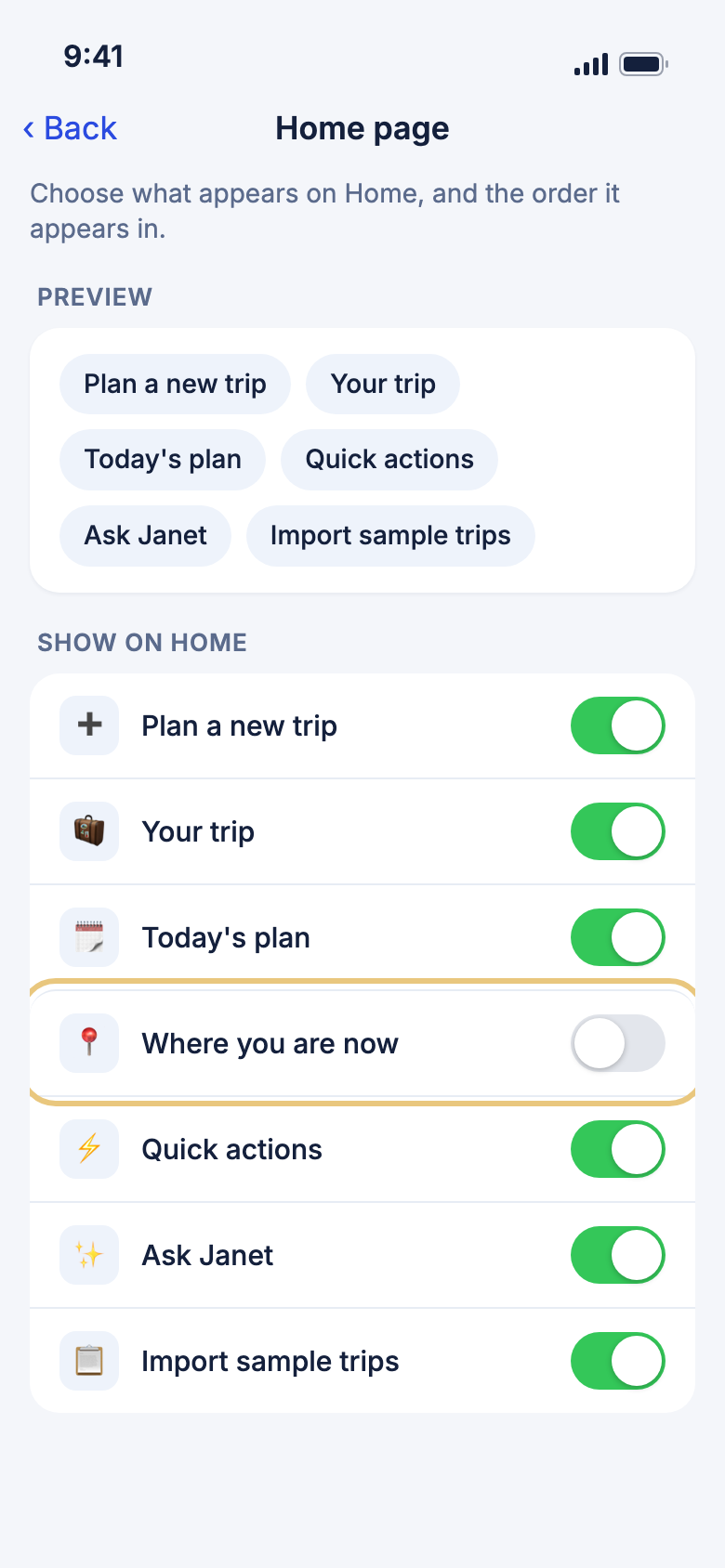
- Tap Account, then Settings.
- Under App, tap Home page.
- Turn a card's switch off to hide it from Home, or on to show it again. The Preview at the top shows the result.
- Scroll down to Order and tap the up and down arrows to move a card.
- To undo all your changes, tap Reset to default, then Reset.
Good to know
- Hiding a card only changes what Home shows. Your trip, your plan and your safety alerts all keep working.
- Plan a new trip is always first on Home. Import sample trips is always last, or just under No trip planned until you have a trip. You can hide them but not move them.
- These choices are saved on this phone only.