
The Tools tab
Tools is your travel toolbox. It has the small helpers you reach for on the road: the weather, a translator, a currency converter, help finding a doctor, and more.
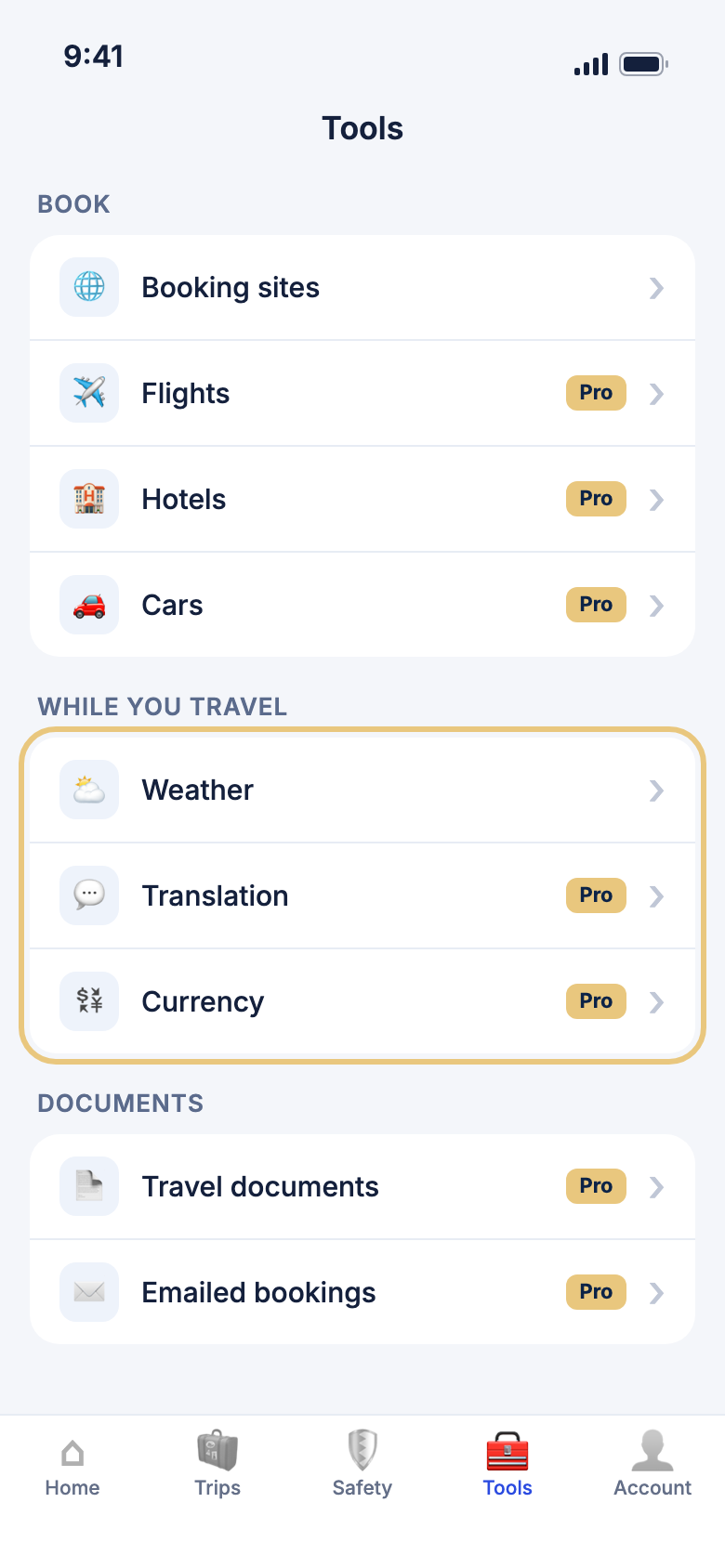
What's on the Tools tab
Tap Tools at the bottom of the screen. Each row opens one tool. A small Pro label means the tool comes with WeiiGo Pro. The rest are free.
- Medical — emergency numbers and nearby hospitals. Always free.
- Ideas manager — collect things to do anywhere, then pull them into a trip later.
- Booking sites — the sites you like to book with, in one list.
- Flights, Hotels and Cars — search for a flight, a place to stay or a hire car.
- Weather — today's weather and the days ahead.
- Translation — turn a phrase into the local language and hear it out loud.
- Currency — see what a price is worth in your own money.
- Travel documents — keep your passport and other papers on your phone.
- Emailed bookings — bookings you forwarded to WeiiGo by email.
- Travel Dashboard, Days traveled and Active trips — facts and figures about your travels.
- Find trips in my photos — rebuild trips you already took from your photos.
WeiiGo Pro — Flights, Hotels, Cars, Translation, Currency, Travel documents, Emailed bookings and Find trips in my photos need WeiiGo Pro. On Free, tapping one of them shows you what Pro adds instead of opening the tool.
Checking the weather
See the weather where you are, or where you're going
Check the weather before you head out, or before you pack.
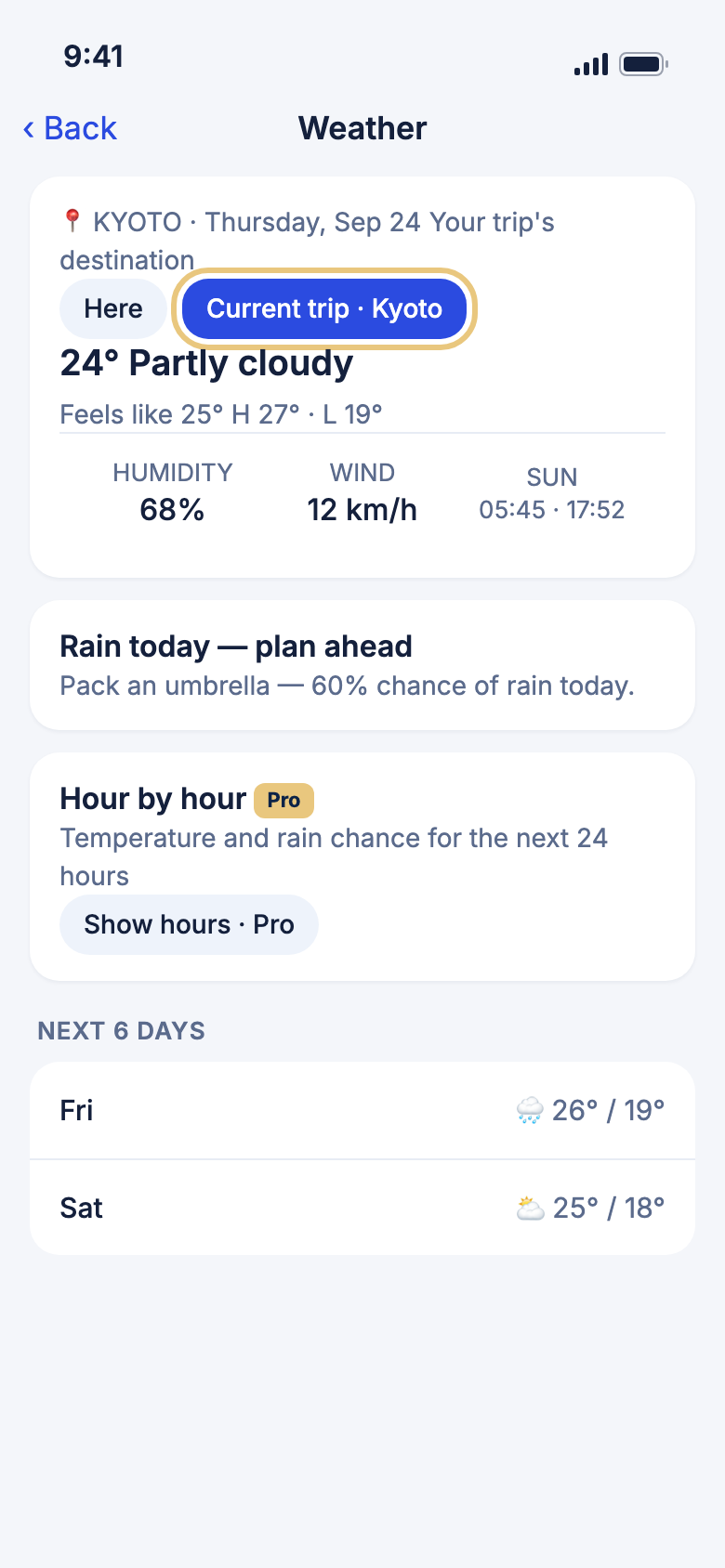
- Tap Tools.
- Tap Weather. You see the weather where you are now.
- If you have a trip on now or coming up, tap the Current trip or Next trip chip to see the weather there.
- Tap Here to go back to where you are.
- Scroll down to see the next few days.
- Pull the page down to get the latest forecast.
WeiiGo Pro — Hour by hour shows the temperature and chance of rain for the next 24 hours. On Free, tapping Show hours · Pro shows you what Pro adds. The rest of the page is free.
Good to know
- To see the weather where you are, turn on location for WeiiGo in your phone's settings.
- If WeiiGo can't find your trip's destination, it shows the weather where you are and says so.
- Some places have no forecast yet.
Changing money
Convert a price into your own money
Find out what something costs in the money you know.
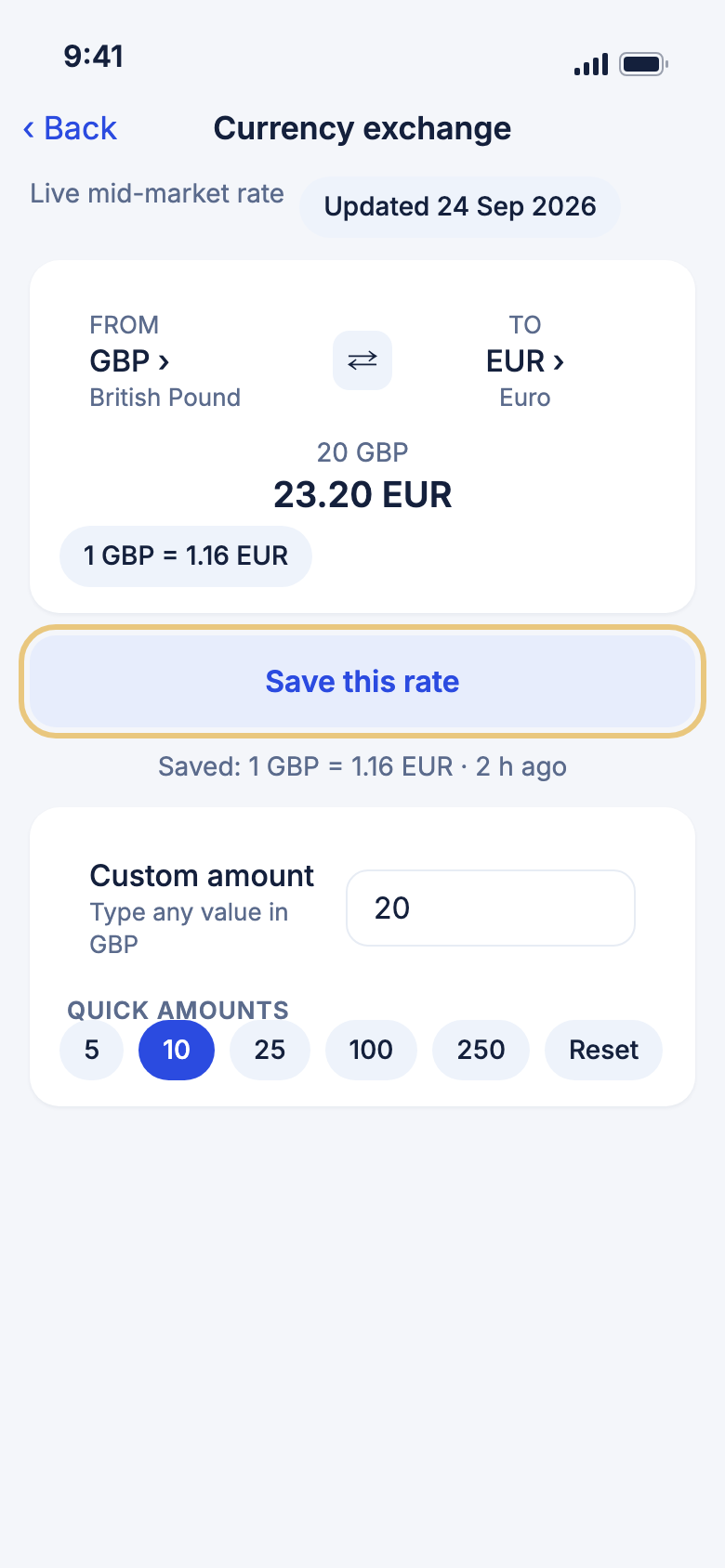
- Tap Tools, then tap Currency.
- Check the two currencies at the top. WeiiGo starts with your home currency and your trip's currency.
- Type the price in the Custom amount box, or tap one of the Quick amounts.
- Read the answer in large numbers in the middle.
- Tap the answer to copy it.
WeiiGo Pro — Currency needs WeiiGo Pro. On Free, tapping Currency shows you what Pro adds.
Good to know
- While you're on a trip, WeiiGo puts the local money first, so you can type in the price you see in a shop.
- Tap the same quick amount again to add it once more. Tap Reset to start from zero.
- Tap ⇄ between the two currencies to swap them.
- For some currencies, Good to know shows what a coffee, a bus ride or a lunch usually costs there. These are rough guides, not quotes.
Pick a different currency
Change either currency when you move on to a new country.
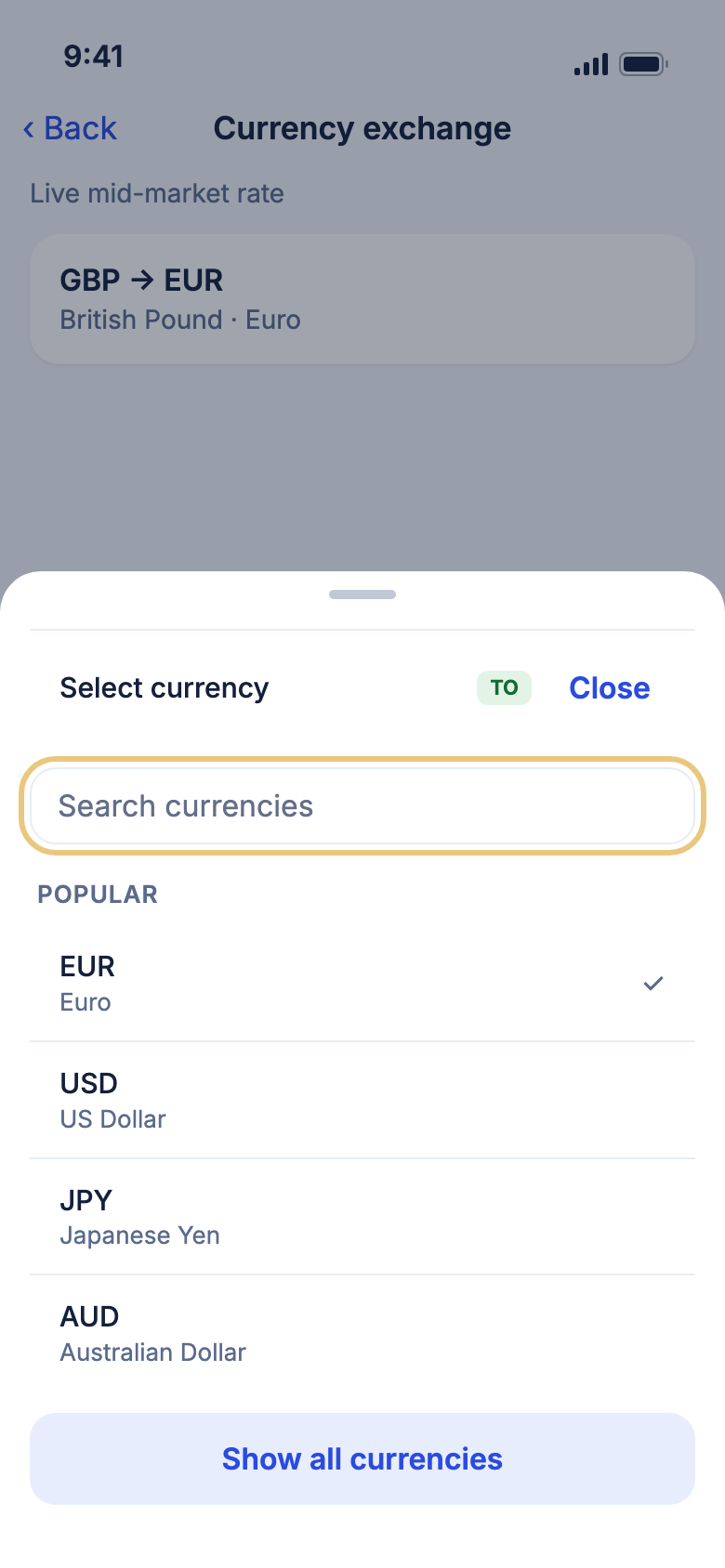
- Tap the currency under From or To.
- Tap a currency in the Popular list, or type its name in Search currencies.
- Tap Show all currencies to see every currency.
Keep a rate for when you're offline
Save today's rate so you still have it when you have no signal.
- Convert an amount between the two currencies you need.
- Tap Save this rate.
- The saved rate shows under the button, with how long ago you saved it.
Good to know
- WeiiGo keeps one saved rate. Saving a new one replaces the old one.
- The saved rate stays on your phone, even after you close the app.
Speaking the language
Translate a phrase
Say what you need in the local language, even when you don't speak it.
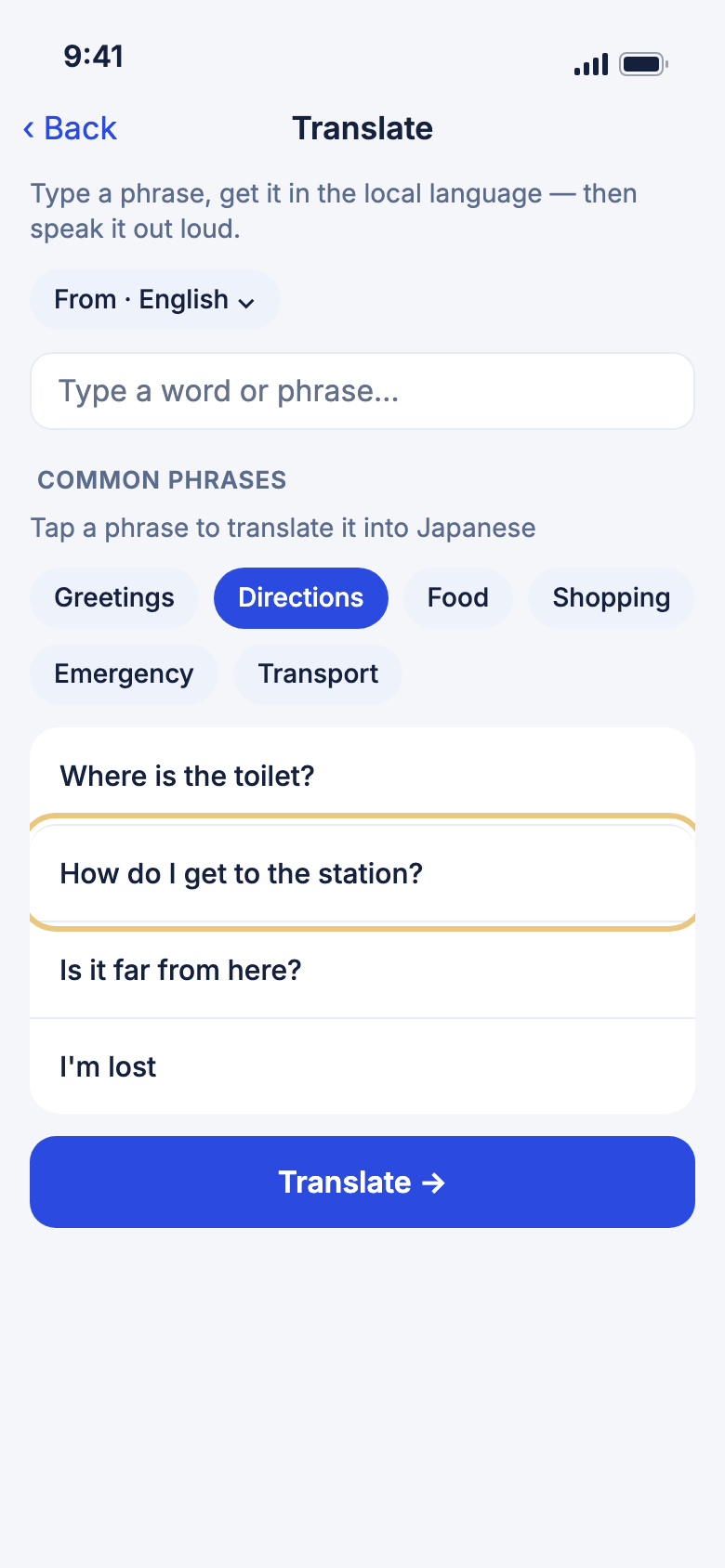
- Tap Tools, then tap Translation.
- Check the languages. WeiiGo starts with your language and your trip's language. Tap From or To to change one.
- Type a word or phrase in the box.
- Tap Translate →.
- Or, before you type, tap a topic under Common phrases, then tap a phrase. It translates straight away.
WeiiGo Pro — Translation needs WeiiGo Pro. On Free, tapping Translation shows you what Pro adds.
Good to know
- Tap ⇅ Swap to turn the two languages around. It helps when someone answers you.
- Tap Clear to empty the box and see the common phrases again.
- Your last phrases are listed under Recent. Tap one to see it again, or swipe it left and tap Delete.
- Translations aren't stored on our servers. Your recent phrases stay on your phone only.
Hear it out loud, or copy it
Let your phone say the phrase, or paste it into a message.
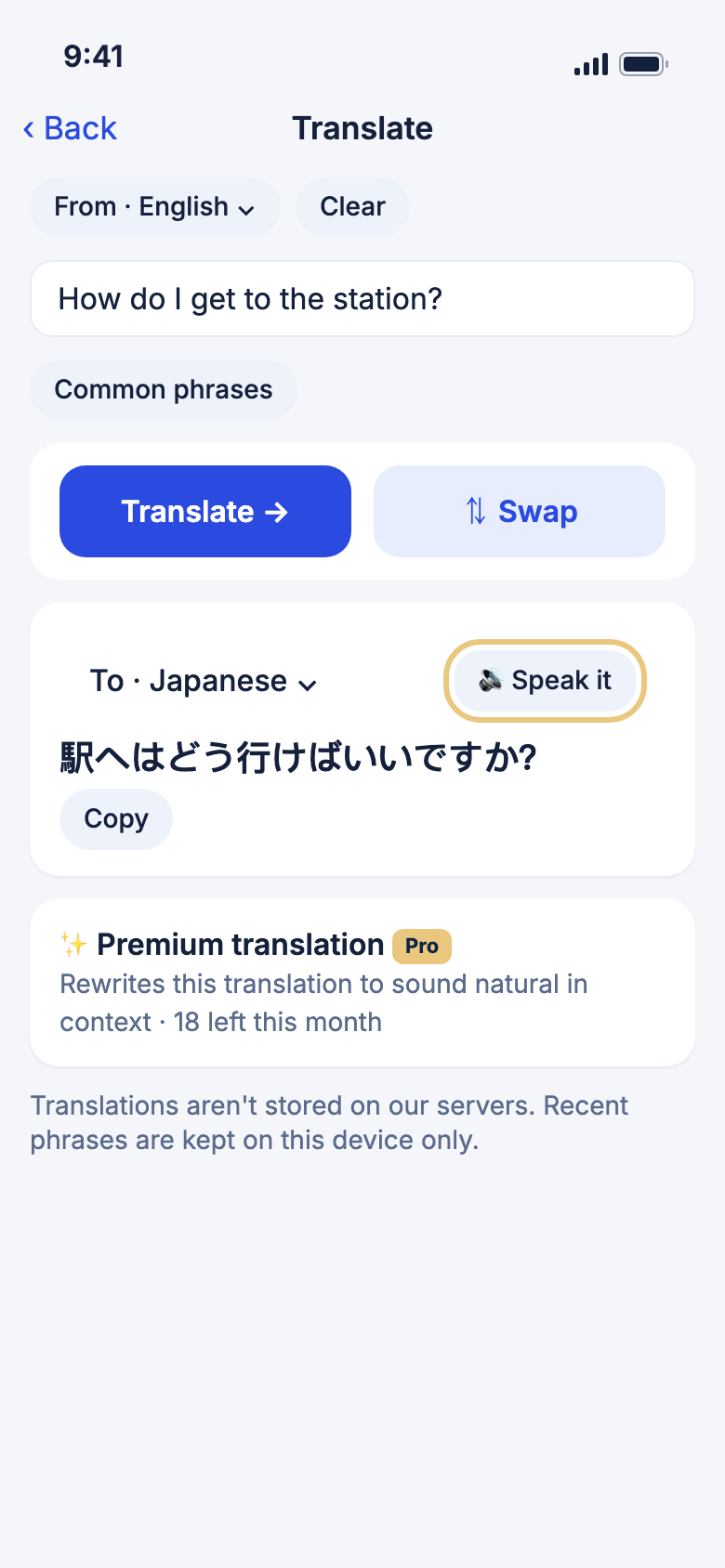
- Translate your phrase.
- Tap Speak it to hear it. Tap Stop to stop.
- Tap Copy to copy the translation.
- For a more natural wording, tap ✨ Premium translation.
Good to know
- Some languages can't be read aloud on every phone. WeiiGo tells you when that happens.
- ✨ Premium translation has a monthly limit. The card shows how many you have left.