
The Trips tab
Trips holds every trip you have: the ones coming up, the ones you have finished, and the ones you put aside for later. From here you plan a new trip, open a trip day by day, and add or change what is on each day.
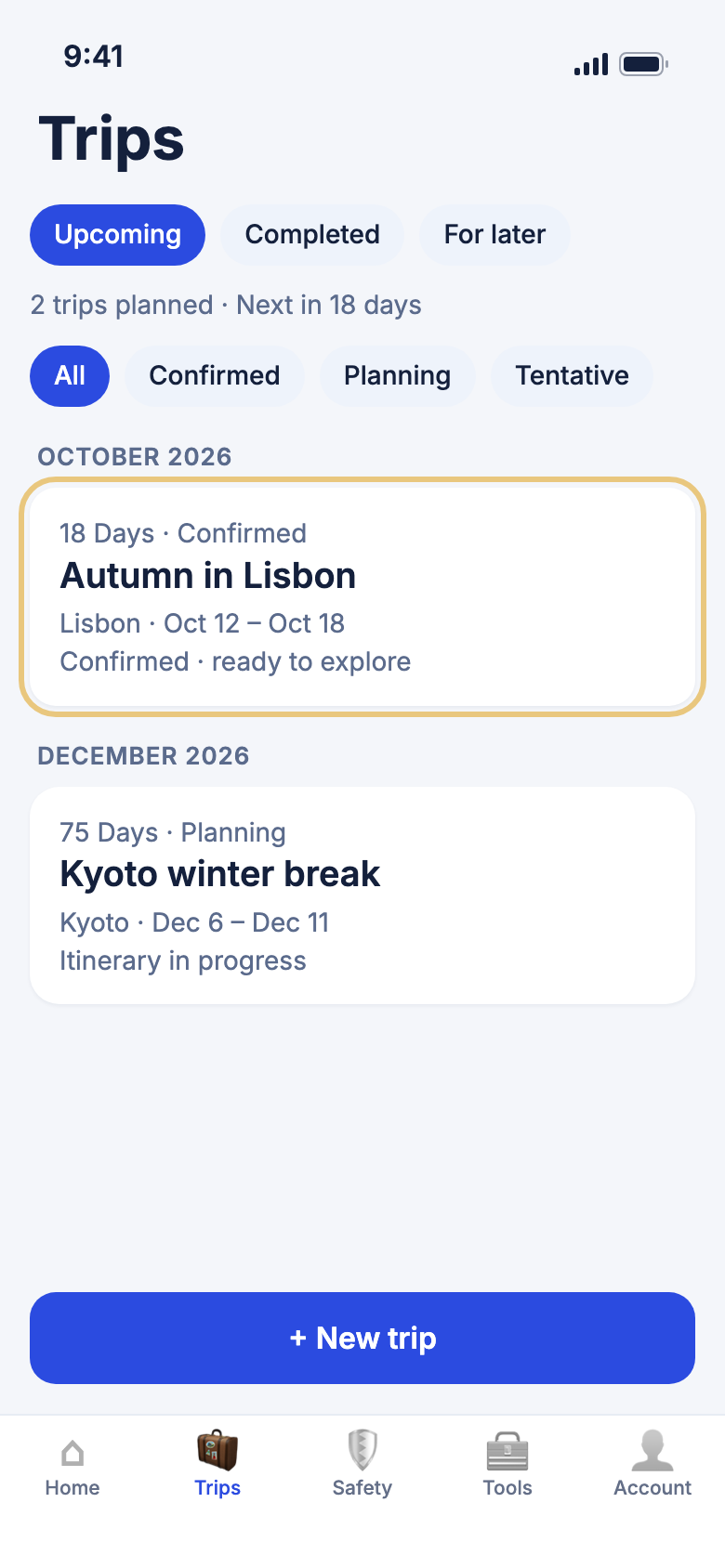
Your trips
See your trips
Open Trips to see what is coming up and how soon it starts.
- Tap Trips in the tab bar at the bottom.
- Tap Upcoming, Completed or For later at the top to switch lists.
- On Upcoming, tap All, Confirmed, Planning or Tentative to show only those trips.
- Tap a trip card to open it.
Good to know
- Each card shows how many days are left until you leave, and a Checklist pill when the trip has one.
- Tap Edit on a card to change the trip's name or dates.
- Pull the list down to refresh it. With no signal you see your last saved trips and a note that you're offline.
- On Completed, tap Get your trip recap on a finished trip to look back on it.
Planning a trip
Pick where you're going
Start a new trip by choosing a place from the guides, or search for any city or country.
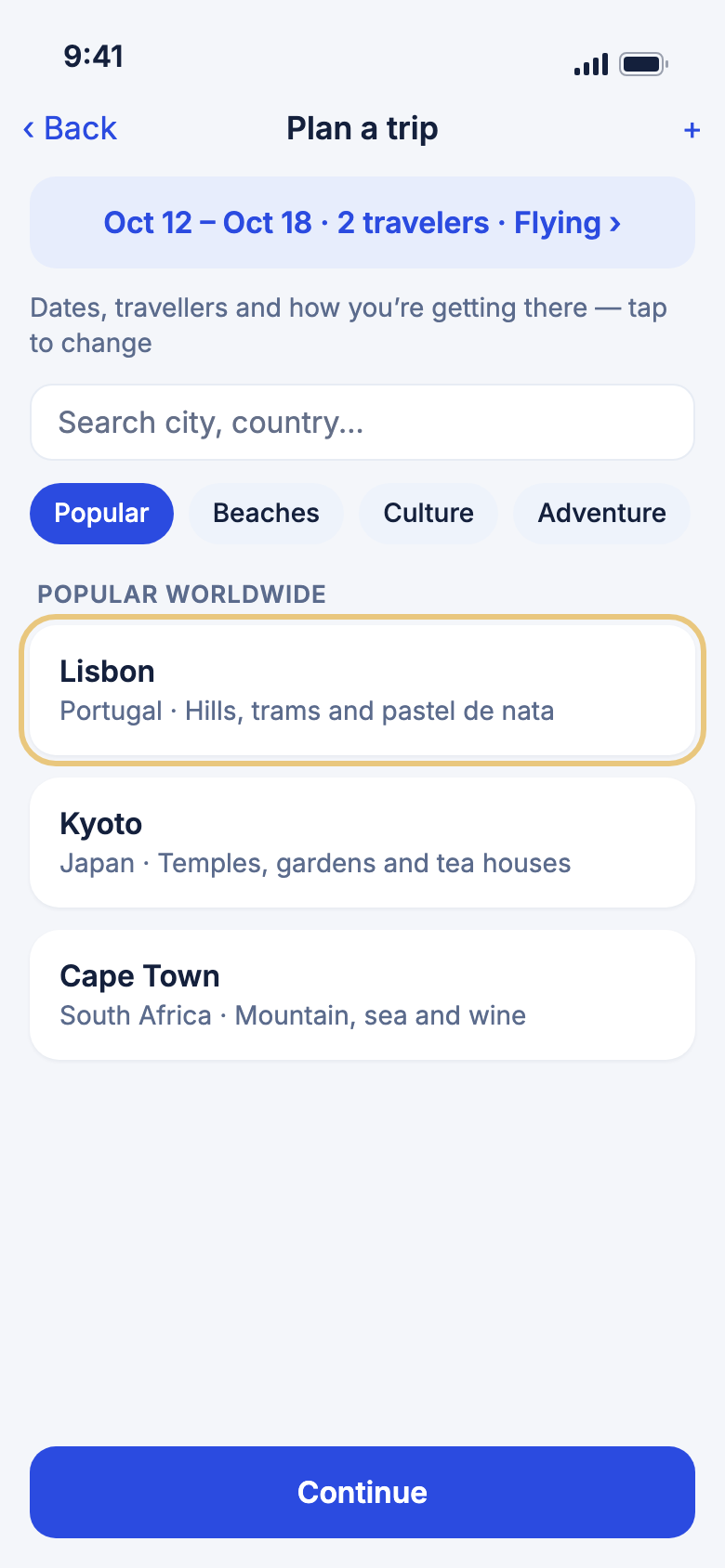
- On the Trips tab, tap New trip.
- Tap the search box (Search city, country...) and type a place, or tap a pill such as Popular or Beaches to browse.
- Tap a destination card to choose it. The Trip details screen opens.
Good to know
- Tap Info on a card to read about a place without choosing it.
- A place that is not in our guides can still be planned. Pick it from the list that appears under your search.
Set dates and travellers, then build your plan
Tell WeiiGo when you're going and who is coming. Then let WeiiGo write a day-by-day plan, or save the trip and fill it in yourself.
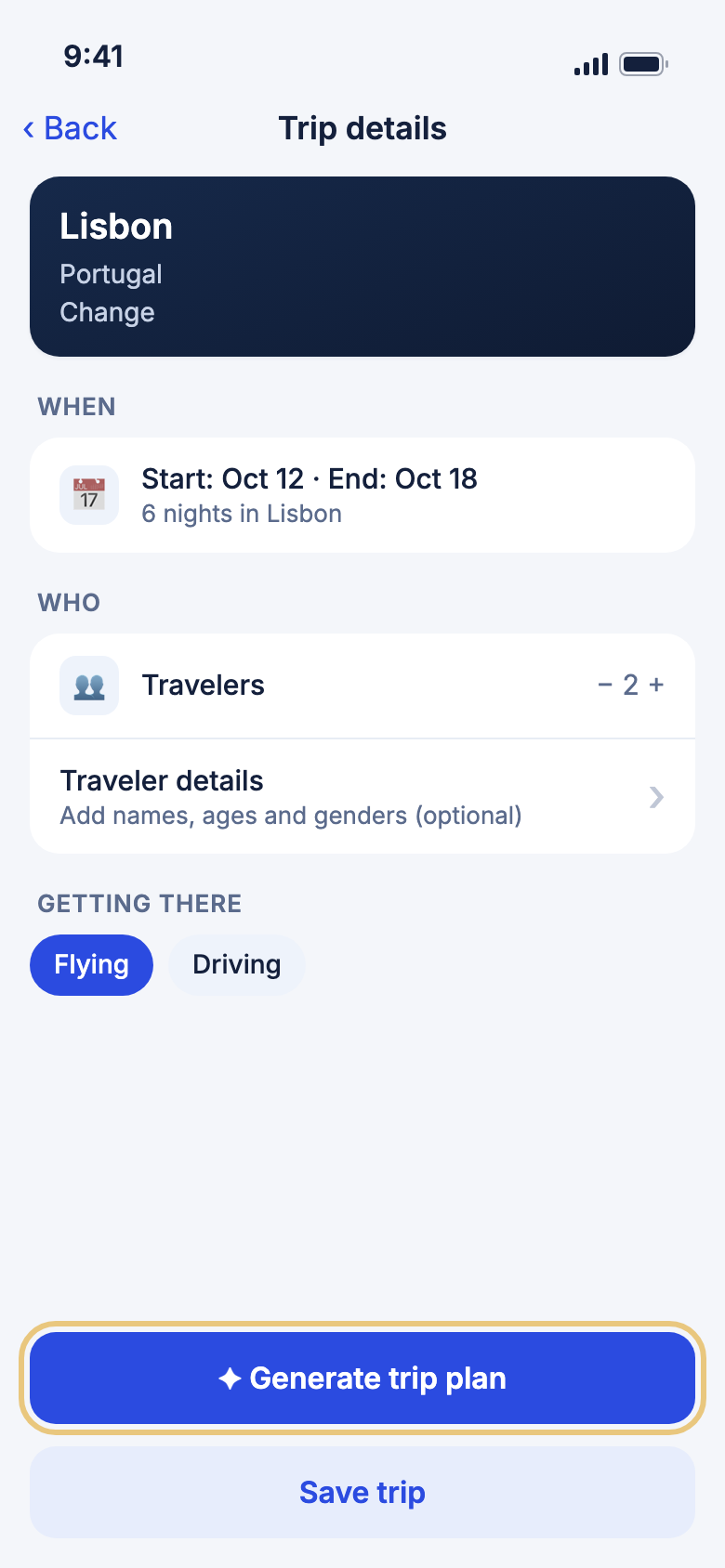
- Under When, tap Start and End to pick your dates.
- Under Who, tap + or − beside Travelers to set how many people are going.
- Under Getting there, tap Flying or Driving. If you drive, type where you're Driving from.
- Tap ✦ Generate trip plan, choose what you like in Customize your plan, then tap ✦ Generate.
- Or tap Save trip to keep just the place and dates.
WeiiGo Pro — On Free, ✦ Generate trip plan is greyed out with a Pro tag and tapping it shows how to upgrade. Save trip works on every plan.
Good to know
- Building a plan takes a little while. You can leave the screen: the trip shows on the Trips tab as it is built, and WeiiGo tells you when it's ready.
- There is a monthly limit on how many plans you can generate. WeiiGo tells you when you reach it.
- Tap Back to change the place. Nothing you typed is lost.
Inside a trip
Look through your trip day by day
Each trip has a plan for every day, with your flights, stays and activities in time order.
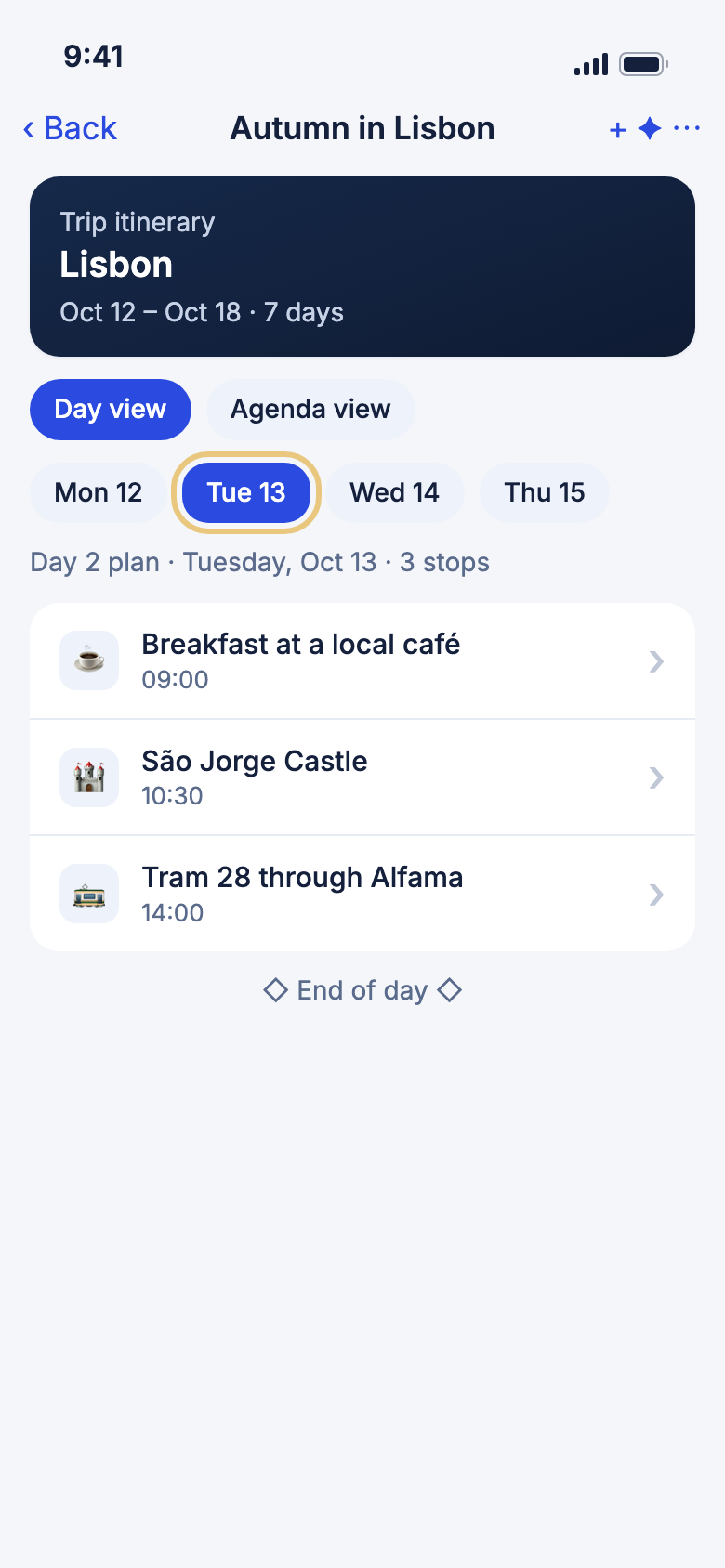
- On the Trips tab, tap the trip.
- Tap a day in the strip of dates to see that day.
- Tap Agenda view to see the whole trip in one list, or Day view to go back to one day.
- Tap anything on the day to see its details.
Good to know
- To move something to another day, press and hold it, then tap the day you want.
- The ⋯ menu at the top right has more for the trip, such as Map view, Before you go and Share trip.
Add something to a day
Put a meal, a visit or anything else on your plan yourself.
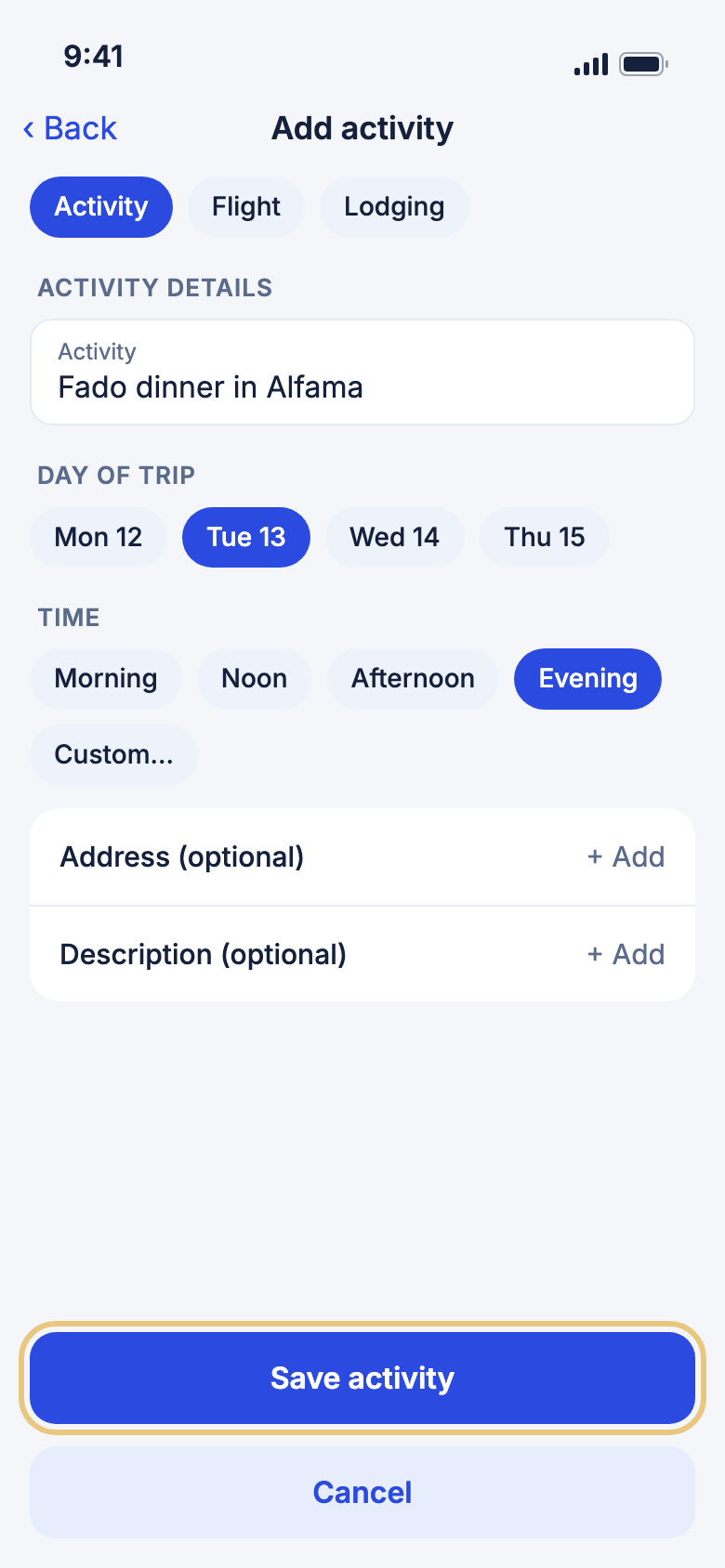
- Open the trip and tap the day you want.
- Tap + at the top of the screen.
- Tap Enter an activity manually.
- Type what's planned under Activity.
- Check the Day of trip and tap a time, such as Evening.
- Tap Save activity. It appears on that day.
Good to know
- Tap Flight or Lodging at the top of the form to add a flight or a hotel stay instead, with your confirmation number and price if you have them.
- On a trip someone shared with you as view-only, the + does not show.
Change or delete something on your plan
Fix a time, rename a place, or take something off the day.
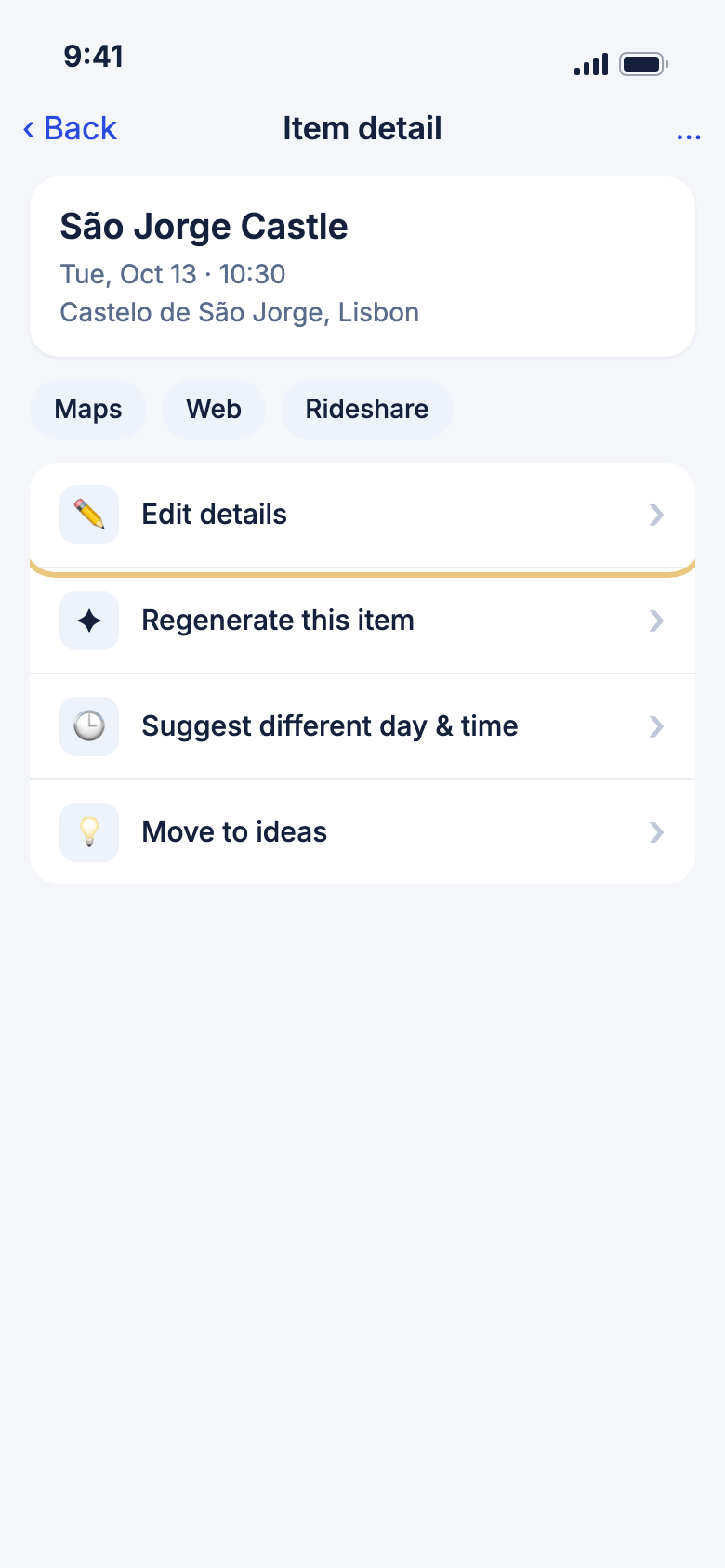
- Open the trip and tap the item.
- Tap Edit details.
- Change what you need, such as the title, the time under When, or the address.
- Tap Save. You see Changes saved.
- To remove it instead, scroll to the bottom of the edit form, tap Delete, then tap Delete again to confirm.
WeiiGo Pro — Regenerate this item and Suggest different day & time ask WeiiGo for a fresh idea. On Free, tapping them shows how to upgrade.
Good to know
- Tap Maps to get directions to the place, or Web to open its website.
- If the same activity repeats on other days, WeiiGo asks whether to update those days too.