
The Safety tab
Safety is where you get help fast. You can alert the people you trust, call local emergency services, set a check-in timer, and choose who hears from you. Emergency features are free.
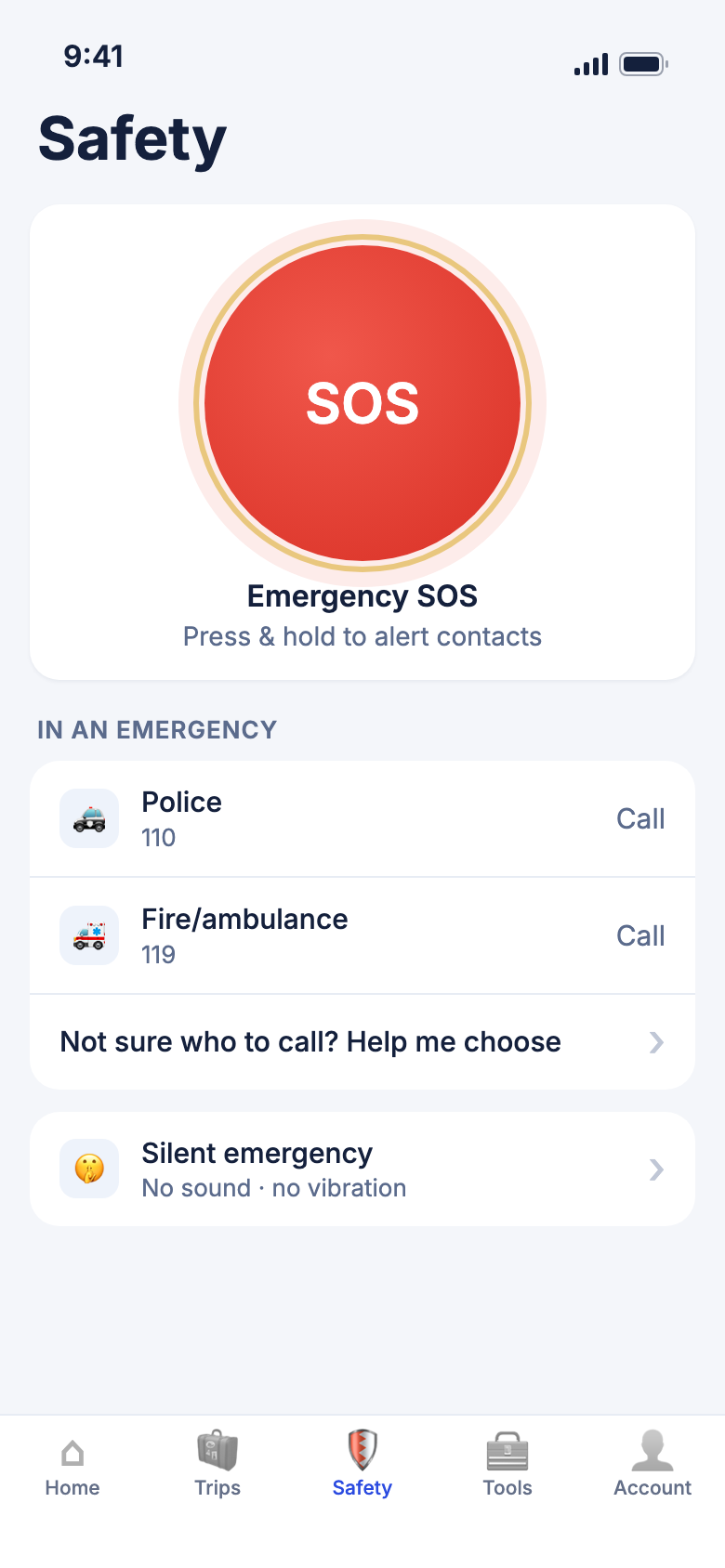
In an emergency
Send an SOS to your contacts
Use SOS when you need the people you trust to know you are in trouble, right now.
- Tap Safety in the tab bar.
- Press and hold SOS. Keep your finger down.
- Watch the ring fill. The line under it counts down: Sending SOS in 3...
- Lift your finger before the ring fills if you change your mind, or tap Cancel.
- When the ring fills, your alert goes out and Alert sent opens.
Who is alerted: your trusted contacts who are marked Emergency contact and have accepted your invite. Each one gets a message saying you sent an SOS, with a map link to where you are. It arrives as a notification in their WeiiGo app, and also by SMS, WhatsApp or email if you turned those on for them.
Good to know
- SOS needs an internet connection. If it cannot go out, you see SOS NOT sent with Retry and Send SMS to contacts. You can also call the local emergency number yourself.
- The map link is only added when your phone knows where you are.
- An SOS also turns on Share location, so contacts who can see your location can follow you while your trip is live.
- Need to be quiet? Silent emergency, just under the emergency numbers, sends a quiet alert to your contacts without lighting up the screen.
See who got your alert, and tell them you're safe
After an SOS, Alert sent stays open. It shows when the alert went and who was told.
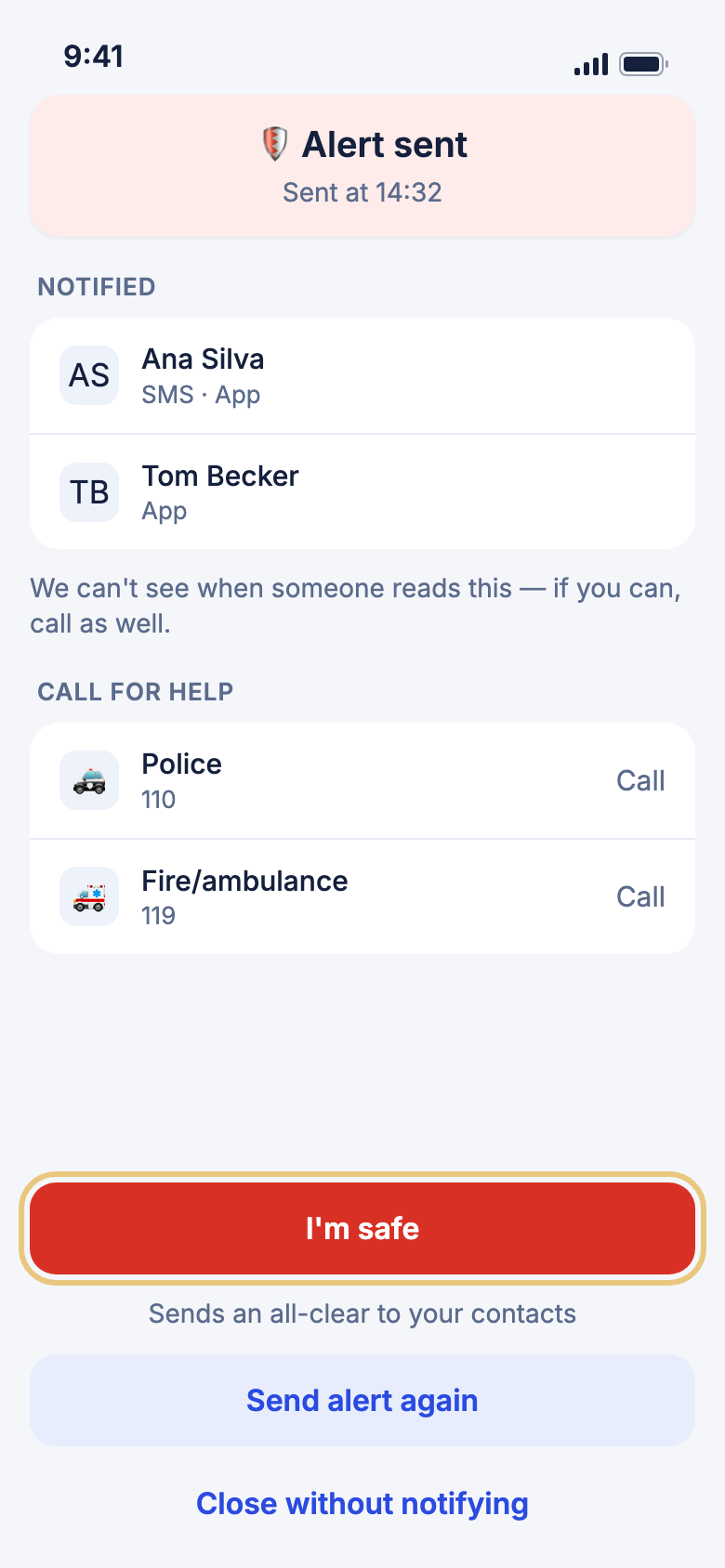
- Look under Notified. Each contact shows how they were reached, for example SMS · App.
- To call for help, tap Police or Fire/ambulance under Call for help.
- To alert everyone again, tap Send alert again.
- When you are safe, tap I'm safe. Your contacts get an all-clear.
- To leave without telling anyone, tap Close without notifying.
Good to know
- If nobody could be reached, the screen says so. Tap Send SMS to contacts to text them from your phone, or Add a trusted contact.
- WeiiGo can't see when someone reads your alert. If you can, call as well.
Call the local police or ambulance
WeiiGo shows the emergency numbers for the country you are in, so you don't have to look them up.
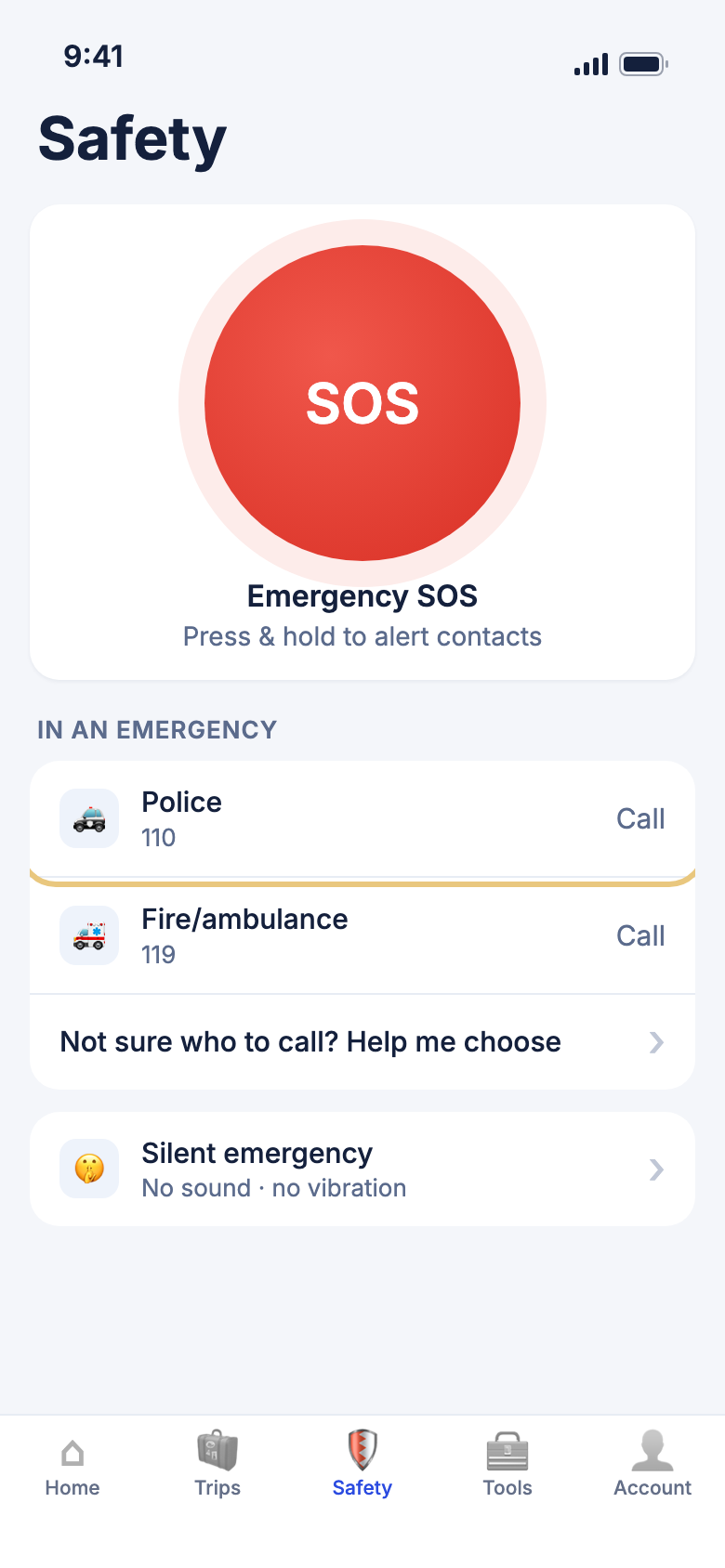
- Tap Safety in the tab bar.
- Under In an emergency, tap Police or Fire/ambulance.
- Your phone's dialer opens with the number. Tap to call.
- Not sure which one? Tap Not sure who to call? Help me choose, pick what you need, then tap the call button.
Good to know
- If WeiiGo doesn't know the exact numbers for where you are, it shows general numbers with a note to check locally.
Show a message in the local language
If you can't speak the language, show your phone to someone nearby.
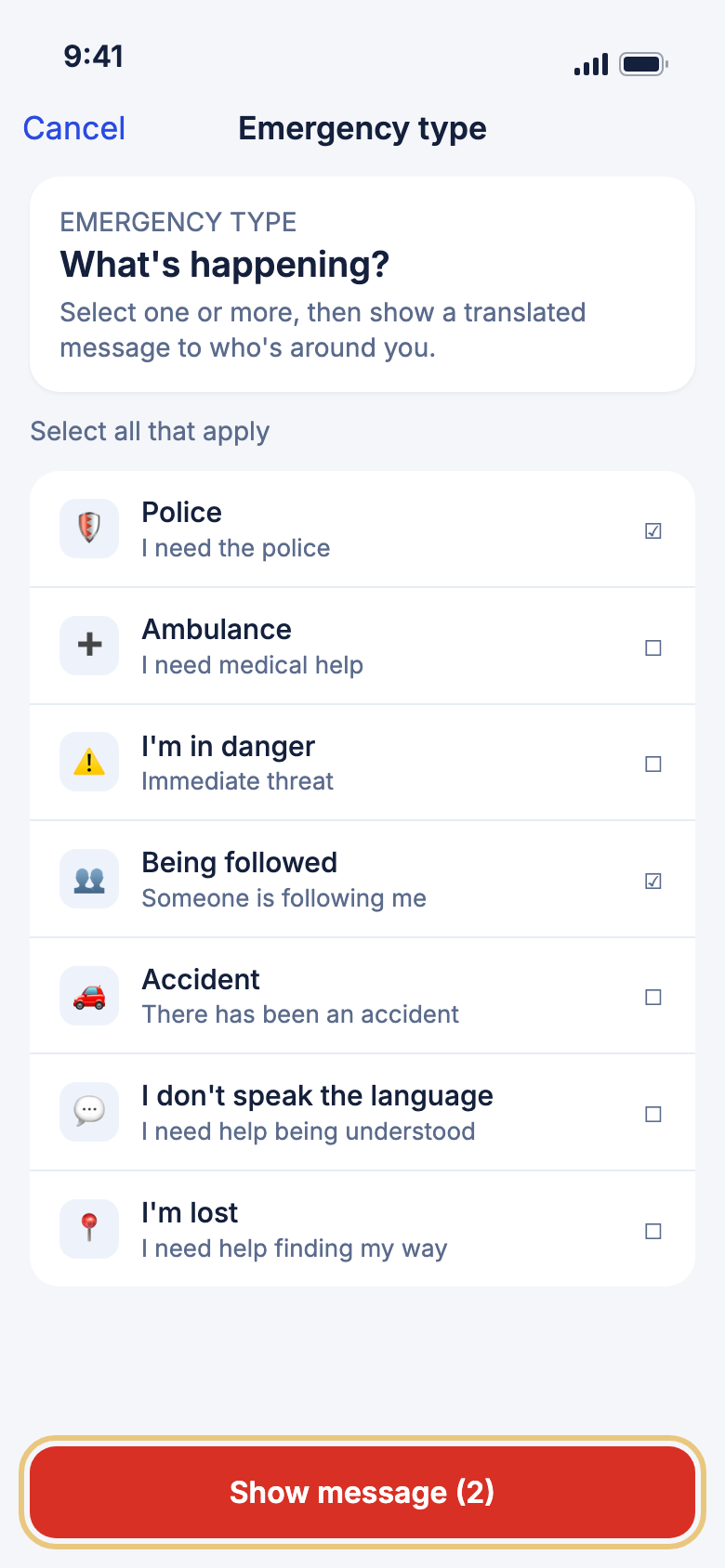
- Tap Safety in the tab bar.
- Scroll down and tap Show emergency message.
- Tap each type that fits, for example Police and Being followed.
- Tap Show message.
- Turn your phone so the person can read it.
Check-in timer
Start a check-in timer
A check-in timer reminds you to tell someone you're OK, for example on a solo hike or a late night out.
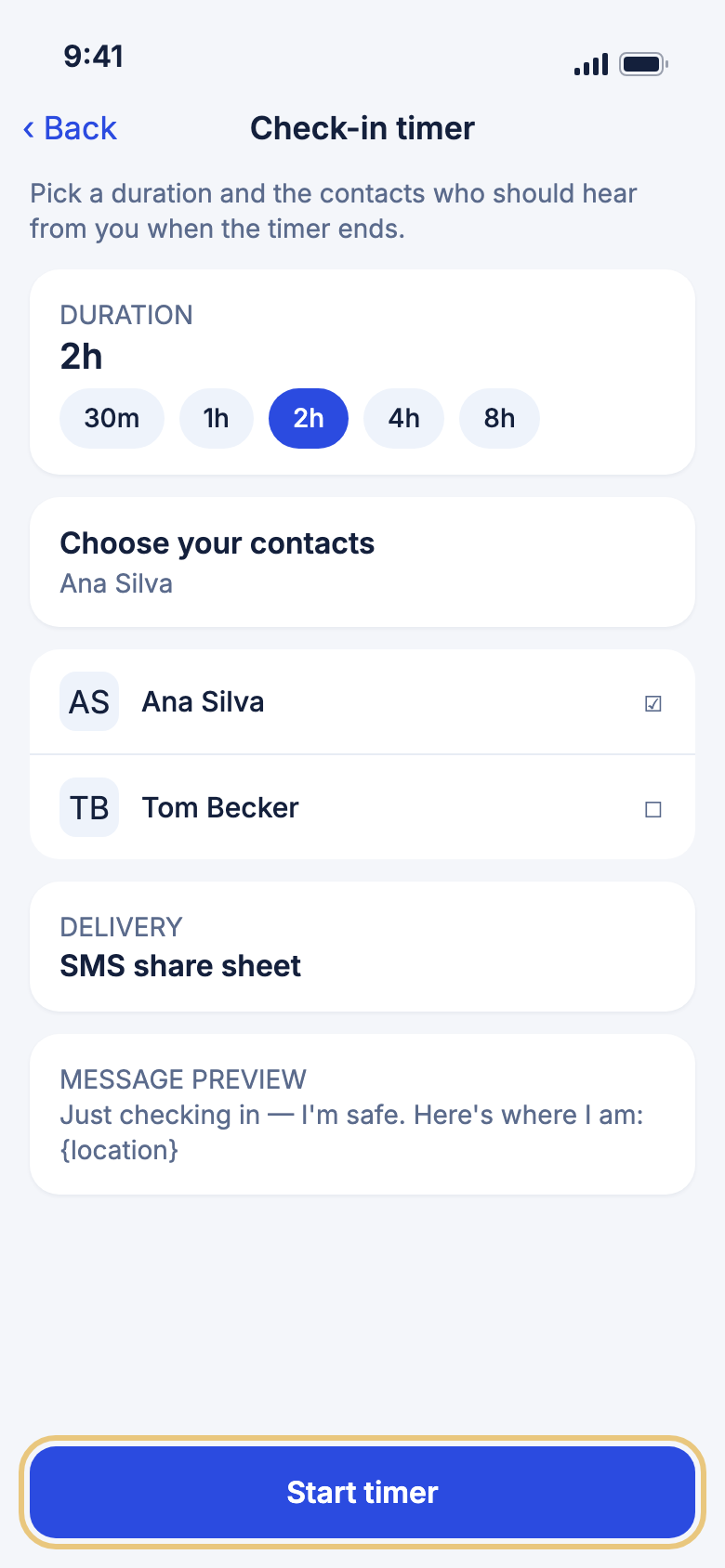
- Tap Safety in the tab bar.
- Scroll to Stay safe and tap Check-in timer.
- Pick how long, for example 2h, or drag the slider.
- Under Choose your contacts, tick the people to tell.
- Under Delivery, tap to choose SMS share sheet or WeiiGo push.
- Tap Start timer. The banner shows when WeiiGo will check on you.
Good to know
- SMS share sheet opens a text for you to send. WeiiGo push notifies contacts who also use WeiiGo.
- You can change the message in Account under Default check-in message.
- Turn on notifications for WeiiGo, or you won't get the reminder when the timer ends.
- To end it early, open Check-in timer again and tap Stop active timer.
Check in when the timer ends
When the time is up, WeiiGo sends you a reminder. Tap it to check in.
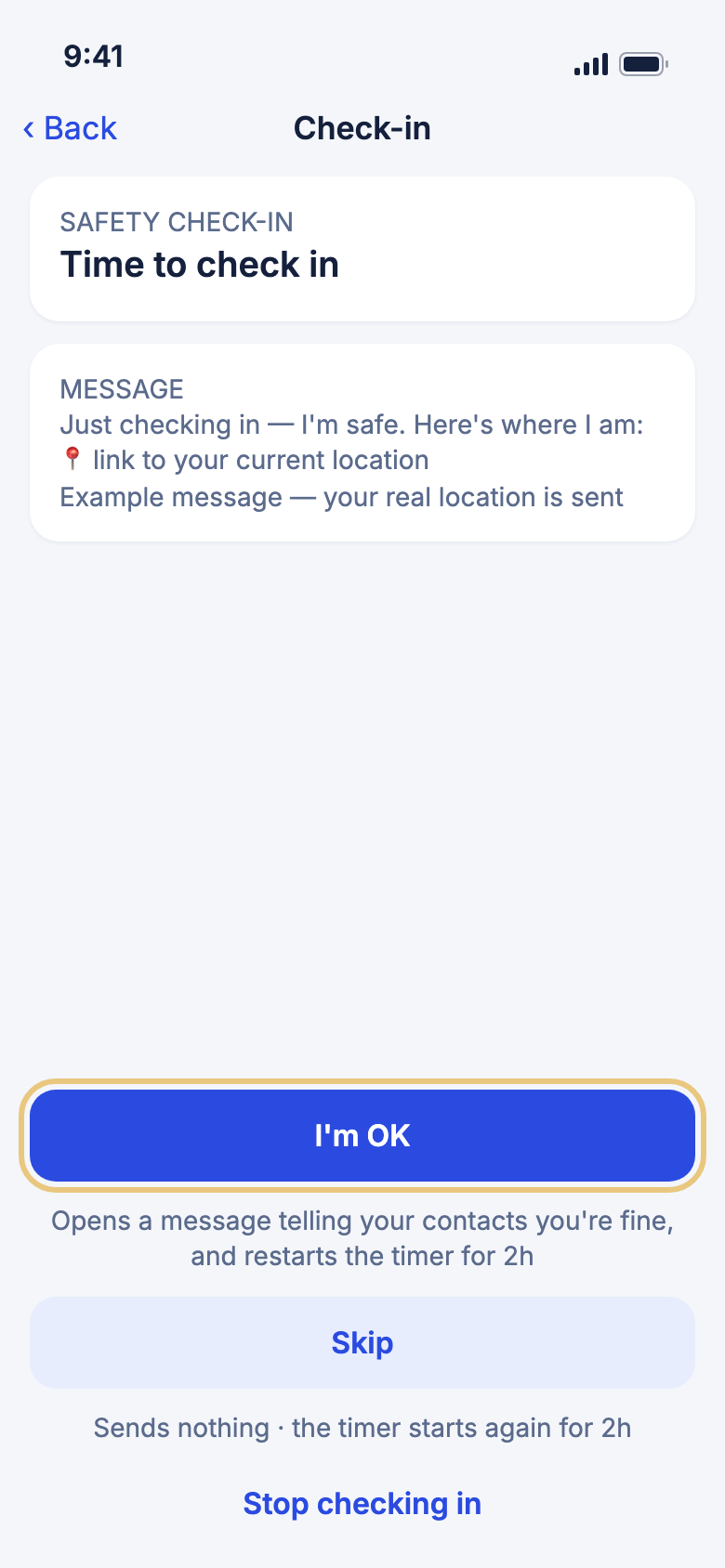
- Tap the reminder, or open Safety and tap Check-in timer.
- Tap I'm OK to tell your contacts you're fine. It sends your message with a link to where you are, then starts the timer again.
- Or tap Skip to send nothing and start the timer again.
- Or tap Stop checking in to end the timer.
Good to know
- WeiiGo does not alert anyone by itself if you miss a check-in. It only reminds you. If you need help, use SOS.
- With SMS share sheet, the message is only sent when you tap send in your messages app.
Trusted contacts
Open your trusted contacts
Trusted contacts are the people your SOS alerts and check-ins go to. Add at least one before you travel.
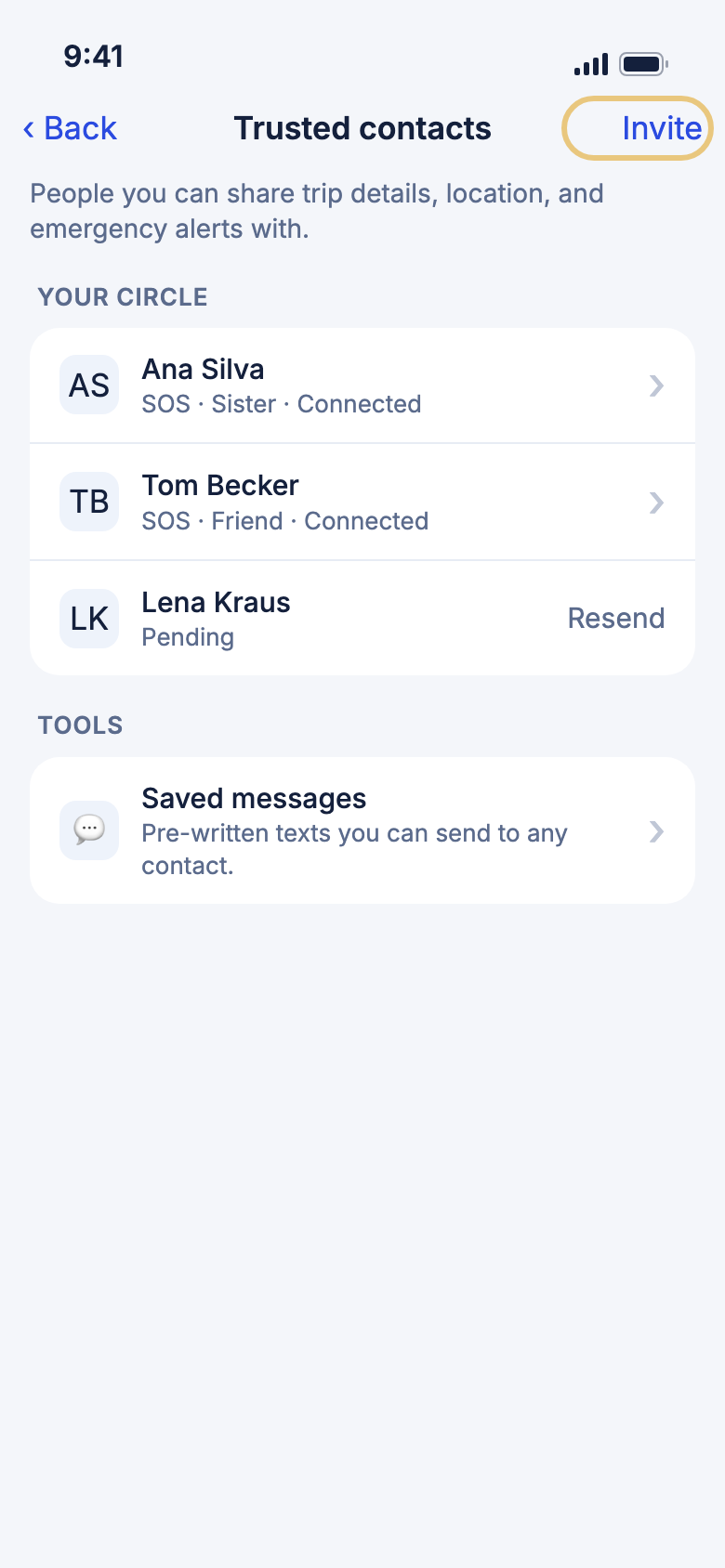
- Tap Account in the tab bar.
- Under Safety, tap Trusted contacts.
- See everyone in Your circle. Contacts who get your SOS show SOS.
- Tap Invite to add someone new.
Invite a trusted contact
Send an invite so the person can join your trusted contacts.
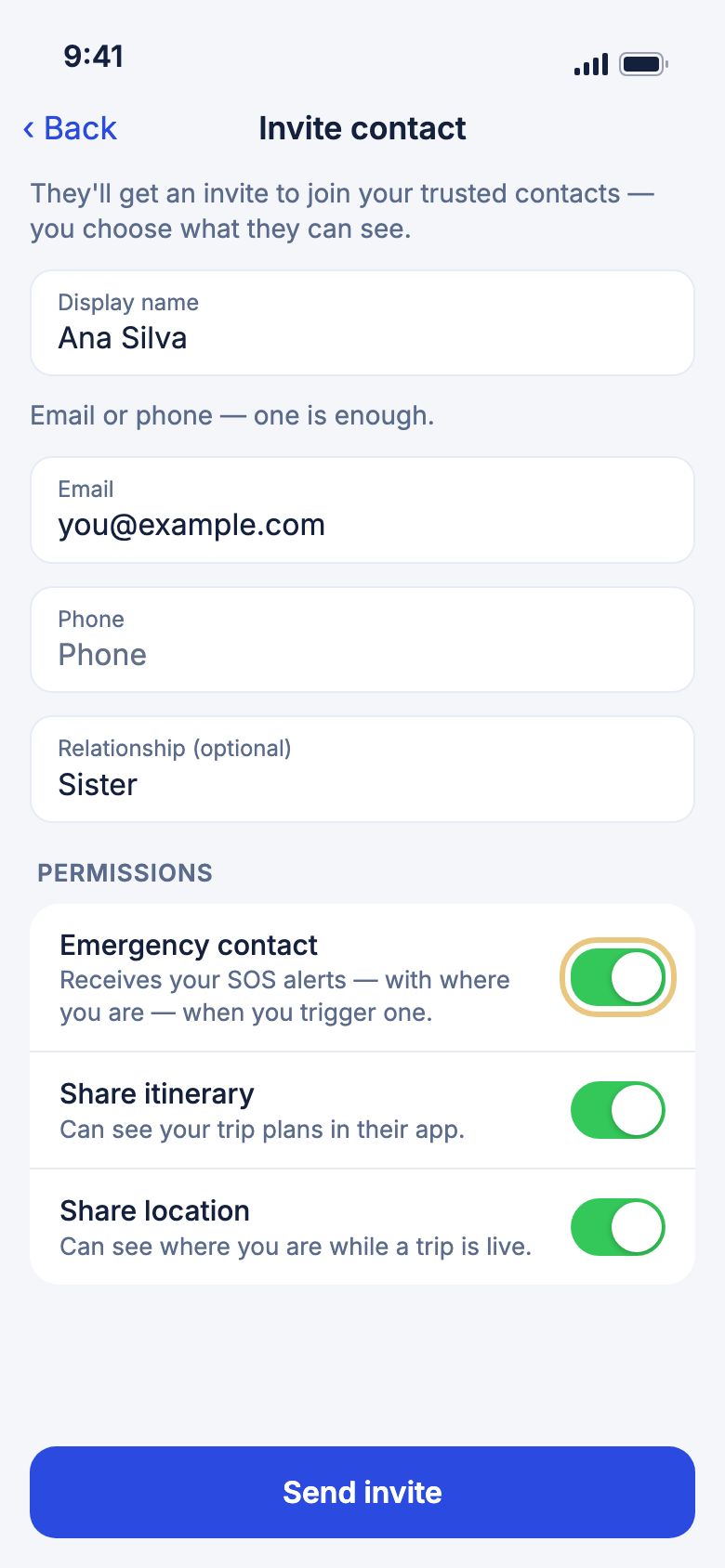
- Type a Display name.
- Add their Email or Phone. One is enough.
- Leave Emergency contact on, so they get your SOS alerts.
- Choose whether they can Share itinerary and Share location.
- Tap Send invite.
- If WeiiGo couldn't email them, tap Share or Copy and send them the link yourself.
- Tap Done.
Good to know
- A contact gets your SOS alerts only after they accept your invite. Until then they show as Pending, with Resend.
- Your SOS reaches them in the WeiiGo app. To also reach them by SMS, WhatsApp or email, tap their name in Trusted contacts and turn those on under Alert channels.
- You can also open Trusted contacts from Alert sent or the Check-in timer screen.