
Before you start
WeiiGo is a travel companion for your phone. It helps you plan trips, keeps your plans and bookings in one place, and looks after your safety while you travel. This page is a quick tour of how the app is laid out, what you need, and what it asks your phone for.
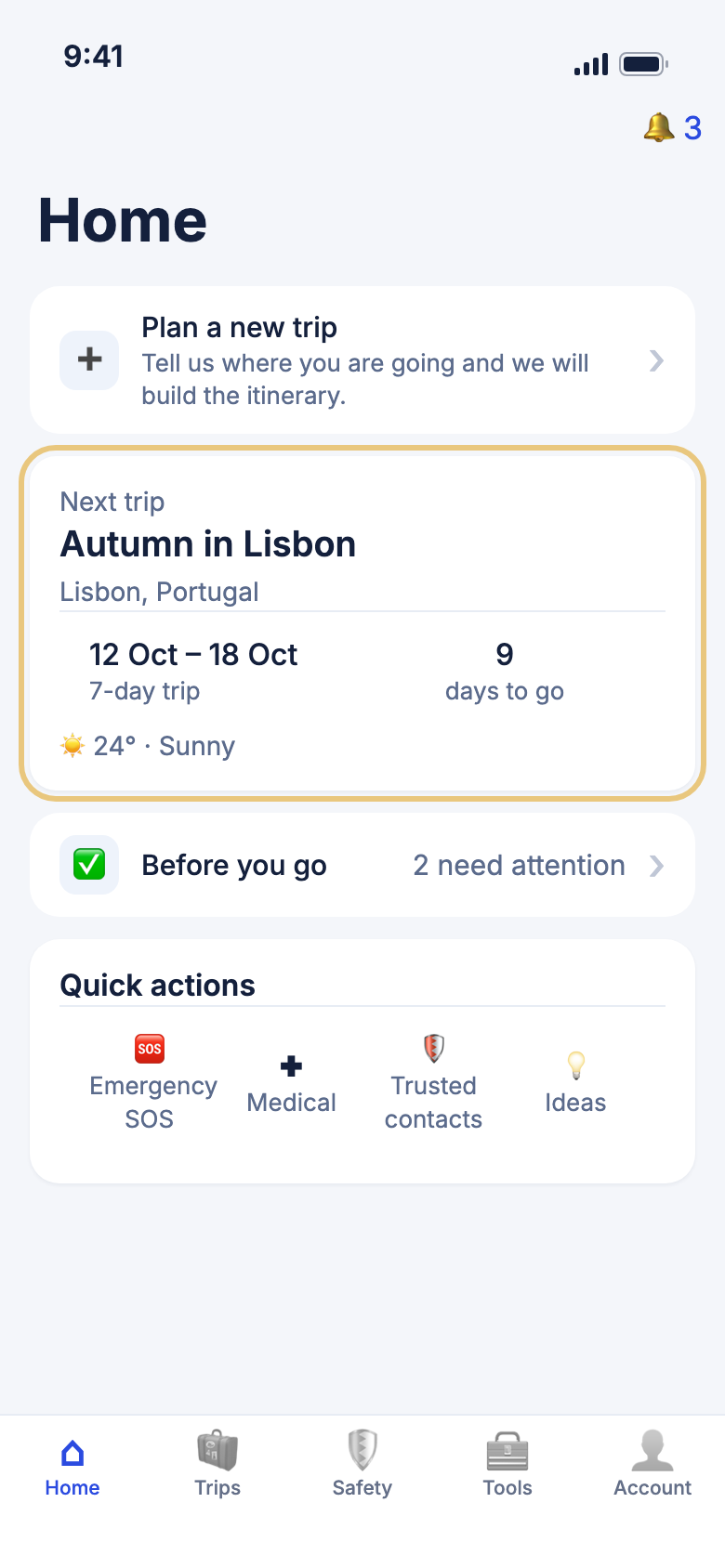
What WeiiGo does
See how the app is laid out
Once you are signed in, five tabs along the bottom of the screen take you to every part of the app.
- Tap Home to see your next or current trip, today's plan and quick actions. See The Home tab.
- Tap Trips to see all your trips and plan a new one. See The Trips tab.
- Tap Safety for SOS, emergency numbers, sharing your location and the check-in timer. See The Safety tab.
- Tap Tools for search, weather, currency, translation and more. See The Tools tab.
- Tap Account for your profile, settings and subscription. See The Account tab.
Good to know
- Janet is WeiiGo's travel assistant. She answers questions about your trips and can change them for you. See Ask Janet.
- On a page you opened from a tab, the tab bar is usually hidden. Go back to see it again.
- The first time you open WeiiGo you sign in or sign up, then answer a few setup questions. See Getting started.
Know what is Free and what is Pro
WeiiGo has two plans, Free and Pro. Planning and editing trips, your itinerary and every safety feature are free. The AI features and some of the Tools are part of Pro.
- Look for the small Pro label next to a feature.
- Tap it. On a Free plan you see Upgrade required.
- Tap Upgrade to see the plans, or Cancel to stay where you are.
WeiiGo Pro — On a Free plan, a Pro feature shows a Pro label and asks you to upgrade when you tap it. Nothing changes until you choose to.
Good to know
- If a Pro plan ends, you can still open what you saved, but you cannot add to it or change it.
- The full list is in Free and Pro.
What you need
Check your phone
WeiiGo runs on an iPhone with iOS 16 or later, and on an Android phone with Android 13 or later.
Good to know
- Alerts from WeiiGo, such as flight alerts and shared-trip updates, reach iPhones today. Android phones do not get them yet.
- Some features need a real phone, for example the camera, the microphone, Face ID, the vibration of SOS, and directions that keep going while the phone is locked.
Choose what WeiiGo may use
WeiiGo asks for each permission only when a feature first needs it. It does not ask for everything at once.
- When a question pops up, read why WeiiGo is asking.
- Tap Allow or Don't Allow.
- To change your mind, open your phone's Settings, then WeiiGo.
| Permission | Why WeiiGo asks |
|---|---|
| Location | To find the local emergency number and nearby embassies, share your position with trusted contacts, and show maps. Directions and the trip tracker can use it while your phone is locked, if you turn those on. |
| Notifications | Reminders and alerts, such as the check-in timer and flight updates. |
| Camera and photos | A photo for your profile, an idea, a document or a safety report. Finding past trips in your photos is done on your phone and uploads no photo. |
| Microphone and speech | Only when you tap the microphone to speak a question to Janet. |
| Calendar and reminders | Adding trips to your calendar and your pre-trip checklist to Reminders, when you ask. |
| Face ID or fingerprint | Signing back in, and opening your travel documents, without typing. |
Good to know
- Saying no to location does not stop you using WeiiGo. Features that need your position work less well, or ask again when you use them.
- On Android, WeiiGo asks about notifications only when a feature needs to remind you.
Know what reaches other people
Some actions send real messages to real people. Check your trusted contacts before you try them.
- Open the Safety tab and read who your trusted contacts are.
- Only then use SOS, I'm safe, or share your location.
Good to know
- WeiiGo does not call the emergency services for you. Tapping a number such as Police opens your phone's dialler with that number.
- Inviting someone to a trusted contact list or a shared trip sends them a real text or email.