
Day tools and maps
On a travel day, WeiiGo can sum up your day, show your stops on a map, guide you between them and keep your notes. This page shows each tool and how to use it.
Your day at a glance
Read your daily briefing
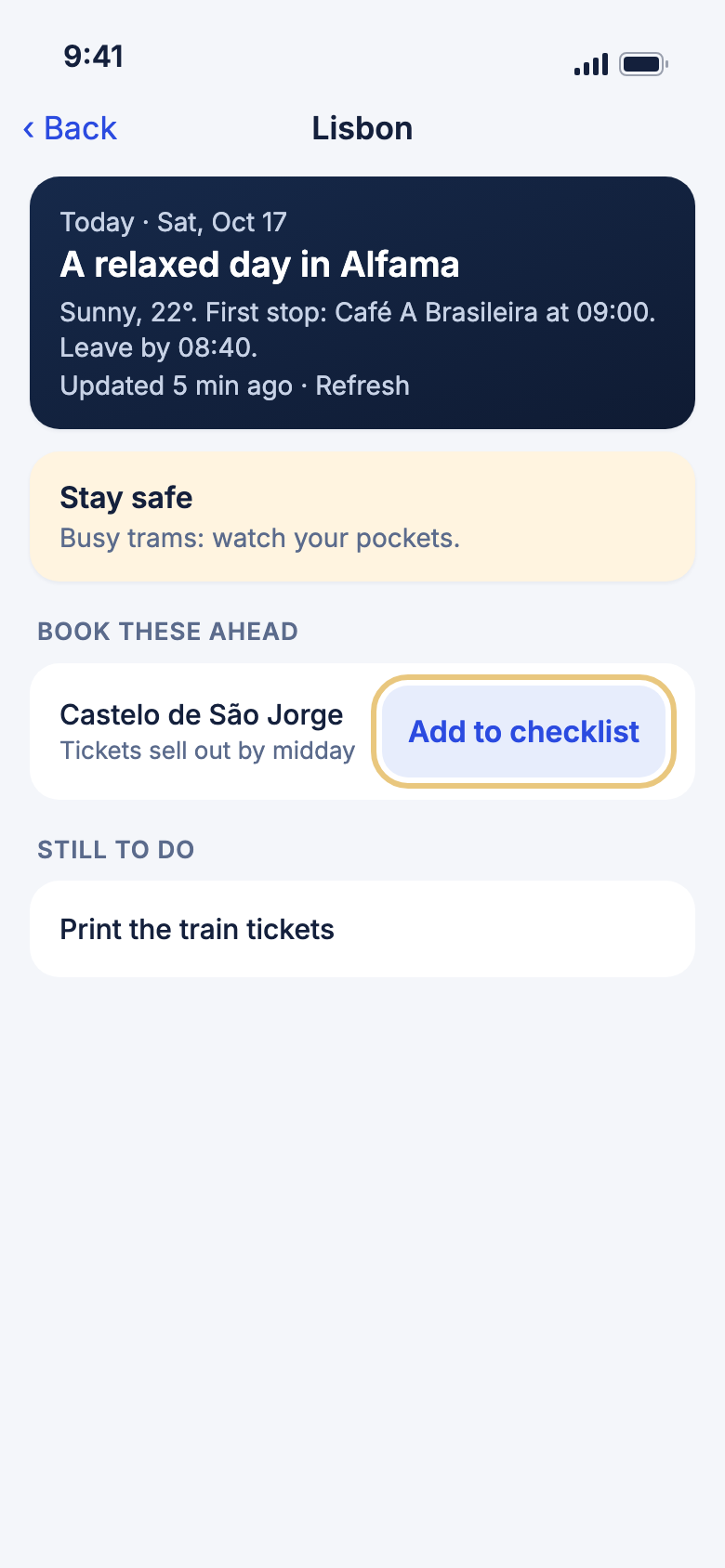
The briefing is a short summary of one day: weather, your first stop, when to leave and what to book ahead.
- Open your trip and choose Day view on today's date.
- Tap Today's briefing. On tomorrow's date it says Tomorrow's briefing.
- Read the cards: Stay safe, Book these ahead and Still to do.
- To get a fresh briefing, pull the page down, or tap Refresh under the summary.
- To remember a place that needs booking, tap Add to checklist beside it. Tap Undo within a few seconds to take it back.
WeiiGo Pro — The daily briefing is part of WeiiGo Pro. On Free you do not see the Today's briefing row. If you open an old briefing link, you see Unlock your daily briefing and an Upgrade button.
Good to know
- You can also open the briefing from the morning card on Home or from the morning notification.
- Offline, you see your last saved briefing under a note that says so.
- A card with nothing to say is hidden. A quiet day may show only the top card.
Maps
See your day on a map
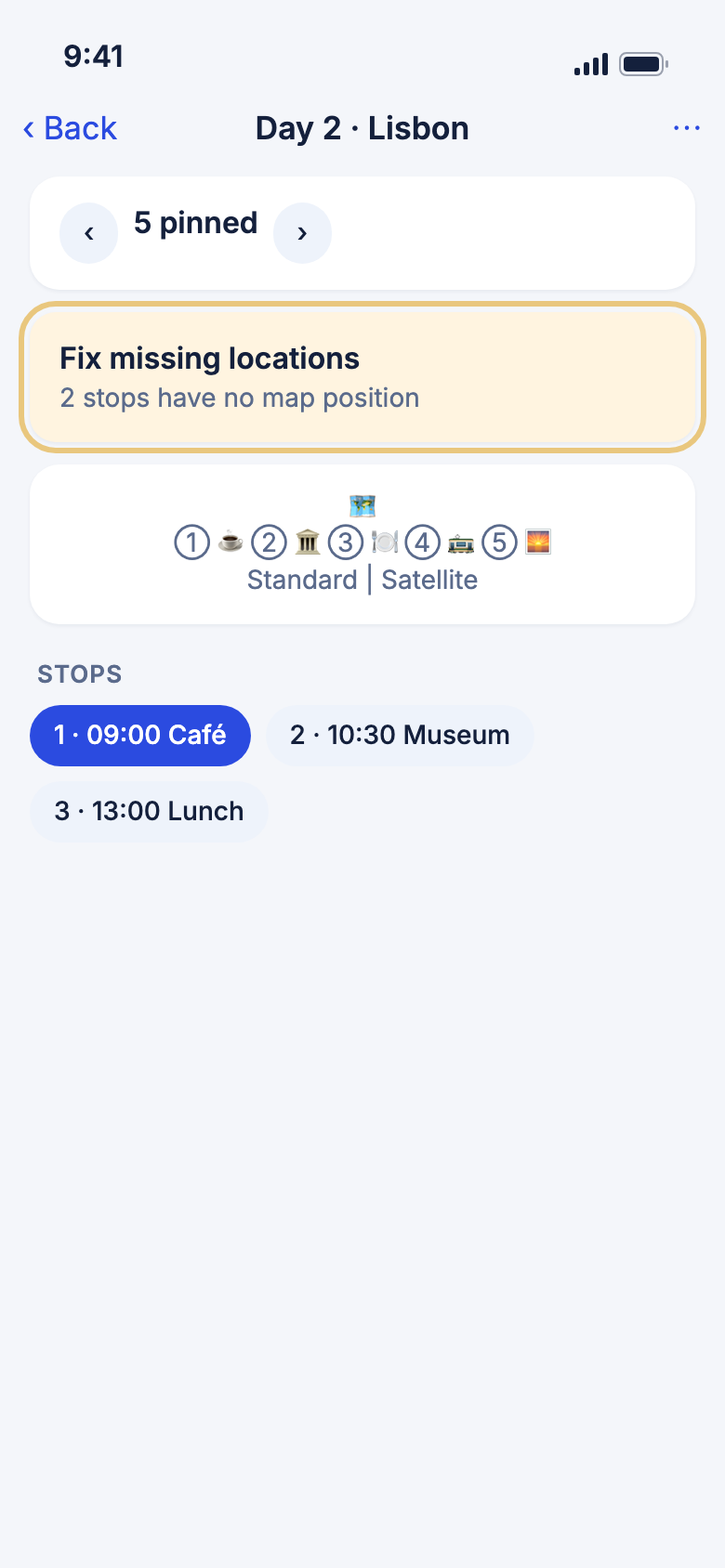
The day map pins your stops in order, so you can see how the day fits together.
- Open your trip. Tap ⋯, then Map view.
- Check the pill at the top. It says how many stops are pinned.
- Tap ‹ or › to go to the previous or next day.
- Under Stops, tap a stop to centre the map on it.
- If some stops have an address but no pin, tap Fix missing locations.
Good to know
- In Agenda view, the map shows the whole trip.
- Tap ⋯ on the map, then Satellite or Standard to change the look. Every map in WeiiGo then uses it.
- Tap ⋯, then Open in Maps to open the area in your phone's own Maps app.
- A stop with no address cannot be pinned. Set its location by hand (see below).
Set where an activity is
If an activity has no location or the wrong one, you can place it exactly.
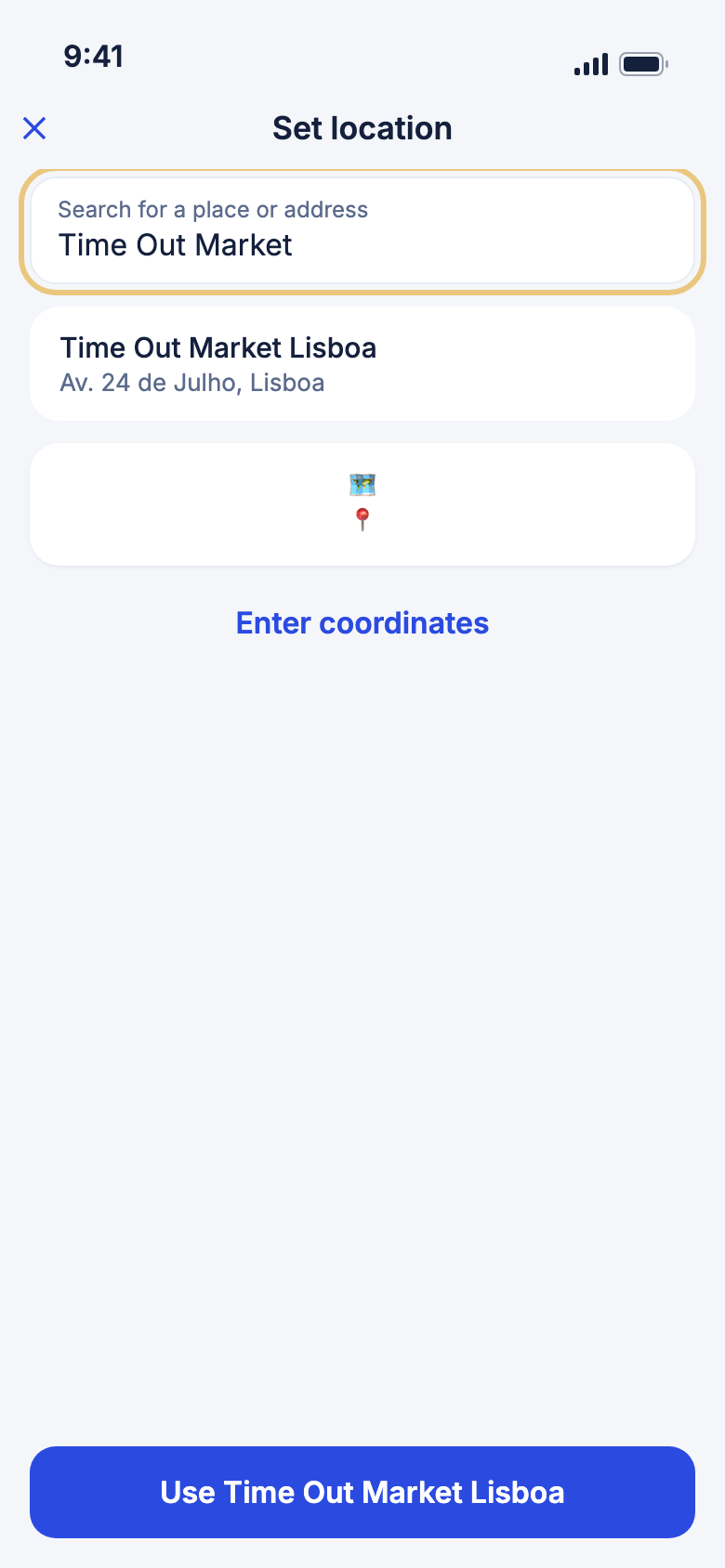
- Add or edit an activity, then tap Set on map.
- Type in Search for a place or address and tap the search key.
- Tap a match. Or tap the map to drop the pin yourself.
- For an exact spot, tap Enter coordinates and type Latitude and Longitude.
- Tap Use this location (or the place's name) to save it.
Good to know
- Tap ✕ at the top left to leave without changing anything.
- If nothing is found, try another name or tap the map.
Look back at your day journal
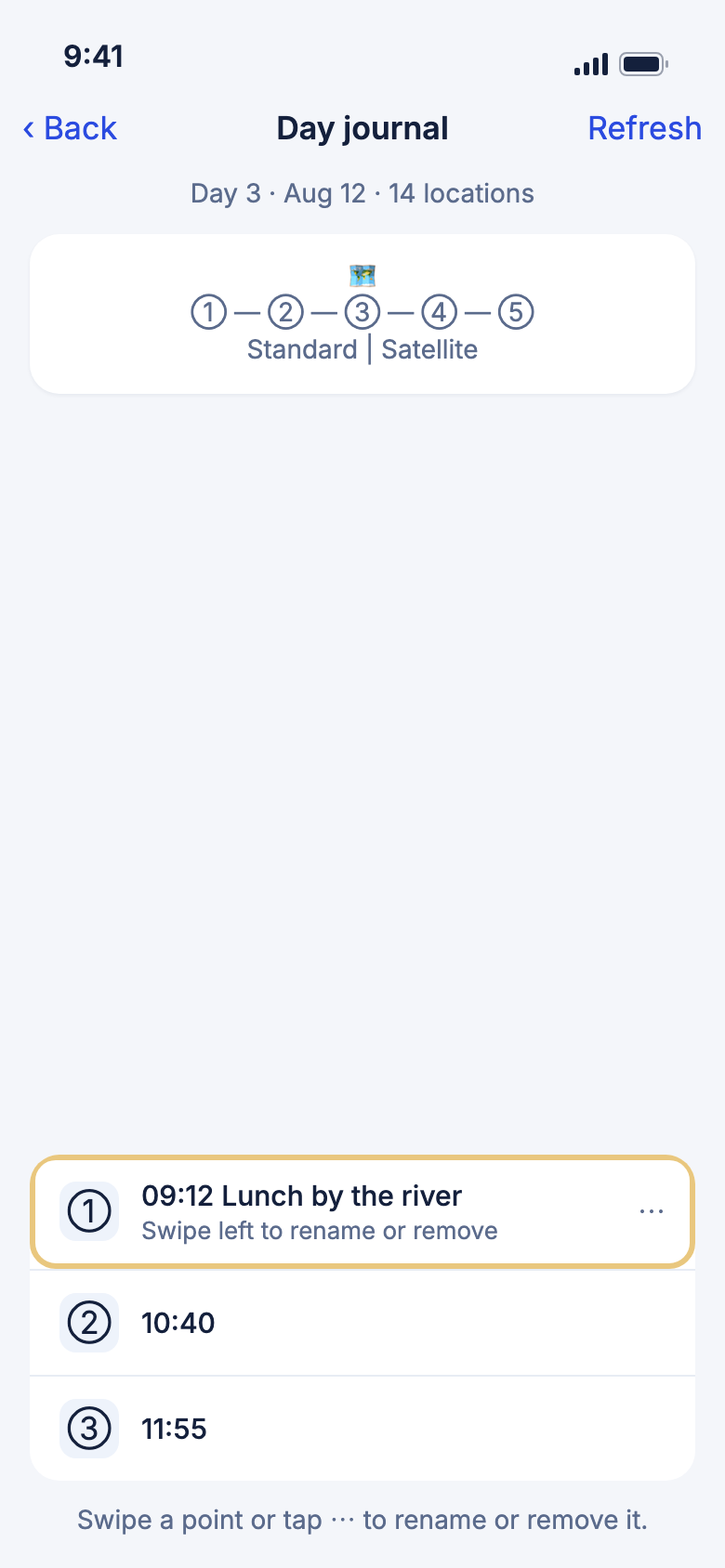
The day journal is a private map of where your phone recorded you on a day. It only has points if Trip Tracker was on.
- After your trip has started, tap ⋯ on the trip, then Day journal.
- Tap the bar at the bottom to open the list of points.
- Tap a point to centre the map on it.
- To name a point, swipe it left and tap Rename. Type a name and tap Save.
- To remove a point, swipe it left and tap Remove, then confirm.
WeiiGo Pro — Trip Tracker, which records the points, is part of WeiiGo Pro. Without Pro the journal stays empty. If your plan has ended, you can still read your journal and remove points, but you cannot rename them.
Good to know
- Only you see your points, even on a shared trip.
- A named point can be added to your itinerary from its ⋯ menu.
- A removed point cannot be brought back.
- Points are recorded as you move, so you need your phone with you.
Getting between stops
Walk from one stop to the next
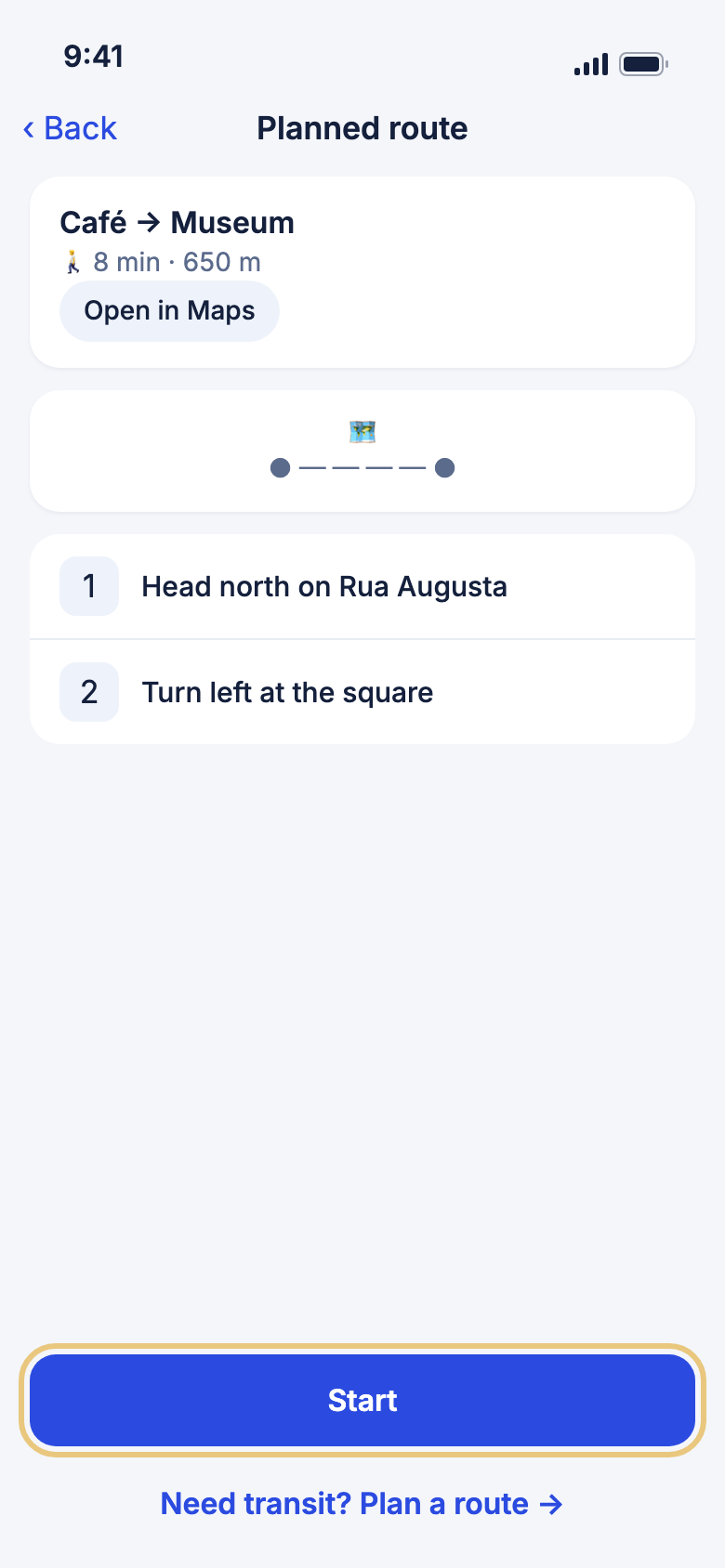
When two stops are close, the gap between them shows the walk. Tap it for the route.
- Open your trip in Day view.
- Tap the walk between two stops, for example Walk · 8 min.
- Read the time, the distance and the steps.
- Tap Start to begin turn-by-turn guidance.
- Or tap Open in Maps to hand the walk to your phone's Maps app.
Good to know
- Too far to walk? Tap Need transit? Plan a route →.
- Offline, the route you already loaded keeps guiding you.
- Planning other journeys is covered on the Getting around page.
Open a saved route and add parking
A route you saved stays on the gap it belongs to, with each leg and its steps.
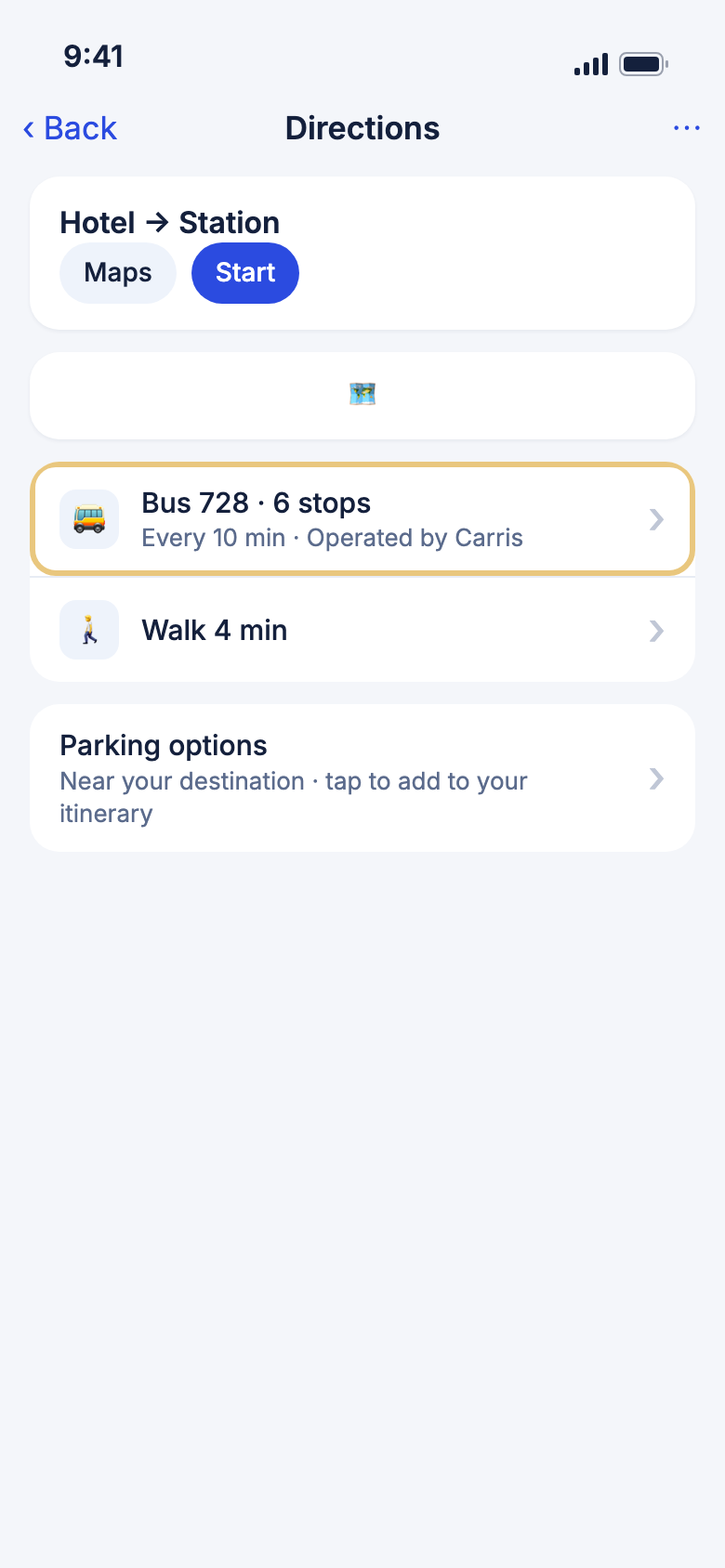
- Tap Directions on the gap between two stops.
- Tap a leg to see its steps.
- Tap Start to begin guidance, or Maps to open your Maps app.
- For a car trip, tap Parking options, then Add beside a car park.
- Pick the day and time, then tap Add.
- To delete the route, tap ⋯, then Delete, and confirm.
WeiiGo Pro — Recalculate route is part of WeiiGo Pro. On Free you are asked to upgrade.
Good to know
- Deleting a route also removes any itinerary items added from it. The confirmation says so.
- A route you saved opens offline.
Notes and the browser
Keep notes for your trip
Trip notes are a private notebook for door codes, tips and anything else you want to remember.
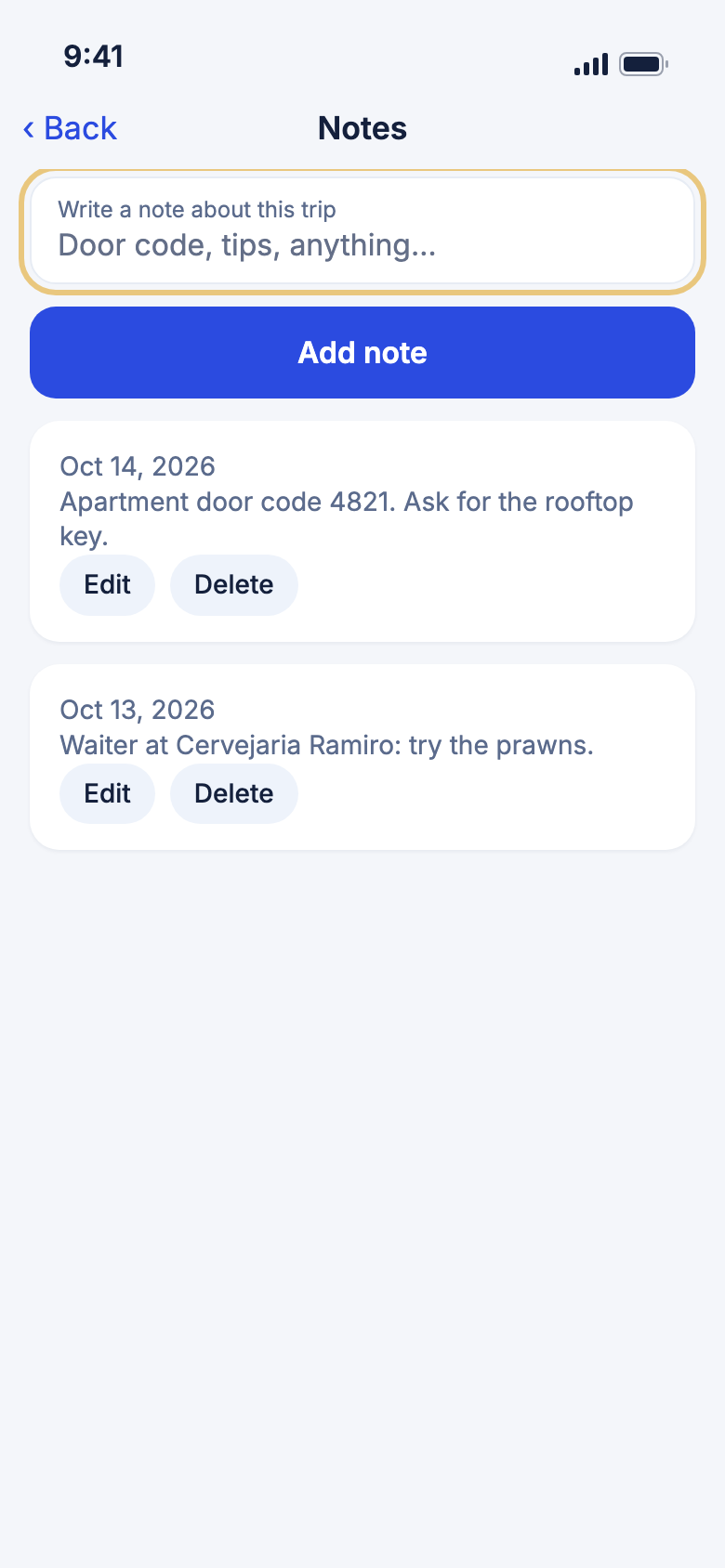
- Open your trip. Tap ⋯, then Notes.
- Type in Write a note about this trip.
- Tap Add note. It appears at the top.
- To change a note, tap Edit, make your change and tap Save.
- To remove a note, tap Delete and confirm.
Good to know
- Only you can see your notes, even on a shared trip.
- A note can hold up to 4,000 characters.
Open a website and check it is safe
Links to booking sites and places open inside WeiiGo. A bar at the top shows whether Google has flagged the site.
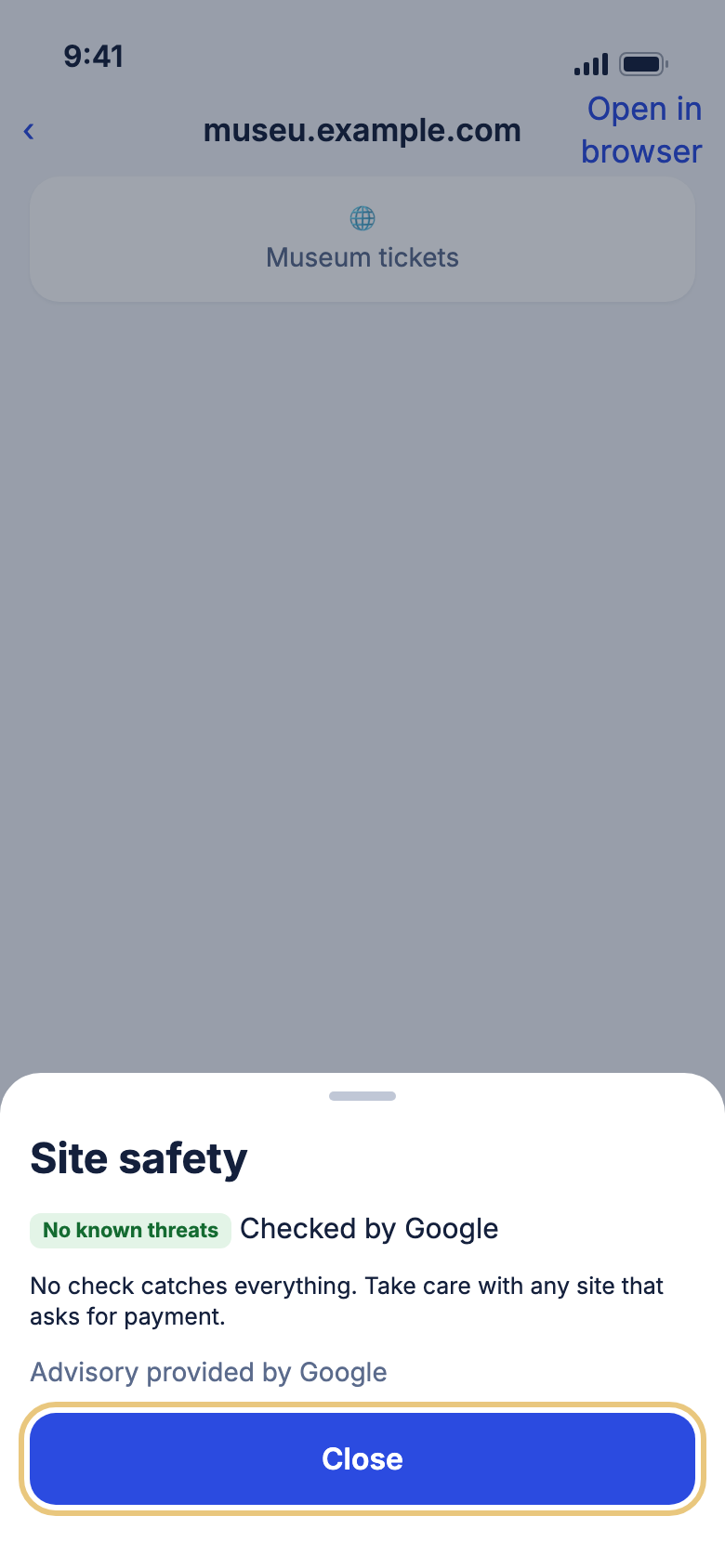
- Tap a web link in WeiiGo. The page opens inside the app.
- Look at the safety line beside the site name. It reads No known threats, Possible unwanted software, Possibly dangerous or Not checked.
- Tap the site name to open Site safety and read what the result means. Tap Close.
- To use your phone's browser instead, tap Open in browser.
- If a page is flagged, This site may be unsafe covers it. Tap Back to leave. Or tap Continue anyway and confirm if you are sure.
Good to know
- The first time, a short notice explains the check. Tap OK.
- The check cannot be switched off. Only the web address is sent to Google, never the page.
- Not checked means the check could not run, for example when you are offline. Take care on any site that asks for payment.
Your own search categories
Make your own activity categories
Add categories such as "Rooftop bars" or "Bookshops" so you can search for them when planning.
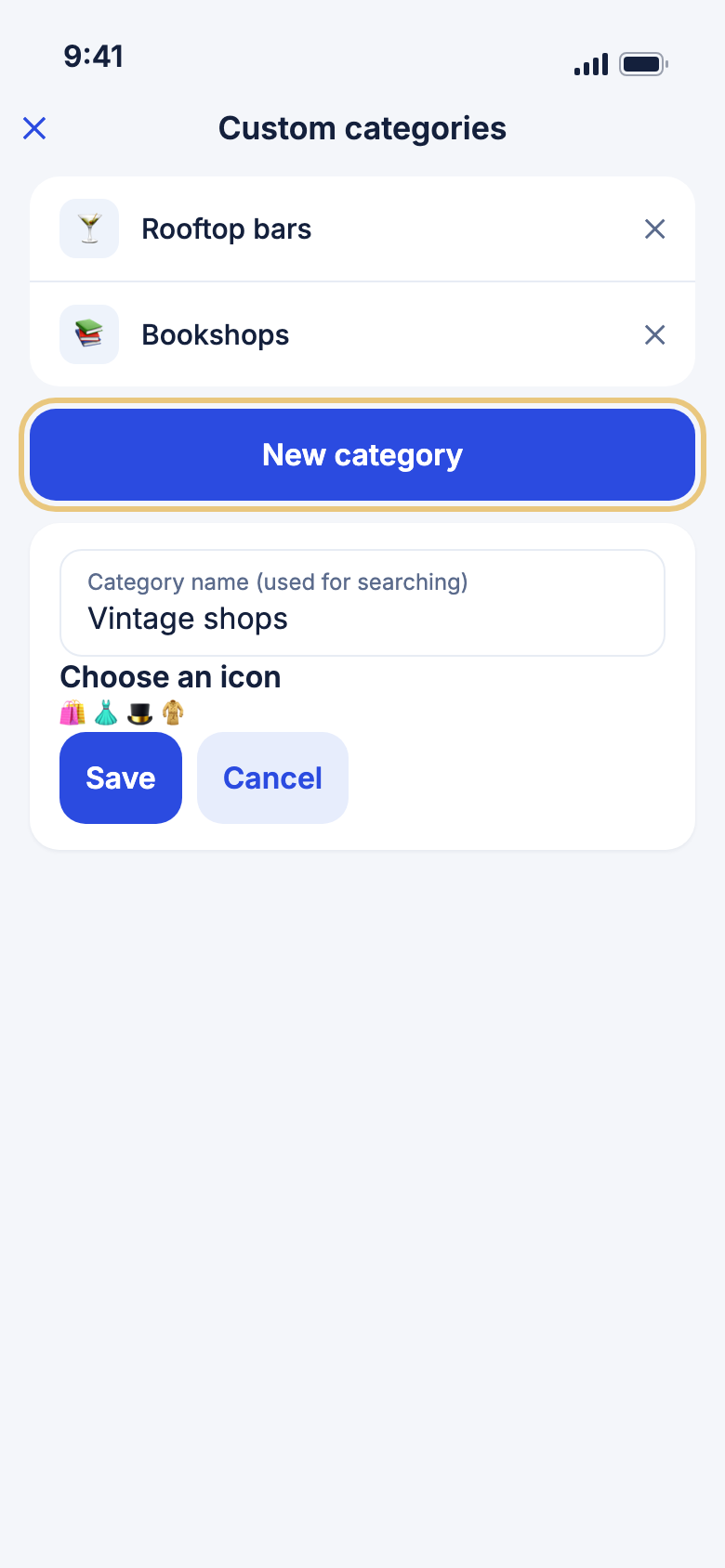
- Tap Account, then Settings.
- Tap Custom categories, then New category.
- Type a name in Category name (used for searching).
- Pick an icon under Choose an icon, then tap Save.
- To rename one, tap it. To delete one, tap ✕ on its row.
Good to know
- Names must be under 40 characters and different from your other categories.
- Your categories follow you to your other devices. Saving needs a connection.