
Getting around
WeiiGo helps you get from one stop on your trip to the next. Plan a route by public transport, car, on foot or by bike, save it to your day, and follow it with spoken turn-by-turn directions. You can also open Uber or Lyft for a ride.
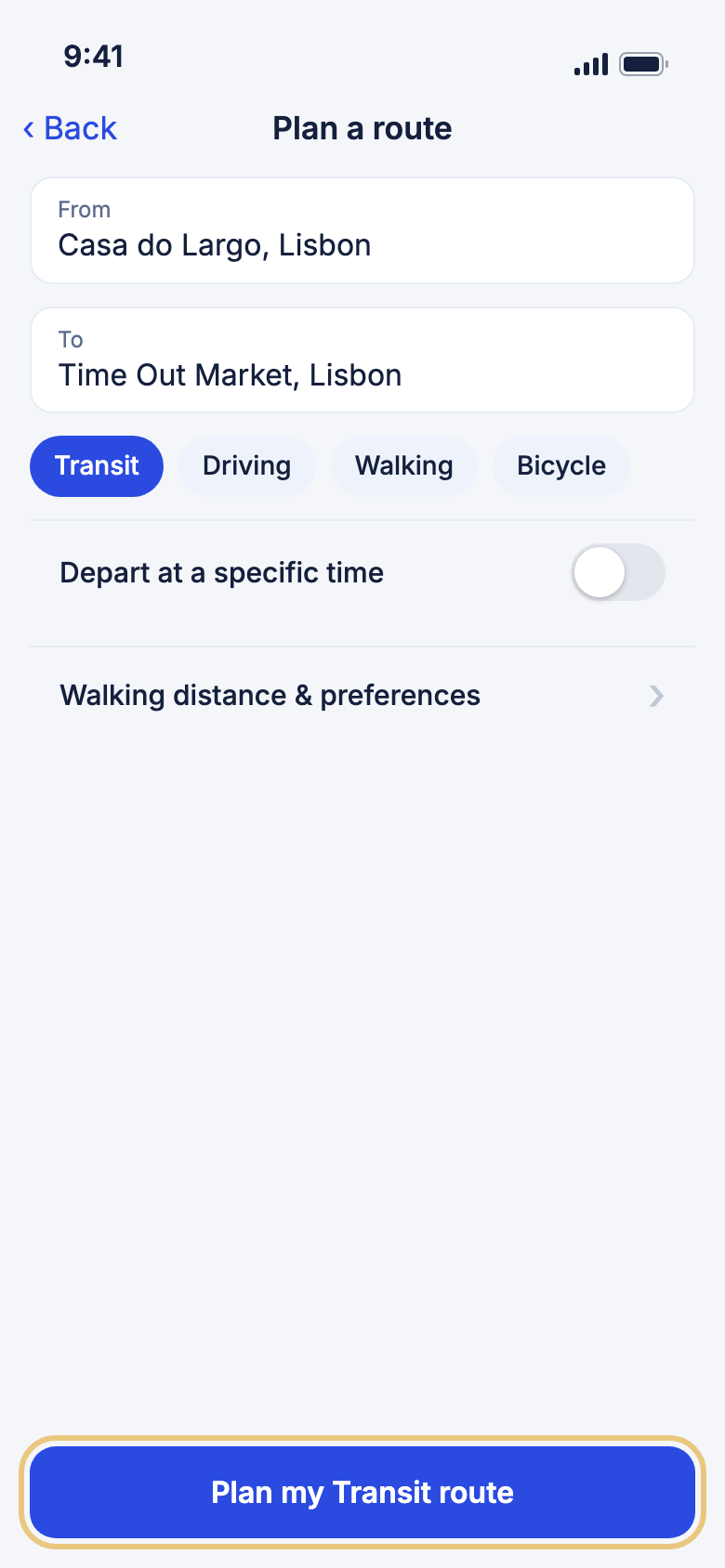
Planning a route
Open the route planner
The planner works out how to get between two stops on your itinerary, with both stops already filled in.
- Open your trip and switch to the Day view.
- Find two stops that have a location and are far apart. The gap between them reads Plan a route.
- Tap the gap. Plan a route opens with From and To filled in.
WeiiGo Pro — Opening the planner from your itinerary is part of WeiiGo Pro. On Free you see Upgrade required instead. The Need transit? Plan a route → link on walking directions opens it for everyone.
Good to know
- A stop with no location has no gap to tap. Give it a location first.
- A gap that already has a saved route reads Route saved and opens Directions instead.
- A short gap you can walk opens walking directions.
Choose where you start and where you are going
Type any address or place name, or start from where you are now.
- Tap From and type an address, or tap the pin button to use your current location.
- Tap To and type an address or place name.
- To start from another stop on the same day, tap the down-arrow beside From and pick one under Start from which stop?.
Good to know
- If WeiiGo cannot read your location, allow location for WeiiGo in your phone's settings and try again.
- If From or To is empty, you see Enter a starting point and destination to plan a route.
Pick how you will travel
Choose Transit, Driving, Walking or Bicycle. The big button names your choice.
- Tap a mode.
- Tap the big button, for example Plan my Driving route.
Good to know
- WeiiGo remembers your last mode for each trip.
- Distances follow the unit you chose in Settings.
- If a mode has no route for your two places, it is greyed out. Tap it to see why.
Leave at a specific time
Plan for later instead of now. This matters most for public transport.
- Tick Depart at a specific time.
- Set the date and the time.
- Tap the big button.
Good to know
- If there is a long wait for a connection, WeiiGo may plan a later departure. The Step-by-step text starts with "Heads up".
Set how far you will walk
Tell WeiiGo how far you are happy to walk to the first stop and from the last one, and add notes such as "with luggage".
- Tap Walking distance & preferences.
- Drag Max walk to first stop and Max walk from last stop.
- Type in Preferences (optional), for example "avoid stairs".
- Tap Hide walking distance & preferences to fold the options away.
Good to know
- The walking distances only change public transport routes.
Reading your route
Get a public transport route
You see the total time, transfers, the fare when known, a map and each leg.
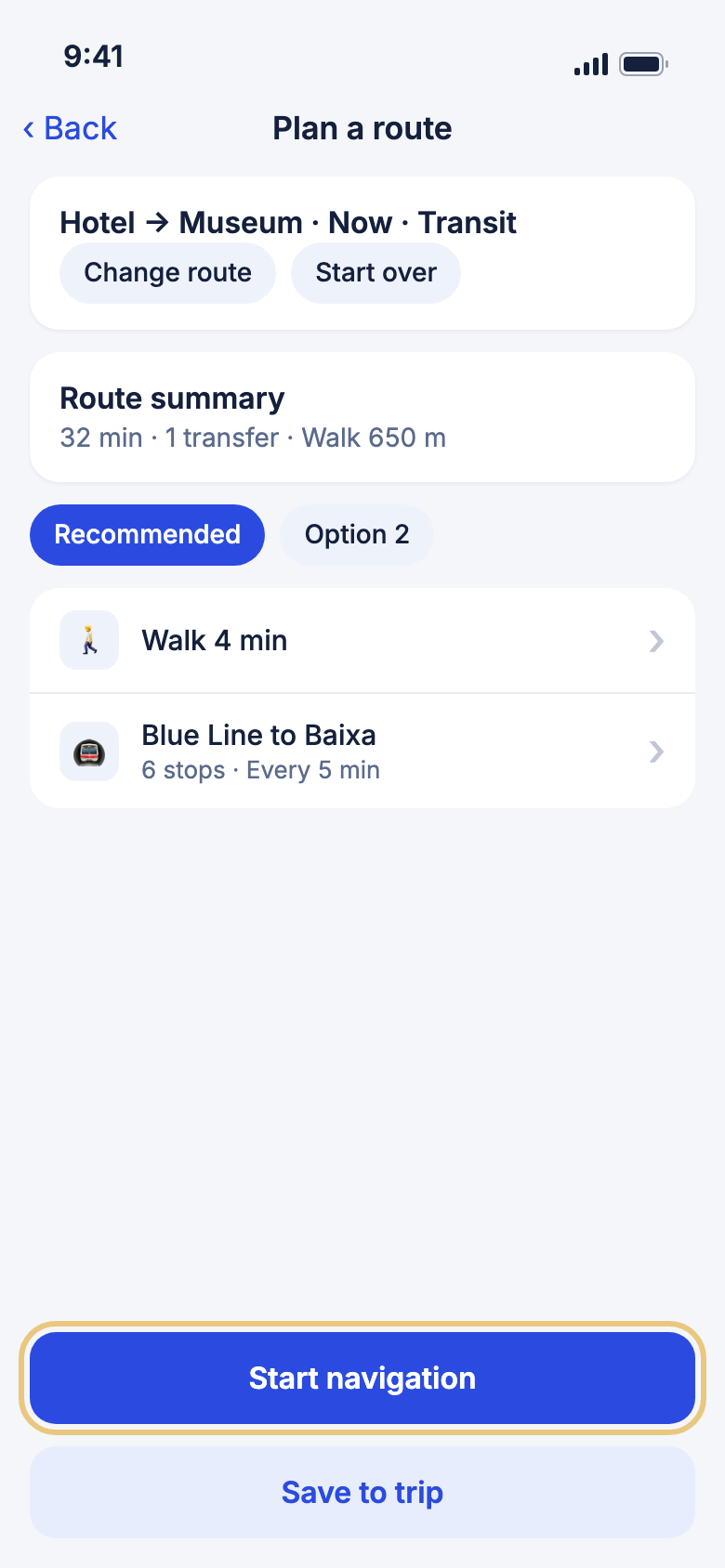
- Choose Transit and tap Plan my Transit route.
- Read the Route summary: time, Direct or the number of transfers, and the walk.
- If there is more than one route, tap Recommended or Option 2 under Route options to compare.
- Tap a leg with a › to see its details. A warning mark means a live Service alert.
- Read the Step-by-step panel, if you see one, for the journey in plain words.
WeiiGo Pro — Public transport routes are part of WeiiGo Pro. On Free, Plan my Transit route shows Upgrade required and plans nothing.
Good to know
- Timetables exist only where WeiiGo has public transport data. If no route is found, the Step-by-step panel says why.
- You need an internet connection.
Get driving, walking or cycling directions
You get one door-to-door route with a map and steps. A driving route also lists car parks nearby.
- Choose Driving, Walking or Bicycle.
- Tap the big button.
- Read the time, distance, map and steps.
- For a drive, scroll to Parking near your destination. Tap a car park to open it in your Maps app.
Good to know
- Only driving routes list car parks.
- If no route is found, a red strip explains why.
Plan between two cities
If your two places are in different cities, WeiiGo can plan the whole journey, including a train or flight between them.
- Plan a Transit route between two cities. The Inter-city journey card appears.
- Under Prefer, choose Fastest, Rail or Air.
- Tap Get inter-city plan (AI estimate).
WeiiGo Pro — Inter-city plans are part of WeiiGo Pro. On Free you see Upgrade required.
Good to know
- An AI plan shows an amber banner. Check times and fares with the operator before you book.
Change the route or start over
Change what you asked for, or clear the form.
- Tap Change route. The form opens with your values in it.
- Change From, To or the time, then tap Done.
- Or tap Start over to clear everything.
Good to know
- After Start over, saving asks which day to use.
Save a route to your trip
A saved route stays on your itinerary and opens again later.
- Plan a public transport or driving route.
- Tap Save to trip, or Save driving directions for a drive.
- If asked Save to which day?, tap a day.
- Tap OK. The gap between the stops now reads Route saved.
Good to know
- Walking and cycling routes cannot be saved.
- A saved driving route keeps its list of car parks.
Open the route in your Maps app
Hand the area over to Apple Maps (iPhone) or Google Maps (Android).
- Plan a route so a map shows.
- Tap Maps at the top right.
Following a route
Start turn-by-turn navigation
A full-screen map follows you. The next turn is in a banner at the top.
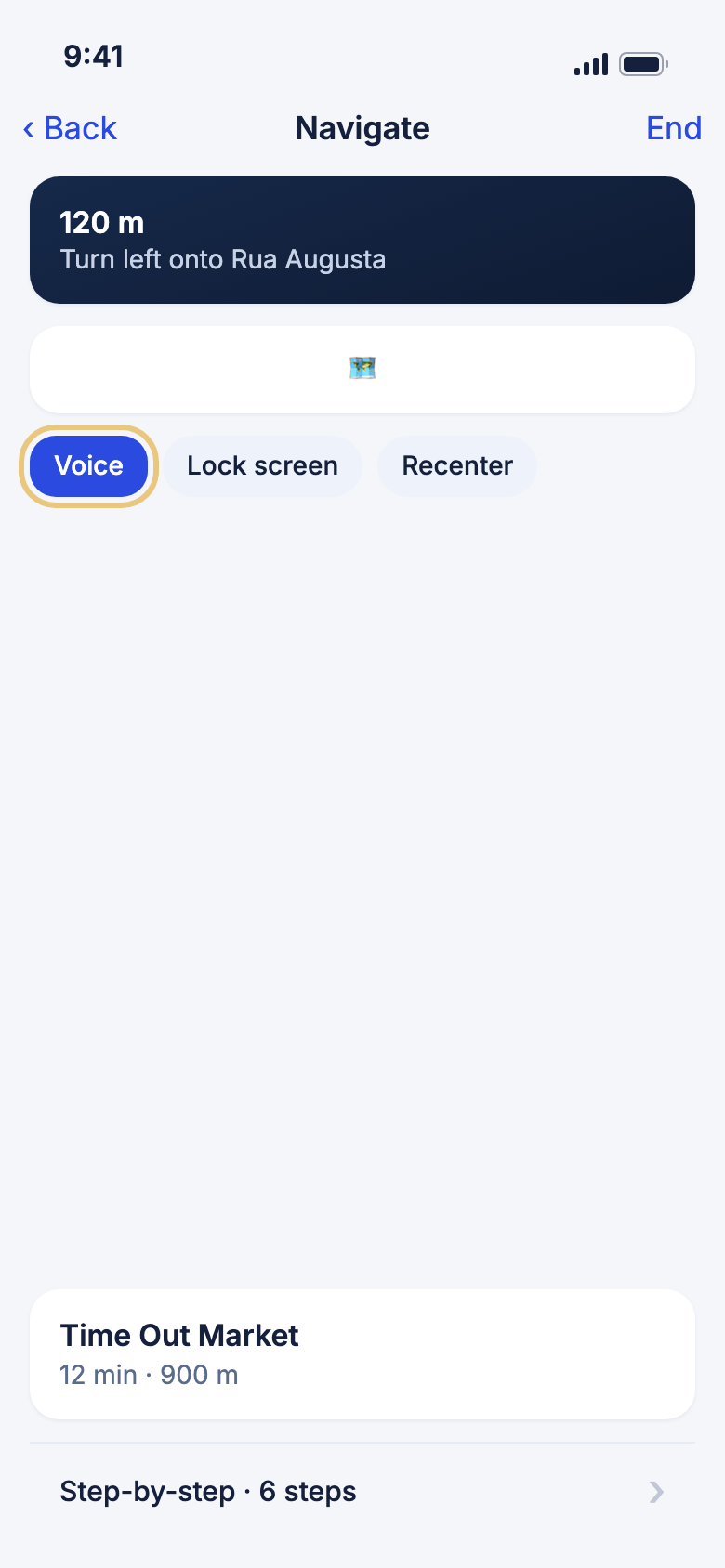
- Tap Start navigation on a driving, walking or public transport route.
- The first time, answer the location questions that appear.
- Follow the banner, for example "Turn left onto Rua Augusta".
- Tap Step-by-step to see all the steps. Tap Recenter to bring the map back to you.
- When "You've arrived" shows, tap Done.
- To stop early, tap End, then End navigation.
Good to know
- You can also tap Navigate this walk or Navigate this drive inside one leg.
- Navigation needs your phone's real GPS, so it works best on a real journey.
Hear your directions
WeiiGo speaks each upcoming turn.
- Start navigation. Voice is on.
- Tap Voice to mute. Tap again to turn it back on.
Good to know
- Your phone's volume and silent switch still apply.
Keep guiding with the phone locked
Directions continue while you are in another app or the phone is locked.
- Start navigation and tap Lock screen.
- If asked, choose Allow always.
- When the lock icon turns green, lock your phone.
- Tap Lock screen again to turn it off.
Good to know
- It needs location set to Always. It uses more battery.
- On Android, an ongoing notification shows the time and distance left.
Follow a public transport journey
WeiiGo guides you leg by leg: walk to the stop, wait, ride, walk on.
- Tap Start navigation on a public transport route.
- On a walk, follow the turns. At the stop, tap Continue.
- On Wait here, watch the countdown. Tap Continue when you board.
- On a ride, WeiiGo tells you where to get off. Tap I'm here — continue when you do.
- Tap Done at the end.
Good to know
- Turn on Auto-continue between stops in Settings to skip the Continue question.
- Underground, WeiiGo relies on the timetable if GPS drops out.
If you go off route or lose signal
Navigation carries on and tells you what is happening.
- If you leave the route, you see Rerouting…, then Back on track.
- If you go offline, an amber banner says guidance continues from the saved route.
- Tap Open in Maps to carry on in your phone's own Maps app.
Good to know
- The map may be blank offline. Open in Maps works offline if you downloaded the area there.
Getting a ride
Get a ride with Uber or Lyft
Open Uber or Lyft with a stop filled in as the drop-off. You request and pay in that app. WeiiGo does not book the ride.
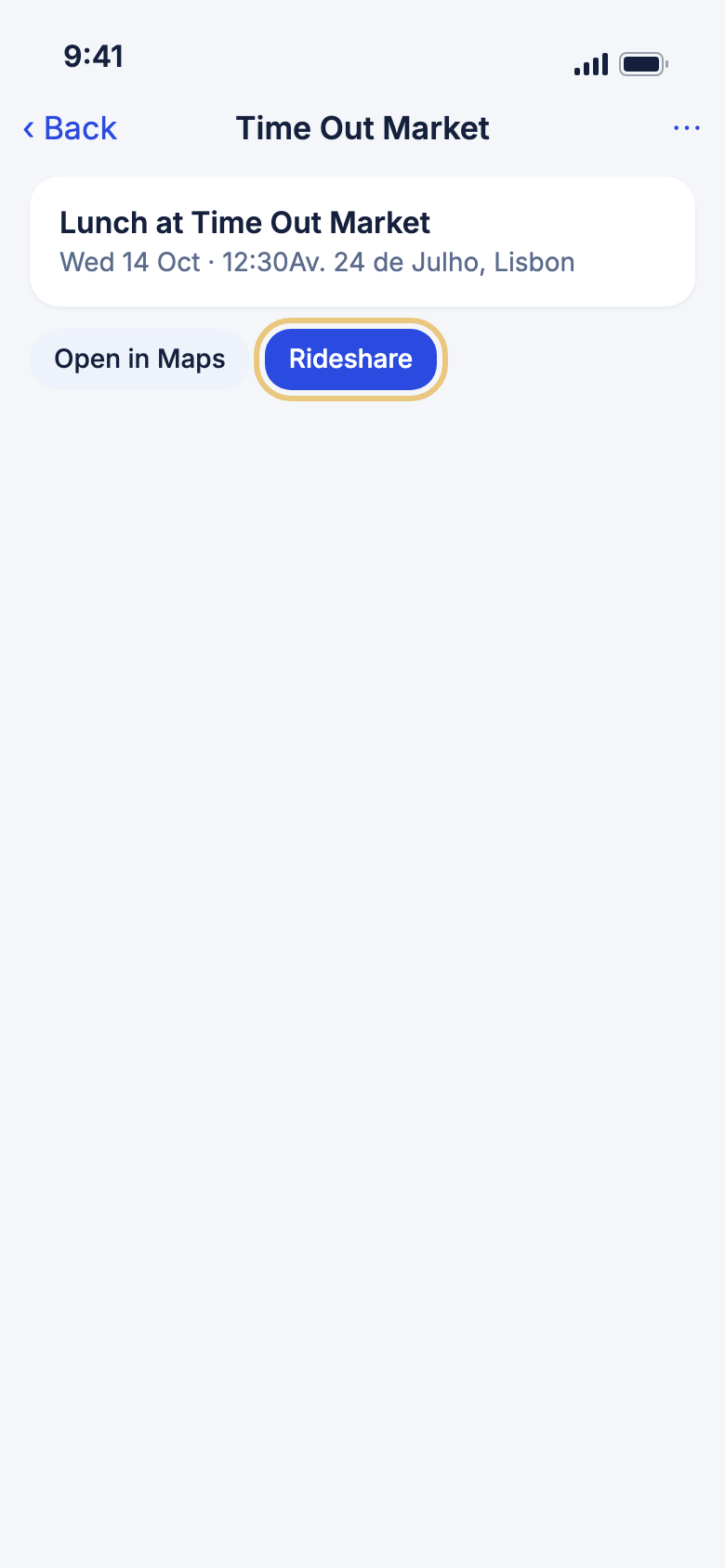
- Open an itinerary item that has a location.
- Tap Rideshare.
- Uber or Lyft opens with the stop as the drop-off. If the app is not installed, its website opens.
Good to know
- Choose Uber or Lyft in Settings. Uber is the default.
- Lyft works only in the US and Canada. Elsewhere WeiiGo opens Uber.
- If neither runs in the trip's country, the Rideshare button is hidden.
- The button is hidden on a stop with no location.