
Safety and SOS
The Safety tab is where WeiiGo helps when something goes wrong. Send an SOS, call local help, set a check-in timer, share where you are, and see what other travellers have reported near you. Every emergency feature is free.
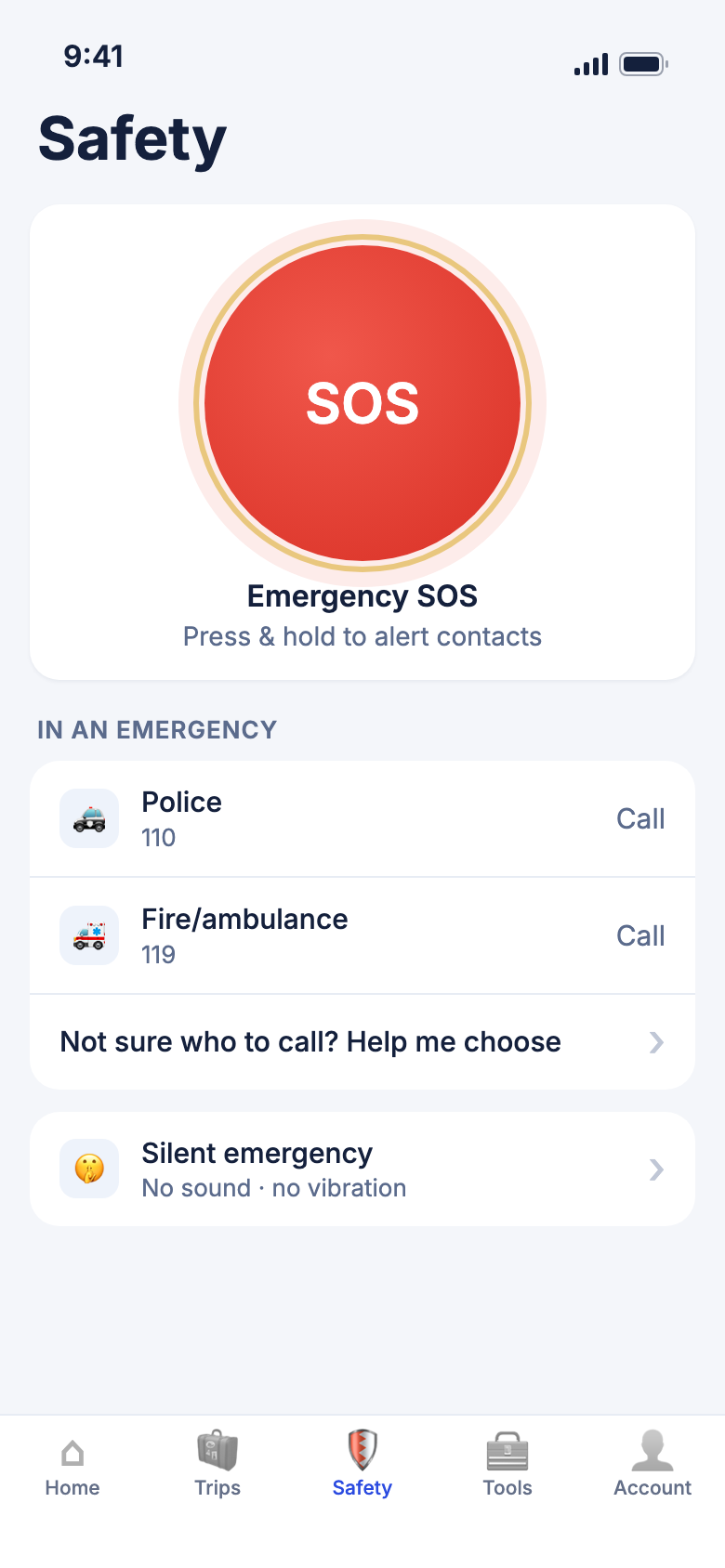
Who gets alerted. An SOS, an "I'm safe", a shared pin, live location, a check-in answer and a missed check-in all reach real people. Each task below says who before the step that sends it. Your trusted contacts must have accepted your invite first. For a short tour of the same tab, see The Safety tab.
In an emergency
Send an SOS to your contacts
Use SOS when you need the people you trust to know you are in trouble, right now.
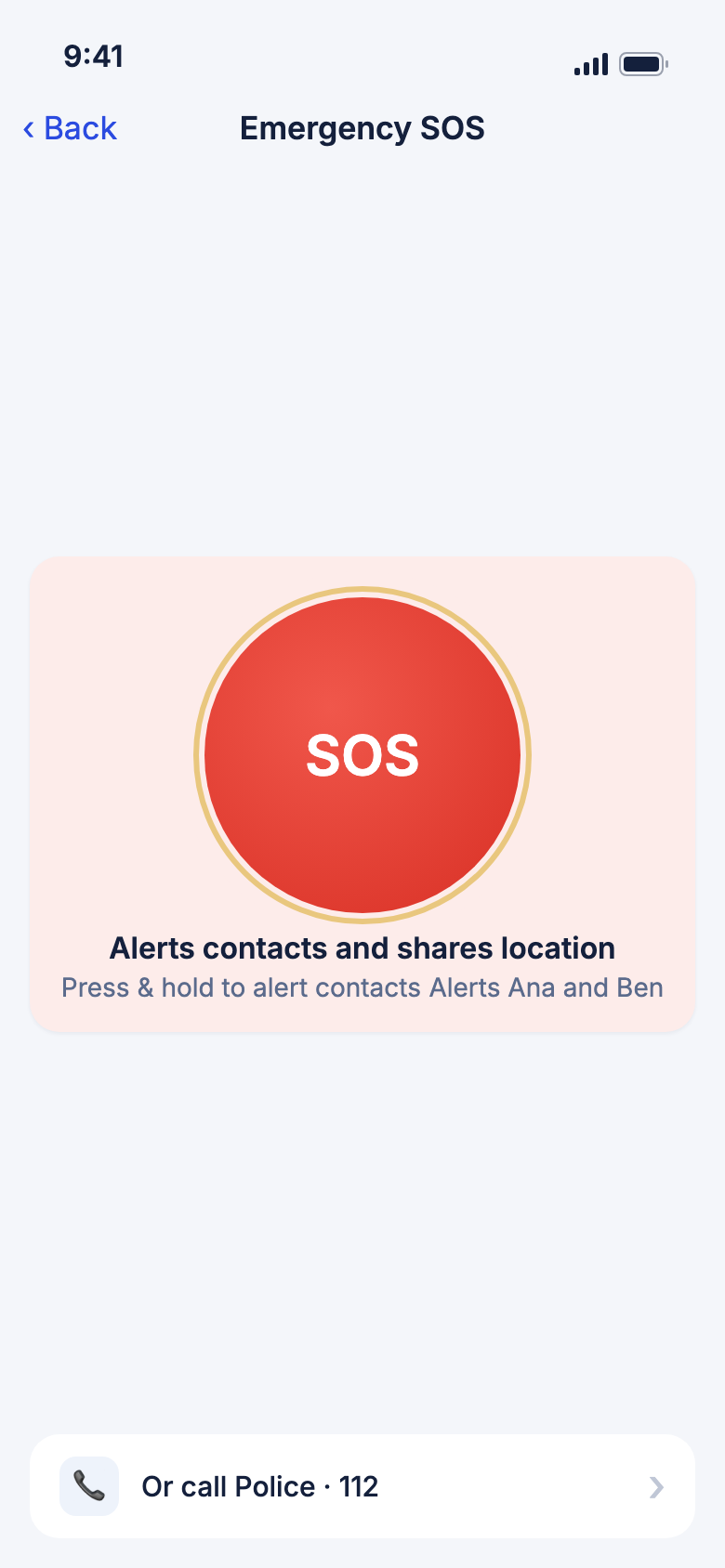
Who is alerted: your trusted contacts who are marked Emergency contact, have Receives SOS alerts on, and accepted your invite. They get a message with a map link to where you are. It shows in their WeiiGo app, and goes by SMS, WhatsApp or email if you turned those on for them. SMS also needs their own OK: WeiiGo texts them only if they ticked Text me WeiiGo safety alerts in the WeiiGo app, when they accepted your invite or later.
- Tap Safety, or tap Emergency SOS on Home.
- Press and hold SOS for 3 seconds. The line under it counts down: Sending SOS in 3...
- Changed your mind? Lift your finger or tap Cancel before the ring is full.
- When the ring is full, your alert goes out and WeiiGo starts sharing your live location.
Good to know
- On the page from Home, a line names who will be alerted, for example Alerts Ana and Ben.
- No one can receive it? The page says No trusted contacts yet — your alert won't reach anyone. Add a contact. Tap it to invite someone. The button still works.
- Notice it. Report it. → Medical emergency opens the same page, set up to call an ambulance.
- Your contacts are messaged at most five times in five minutes. Sending more often still records the alert.
- You need a phone signal. If the alert can't go out, you see SOS NOT sent (see below).
Call local emergency services after your SOS
Right after your alert goes out, WeiiGo opens your phone to call the local emergency number.
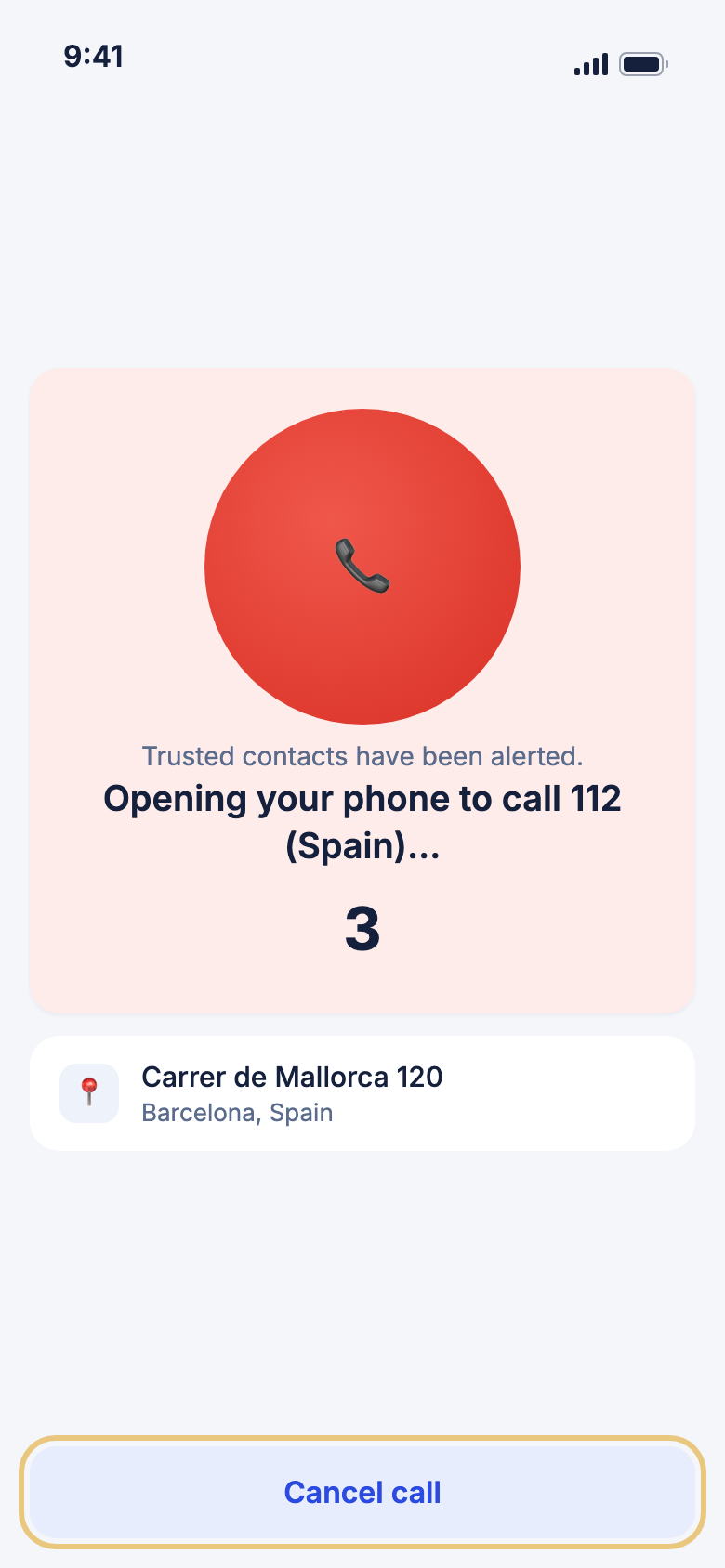
- The screen says Trusted contacts have been alerted. and counts down from 3.
- At zero, your phone's dialler opens with the number. Tap to call.
- Don't want to call? Tap Cancel call before zero.
Good to know
- WeiiGo never places a call by itself. On iPhone your phone asks first.
- Cancel call only stops the call. Your contacts were already alerted.
- If WeiiGo isn't sure of the number where you are, it uses 112 and says Not confirmed for this area.
See who got your alert, and send it again
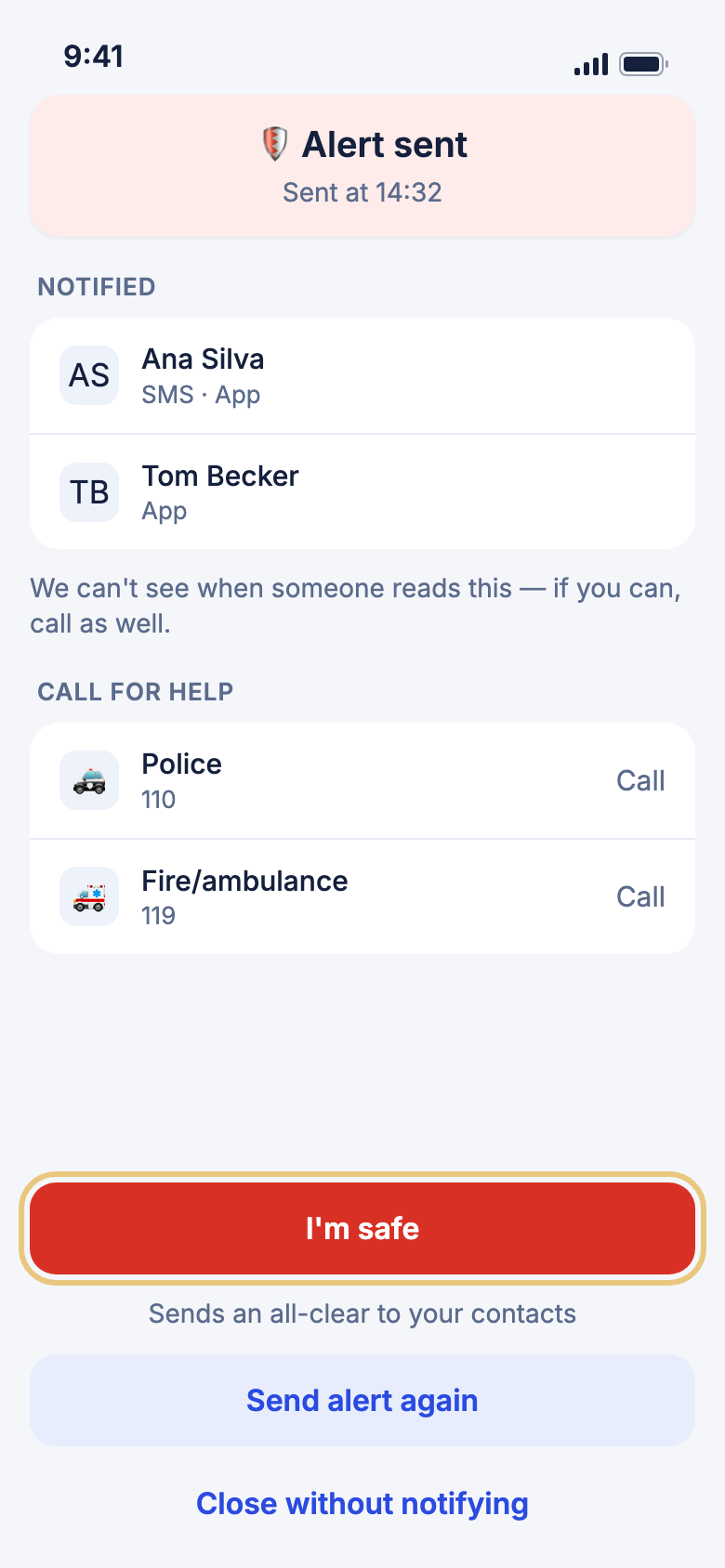
Emergency in progress stays open after the call, so you can see who was told.
- Check the timer. It counts the time since your alert.
- Tap Trusted contacts alerted to see each contact and how they were reached.
- To alert everyone again, tap Send alert again. This messages your contacts again.
- Under Call for help, tap Police or Fire/ambulance to call.
- Tap Show emergency message to show someone nearby what you need.
Good to know
- If the alert did not send, a card says SOS NOT sent. Tap Retry, or Send SMS to contacts to text them from your phone. The call still goes ahead.
- If none of your contacts could be reached, or you have none set up, the screen says so and offers Add a trusted contact.
- WeiiGo can't see when someone reads your alert. If you can, call as well.
Tell your contacts you're safe
When the emergency is over, let everyone know.
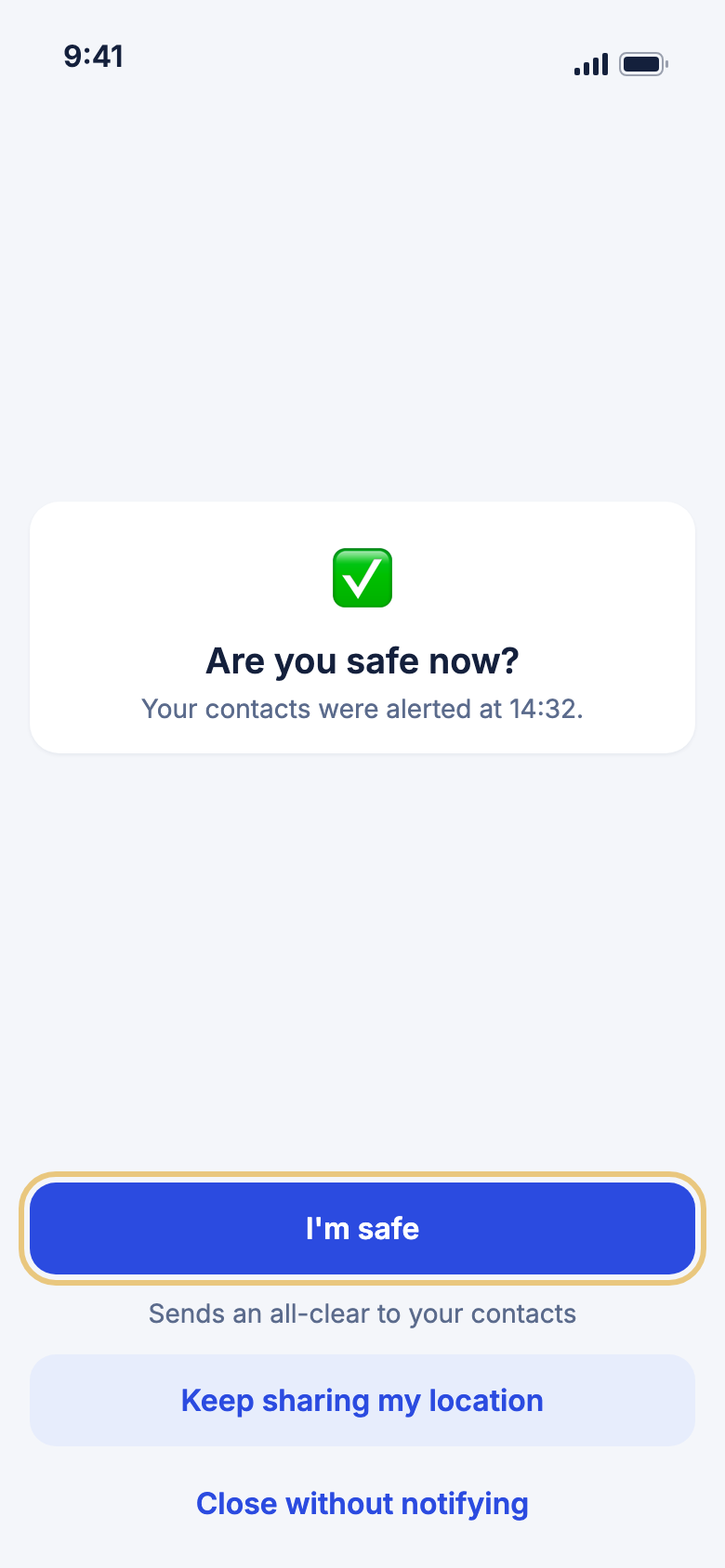
Who is alerted: the same contacts who got your SOS, through the same ways.
- On Emergency in progress, tap I'm done.
- Tap I'm safe. Your contacts get an all-clear.
- Or tap Keep sharing my location, or Close without notifying.
Good to know
- A reminder banner with Send 'I'm safe' update shows for six hours after your alert, or until you send it.
- If it fails you see Couldn't send your all-clear. Check your connection and try again.
Emergency numbers and help
Call the local police or ambulance
WeiiGo shows the numbers for the country you are in, so you don't have to look them up.
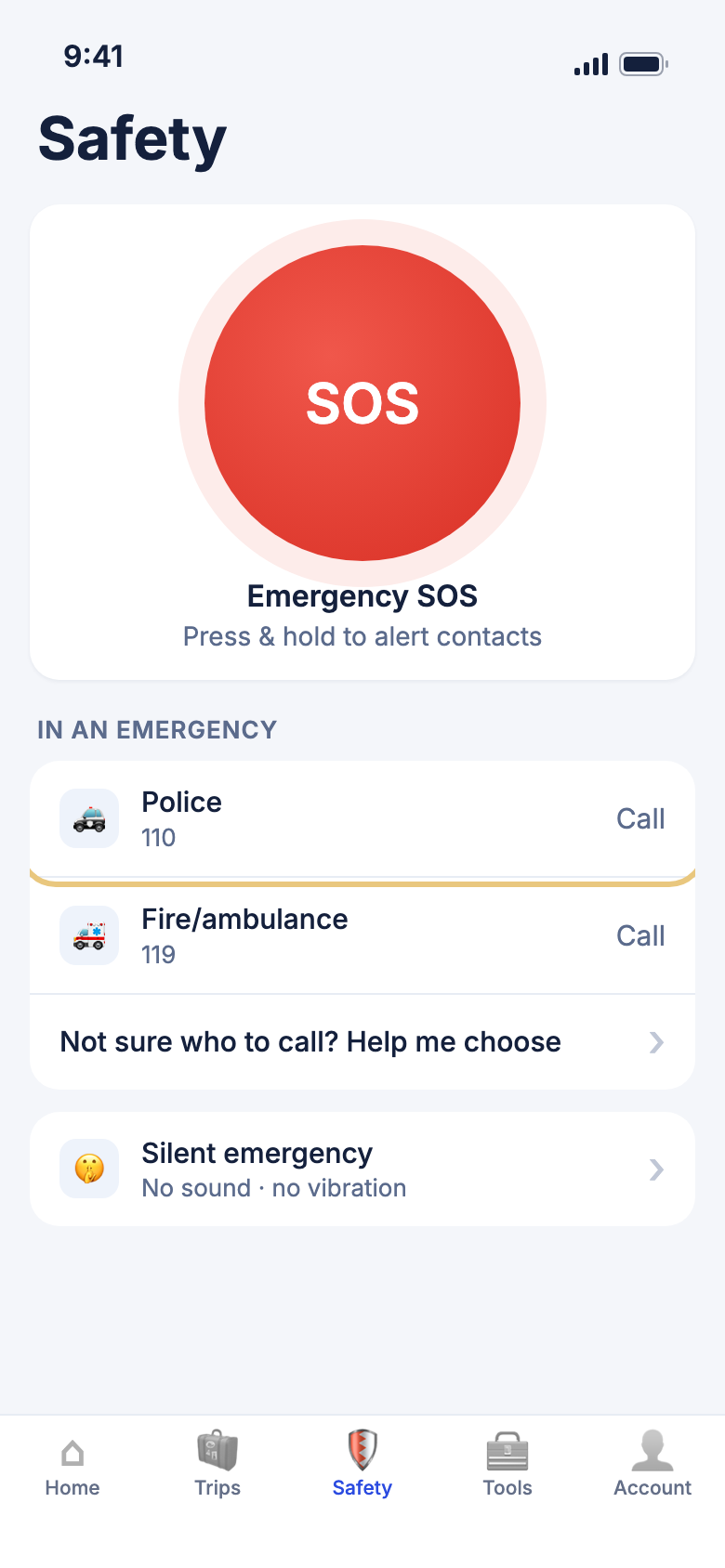
- Tap Safety, then Emergency numbers.
- Under Your current location, tap Police or Fire/ambulance.
- Your phone's dialler opens with the number. Tap to call.
- Tap Use my location if you have just moved.
Good to know
- If WeiiGo can't confirm the numbers for your area, the tiles say Not confirmed for this area. Check locally before relying on them.
- Under More help you also find Contact your embassy, Medical (nearby hospitals) and Show emergency message.
Look up another country's numbers
Check a country before you go. This works with no signal.
- Open Emergency numbers.
- Type a country name, or its two-letter code such as jp, in Search a country. Or scroll through Common numbers and Countries with verified numbers.
- Tap the country. With one number, your dialler opens. With two, pick Police or Fire/ambulance.
Not sure who to call?
Pick what is happening, and WeiiGo picks the number.
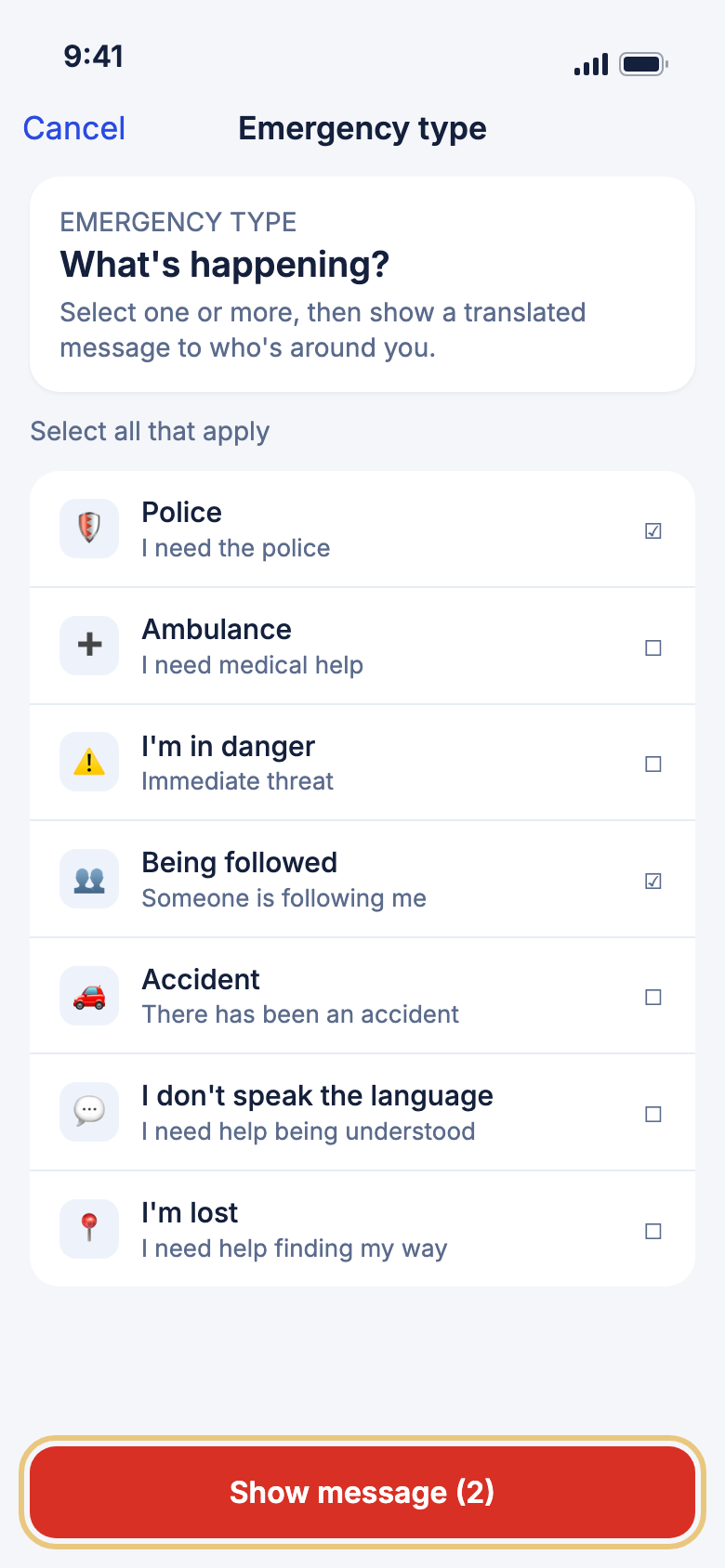
- On Emergency numbers, tap Not sure who to call? Help me choose.
- Tap the situation that fits, for example Police, Ambulance or I'm lost.
- Tap the button, which now reads for example Call Police · 112.
- Tap Call to confirm.
Good to know
- Ambulance and Accident call the ambulance. Everything else calls the police.
Show a message in the local language
If you can't speak the language, show your phone to someone nearby, or let it read the message aloud.
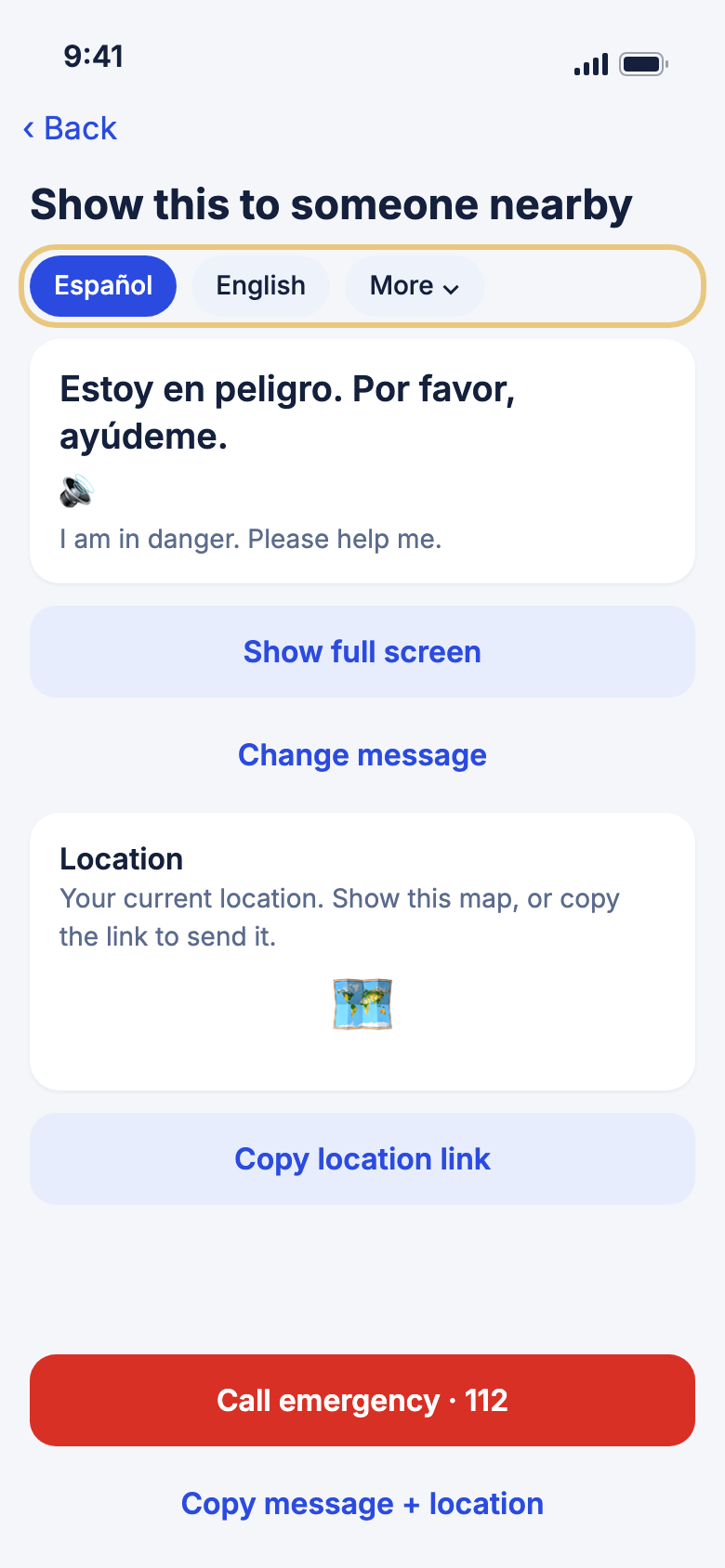
- On Emergency numbers, under More help, tap Show emergency message.
- To switch language, tap another one, or More.
- Tap the speaker to hear it read aloud. Tap again to stop.
- Tap Show full screen for very large text. Tap anywhere to close.
- Tap Change message, tick what is happening, then tap Show message.
- Tap Copy location link or Copy message + location to paste into a text.
Good to know
- The message works with no signal.
- The speaker shows only when your phone has a voice for that language.
- Without a translation for the country, it shows in English.
Contact your embassy
Find your own country's embassy where you are, with its 24/7 emergency line.
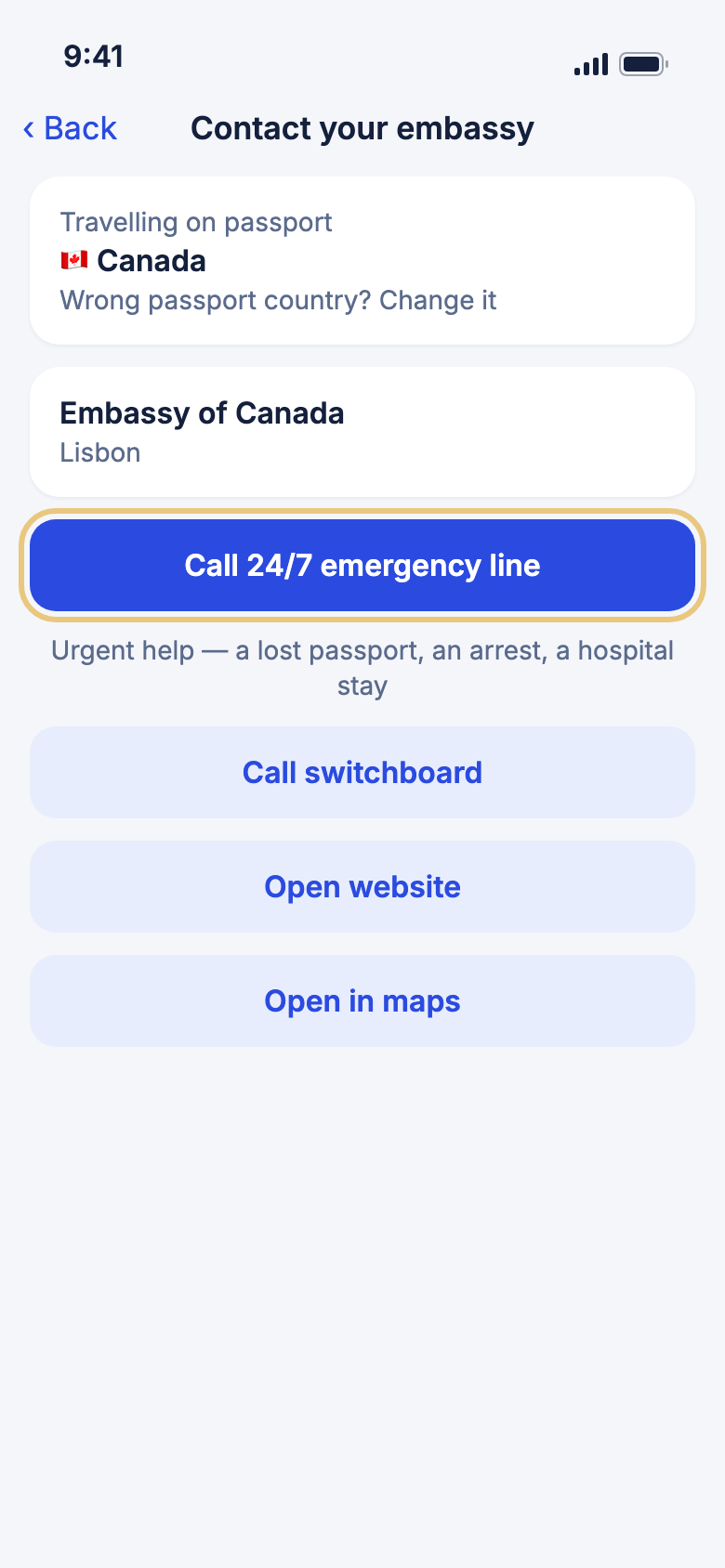
- On Emergency numbers, under More help, tap Contact your embassy.
- Check Travelling on passport. If it is wrong, tap Wrong passport country? Change it.
- Tap Call 24/7 emergency line for urgent help, or Call switchboard for office hours.
- Tap Open website or Open in maps if you need them.
Good to know
- If WeiiGo can't find your country's embassy there, it lists other embassies and consulates that may help.
Check-in timer
Start a check-in timer
A check-in timer reminds you to tell someone you're OK, for a late walk, a hike or a first date.
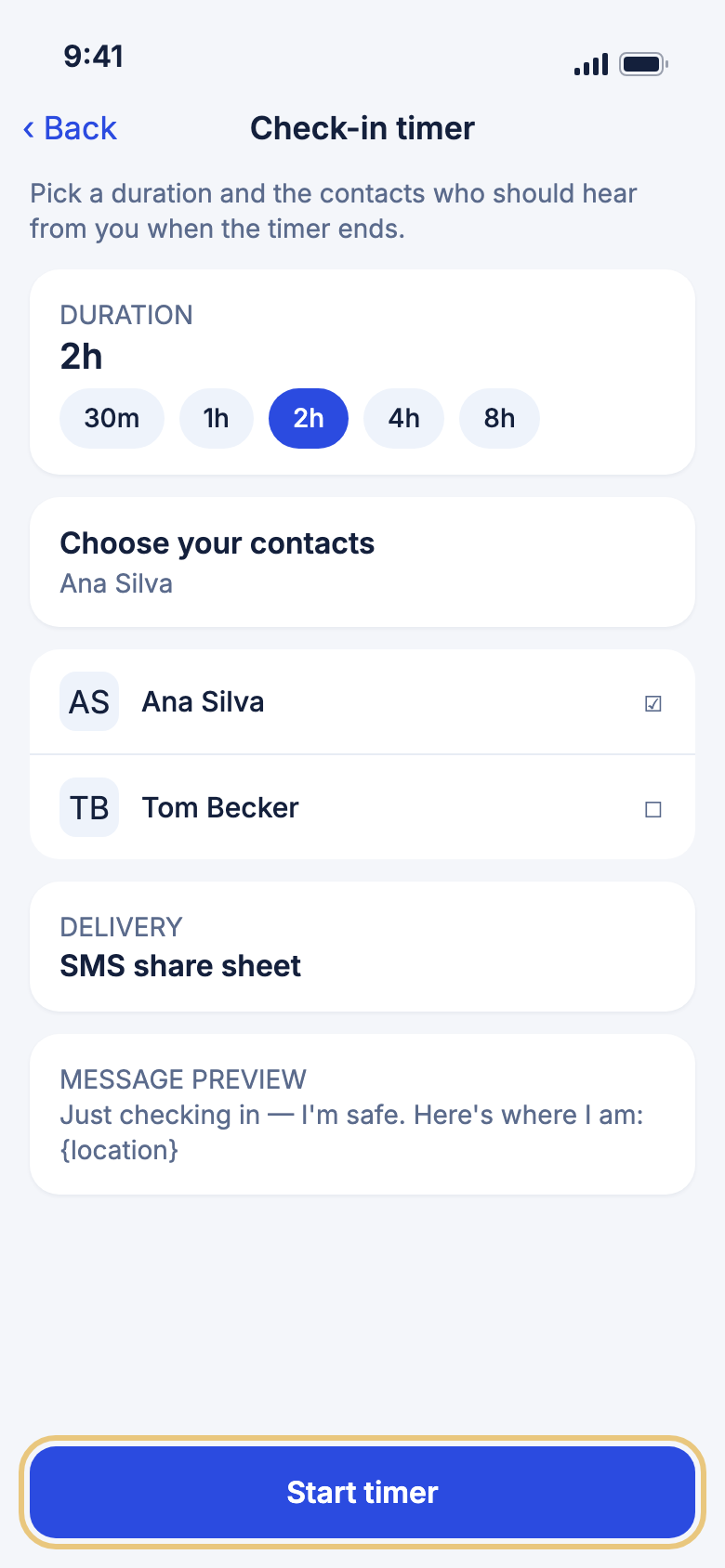
Who is alerted: the contacts you tick on the timer screen. When it ends, WeiiGo reminds you to check in and helps you send your trusted contacts your check-in with your location. Contacts who use WeiiGo get a notification, and contacts with an email address get an email. Contacts with only a phone number are not alerted.
- Tap Safety, then Check-in timer.
- Pick 1h, 3h, or Custom time and drag the slider.
- Under Choose your contacts, tick the people to tell.
- Under Message and delivery, tap Change to pick SMS share sheet or WeiiGo push.
- Check the Message preview, then tap Start timer.
Good to know
- Start timer stays grey until you tick a contact.
- You need a connection to start, stop or answer the timer.
- Turn on notifications, or you won't get the reminder.
- Only one timer runs at a time.
Check in early, add time, or stop
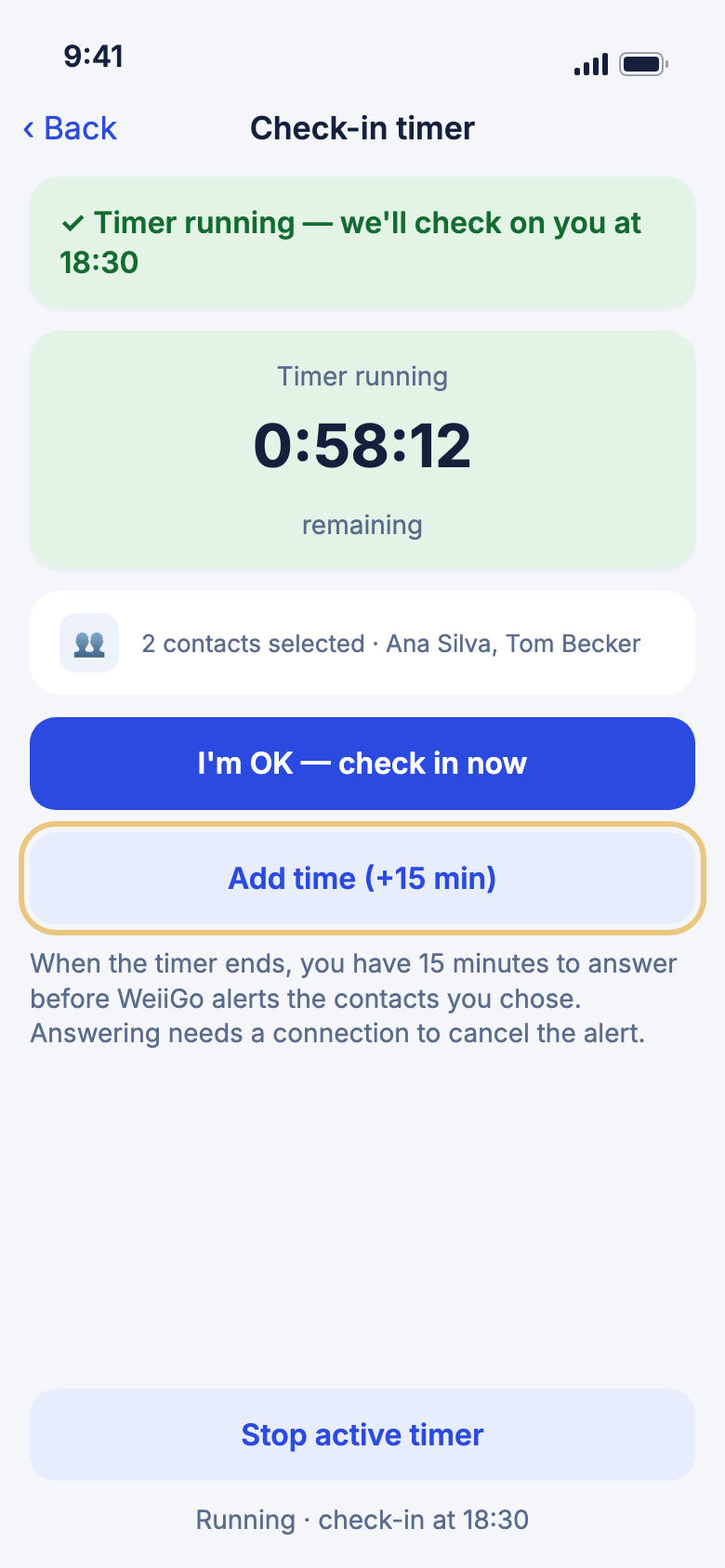
- Tap Check-in timer while it runs to see the time remaining.
- Need longer? Tap Add time (+15 min).
- Back early? Tap I'm OK — check in now. This sends your message to the contacts you chose and ends the timer.
- To end it with nothing sent, tap Stop active timer, then Stop.
Check in when the timer ends
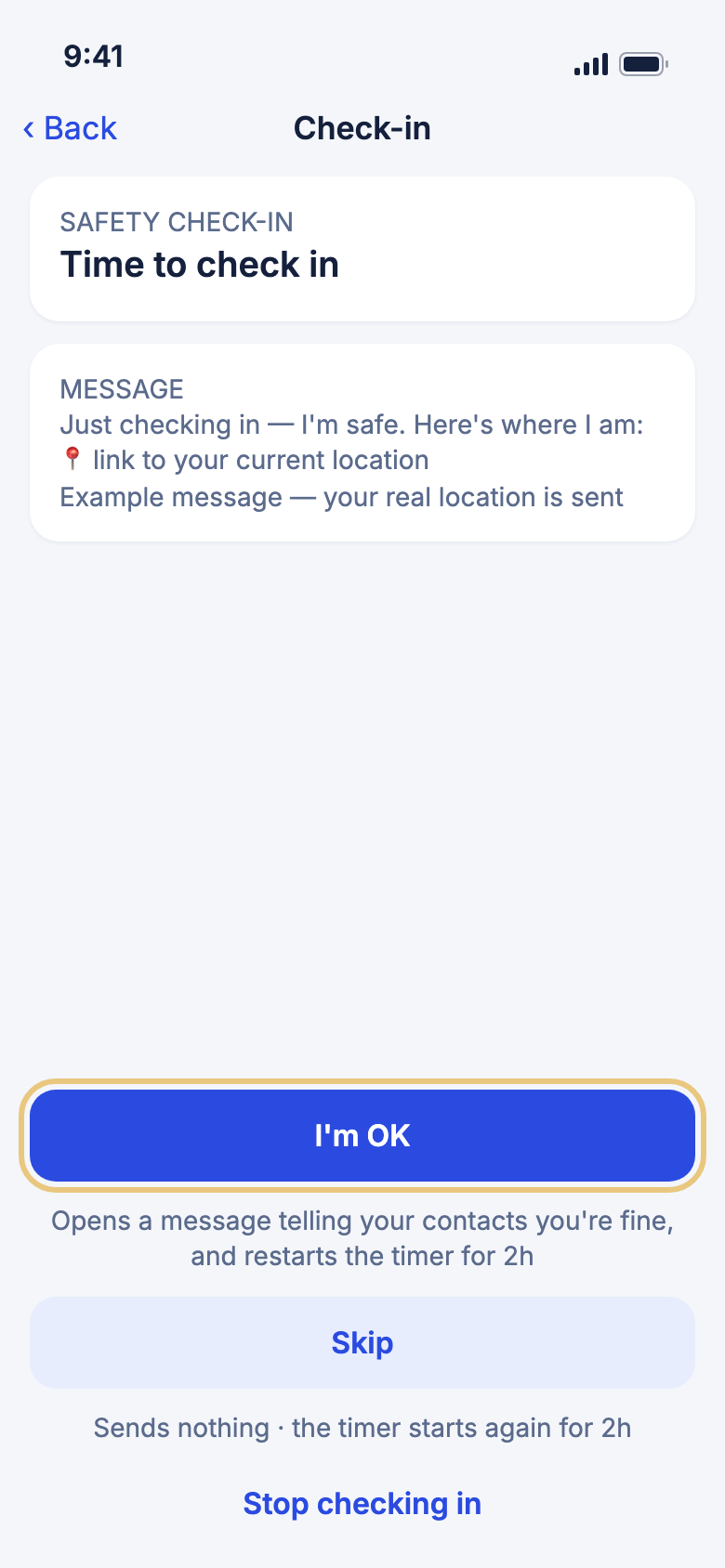
Who is alerted: I'm OK messages the contacts you chose. If you don't answer by the time shown, they are alerted that you missed it.
- Tap the Time to check in reminder.
- Tap I'm OK to send your message and location, and restart the timer.
- Or tap Skip to send nothing and restart it.
- Or tap Stop checking in, then confirm.
Good to know
- Too late? The page says Check-in missed and when your contacts were alerted. Tap Share live location so they can see where you are.
- Without a signal, your answer is sent when you are back online, and your contacts may already have been alerted.
Sharing where you are
Share your live location
Let trusted contacts follow where you are on a map, for an hour, three hours, or until you stop.
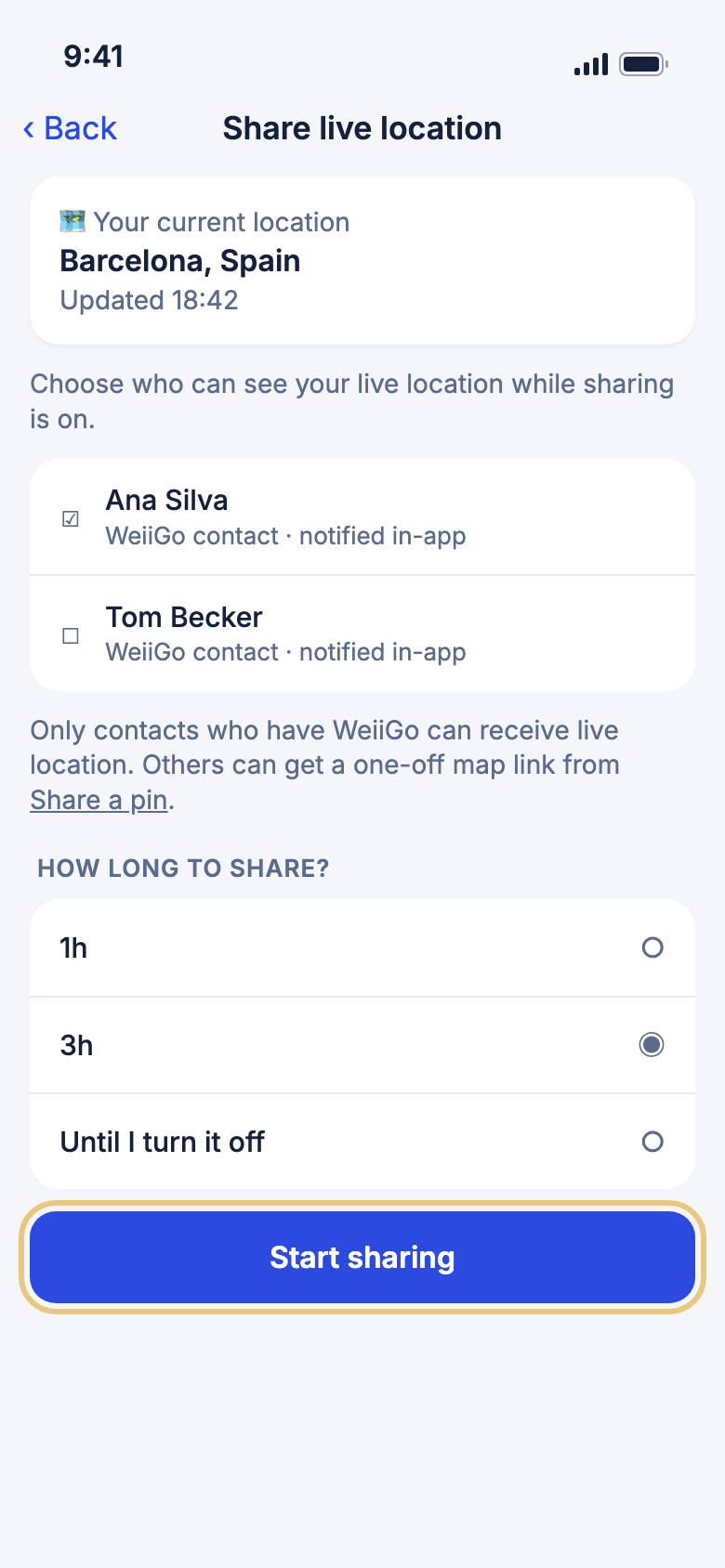
Who sees it: only the contacts you tick, and only if they use WeiiGo.
- Tap Safety, then Share live location.
- Tick the people who can see where you are.
- Under How long to share?, tap 1h, 3h or Until I turn it off.
- Tap Start sharing.
- To stop early, open Share live location again and tap Stop sharing.
Good to know
- While you share, the card says how long for, for example Sharing until 19:40.
- An SOS turns sharing on until you stop it.
- Sharing keeps running in the background.
Share a pin of where you are
Send a one-off map pin, for someone who doesn't use WeiiGo or when you don't want to share live.
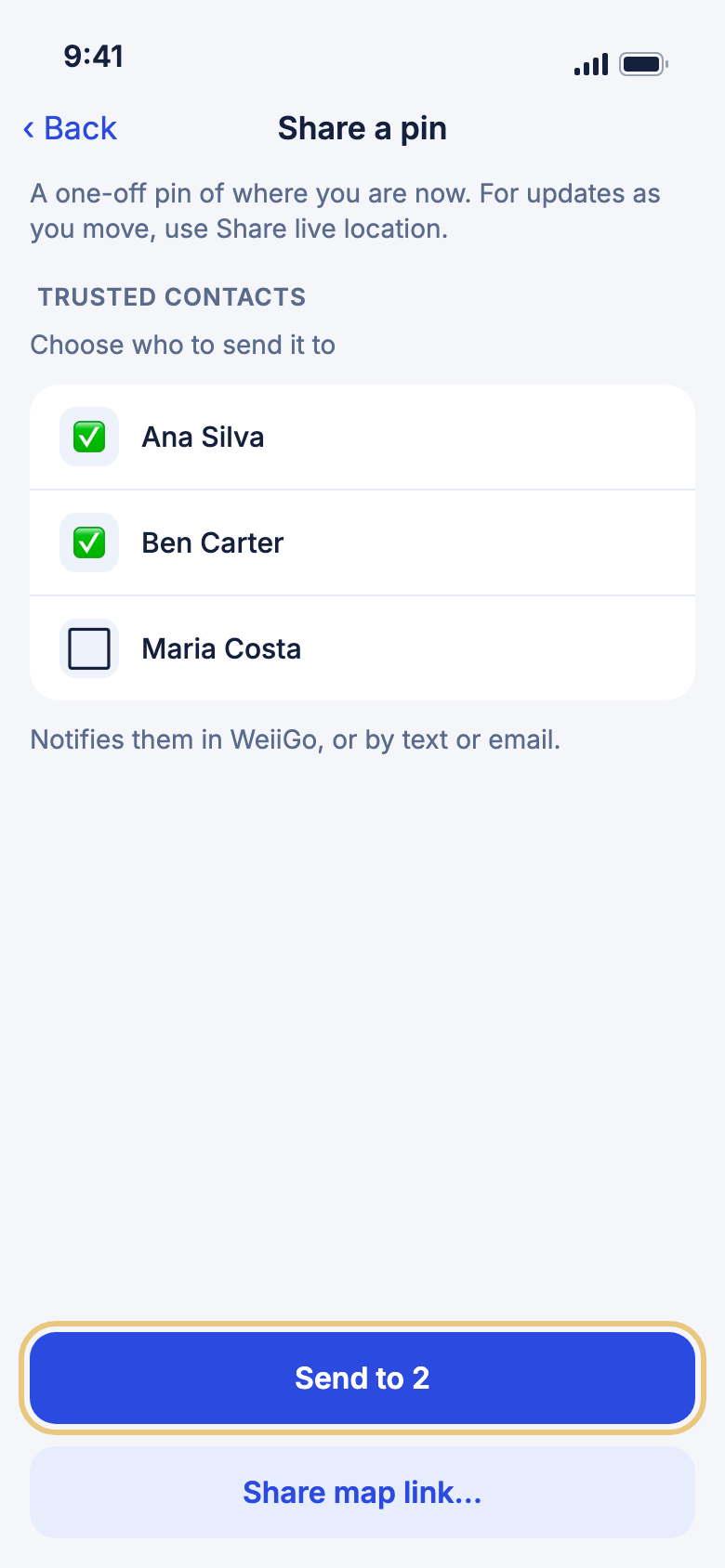
Who is alerted: the contacts you tap. They hear in WeiiGo, by email, or by text if they agreed to WeiiGo texts.
- On Share live location, tap Share a pin.
- Wait for Getting your current location….
- Tap the contacts to send it to.
- Tap Send to 2.
- Or tap Share map link… to send the link through any app.
Good to know
- Leaving the page without sending drops the pin.
- Without a location, you see Couldn't get your current location.
What's happening around you
Report something unsafe nearby
Warn other travellers about something you saw, like a pickpocket or a crowd that feels unsafe.
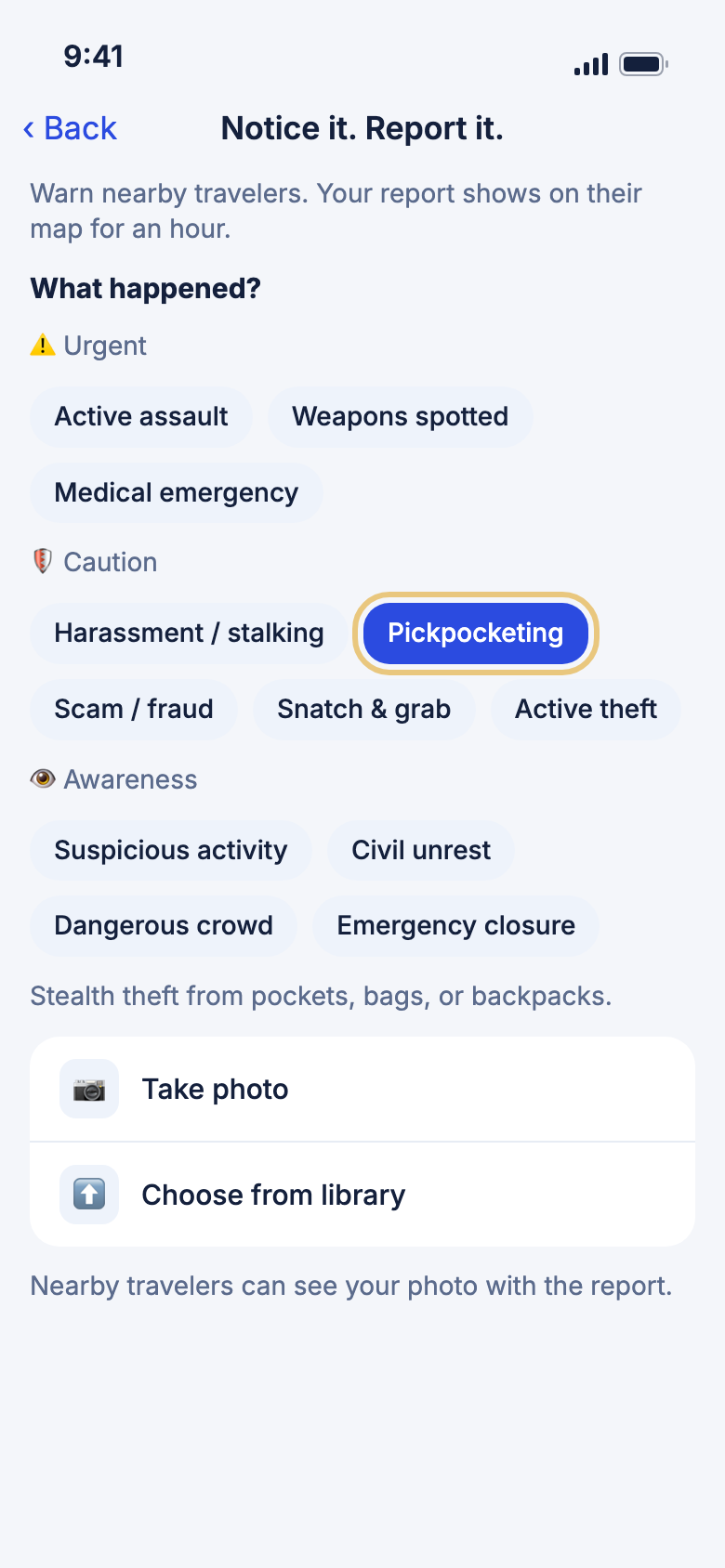
Who sees it: WeiiGo travellers near you who have incident alerts on. Your report and location show on their map for an hour. It isn't sent to the police. If you're in danger, use SOS.
- Tap Safety, then Notice it. Report it.
- Under What happened?, tap the type that fits.
- To add a photo, tap Take photo or Choose from library.
- To say more, type under Add details (optional).
- Tap Submit report, then Done.
Good to know
- Medical emergency doesn't file a report. It opens SOS.
- You can report up to five incidents an hour.
- Offline, you see Report saved. WeiiGo sends it when you are back online, within the hour.
See what's been reported nearby
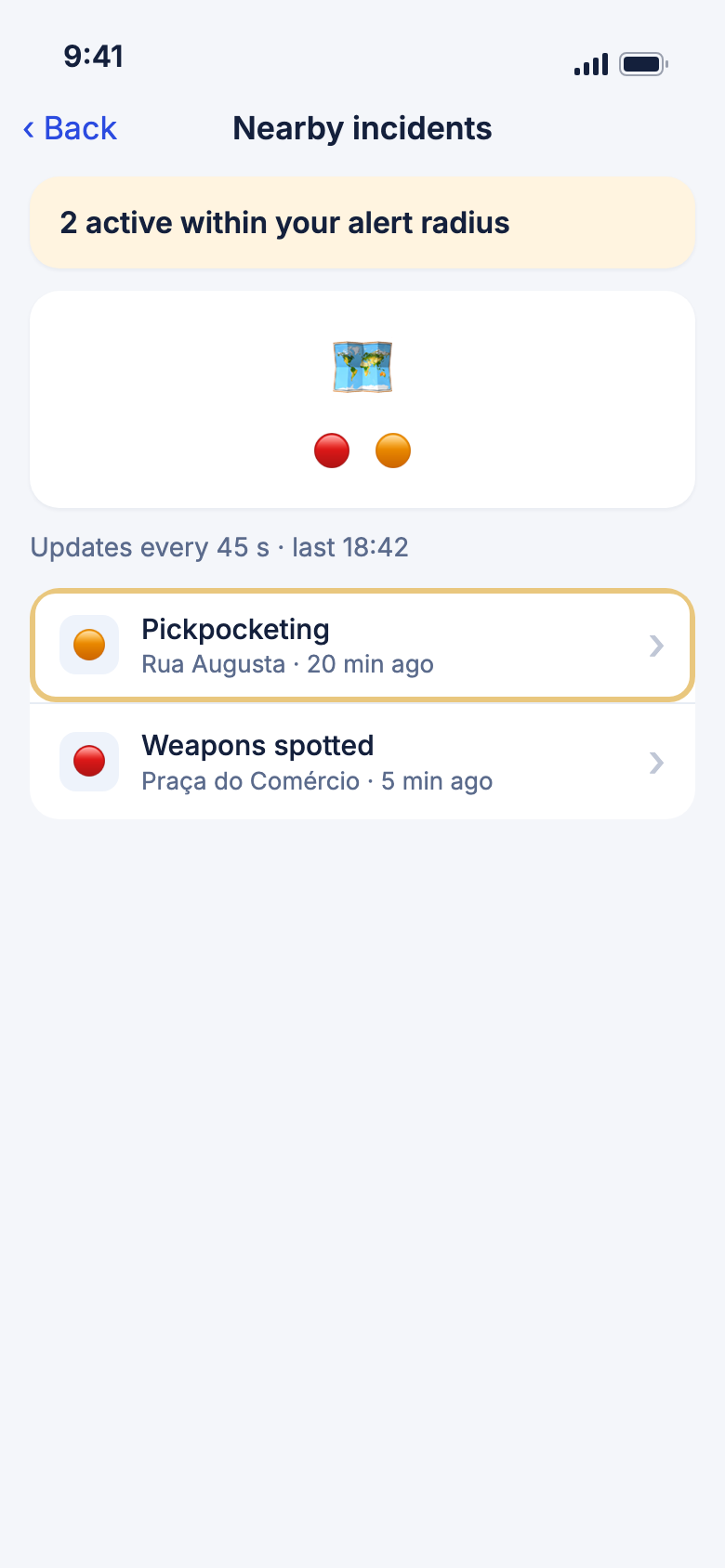
Check what other travellers have reported near you in the last hour.
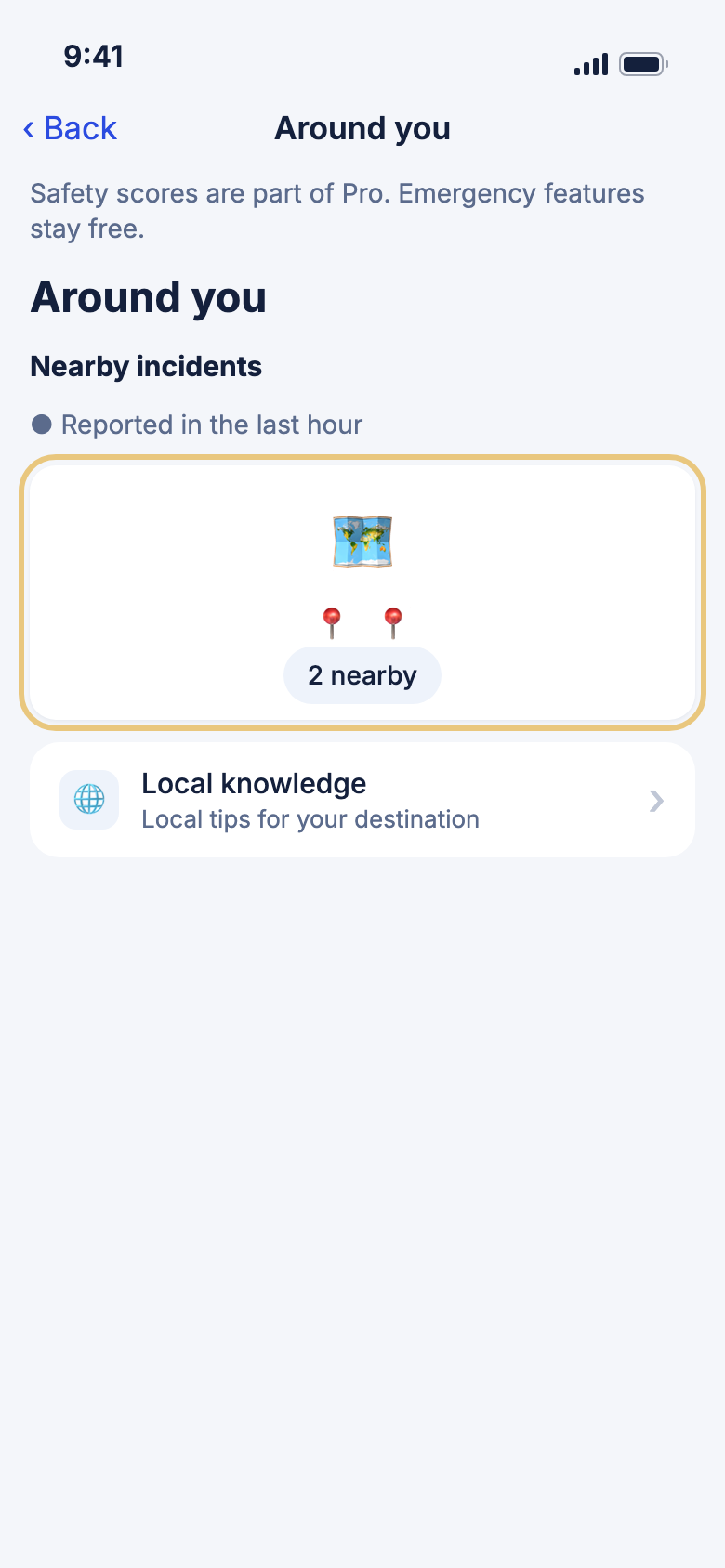
- Tap Safety, then Around you.
- Look at Nearby incidents.
- Tap the map to open the full list.
- Tap an incident to read its details.
Good to know
- Incidents disappear after an hour unless someone confirms them.
- Without location, there is no map. Turn on location to see incidents near you.
Confirm, report or block an incident
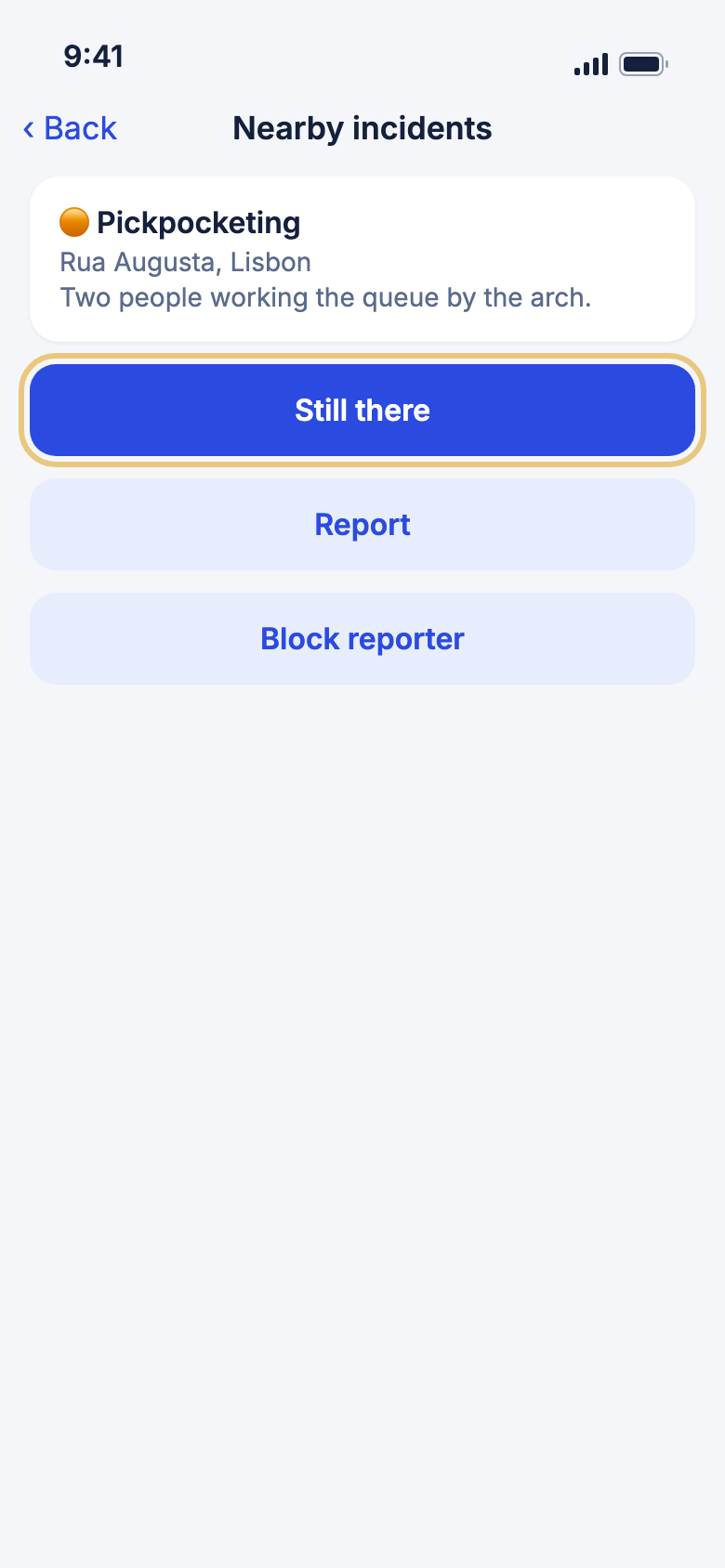
- On Nearby incidents, tap an incident.
- If you can still see it, tap Still there. It stays on the map for another hour.
- To flag a bad report, tap Report and pick a reason.
- To hide this reporter from now on, tap Block reporter and confirm. They are not told.
Good to know
- Still there works only when you are near it, with location on.
- Report and Block reporter don't show on your own reports.
- Blocking hides what that person reports after the block. Older reports stay.
- You can block or unblock about 10 times an hour.
Unblock a reporter
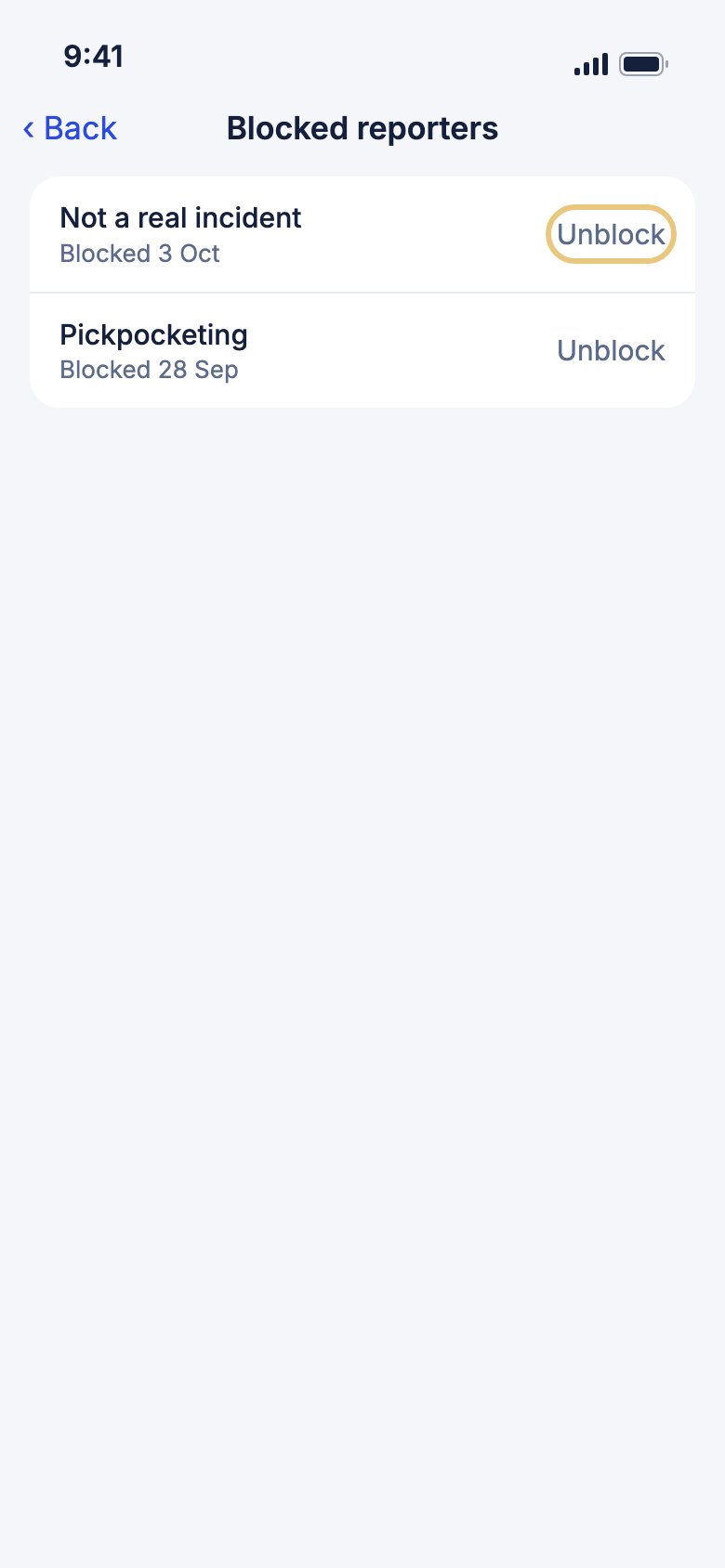
- On Nearby incidents, scroll to the bottom and tap Blocked reporters.
- Tap Unblock, then confirm.
Good to know
- You never see who they are, only the incident that led you to block them.
- The row only shows once you have blocked someone.
Read local knowledge
A safety-first guide to the place you are in or your trip's destination.
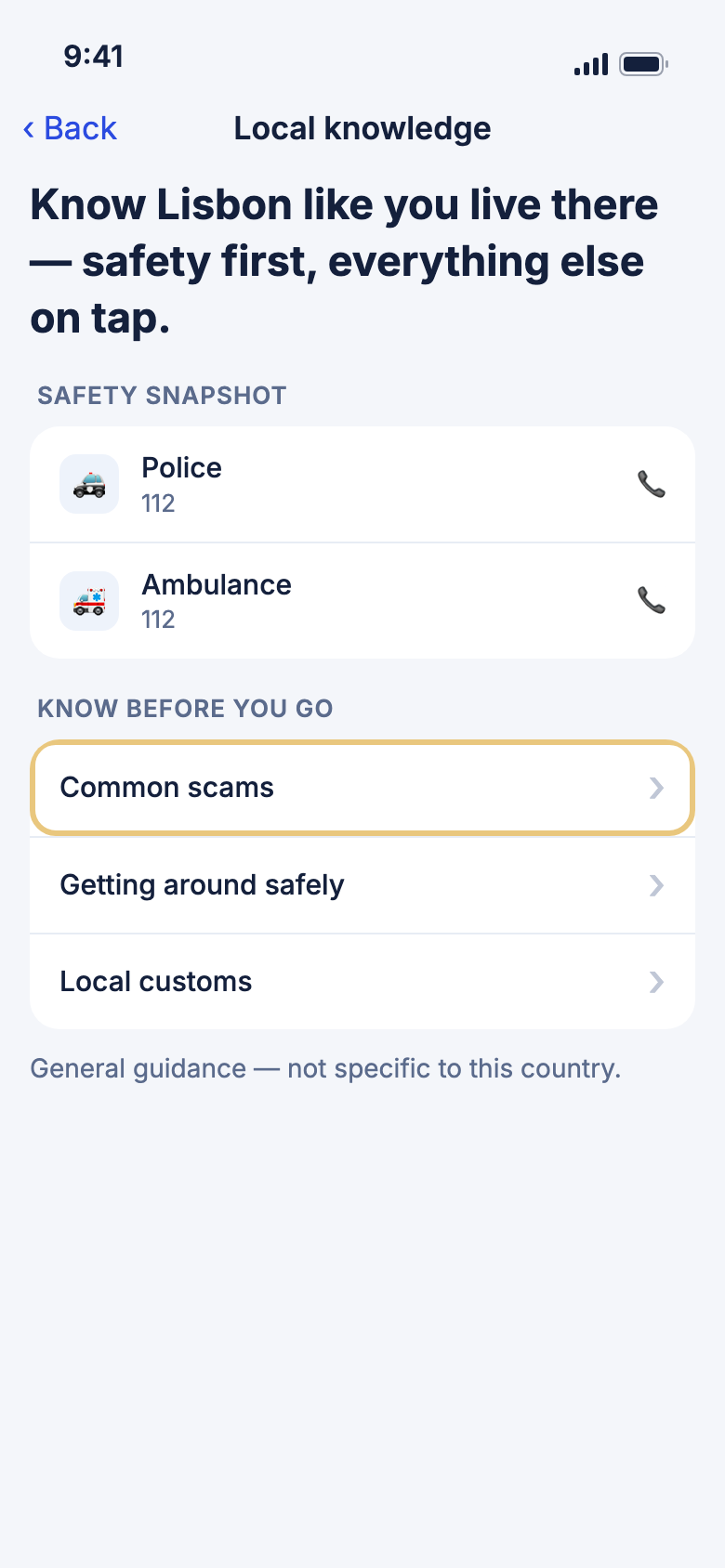
- Tap Safety, then Around you, then Local knowledge.
- Under Safety snapshot, tap Police or Ambulance to call.
- Under Know before you go, tap a topic to read it.
- If WeiiGo offers another place, tap Show … instead to switch.
- Pull down to reload.
WeiiGo Pro — Pro adds the safety score, the Safety briefing and topics researched for your place. On Free you see Safety scores are part of Pro. Emergency features stay free. and general guidance.
Good to know
- While you travel it shows where you are. Otherwise it shows your active trip.
Check the safety score
The score (0–100) says how safe the area looks, and what to watch out for most.
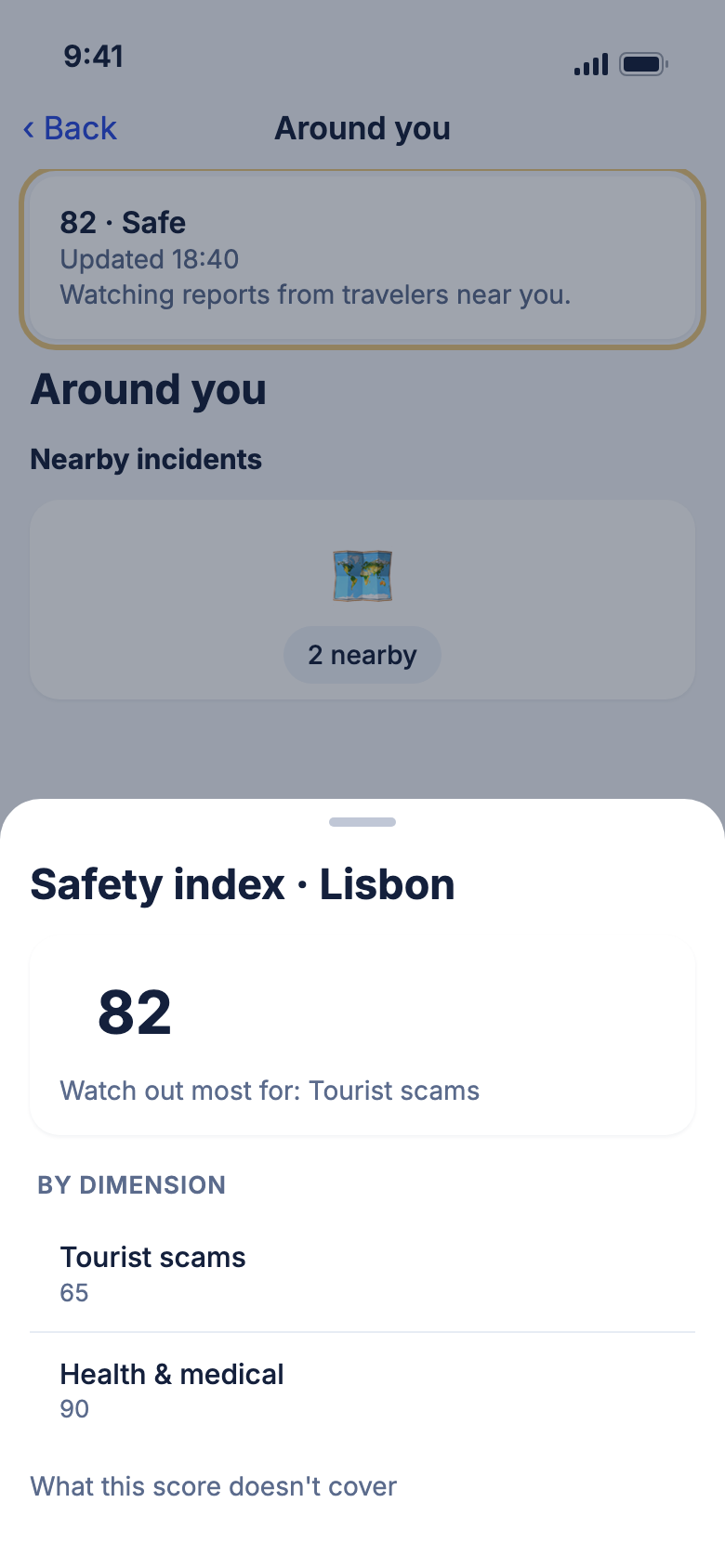
- Tap Safety, then Around you.
- Tap the score card at the top.
- Read Watch out most for and By dimension.
- Tap outside the sheet to close it.
WeiiGo Pro — The score is part of Pro. On Free, Around you shows Safety scores are part of Pro. Emergency features stay free. Every emergency feature still works.
Good to know
- Without location, the card says We can't check local conditions without your location.