
Notifications and what WeiiGo does for you
WeiiGo works in the background while you plan and travel. It reminds you before a trip, warns you about flight and safety changes, and tells you when a contact needs you.
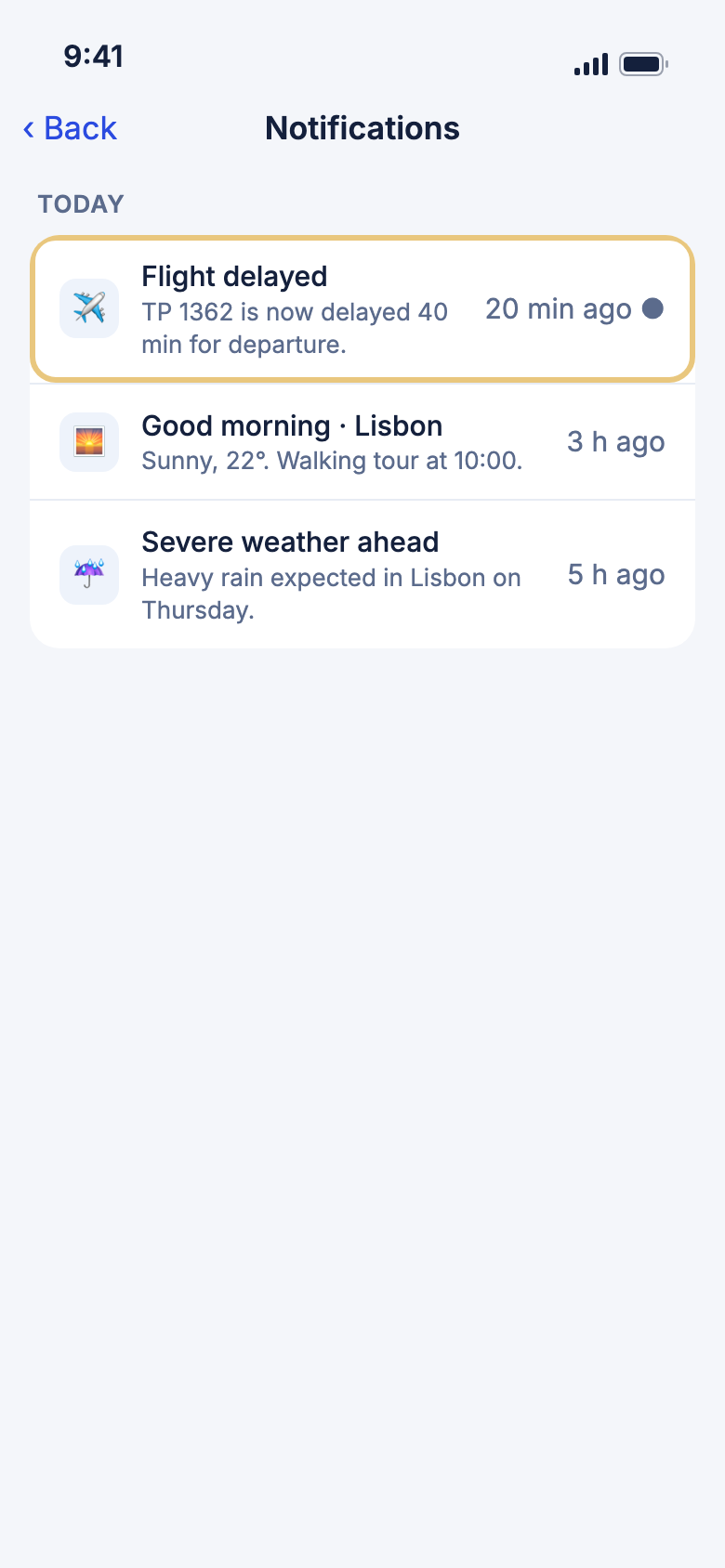
How notifications reach you
Get notifications on your phone
You see them on the lock screen, in a list inside the app, and as a short banner while the app is open.
- Sign in and finish first-time setup.
- When your phone asks, tap Allow.
- When a notification arrives, tap it. WeiiGo opens on what it is about.
- To see them all later, tap the bell on Home. Notifications are grouped under Today, Yesterday and This week.
Good to know
- Phone notifications need a real phone, not a simulator.
- Android phones do not get WeiiGo's phone notifications yet. You still see them in the list and as the banner while the app is open.
- If you have not opened WeiiGo for about two months, your phone may stop getting them until you open the app again.
- The list is explained in The Home tab.
Quiet hours
Between 22:00 and 07:00 local time, most notifications that are not urgent wait until morning or go only to your list.
Good to know
- Cancelled or diverted flights, anything within six hours of a flight, SOS alerts and the highest travel advisory level (Level 4) arrive at once.
- The "time to leave" reminder ignores quiet hours, so an early flight still gets its reminder.
Choose what you get
Turn a kind of notification on or off
You pick which routine kinds you receive.
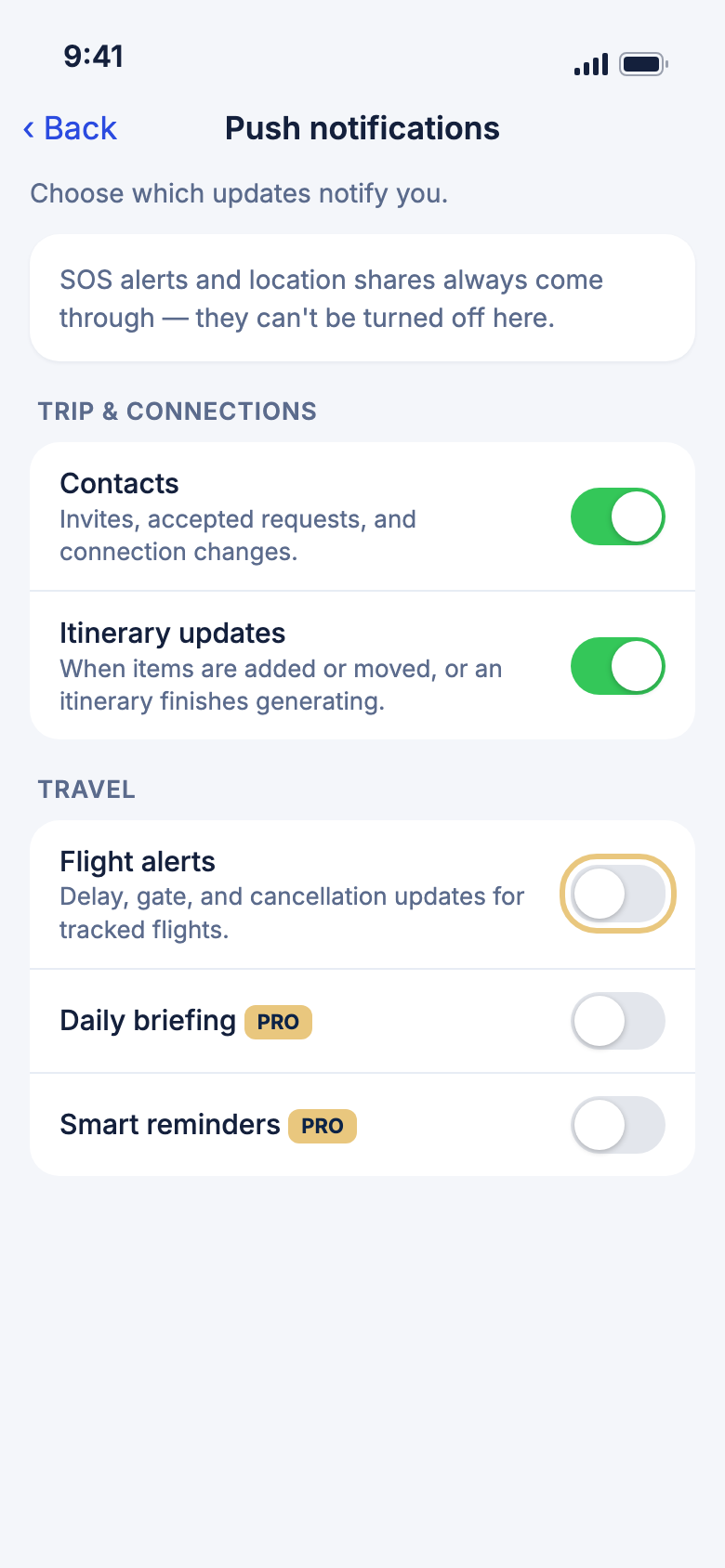
- Tap the Account tab, then Settings.
- Tap Notifications, then Push notifications.
- Turn a switch off to stop that kind: Contacts, Trip sharing, Itinerary updates, Shared documents, Flight alerts, Daily briefing or Smart reminders.
WeiiGo Pro — Daily briefing and Smart reminders show a PRO badge. On Free they are locked and nothing is sent. Flight alerts also need Pro.
Good to know
- SOS alerts, "I'm safe" messages and location shares always come through.
- Turning a kind off removes it from your phone and your list.
- Your trip reminder and a contact's check-in, missed check-in or arrival have no switch. To stop them, turn off WeiiGo in your phone's settings.
- The page is covered in The Account tab.
Before and during your trip
Get a reminder the day before
About a day before your trip, everyone on it gets a reminder to check the itinerary.
- Plan a trip.
- About 24 hours before it starts, you get Trip Reminder ✈️.
Good to know
- It shows on your phone only, not in the list.
- It has no switch.
Get hints before your trip
Janet looks at your plan and points out a gap while there is time to fix it, such as nights with no place to stay.
- Keep Smart reminders on.
- Three weeks, one week and two days before the trip, WeiiGo checks your plan.
- Tap the reminder. Ask Janet opens on your trip with a question typed in.
- Send the question, or change it first.
WeiiGo Pro — Smart reminders are Pro. On Free nothing is sent.
Good to know
- At most three per trip. If nothing is missing, none is sent.
- Only the trip's owner gets them, between 09:00 and 20:00 your home time.
- If WeiiGo cannot tell where your home is, it sends none. Set your home city or country in your profile.
Know when to leave for the airport
The evening before a flight, WeiiGo says when to leave and what to take. On the day, it tells you again about 20 minutes before you need to go, using live traffic.
- Add a flight with its flight number to your trip.
- Keep Smart reminders on.
- In the evening before, read the reminder. It gives your leave time and a short list of things to take.
- On the day, tap the "time to leave" reminder to open Ask Janet.
WeiiGo Pro — Both reminders are Pro.
Good to know
- WeiiGo works out your leave time from where you are leaving from. If it cannot tell, it sends nothing.
- If the flight time changes, the leave time changes with it.
- You get these for the first flight of a connection only.
Read your morning briefing
On each day of a trip, WeiiGo sends "today at a glance" in the morning.
- Keep Daily briefing on.
- In the morning at your destination, tap the notification.
- The briefing for that day opens.
WeiiGo Pro — The daily briefing is Pro. On Free nothing is sent.
Good to know
- On a day you fly, it arrives before your time to leave instead.
- You get one per day.
Hear about flight changes
WeiiGo watches the flights on your trips and tells you about delays, gate and terminal changes, cancellations and diversions.
- Add a flight with its flight number and departure airport.
- From three days before, WeiiGo checks it. Alerts arrive as things change.
- Tap an alert to open the trip.
WeiiGo Pro — Flight alerts are Pro. On Free you do not get them.
Good to know
- Alert wording is in English.
- You get one alert even if the flight is on two trips.
Get safety alerts for your destination
While a trip is on, or starts within three days, WeiiGo tells you when the travel advisory goes up, bad weather is coming, or several incidents are reported nearby.
- You do not need to set anything up. Alerts arrive as things change.
- Tap an alert. An advisory or incident alert opens the Safety tab. A weather alert opens that day's briefing.
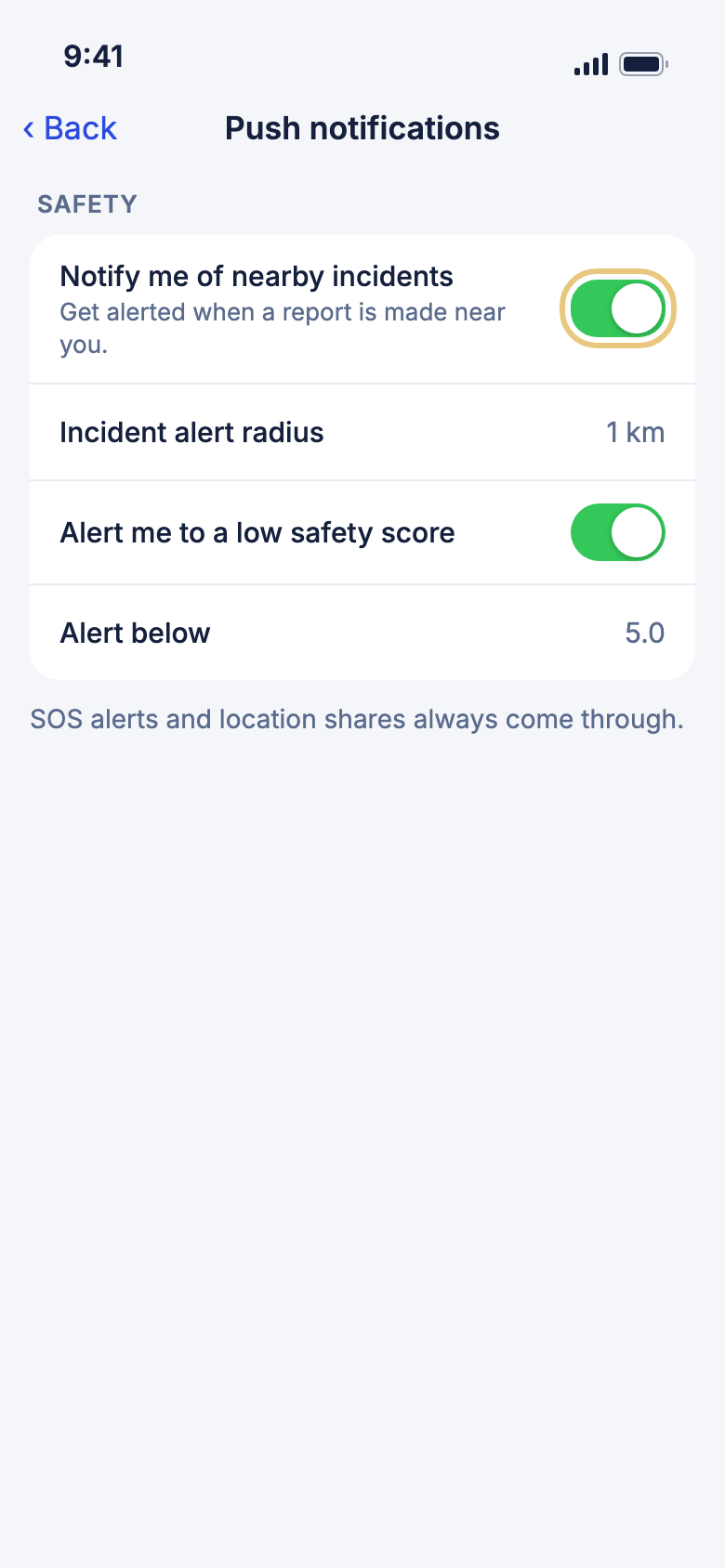
- To get a warning when a destination scores low, open Push notifications and find Safety.
- Turn on Alert me to a low safety score, then set Alert below.
Good to know
- You get at most three safety alerts per trip a day.
- Safety alerts cannot be switched off. At night they go to your list only, except Level 4.
Hear about incidents near you
When a WeiiGo traveller reports an incident close to you, you get an alert.
- Under Safety on Push notifications, keep Notify me of nearby incidents on.
- Allow WeiiGo to use your location.
- Choose Incident alert radius.
- Tap an alert to see the incident. On iPhone you can press and hold it and tap Still there or Acknowledge.
Good to know
- WeiiGo uses the place you were last at with the app open, up to four hours ago.
- You get at most three phone notifications about nearby incidents in 24 hours. Later ones still go to your list.
- You are not alerted about your own reports or ones from people you blocked.
Get a reminder before a document expires
WeiiGo reminds you before a document in your travel documents vault runs out.
- Add a document and turn on Has expiry date.
- You get a reminder 60 days and 7 days before it expires, at 09:00.
- Tap the reminder to open the document.
WeiiGo Pro — The travel documents vault is Pro.
Good to know
- A passport that will not be valid long enough for a trip gets an earlier warning, 90 and 14 days before the trip.
- The reminder names the type of document only, never the number.
- These come from your phone, so they work with no internet and are not in the list.
People and sharing
See what your trips and contacts send you
You hear when someone shares a trip or a document, joins your trip, or answers a contact invite.
- Tap the bell on Home.
- Tap a line to open the trip, the document or the invite.
Good to know
- Examples are Maya shared Autumn in Lisbon with you and Invite declined.
- Trip sharing, Contacts, Shared documents and Itinerary updates each have a switch.
- A request to join your trip arrives on your phone too.
- Sharing a trip tells the other person. Sending a contact invite does too.
When a contact needs you or checks in
If you are someone's trusted contact and use WeiiGo, their safety messages reach you in the app and on your phone.
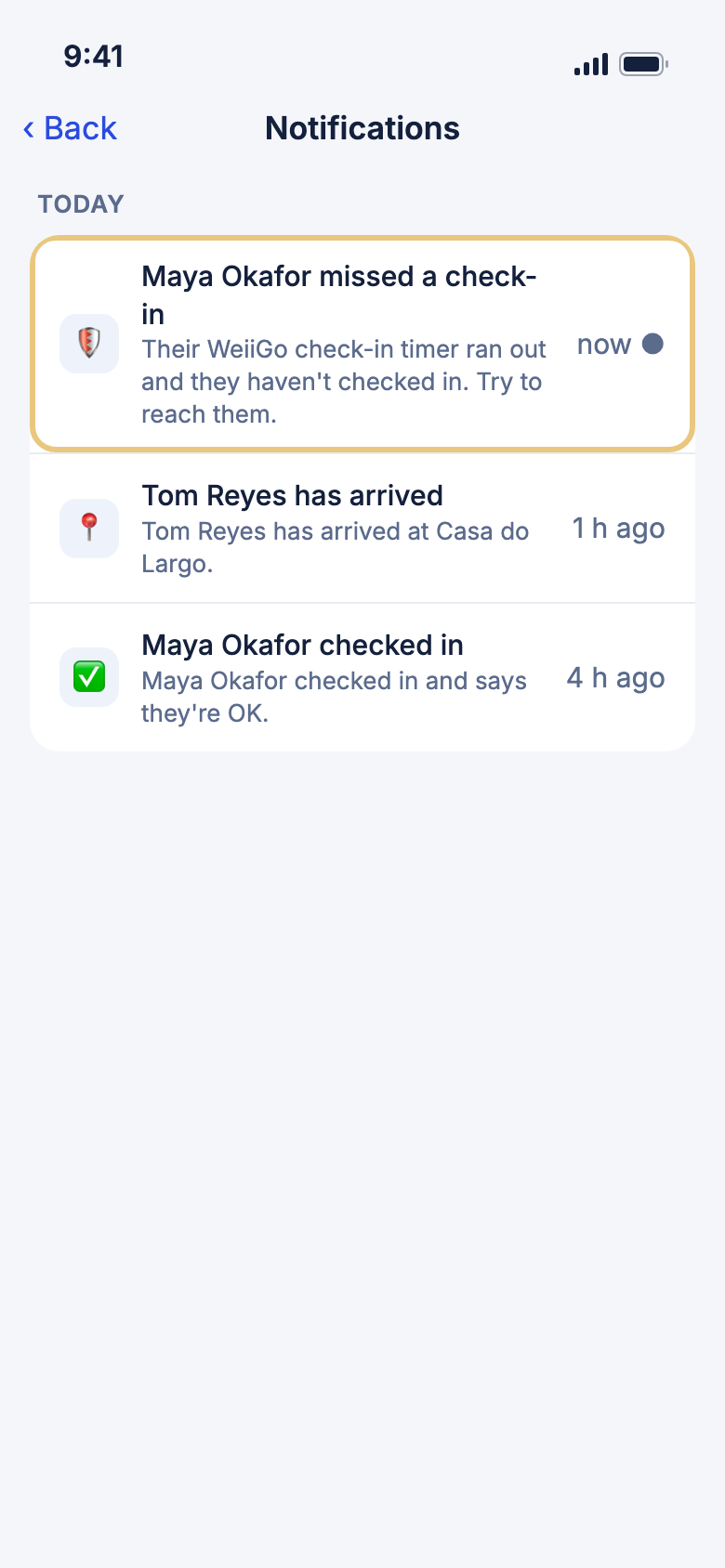
- When one arrives, tap it.
- For an SOS, a check-in or a missed check-in, WeiiGo opens a map of where they were.
- For an arrival, it opens the place.
- Try to reach them if they need help.
Good to know
- You can get needs help (SOS), is safe, checked in, missed a check-in, has arrived, Live location sharing started and Location shared.
- A missed check-in comes about 15 minutes after their timer ran out. It is also emailed if they have your email address.
- On iPhone, an SOS, "I'm safe" and a missed check-in can break through Sleep or Do Not Disturb.
- These cannot be switched off. If you only get texts and emails, ask your contact to set you up in WeiiGo.