
Planning a trip
Start a new trip in one of two ways: fill in a short form yourself, or chat it through with Janet. Either way, WeiiGo can write a day-by-day plan for you, or you can save the trip and fill it in yourself.
Which way should I use?
| Plan a trip yourself | Plan with Janet | |
|---|---|---|
| Best when | You know where you're going | You have an idea but not all the details |
| How it works | Pick a place, set dates and travellers, then choose what goes in your plan | Tell Janet what you want in your own words, and answer her questions |
| Save a trip with no plan | Yes, with Save trip | No. Janet always builds a full plan |
| Plan | Saving is free. A day-by-day plan needs WeiiGo Pro | Needs WeiiGo Pro |
Both ways end in the same place. WeiiGo builds the plan in the background, and the new trip shows on your Trips tab.
Plan a trip yourself
Start a new trip
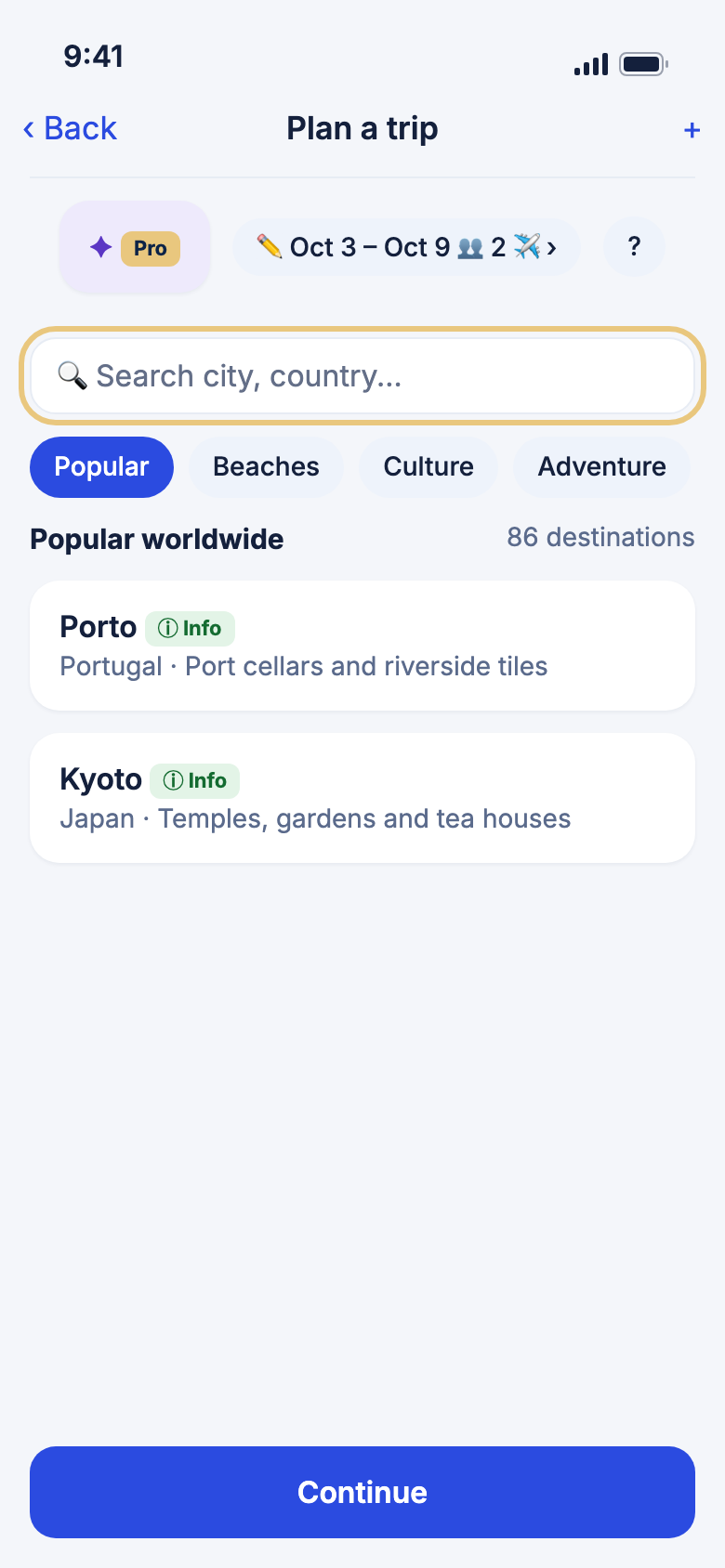
Begin by choosing where you want to go.
- Tap Trips, then tap New trip at the bottom of the screen. Or on Home, on the Plan a trip card, tap Get started.
- Plan a trip opens. Tap the search box (Search city, country...) and type a place.
- Or tap a pill such as Popular or Beaches to browse ideas.
- Tap a destination card. Trip details opens.
Good to know
- Tap Info on a card to read about a place without choosing it.
- Tap the heart on a card to save it. Your saved places show under the Saved pill.
- A place that isn't in our guides can still be planned. Pick it from the list under Not in our guides yet — but we can still plan a trip there.
- If a search finds nothing, try another spelling, or tap the lit pill again to search everywhere.
- Continue at the bottom takes you back to Trip details once you've picked a place.
Set your dates and travellers quickly
The bar at the top of Plan a trip shows your dates, how many are going and how you're getting there. You can set them before you pick a place.
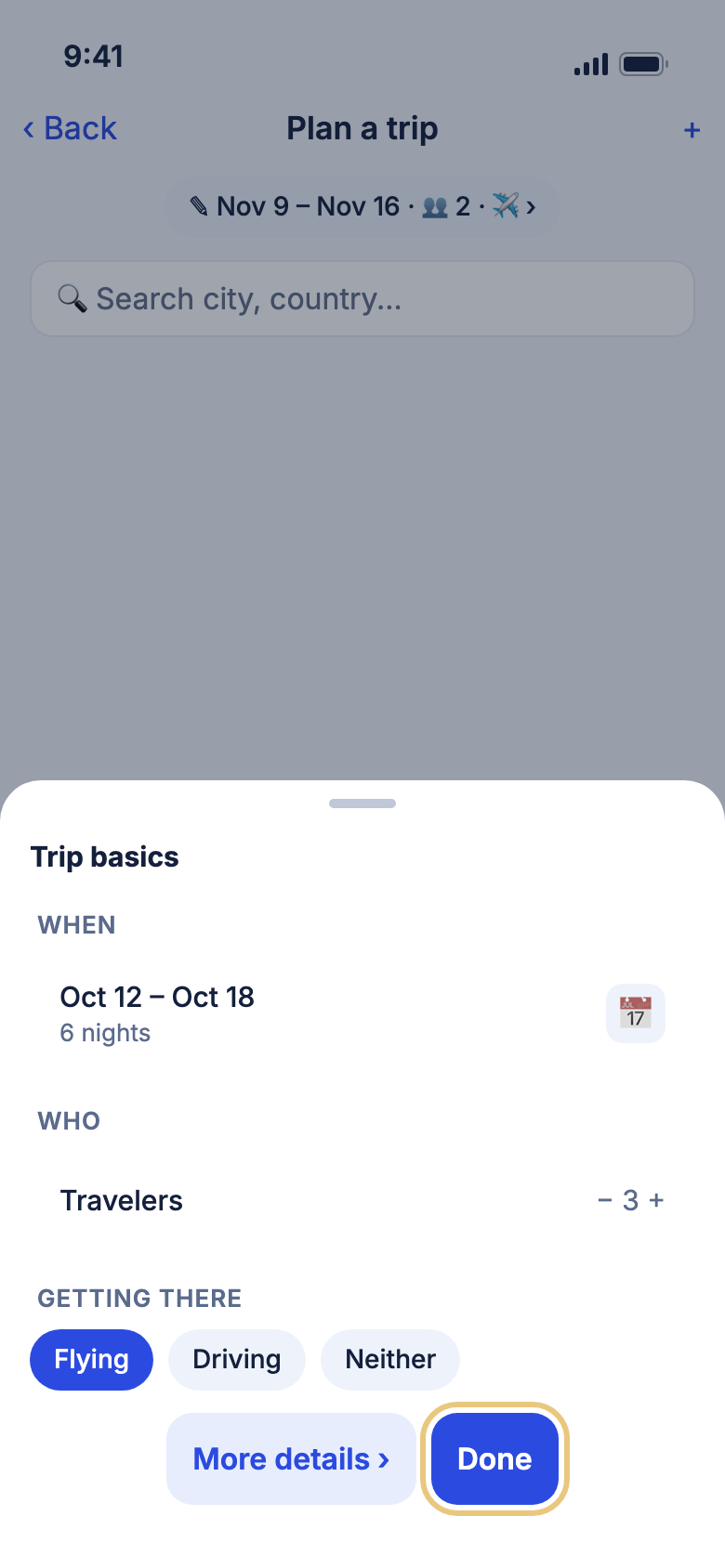
- Tap the bar at the top of Plan a trip. Trip basics opens.
- Under When, tap the dates to pick a start and end day.
- Under Who, tap + or − beside Travelers.
- Under Getting there, tap Flying, Driving or Neither.
- Tap Done.
Good to know
- A new trip starts a week from today, for seven days, with two travellers. Until you change them, they show in lighter text.
- Tap ? at the right of the bar for a reminder of what it does.
- If you've set up your travel group in your profile, WeiiGo uses its size instead.
- More details › opens Trip details. It shows once you've picked a place.
Fill in the trip details
Trip details holds everything WeiiGo needs to plan your trip.
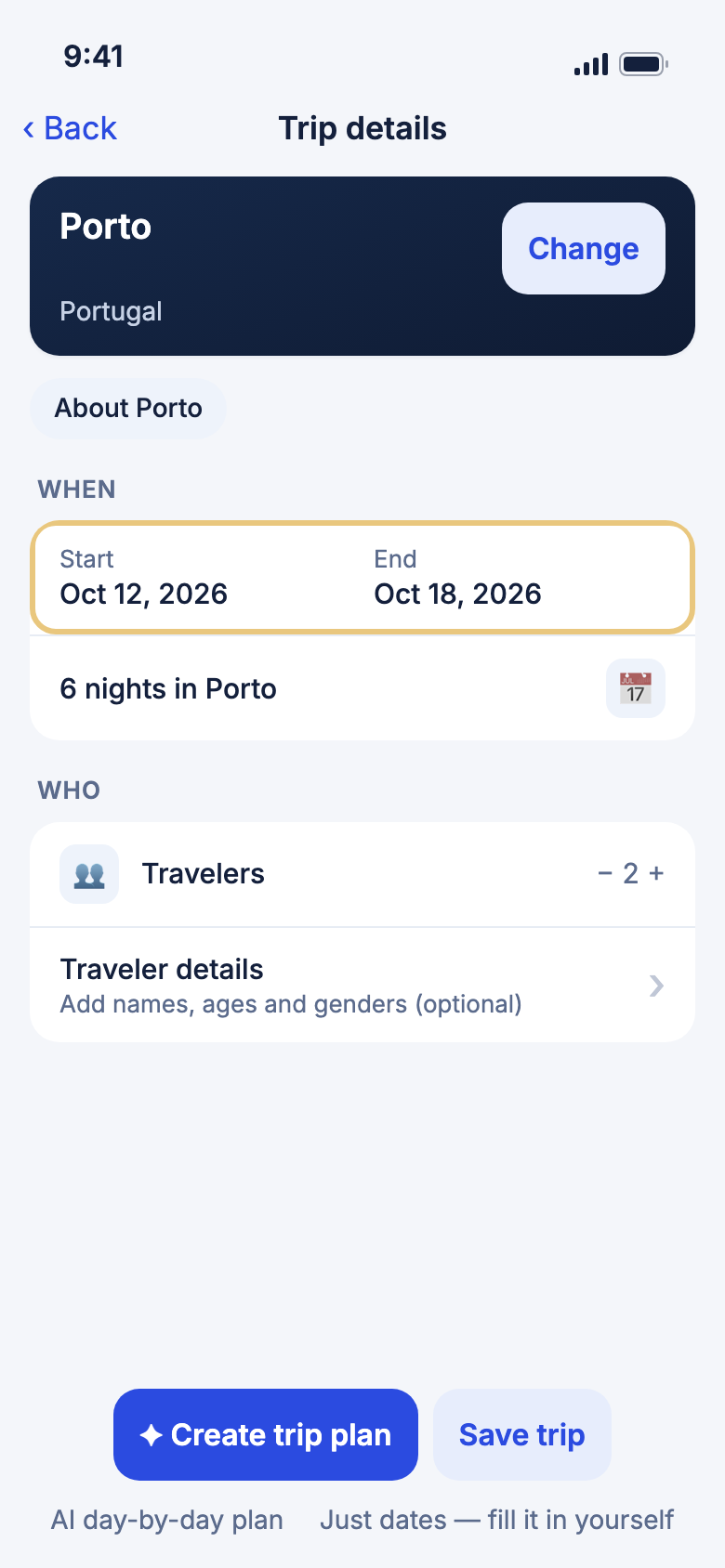
- Check the place at the top. Tap Change to search for somewhere else.
- Under When, tap Start and End to pick your dates. Or tap the round calendar button to pick both in one go, then tap OK.
- Under Who, tap + or − beside Travelers. You can have 1 to 10.
- To add names, tap Traveler details. Type each person's Name, and pick their Age and Gender if you like.
- Tap the red − beside a person to take them off the trip.
Good to know
- Tap About and the place's name, under the photo, to read the destination guide.
- You can't pick a day in the past.
- Names, ages and genders are all optional. They help WeiiGo suggest things that suit your group.
Tell WeiiGo how you're getting there
WeiiGo plans your first and last days around how you arrive.
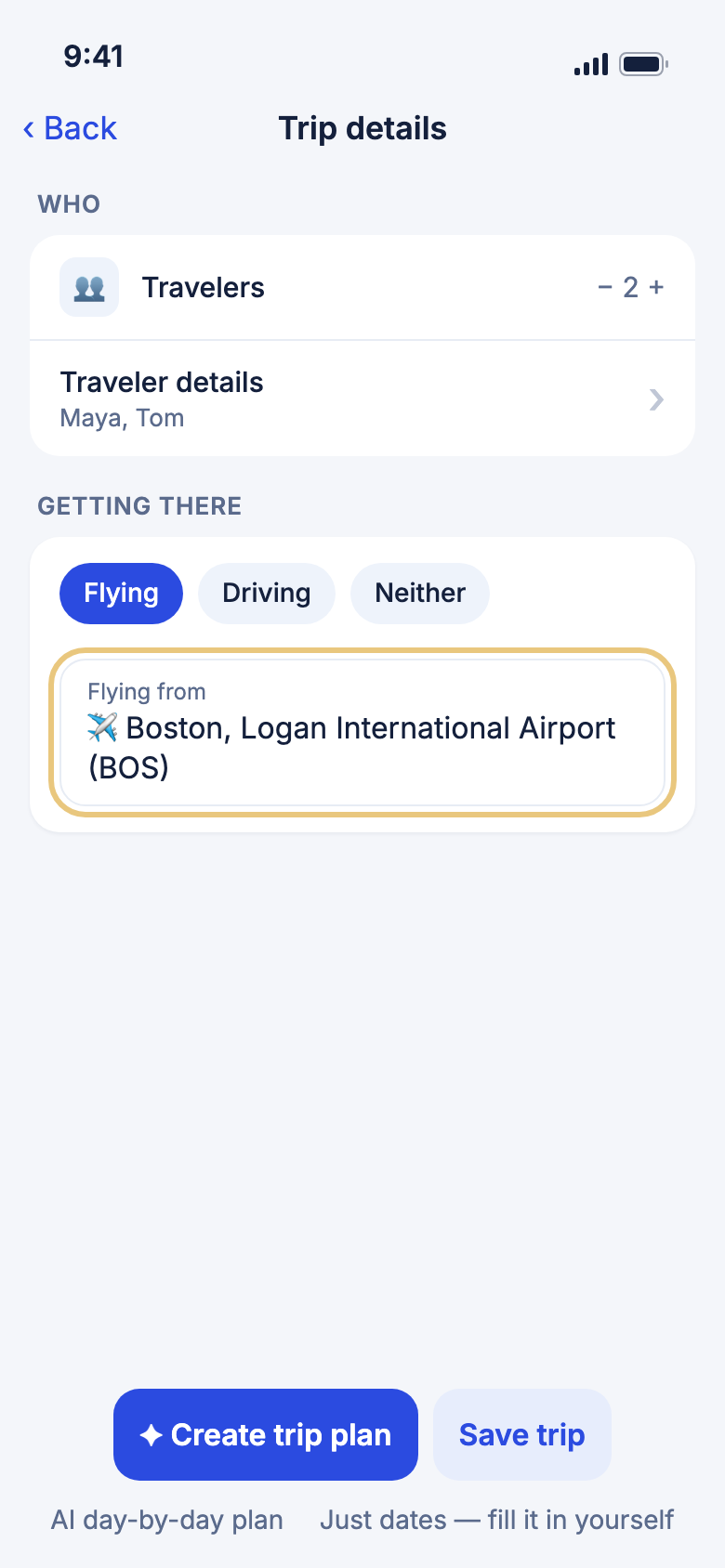
- On Trip details, scroll to Getting there.
- Tap Flying, Driving or Neither.
- If you fly, tap the box under Flying from, search for your city, and tap your airport.
- If you drive, tap the box under Driving from and pick where you're starting. Or tap the pin button to use where you are now.
Good to know
- With WeiiGo Pro, when you fly from an airport you've picked, WeiiGo looks for a flight for your dates and adds it to your plan. Day one starts after you land. If it finds no flight, you still get your plan.
- A flight WeiiGo adds is not booked. You still book it yourself with the airline.
- Driving from fills in from your home location, if it's in your profile.
- For a drive, WeiiGo shows roughly how far it is. On a long drive, a switch asks Add a break around the halfway point?. It starts on. Turn it off to drive straight there.
- Pick Neither if you're already nearby or getting there some other way.
- If you've set a Default airport in Account → Settings → Planning defaults, Flying from starts filled in with it. You can still change it for this trip.
Choose what goes in your plan, then build it
Tell WeiiGo what you like, and it writes a plan for every day of your trip.
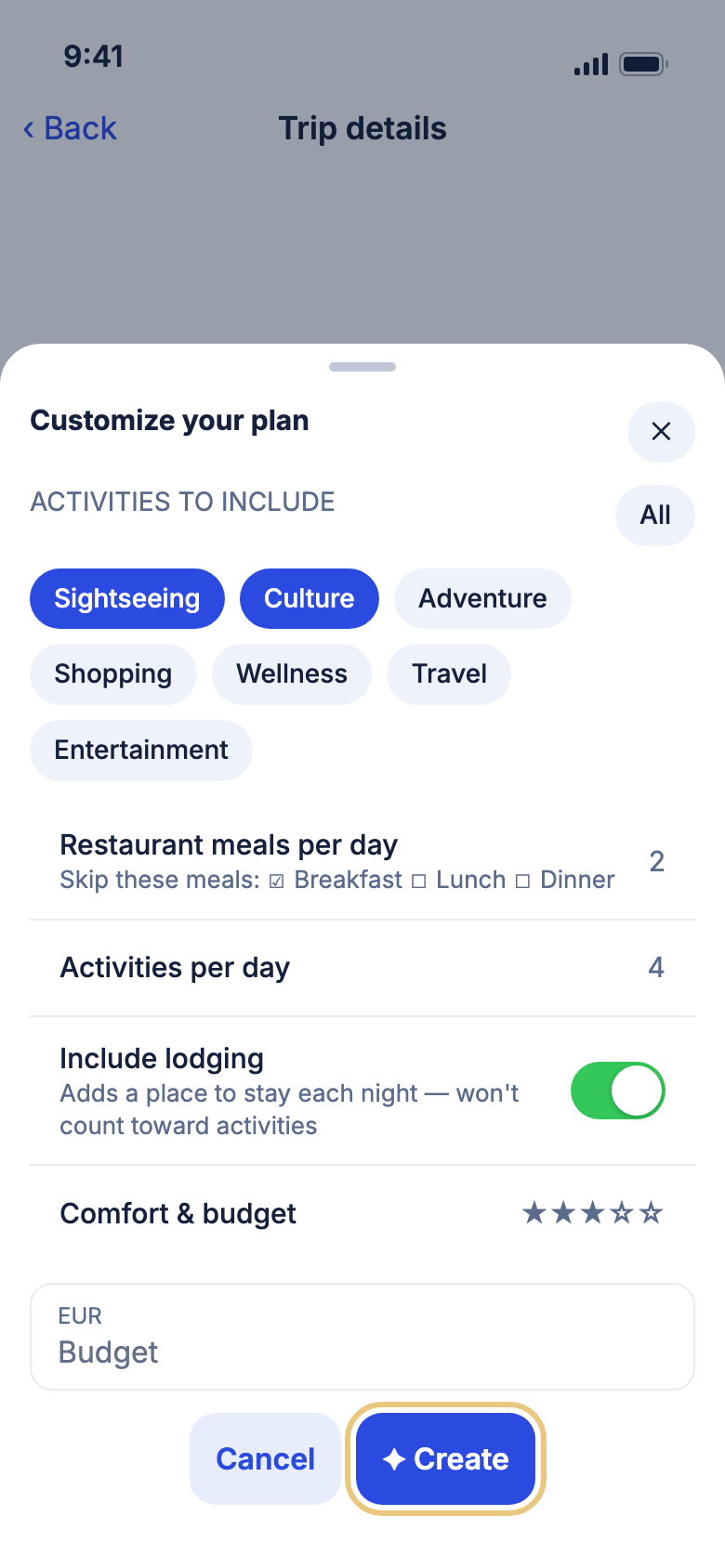
- On Trip details, tap ✦ Create trip plan. Customize your plan opens.
- Under Activities to include, tap the kinds of things you want. Or tap All.
- Slide Restaurant meals per day and Activities per day to how many you want.
- Under Skip these meals, tick Breakfast, Lunch or Dinner if you have them covered, like breakfast at your hotel.
- Turn on Include lodging to add a place to stay each night.
- Slide Comfort & budget. Type your own amount in Budget if you like.
- Tap ✦ Create, then tap OK on Building your itinerary.
WeiiGo Pro — On Free, ✦ Create trip plan is greyed out with a Pro tag. Tapping it shows how to upgrade. You can still save the trip with Save trip.
Good to know
- WeiiGo takes you to Trips, where your new trip shows while it's being built. You can leave the app. You get a notification when it's ready.
- The choices start from the trip preferences saved in your profile.
- Pick no activity types, and WeiiGo plans a mix of everything.
- Each meal you skip lowers the most restaurant meals you can pick. Skip all three and the meals slider turns off.
- The Budget box fills in from your comfort level.
- There are daily and monthly limits on how many plans you can build. WeiiGo tells you when you reach one.
- Tap Cancel or ✕ to close the sheet without building anything.
Save a trip without a plan
Keep just the place and dates, and add things yourself later.
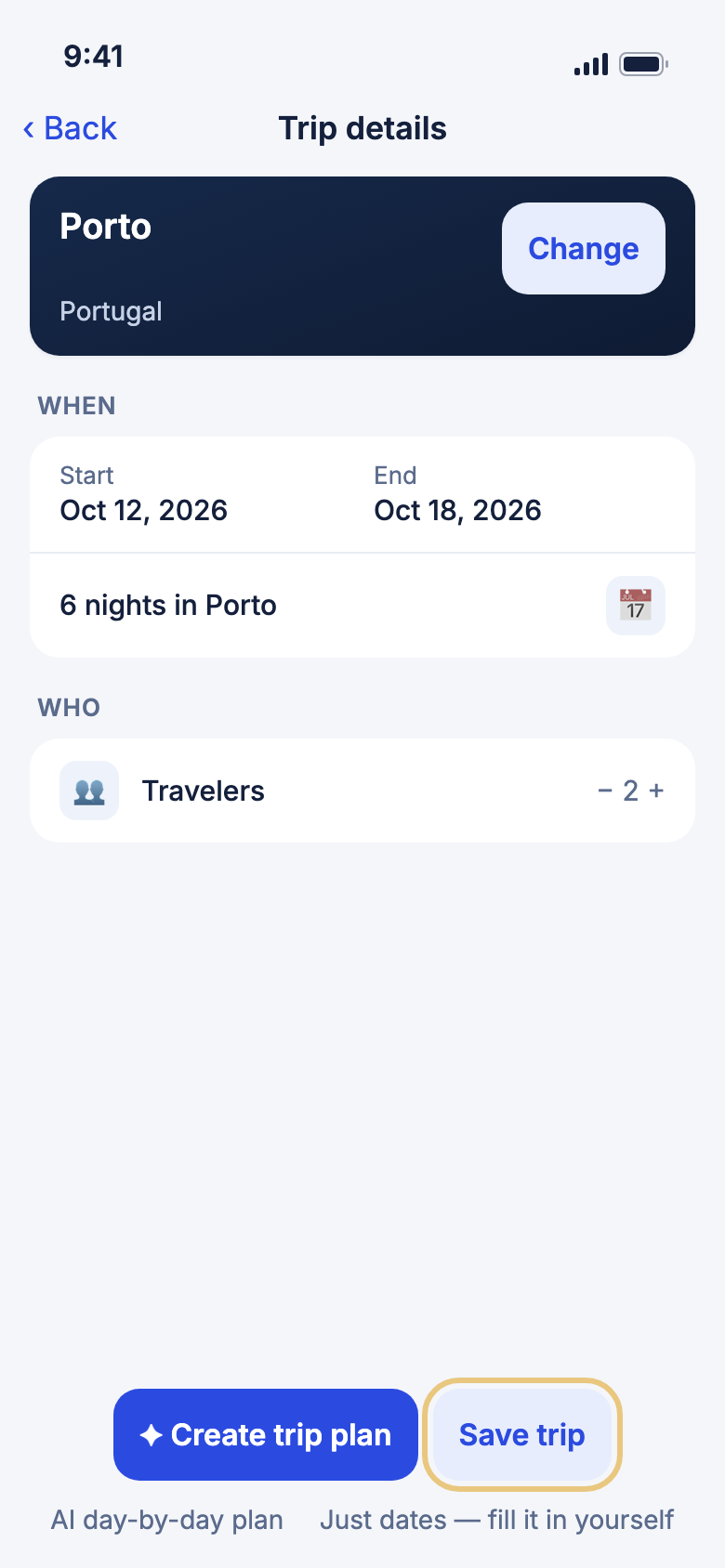
- Fill in Trip details.
- Tap Save trip.
- You see Trip saved. and go back to where you started. Your trip is on the Trips tab.
Good to know
- Saving works on every plan, Free or Pro.
- To add things to your saved trip, see The Trips tab.
Plan a trip with Janet
Janet is WeiiGo's travel assistant. Here you can tell her about a trip in your own words, and she plans it for you. To learn everything else Janet can do, see Ask Janet.
WeiiGo Pro — Planning with Janet needs WeiiGo Pro. On Free, the Janet button on Plan a trip (the ✦ sparkle left of the bar at the top) carries a Pro tag, and tapping it shows how to upgrade.
Describe your trip to Janet
Say what you have in mind, even if it's only a rough idea.
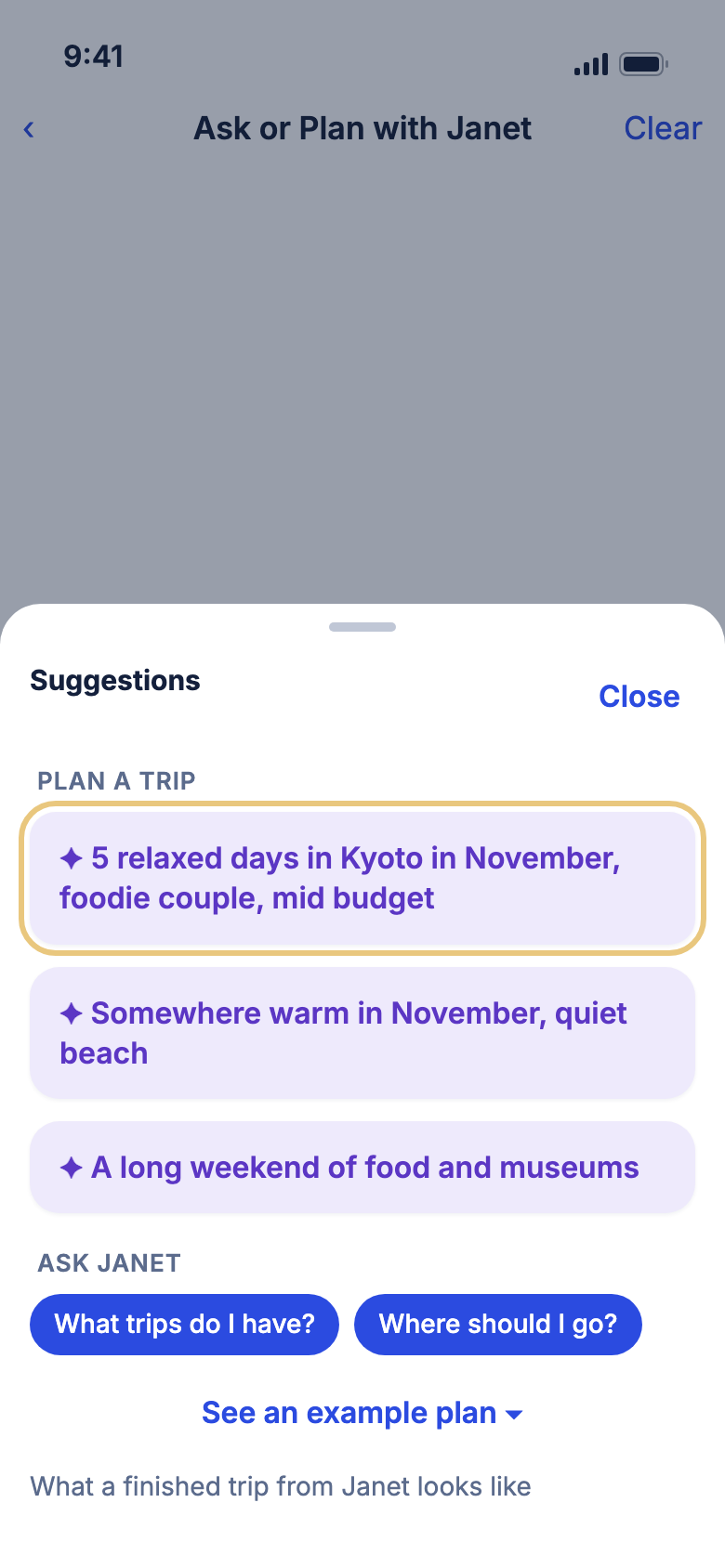
- On Plan a trip, tap the ✦ sparkle button to the left of the bar at the top. It has no words on it. (Home's Ask Janet card → Ask or Plan opens this chat too. Home's Plan a trip card has a Talk to Janet button, but that opens a step-by-step planner instead.)
- Ask or Plan with Janet opens. Type your trip in Ask about or describe a trip….
- Or tap Suggestions & example plan, then tap an idea under Plan a trip. It goes into the box so you can change it.
- Tap Send.
- Answer Janet's questions. She only asks for what she still needs, like where or when.
Good to know
- If you came from Plan a trip, the place you picked there comes with you, and so do any dates and travellers you set on its bar.
- Tap See an example plan in Suggestions to see what a finished day looks like.
- This is the same chat as Home's Ask Janet card, which opens it as its own page, where you can ask about your trips or plan one too. It is still there when you come back.
- Janet needs the internet. When you're offline, the page says so.
Tell Janet your dates and what you like
Tell Janet your dates, how many are going, how you're getting there and the kinds of things you like, in your own words. If she needs one of them, she asks.
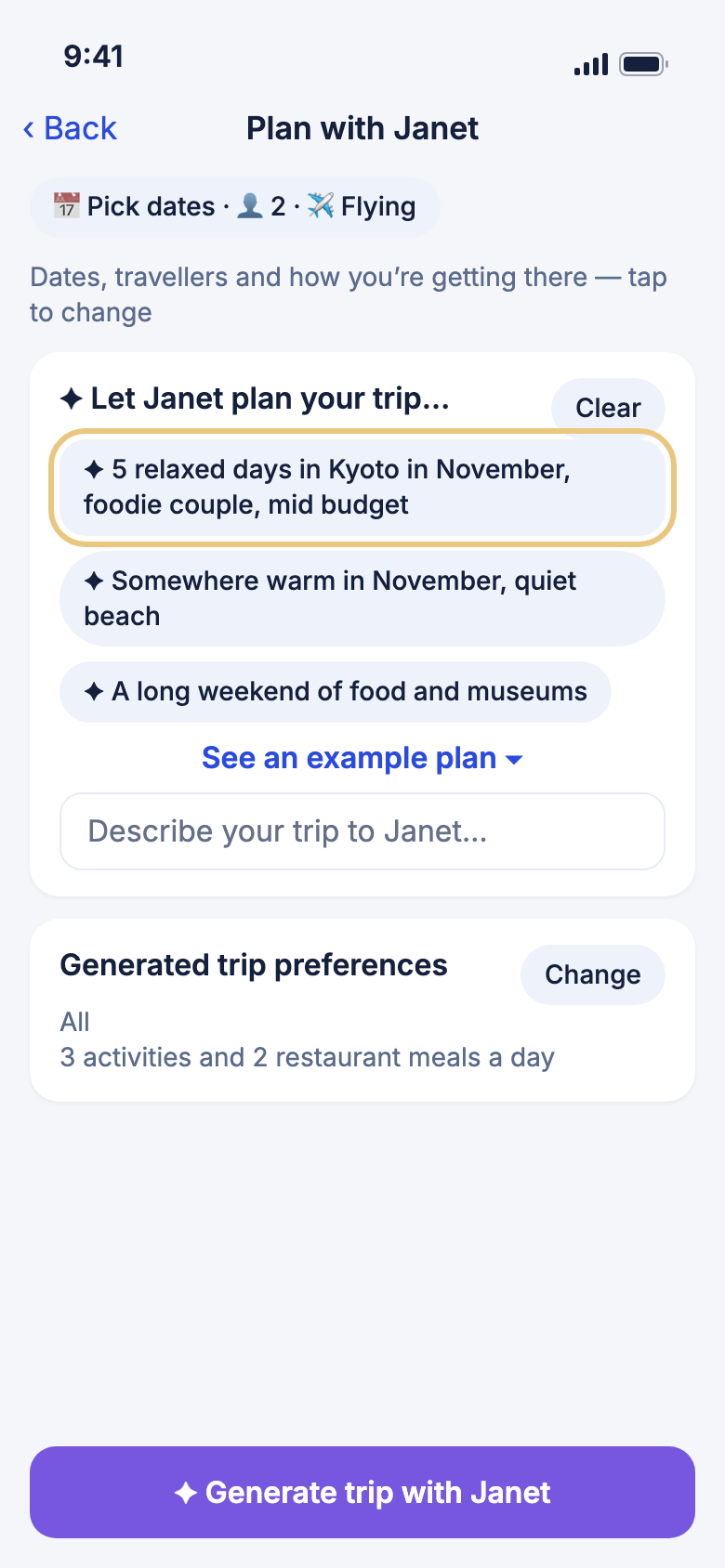
- Tap Ask about or describe a trip….
- Type your dates, who's going and how you're travelling. For example: "10 to 15 June, two of us, flying".
- Tap Send.
Good to know
- To change your dates, just tell Janet. She goes with what you say.
- To set your dates and travellers before you chat, set them on the bar at the top of Plan a trip, then tap the ✦ sparkle button there. Janet gets what you set.
- If you've saved a Travel group in Account → Settings → Planning defaults, Janet knows how many usually go.
- If you don't tell Janet who's going or how you're getting there, your trip uses what you picked on Plan a trip, or your usual settings.
Choose the airport you fly from
When you fly, WeiiGo can add a flight for your dates to the new trip. Tell Janet your airport, or set one for every trip.
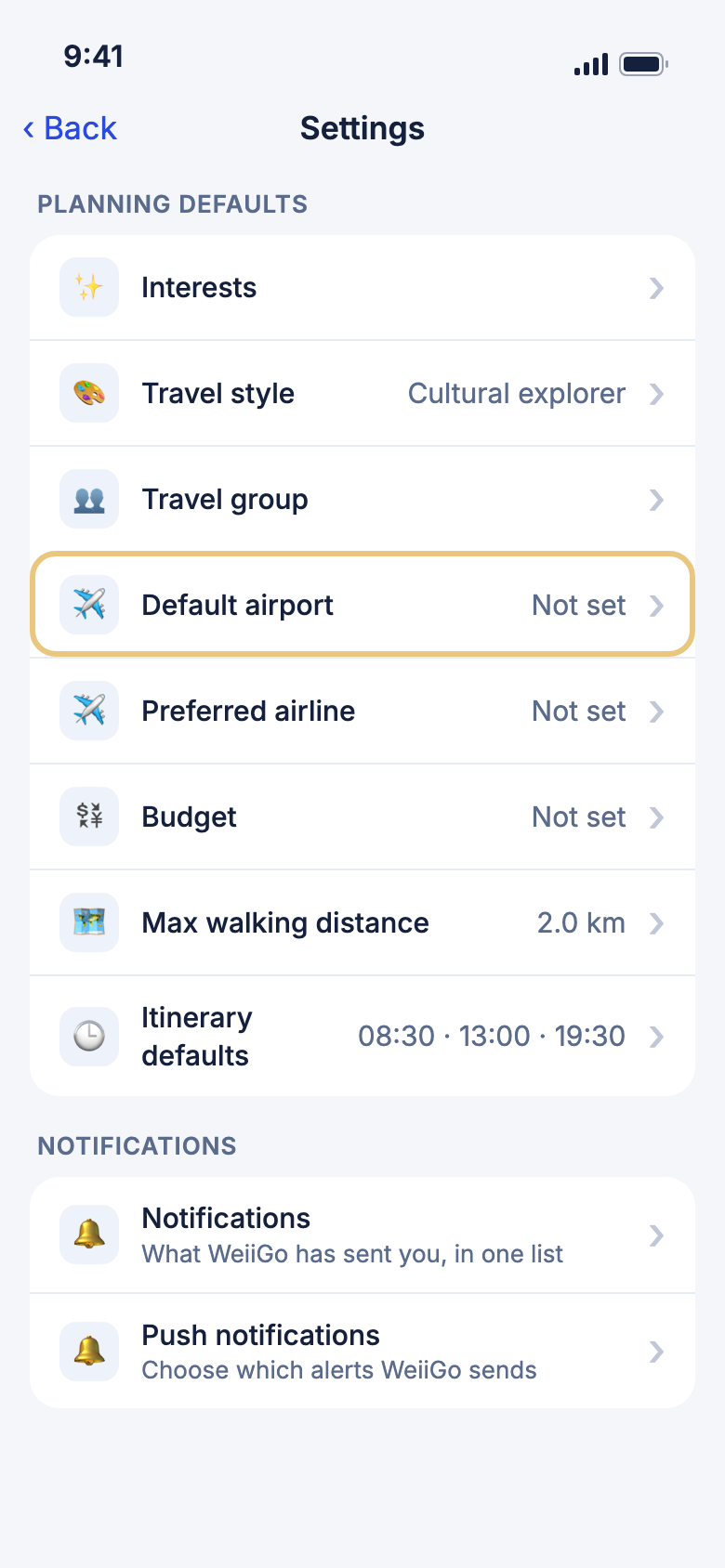
- Tap Account, then tap Settings.
- Under Planning defaults, tap Default airport.
- Search for your city, then tap your airport.
- The row now shows your airport's code, like ORD.
Good to know
- Or just tell Janet, like "flying from Chicago O'Hare". What you tell her wins over your Default airport.
- A flying trip that doesn't name an airport leaves from your Default airport. Until you set one, the row says Not set.
- With an airport, WeiiGo adds a flight for your dates to the new trip. It isn't booked. If it finds no flight, you still get your plan.
Confirm Janet's plan
When Janet has what she needs, she shows you the plan in a card. Nothing is built until you say yes.
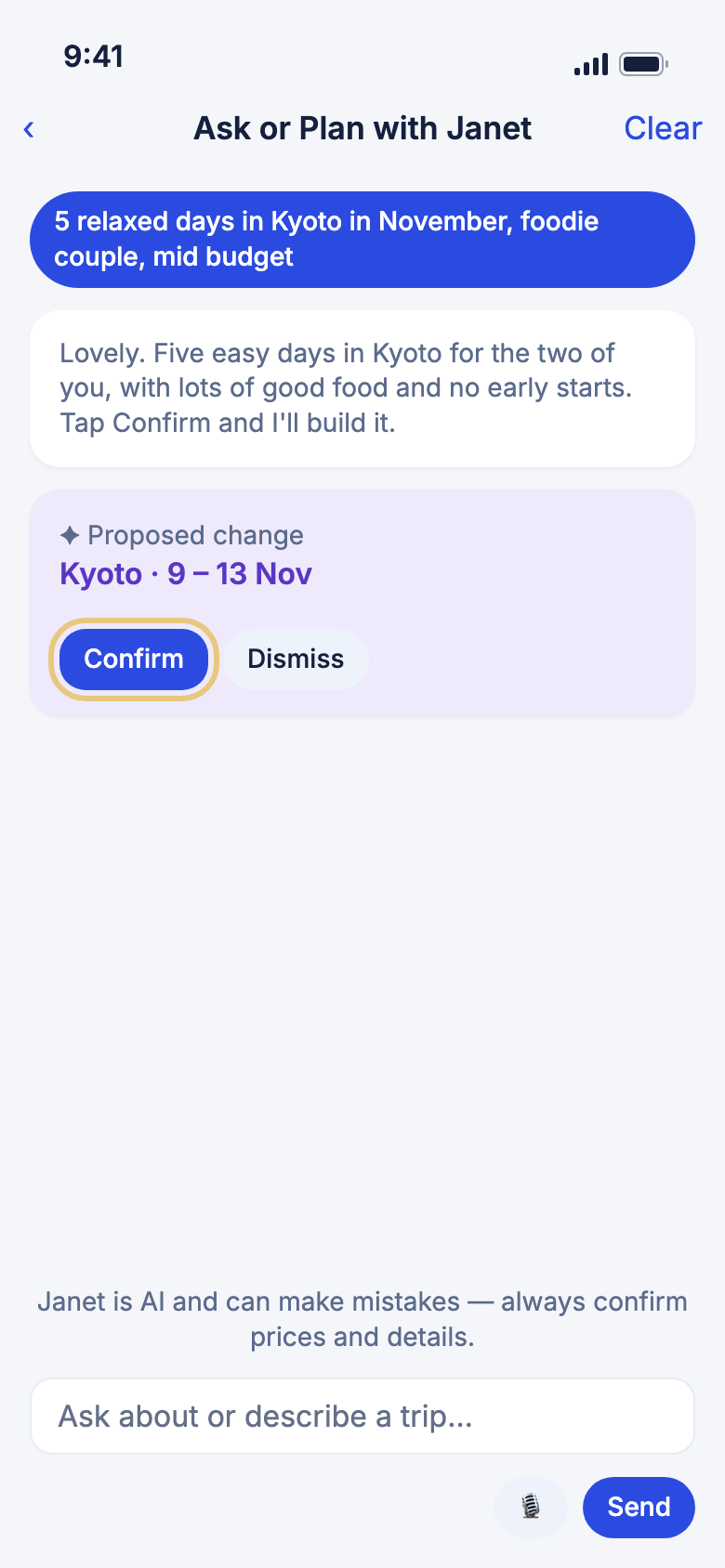
- Read Janet's card. It shows where you're going and your dates.
- Tap Confirm to build the trip, or Dismiss to keep chatting.
- Wait while WeiiGo shows Creating trip….
- Tap OK on Building your itinerary. WeiiGo takes you to Trips, where your new trip shows while it's being built.
Good to know
- Confirm builds the trip the same way ✦ Create trip plan does. It uses Janet's plan, your details and your preferences.
- If the trip can't be built, the card stays and says why. Fix what it says, then tap Confirm again.
- The same daily and monthly limits apply as for ✦ Create trip plan.
- Your chat stays after the trip is built. Come back to it any time.
Plan with Janet, step by step
Plan a trip with Janet's six steps
Janet asks one short question at a time, and you answer by tapping a card. It is the quickest way to plan when you want to be guided.
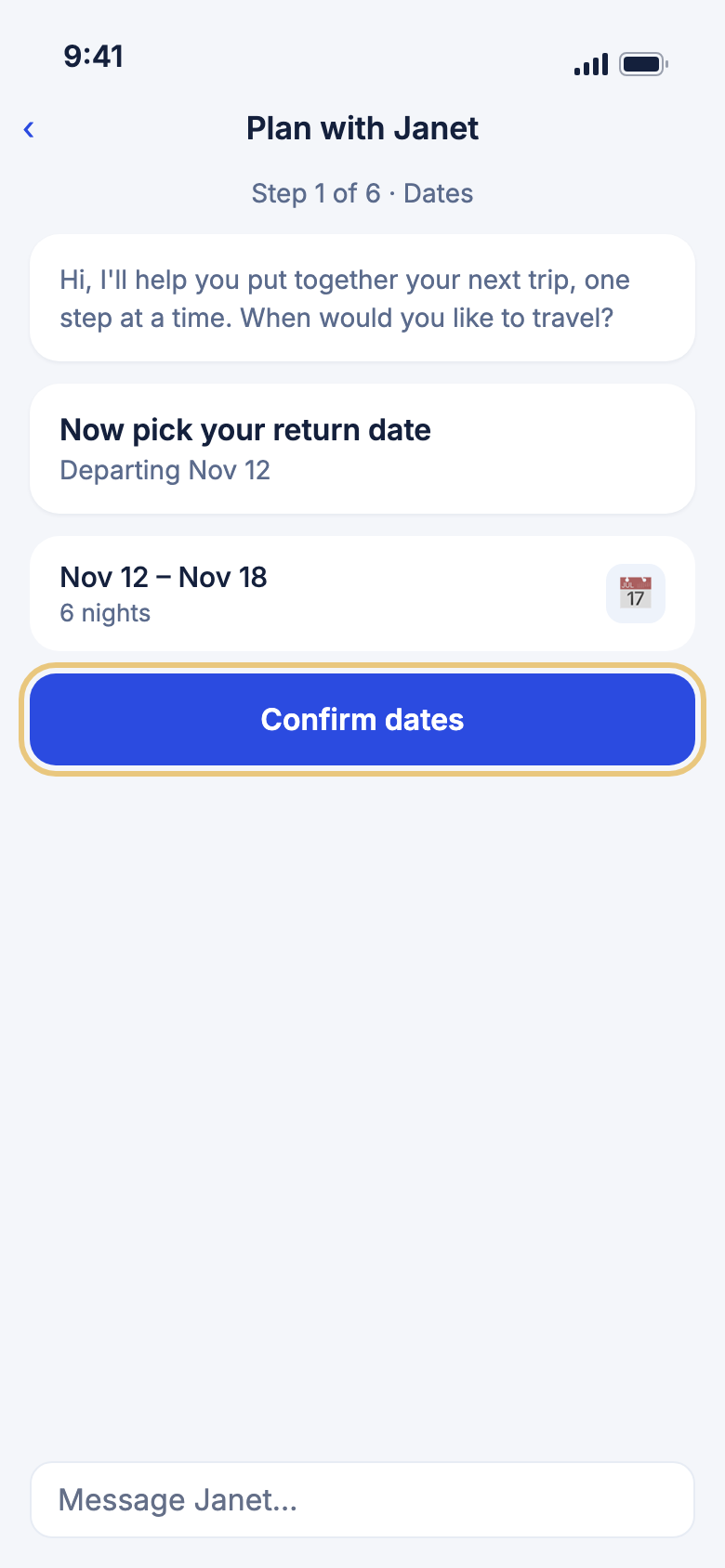
- On Home, on the Plan a trip card, tap Talk to Janet.
- Under Janet's greeting, tap Pick your departure date, then your return day, and tap Confirm dates.
- Choose where to go. Tap a popular place, or type any city in the box.
- Pick who is going and, if you fly, Flying from. Tap Continue.
- Pick a budget, then your interests. Tap Continue each time.
- Last, choose a place to stay, or tap Skip.
WeiiGo Pro — Planning with Janet needs WeiiGo Pro. On Free, Talk to Janet shows how to upgrade.
Good to know
- You can type or say an answer instead, like "next month for a week".
- Before the last step, tap one of your earlier answers in the chat to change it.
- Going back before the build starts asks Leave this trip?. Tap Keep planning to stay.
- It needs the internet.
Pick a budget
Each budget shows a price per person. If you set a usual budget in your settings, it is already chosen.
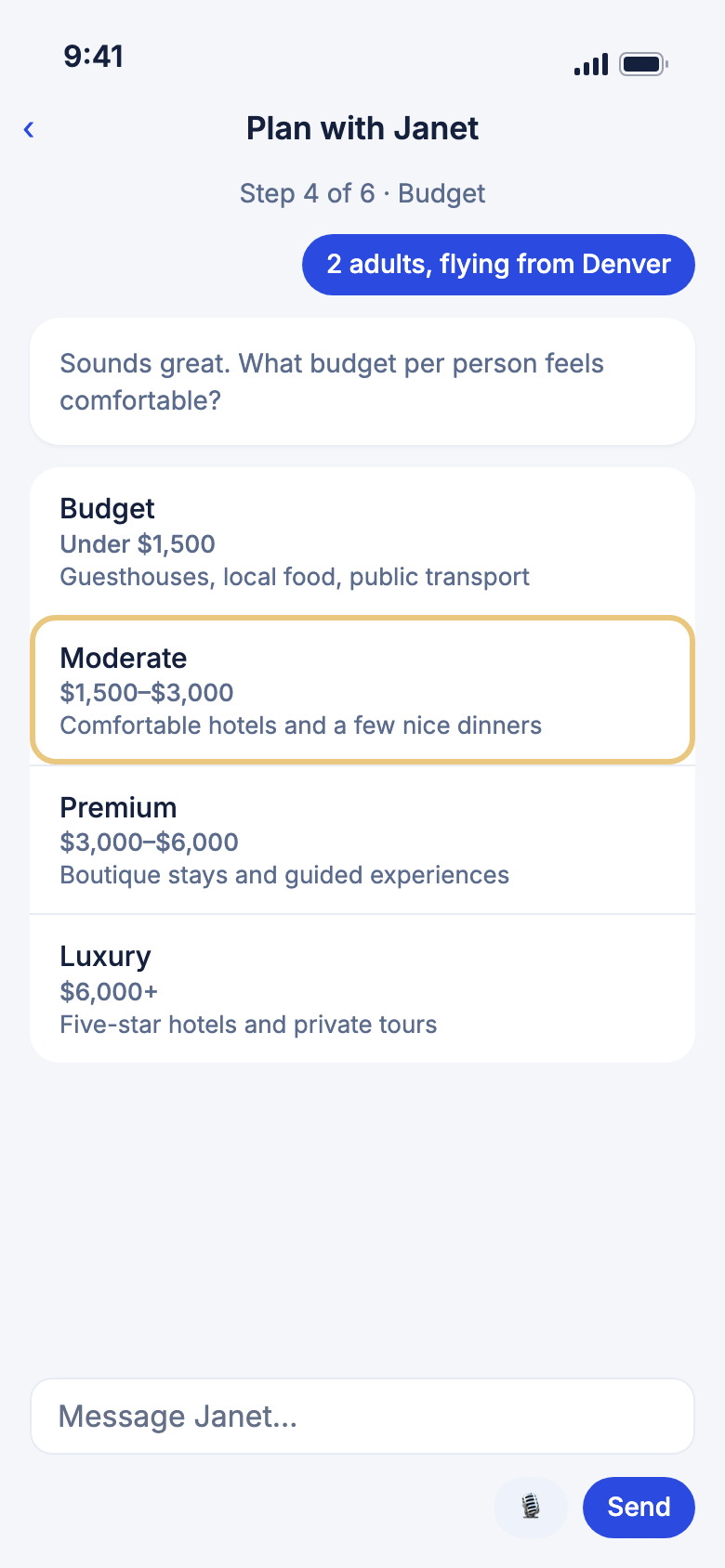
- On Step 4 of 6 · Budget, tap Budget, Moderate, Premium or Luxury.
- If Janet says your usual budget, tap Continue to keep it.
Choose where to stay
Janet suggests five places. The one you choose is added to your trip. It is not booked.
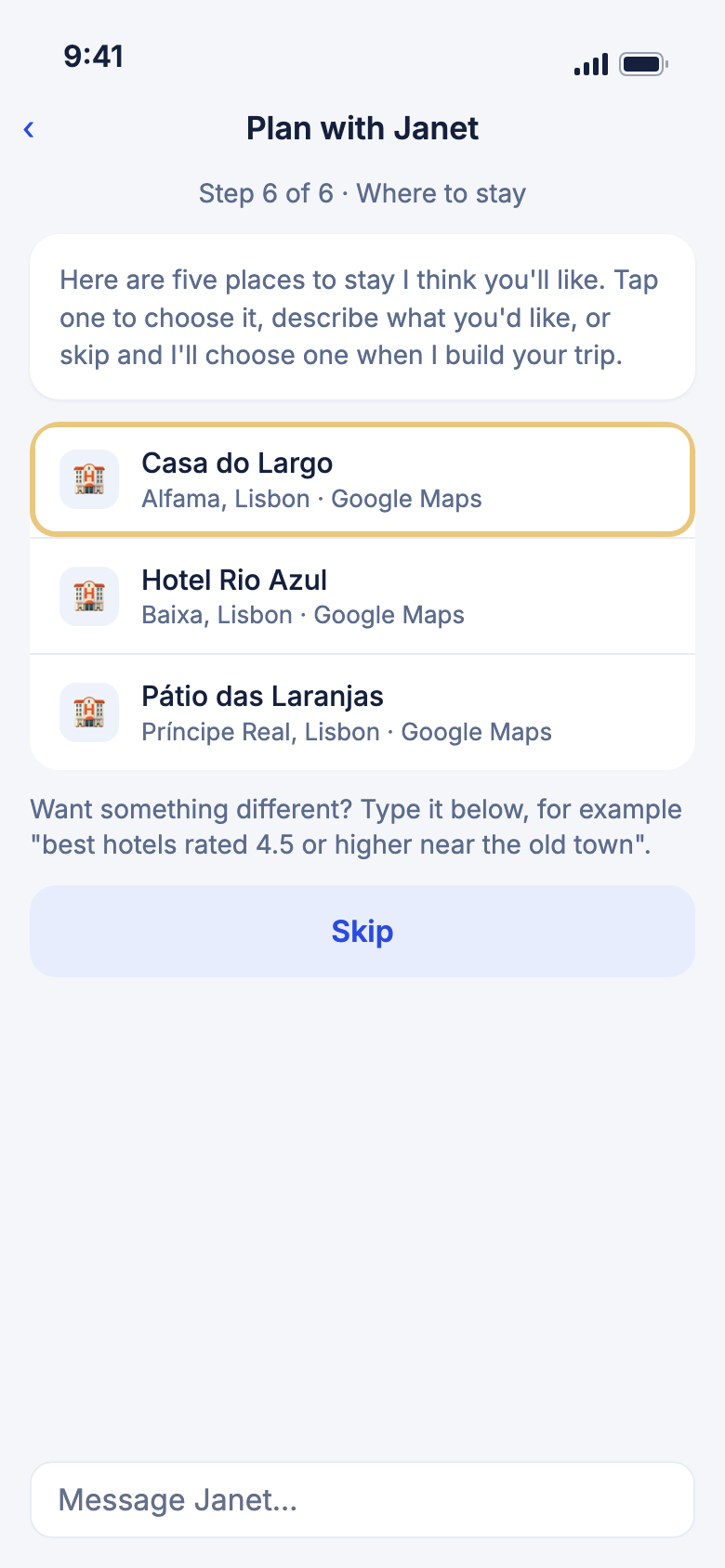
- On Step 6 of 6 · Where to stay, swipe through Janet's places.
- Tap one to choose it. Tap Google Maps on a card to look first.
- Or type what you would like, like "quiet, with a pool", and Janet looks again.
- Or tap Skip, and Janet chooses when she builds your trip.
- Tap View upcoming trips. Your trip shows Creating your itinerary… and you get a notification when it is ready.
Other ways to make a trip
Look over a trip you are planning
Overview shows your whole plan in one place, without changing anything.
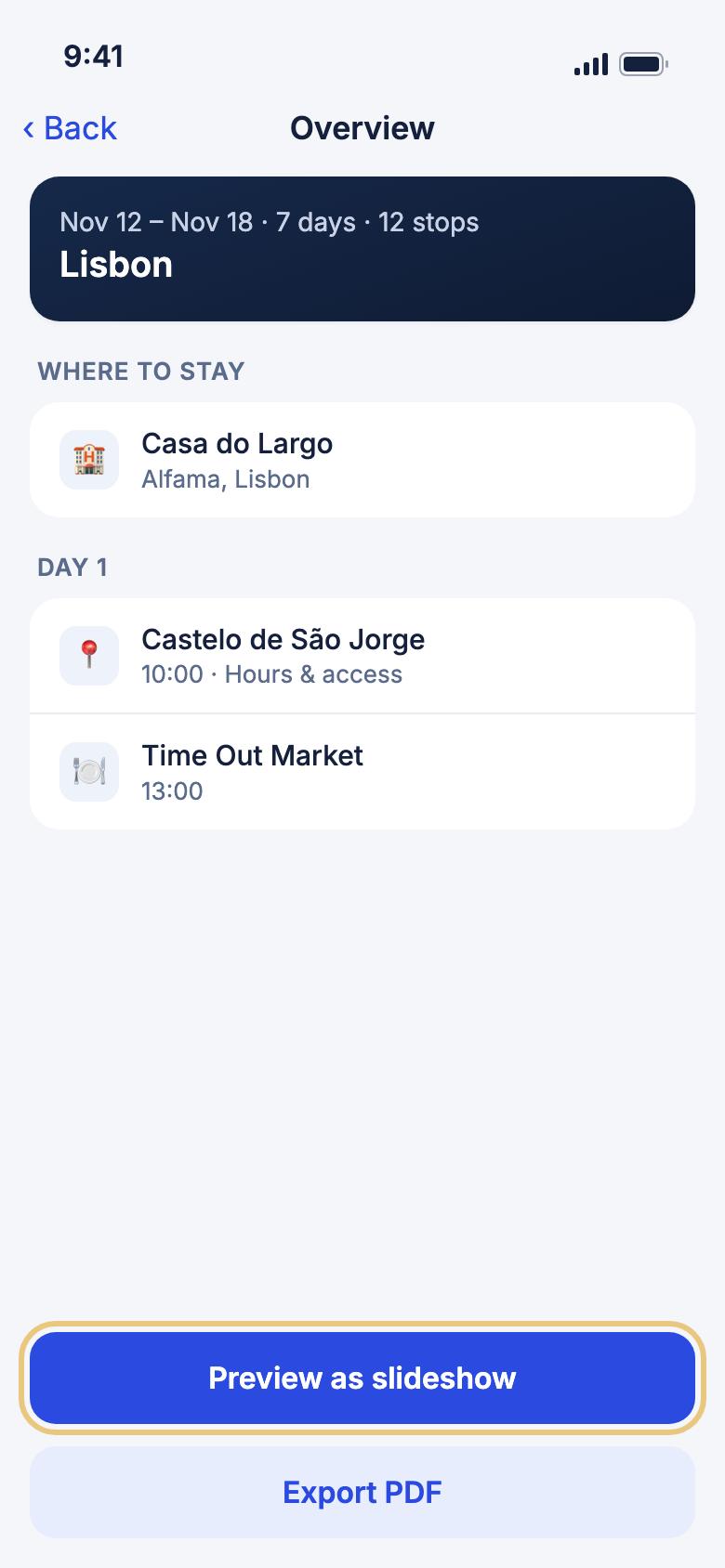
- On Trips, find a trip that is still being planned.
- Tap Overview on its card.
- Read the dates, Where to stay and each day's stops. Tap Hours & access under a stop to read about it.
- Tap Preview as slideshow to play your plan as photos.
- Tap Export PDF to share your trip as a PDF.
Good to know
- In the slideshow, tap the right side for Next slide and the left for Previous slide. Tap the middle to pause or play. Tap Close to leave.
- Preview as slideshow only shows when a stop is a real place with a photo.
- Export PDF is not always available.
Find past trips in your photos
WeiiGo can look through your photos for trips you have already taken. The photos stay on your phone.
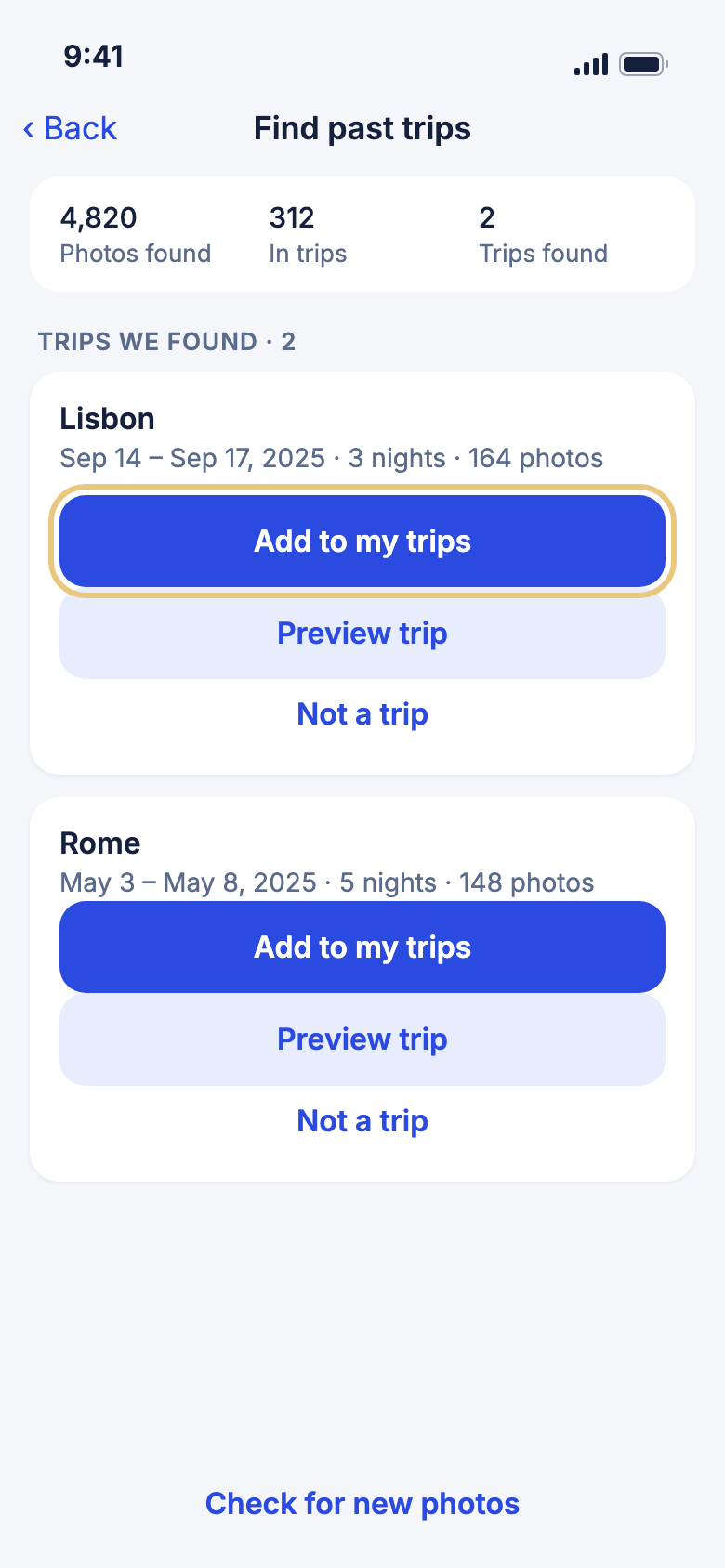
- Tap Tools, then tap Find trips in my photos. Or open Trips and Completed.
- Tap Look through my photos. Allow photo access when your phone asks.
- Read the list under Trips we found.
- Change Trip name if you like, then tap Add to my trips. Tap Not a trip to dismiss one.
- If two suggestions are one trip, tap Fix the grouping, then Merge with previous or Split in two.
WeiiGo Pro — On Free, the button has a Pro tag. Tapping it shows how to upgrade.
Good to know
- Tap Undo after Saved to your trips. to remove a trip you just added.
- Tap Check for new photos later to look at new photos only.
- If you said no to photo access, tap Open settings to turn it on.
- Photos with no location are skipped.
Check a photo trip before you add it
Remove photos or days that were not part of the trip.
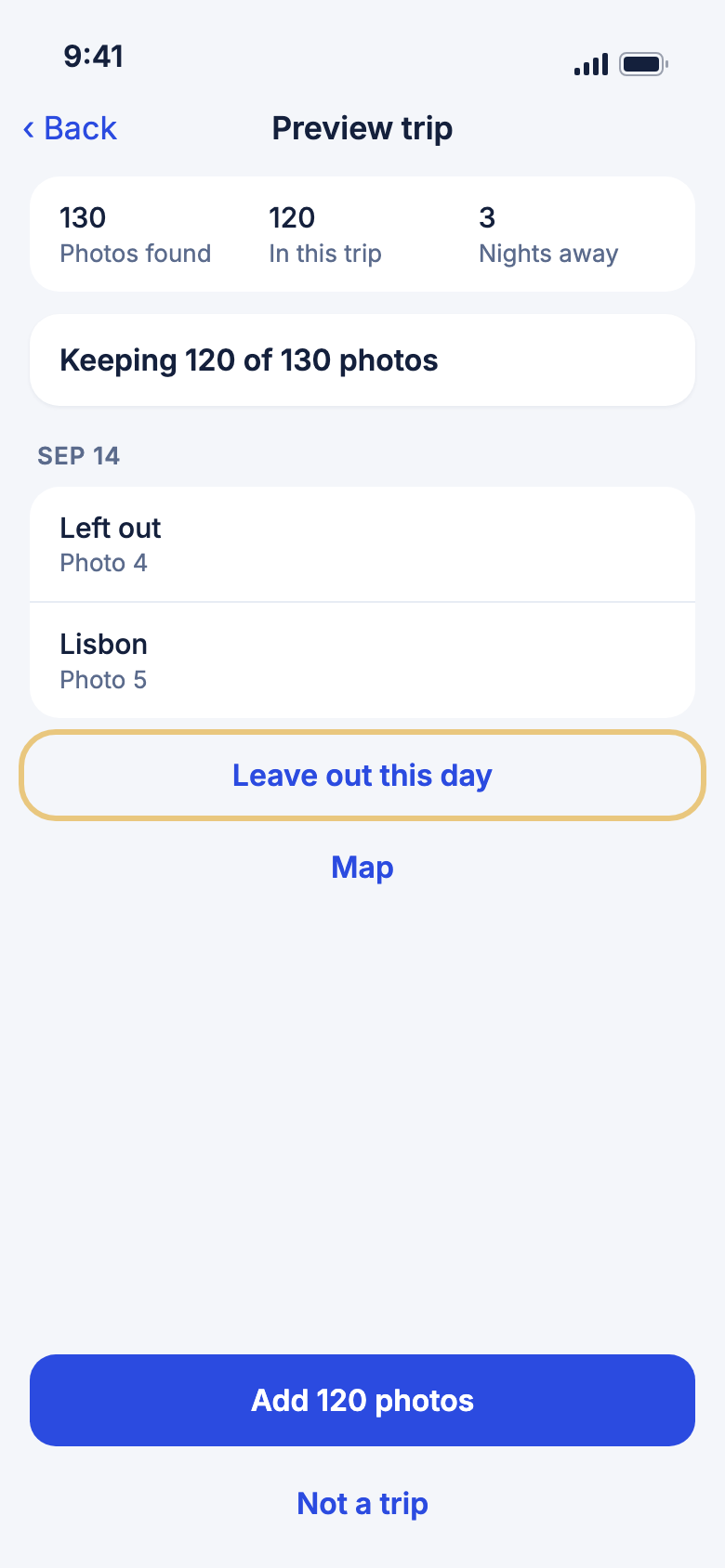
- On a suggestion, tap Preview trip.
- Tap a photo to leave it out. It shows Left out. Tap it again to bring it back.
- Tap Leave out this day to drop a whole day. Tap Put back to restore it.
- Tap Map to see where you went.
- Tap Add and the number of photos to add the trip.
Copy a trip
Make a new trip from one you already have, like for a repeat visit.
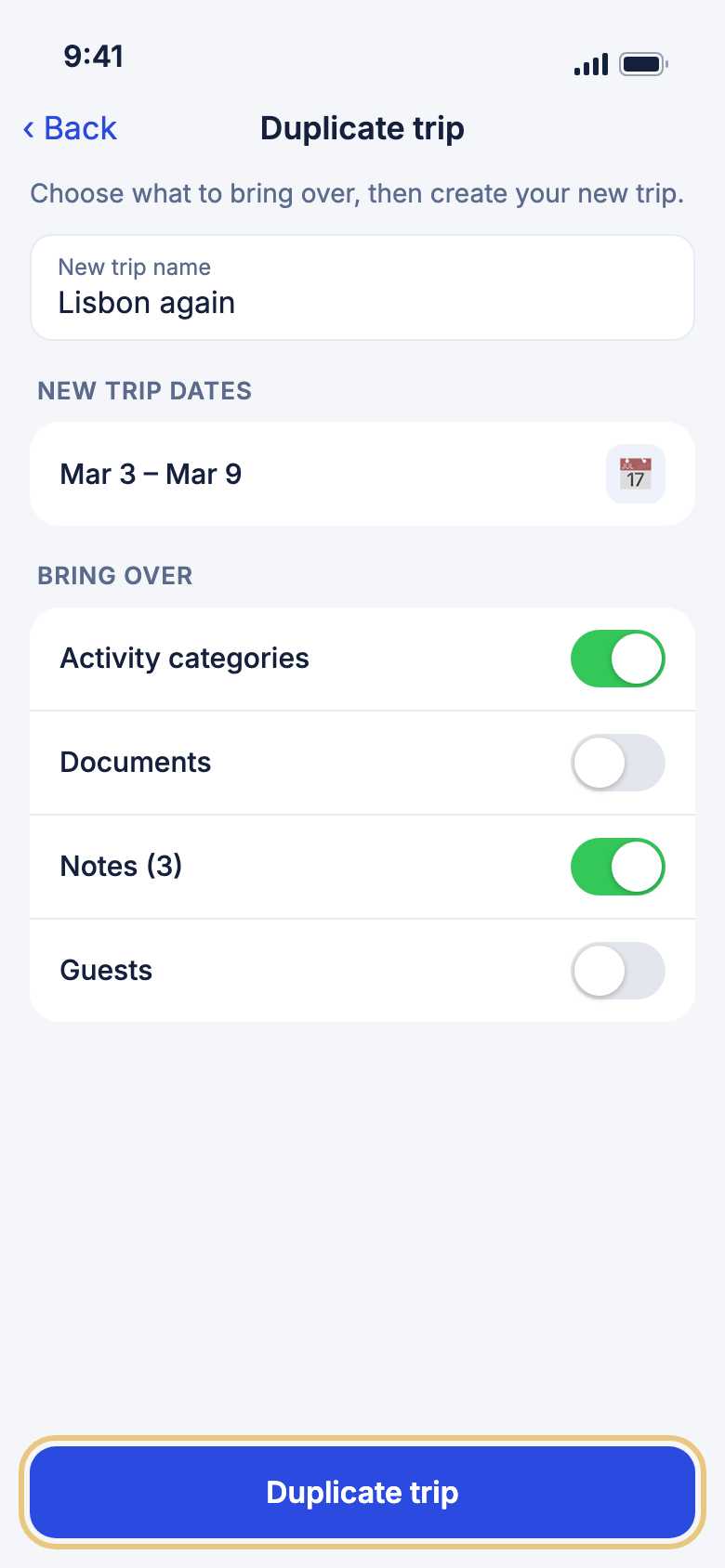
- Open the trip, then tap Edit, then tap Duplicate.
- Change New trip name if you like.
- Under New trip dates, pick the new start and end days.
- Under Bring over, turn on what to copy: Activity categories, Documents, Notes or Guests.
- Tap Duplicate trip. Your new trip opens.
Good to know
- Only the person who made a trip sees Duplicate.
- Activities move with the new dates. Any past the end of a shorter trip land on the last day.
Save a dream trip for someday
A dream trip is a place you would love to go, with no fixed dates. Turn it into a real trip when you are ready.
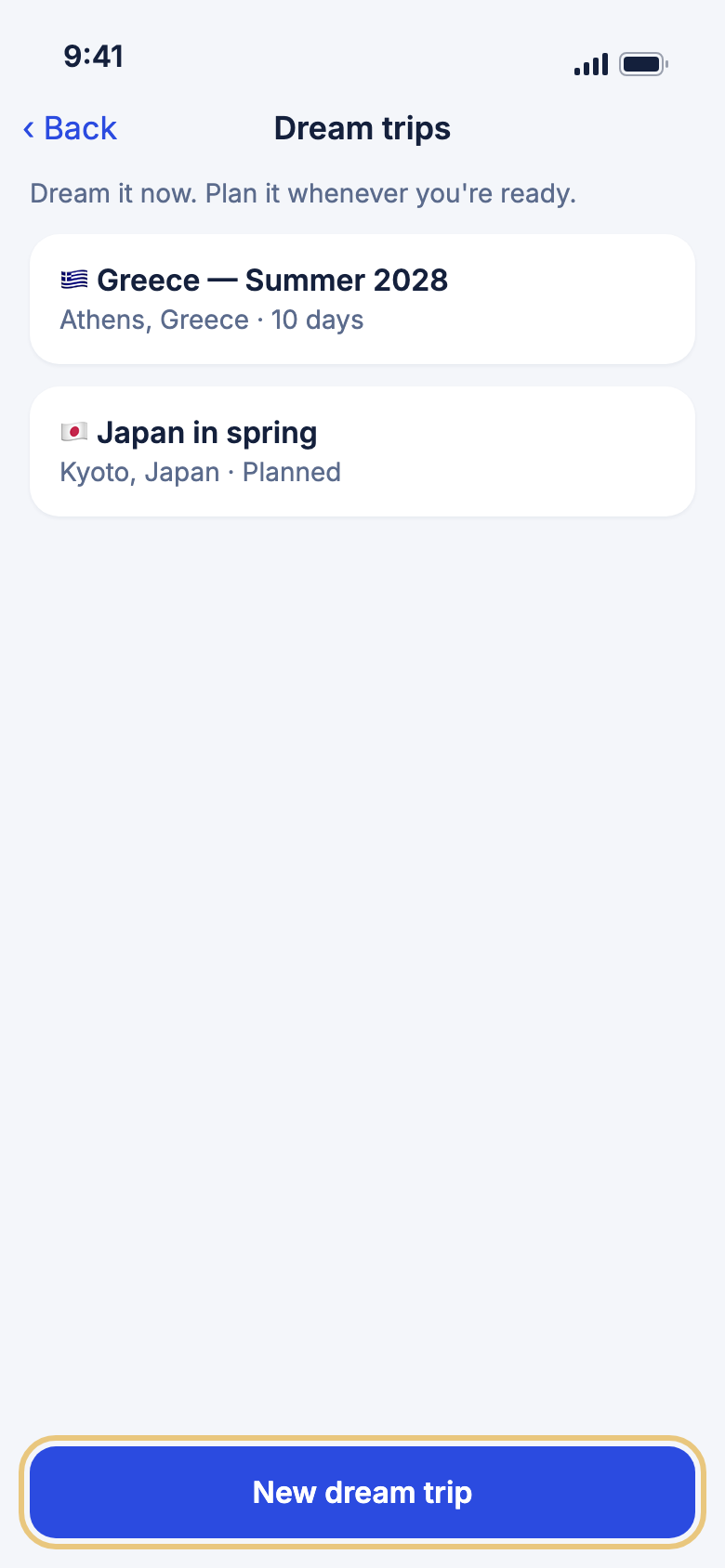
- Tap Trips, then For later, then Dream trips.
- Tap New dream trip.
- Type a Name, then tap Destination and pick a place.
- Pick Roughly when would you like to go?, How long and Travelers.
- Pick a Pace, then tap Save.
WeiiGo Pro — Dream trips need WeiiGo Pro. On Free, the row has a Pro tag. If your Pro has ended, you can still read your dreams.
Good to know
- Tap Delete to remove a dream. Your saved ideas are kept.
Turn a dream into a trip
Plan it fills in Plan a trip from your dream. The dream stays where it is.
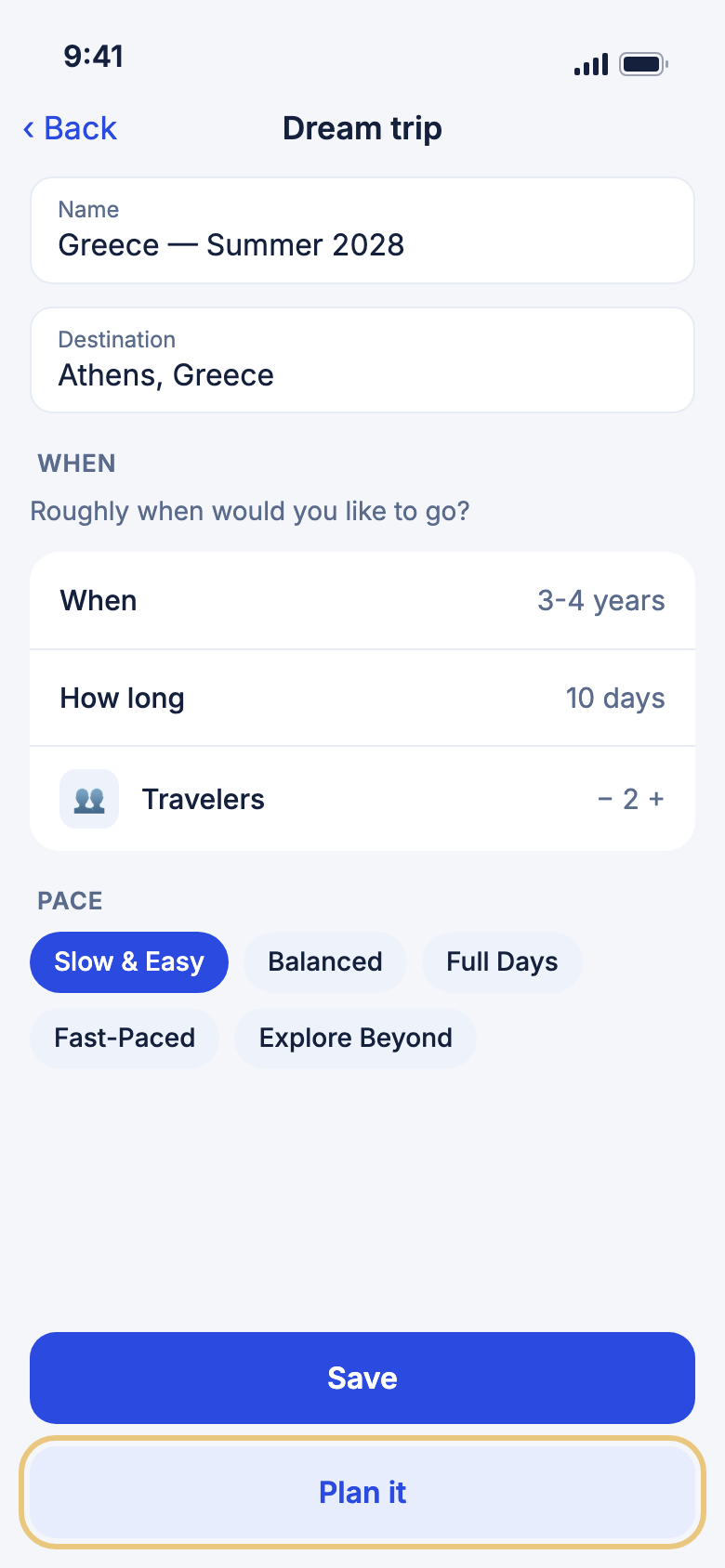
- Open a dream trip.
- Tap Plan it. Trip details opens with your place, travellers and more filled in.
- Check the dates, then tap Save trip or ✦ Create trip plan.
Good to know
- Afterwards the dream says You've planned a trip from this dream. Tap Open the trip to see it.
Try a different version of a dream
A what-if is another version of the same dream, like a different month or budget.
- Open a saved dream trip.
- Under What if…, tap Add a what-if.
- Give it a name, change what you like, and tap Save.
- On a what-if, tap Use this to make it your dream.
Good to know
- A dream keeps up to 10 what-ifs.