
Getting started: sign-in and setup
The first screens of WeiiGo: opening the app, signing in, agreeing to the Terms and Privacy Policy, and the one-time location question. For creating an account, adding your phone number and first-time setup, see Getting started.
Opening WeiiGo
Stay signed in between visits
You only sign in once. WeiiGo remembers you until you sign out.
- Open WeiiGo.
- A WeiiGo screen with Loading... shows for a moment.
- If you are signed in, Home opens. If not, Sign in opens.
Good to know
- WeiiGo does not wait for the internet. With no connection you still land on Home and see the trips saved on your phone.
- If starting takes a while, you see Still starting up — this is taking longer than usual. WeiiGo opens Home anyway after a few seconds.
- Your session ends after about 30 days without use. It also ends on every phone when you reset your password. WeiiGo then shows Sign in. Your trips are still on your account.
- If you opened a link, such as a trip invite, while signed out, WeiiGo keeps it and opens it after you sign in.
Signing in
Sign in with your phone number
Use this if you would rather type your number than your email address.
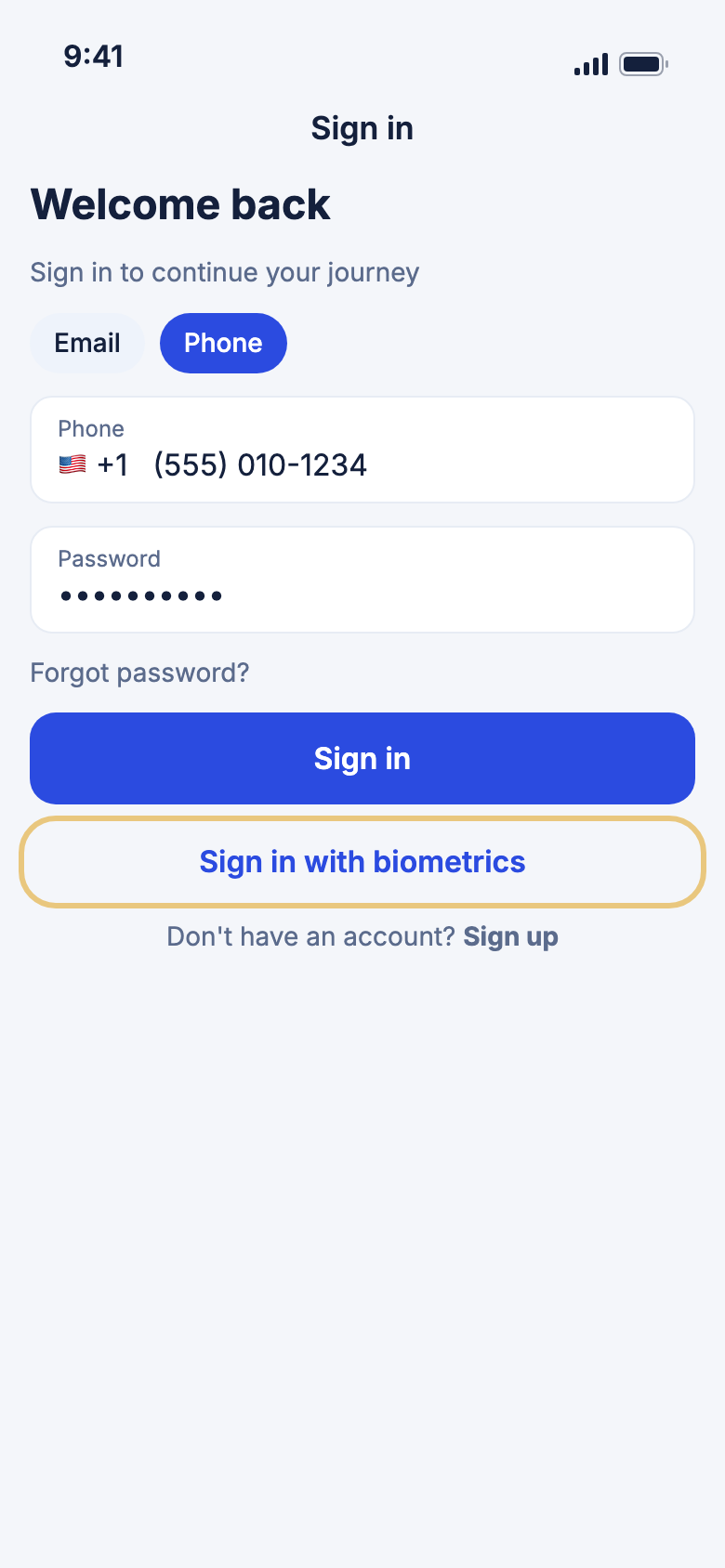
- On Sign in, tap Phone.
- Check the country on the left. To change it, tap it and pick another. See Pick your country code.
- Type your number.
- Type your Password.
- Tap Sign in.
Good to know
- Accounts made with Apple or Google have no WeiiGo password. Use their buttons instead.
- Forgot password? still asks for your email address.
Pick your country code
The country on the left of any phone field sets the dialling code, so you type only the national number.
- Tap the flag and code.
- Scroll, or type a country name, a two-letter code such as FR, or a dialling code such as 44 in Search countries or codes.
- Tap your country.
Good to know
- Your home country and countries you chose before are listed first under Suggested.
- Tap ✕ or outside the list to close it without changing anything.
Sign in with Face ID or your fingerprint
If your session has ended, you can sign back in with a look or a touch instead of a password.
- Sign in with your password, Apple or Google once on a phone that has Face ID or a fingerprint set up.
- Later, on Sign in, tap Sign in with biometrics.
- Look at the phone or touch the sensor.
Good to know
- Nothing to switch on. The button appears after your first sign-in on that phone.
- Until then you see Sign in with your password once on this device; Face ID / fingerprint is offered after that.
- If the scan fails, you see Biometric authentication failed. Please use your password. Try again, or type your password.
- If you add or remove a face or fingerprint in your phone's settings, WeiiGo asks for your password once to set it up again.
- Biometric sign-in stops working after a password reset, and after about 90 days.
Sign in with Apple or Google
Tap Continue with Apple or Continue with Google at the top of Sign in. If you close Apple's or Google's window without finishing, nothing happens and you stay on the same screen.
Good to know
- Continue with Apple works on iPhone only.
- If the Apple or Google account is new to WeiiGo, WeiiGo makes an account for it and then asks for your phone number.
Terms and Privacy
See what you agree to when you sign up
Making a WeiiGo account means you agree to the Terms of Service and Privacy Policy. WeiiGo says so on Sign in, on Create your account and under Create account.
- Find the line By creating an account you agree to the Terms of Service and Privacy Policy.
- Tap Terms of Service or Privacy Policy to read it.
Good to know
- Each opens as a web page in your phone's browser, not inside WeiiGo.
- Tapping Continue with Apple or Continue with Google on Sign in can create your account, which is why the line is there too.
Agree if WeiiGo asks
If you made your account before this line existed, WeiiGo asks you once to agree.
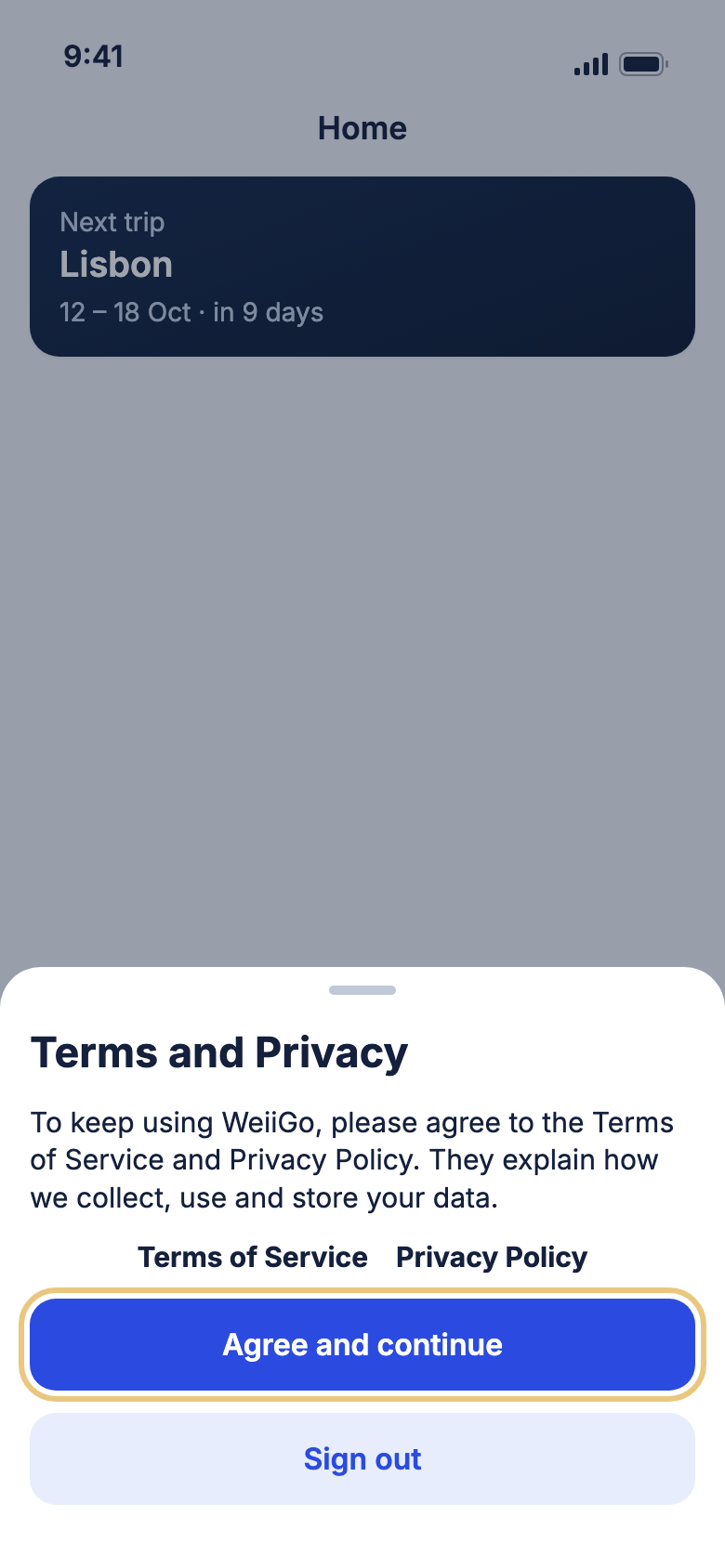
- When Terms and Privacy appears, read it. Tap Terms of Service or Privacy Policy to read more.
- Tap Agree and continue.
- To say no, tap Sign out instead. You go back to Sign in.
Good to know
- The box can appear after you sign in, or when you open WeiiGo.
- You cannot close it by tapping outside it. Without an answer you cannot keep using WeiiGo.
- If WeiiGo cannot save your answer, for example offline, you stay signed in and it asks again later.
Location and signing out
Choose how WeiiGo uses your location while navigating
The first time you start turn-by-turn directions, WeiiGo explains why it wants your location and lets you choose.
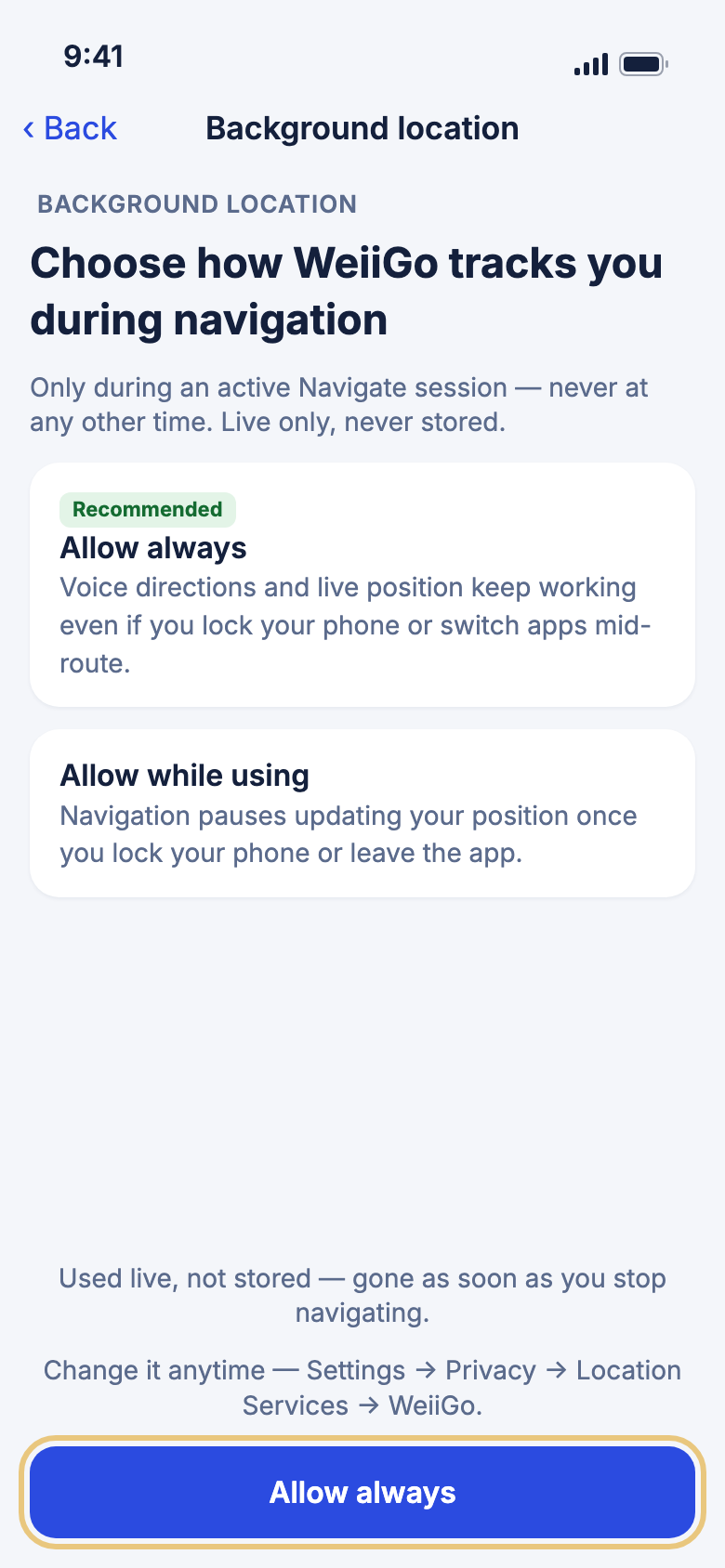
- Read Choose how WeiiGo tracks you during navigation.
- Tap Allow always to keep directions working when you lock your phone, or Allow while using to only track while WeiiGo is open.
- Tap the button at the bottom. Your phone then shows its own location question. Answer it.
Good to know
- WeiiGo uses your position live while you navigate and does not store it.
- You see this once. You can change your answer any time in your phone's settings under Privacy and Location Services.
- If you refuse in your phone's question, your position will not show on the map.
WeiiGo Pro — Trip Tracker shows the same kind of screen the first time you turn it on. Free travellers do not see it.
Sign out
Sign out when you hand your phone to someone else.
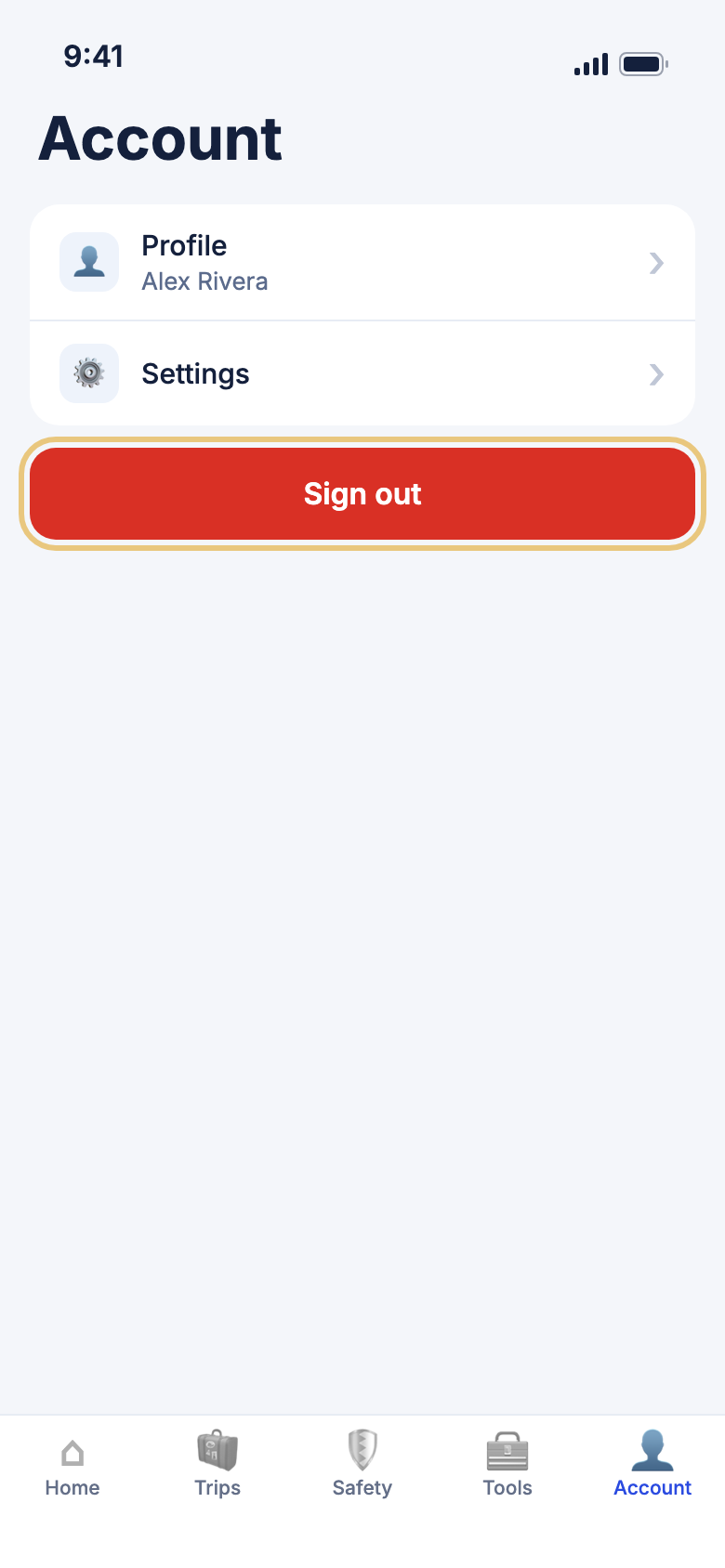
- Tap the Account tab.
- Scroll to the bottom and tap Sign out.
- Tap Sign out again to confirm, or Cancel to stay signed in.
Good to know
- Your trips and settings stay on your account.
- Signing out removes biometric sign-in and notifications from this phone. Sign in with your password to turn biometrics on again.