
Your itinerary
The itinerary is your trip laid out day by day. See every activity, flight and stay in time order, add things, change them, and move them around.
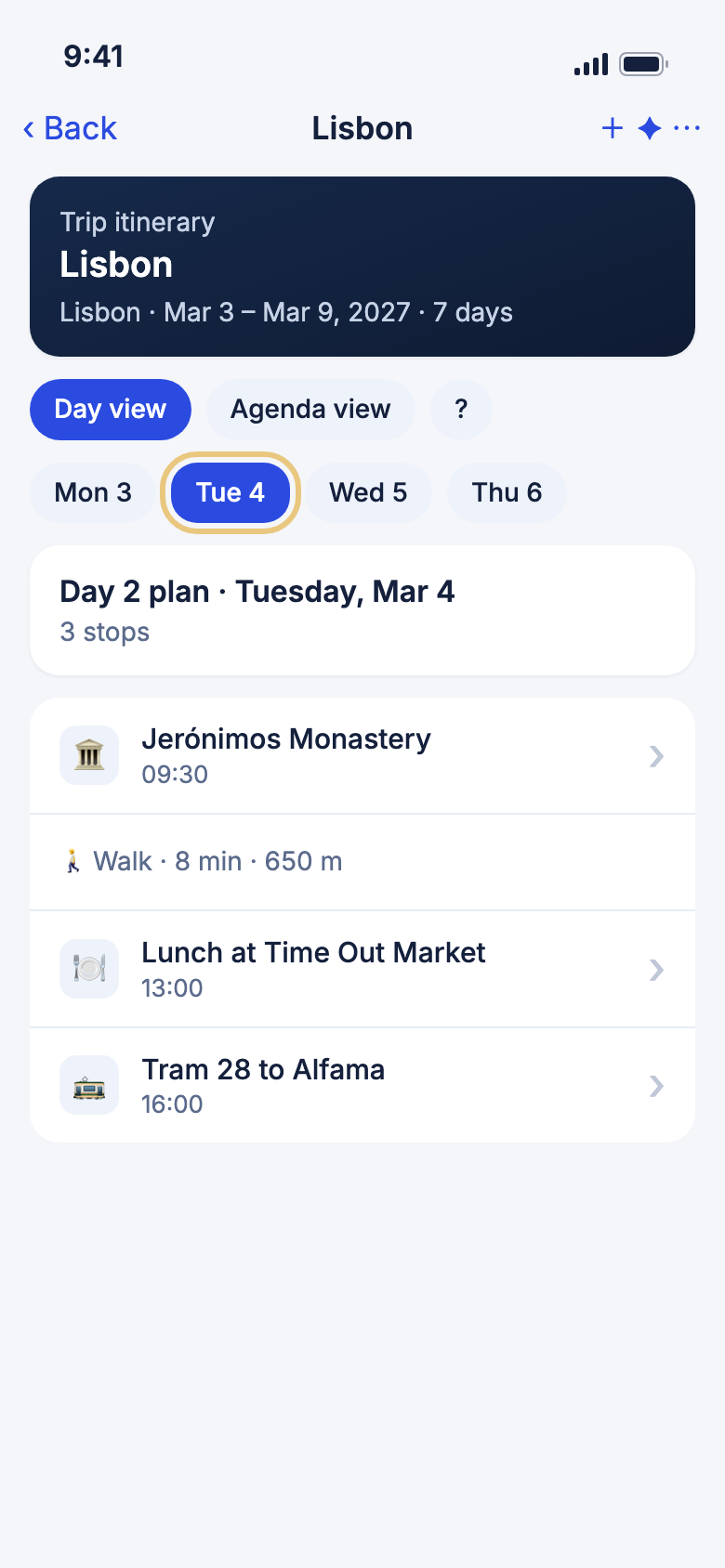
Finding your way around
Open your itinerary
Open a trip to see what is planned and when.
- Tap Trips.
- Tap a trip. A Loading your trip… message shows, then the itinerary.
- Tap a day chip at the top to jump to that day.
- Pull the list down to refresh it.
- Tap Back to return to your trips.
Good to know
- The top bar has + to add something, a sparkle button for Ask Janet, and ⋯ for more.
- The round buttons on the summary card open the trip's map, sharing and documents.
- A day with nothing on it says Nothing planned for day 2.
WeiiGo Pro — Ask Janet, sharing and documents need WeiiGo Pro. A Free traveller sees the upgrade prompt.
See the whole trip at once
Agenda view lists every day on one long page. Day view shows one day at a time.
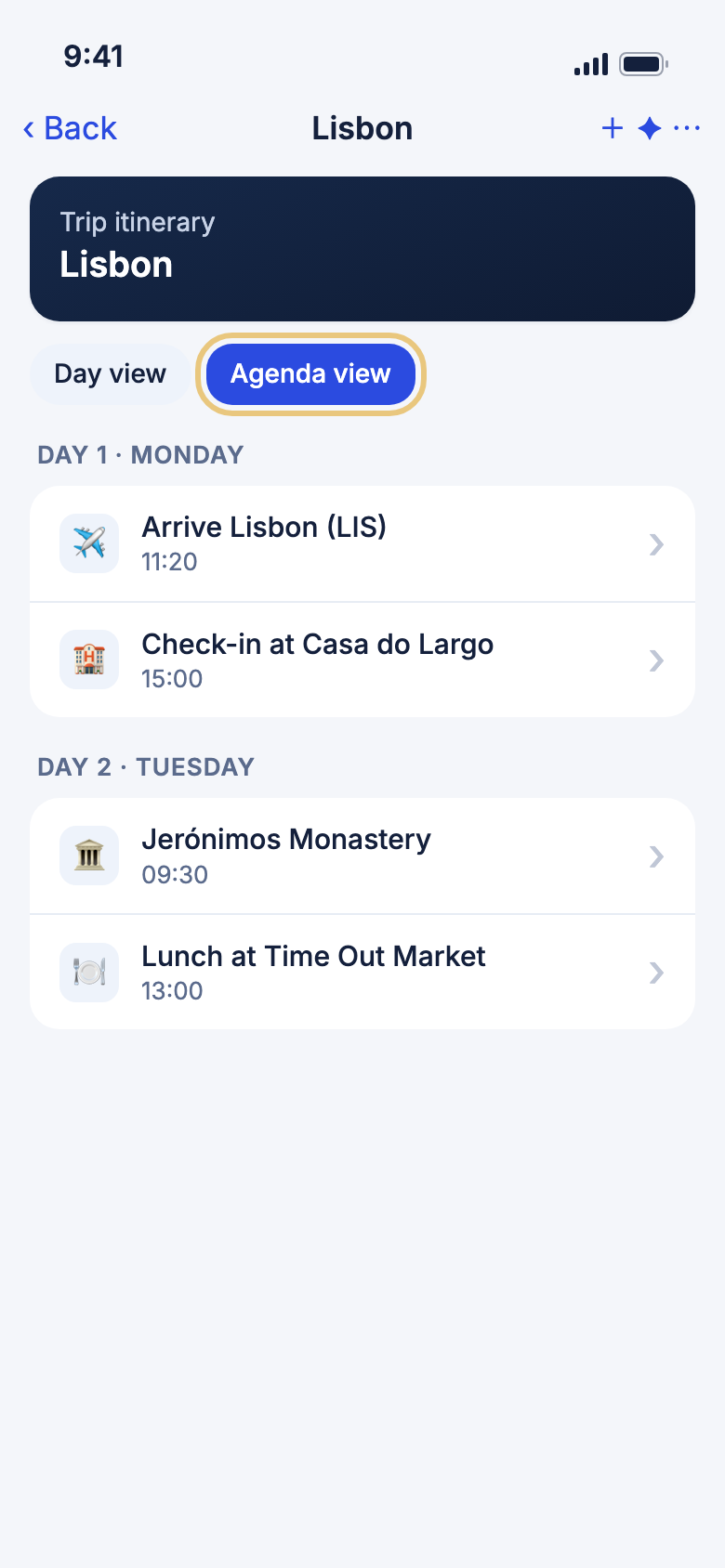
- On the summary card, tap Agenda view.
- Scroll to read every day.
- Tap a day chip to jump to that day.
- Tap Day view to go back to one day.
Good to know
- Between two stops, a small row shows how you get there, such as "Walk · 8 min · 650 m". Tap it for directions.
- A flight that lands earlier on the clock than it left shows Time zone change — lands earlier on the local clock.
Changing your plan
Move an activity to another day
Plans change. Pick an activity up and put it on a better day.
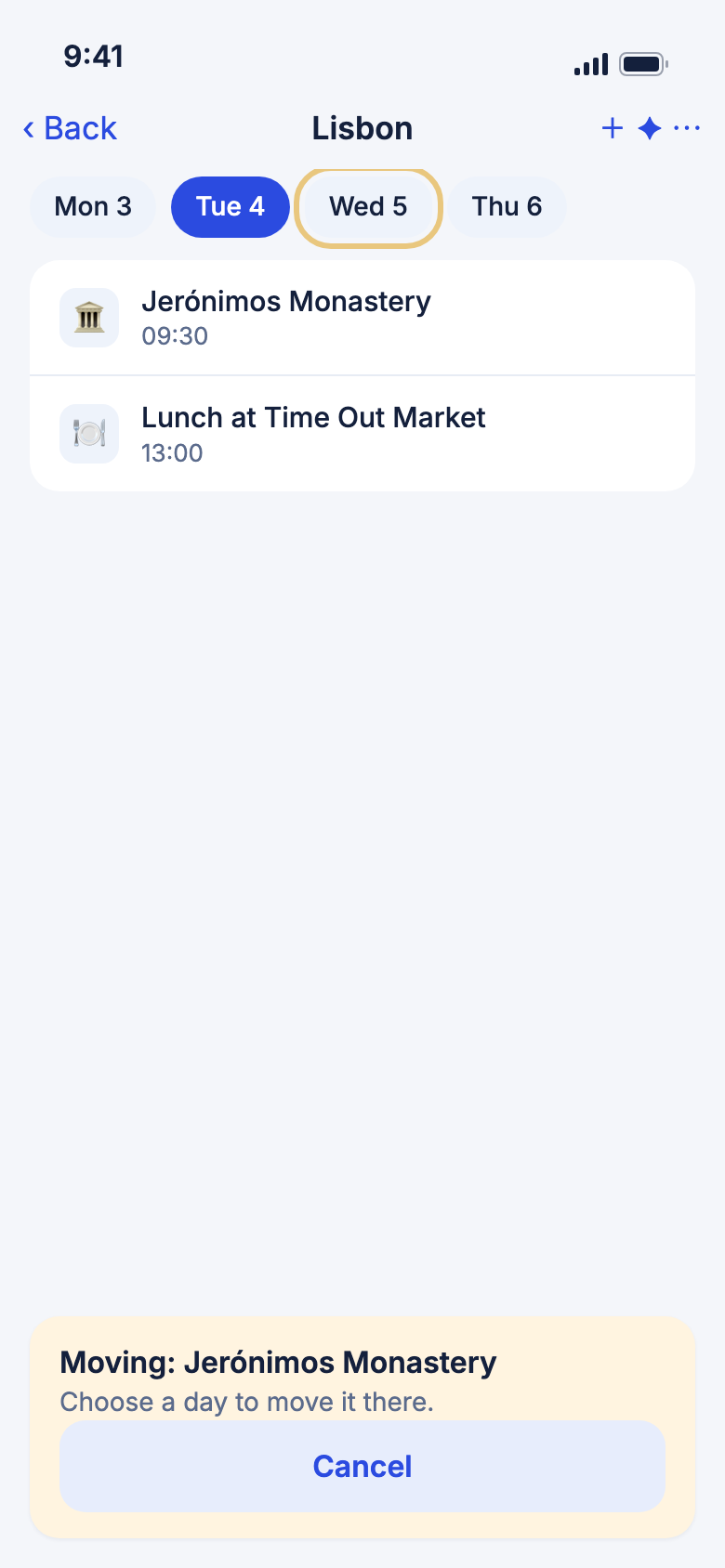
- Press and hold the activity until it lifts.
- Tap the day it should go to.
- Choose Keep the same time, or pick another hour.
- On a shared trip, tap Notify them to tell the others, or Not now.
WeiiGo alerts people here. Notify them sends a note to everyone else on the trip.
Good to know
- Tap Cancel on the bar at the bottom to stop.
- Tap the ? button beside Day view to read this hint again.
- Only the owner and editors can move activities.
- On today's date, only hours still ahead are offered.
Add an activity yourself
Add anything that is not in the search results, such as a bakery you heard about.
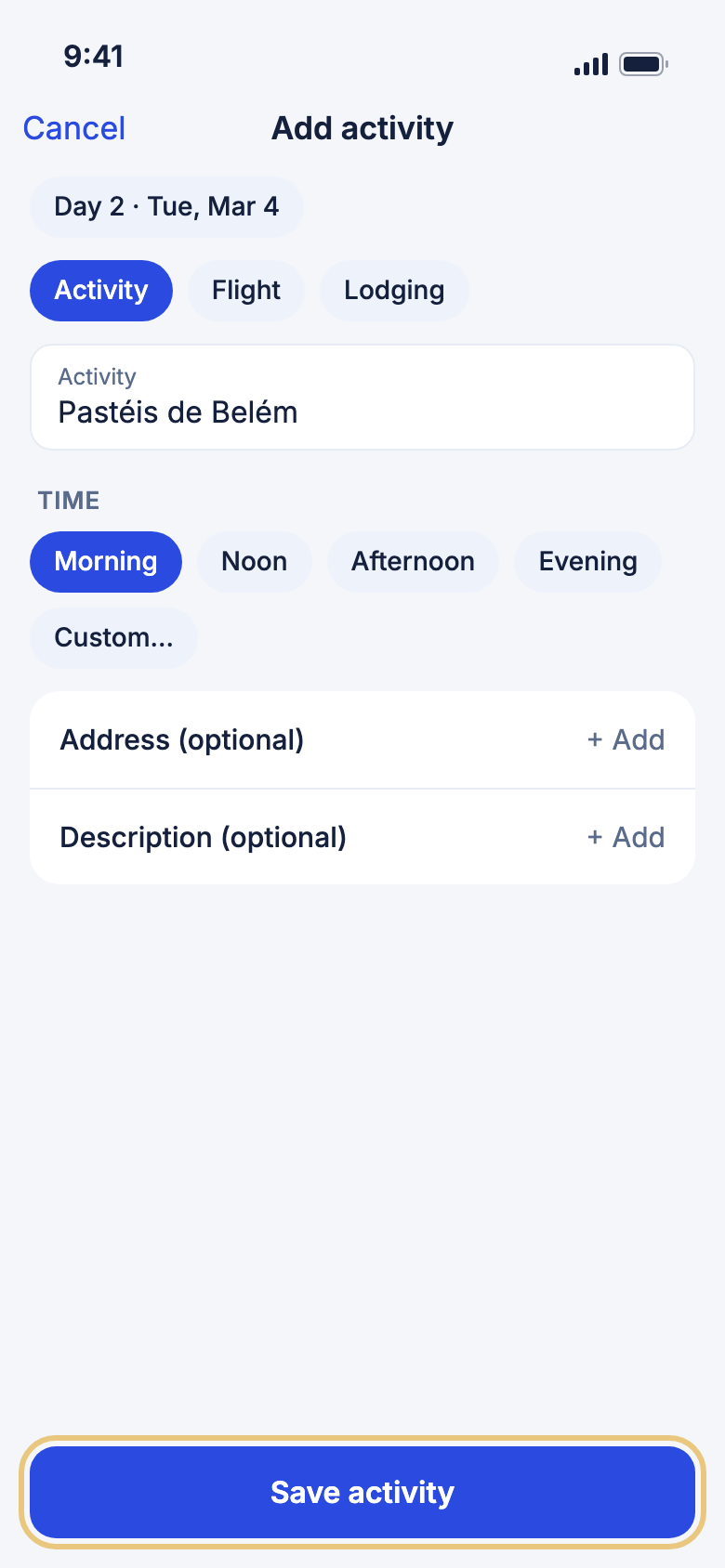
- Tap + at the top, then Enter an activity manually.
- Type a name under Activity.
- Tap Morning, Noon, Afternoon or Evening. Or tap Custom… to pick a time.
- Tap + Add beside Address (optional) if you want it on the map.
- Tap Save activity.
Good to know
- Save activity stays faded until you type a name.
- If WeiiGo can't find your address, you can choose Save anyway. The item then has no map position.
- A time today that has already passed is refused.
Add a flight or a stay
Use the same form to record a flight or a place you are staying.
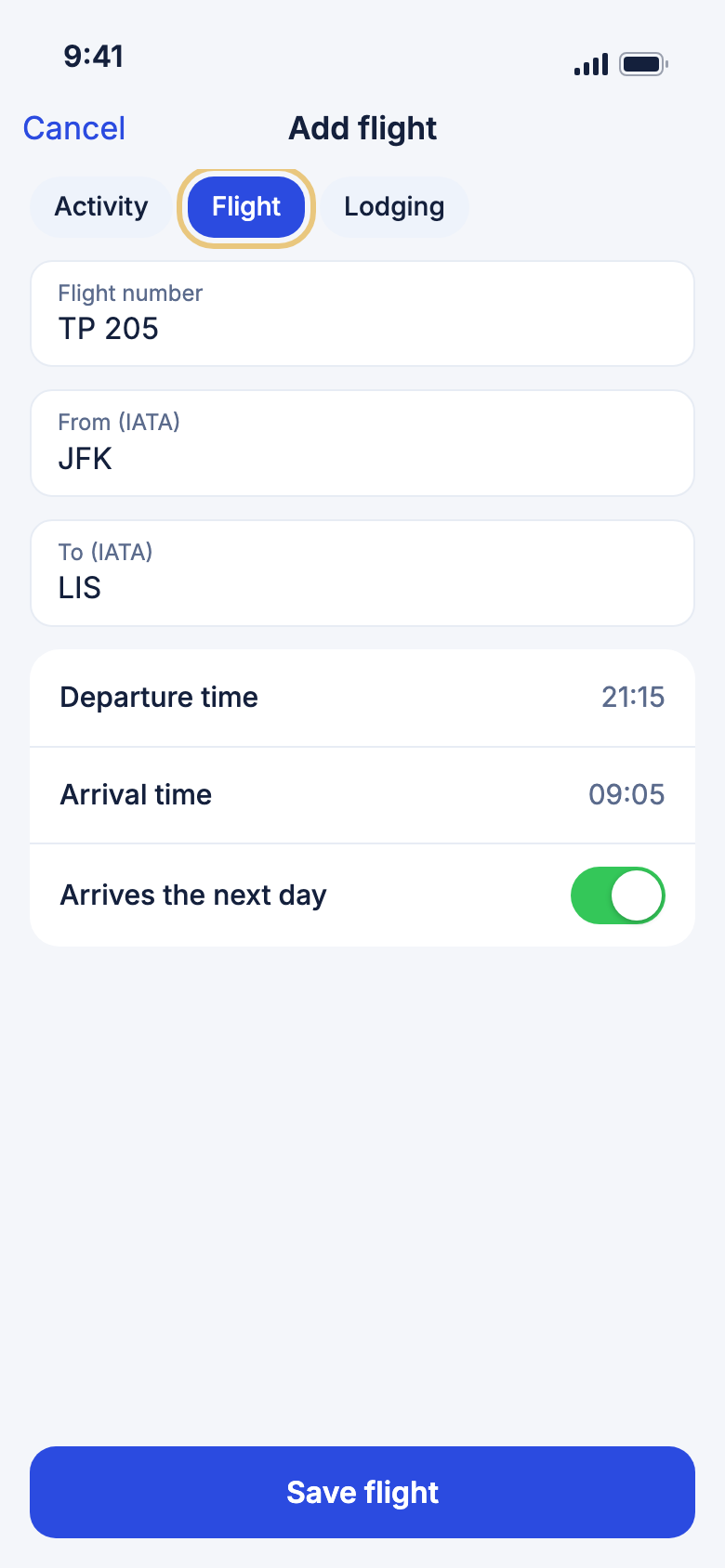
- Tap +, then Enter an activity manually.
- Tap Flight or Lodging.
- For a flight, fill in Flight number, From (IATA) and To (IATA), then the times. Turn on Arrives the next day if needed.
- For a stay, fill in Property name, and the check-in and check-out times.
- Tap Save flight or Save booking.
Good to know
- A flight becomes two cards, a departure and an arrival. A stay becomes a check-in and a check-out.
- Airport codes have three letters, such as LIS.
- Live flight status needs WeiiGo Pro.
Read the details of an item
Tap any card to see its address, times and booking details.
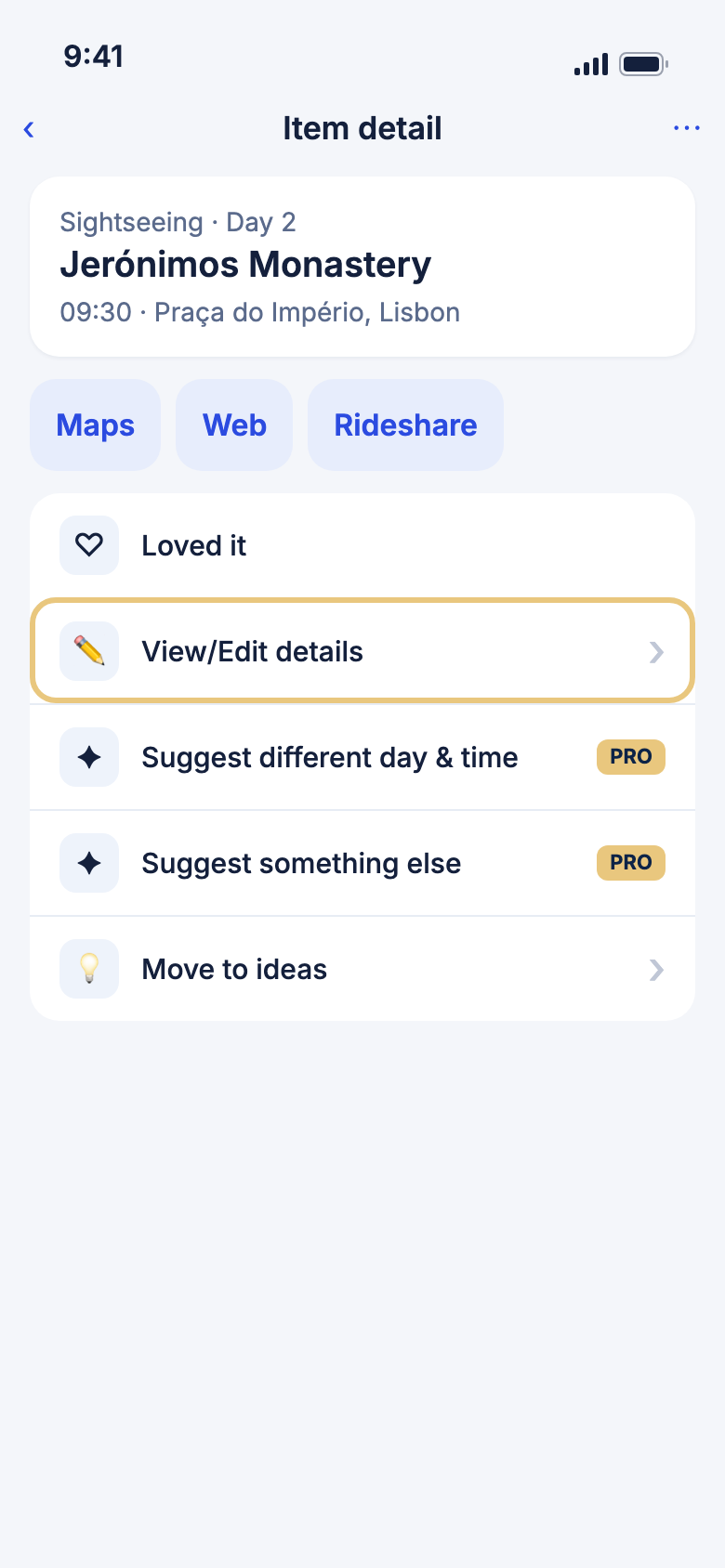
- Tap a card. Item detail opens.
- Tap the address or the Confirmation number to copy it.
- Tap Maps to open the place in your maps app.
- Tap Web for its website, or Rideshare to get a ride.
- Tap ‹ to close.
Good to know
- Maps needs a map position. Web needs a website.
- On an activity from today or earlier, tap Loved it to tell WeiiGo you enjoyed it.
See live flight status
A flight card shows whether the flight is on time, delayed or cancelled, with its terminal and gate.
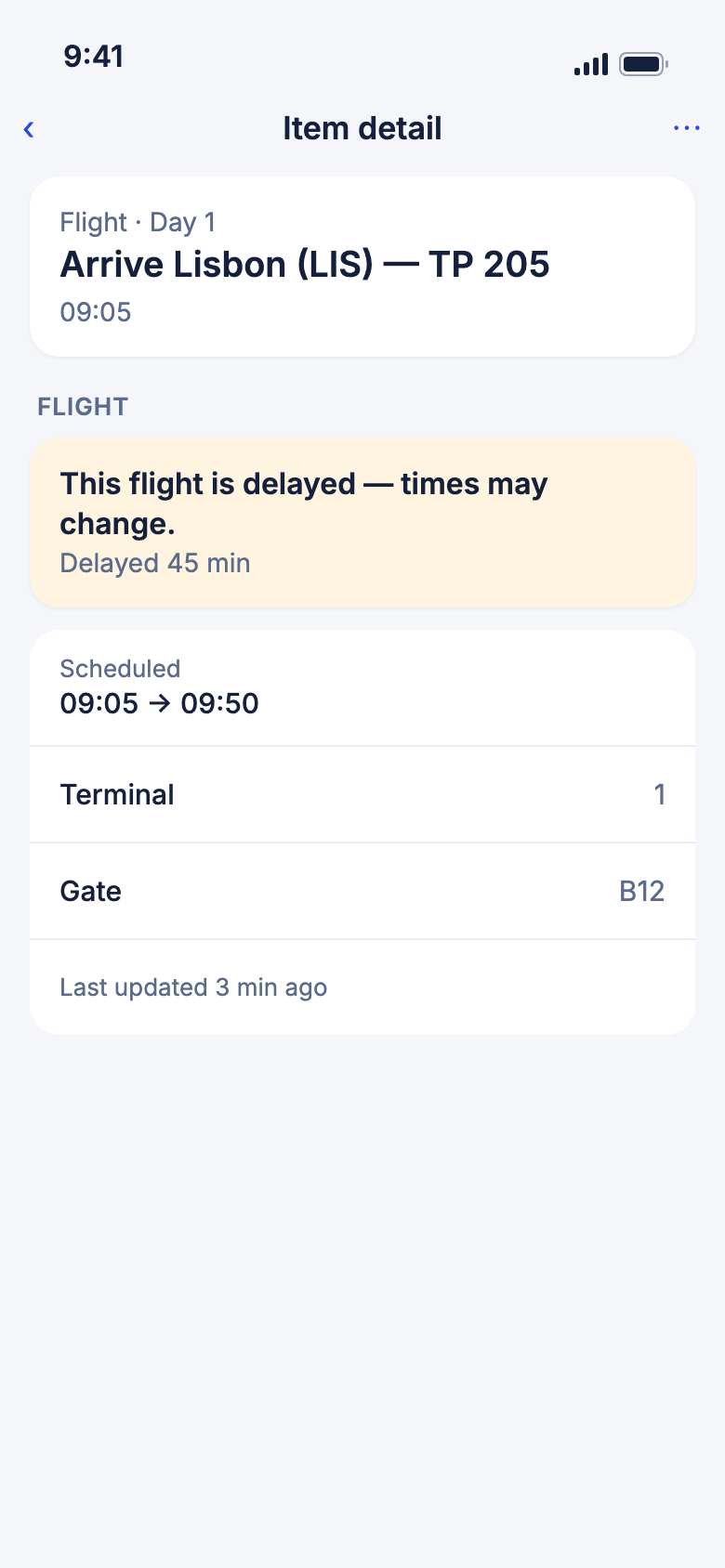
- Tap a flight card. Item detail opens.
- Find the Flight section.
- Read the status line, such as "On time", "Delayed 45 min" or "Cancelled", and the new time if it changed.
- Check the terminal, gate and baggage belt, and "Last updated" at the bottom.
Good to know
- Before tracking starts, it says tracking starts a few days before departure.
- A delay of 15 minutes or more, a cancellation or a diversion adds a warning box.
- If the flight can't be tracked, it says Live tracking unavailable for this flight.
WeiiGo Pro — Live flight status needs Pro. A Free traveller sees Flight tracking is a Pro feature. Upgrade to track this flight.
Edit an item
Fix a name, a time, an address or a booking.
- On Item detail, tap View/Edit details.
- Change the Title, the day, the time or the address.
- Tap Add confirmation, booking & price if you want to note a booking.
- Tap Save. Changes saved shows.
Good to know
- If the same activity is on other days, WeiiGo asks Apply to the other days or Just this day.
- Cancel closes the form without saving.
WeiiGo Pro — Suggest different day & time and Suggest something else need Pro. A Free traveller sees the upgrade prompt.
Copy, delete or save an item for later
Copy a place you want to go back to, remove one you don't, or keep it as an idea.
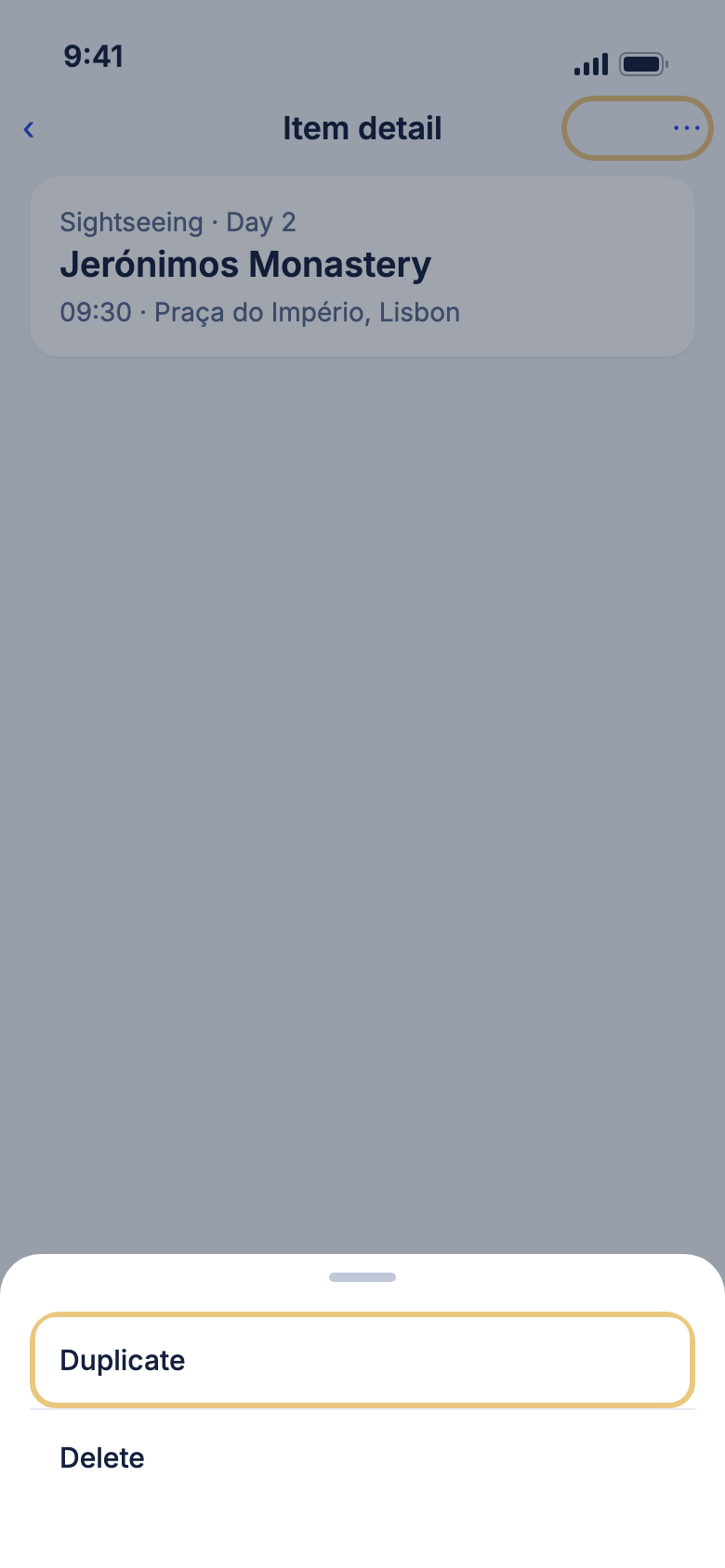
- On Item detail, tap ⋯.
- Tap Duplicate, pick a day and a time, and tap Add.
- Or tap Delete and confirm. If the item repeats, choose Delete this item only or delete all of them.
- Or tap Move to ideas on the page and choose Save to trip ideas.
Good to know
- The original stays where it was when you duplicate.
- Saving to trip ideas needs WeiiGo Pro.
Clear a day
Remove everything from one day in one go.
- Tap a day chip.
- Tap ⋯, then Clear day.
- Tap Clear.
Good to know
- You cannot undo it.
The trip menu
Use the trip menu
The ⋯ menu holds everything else you can do with the trip.
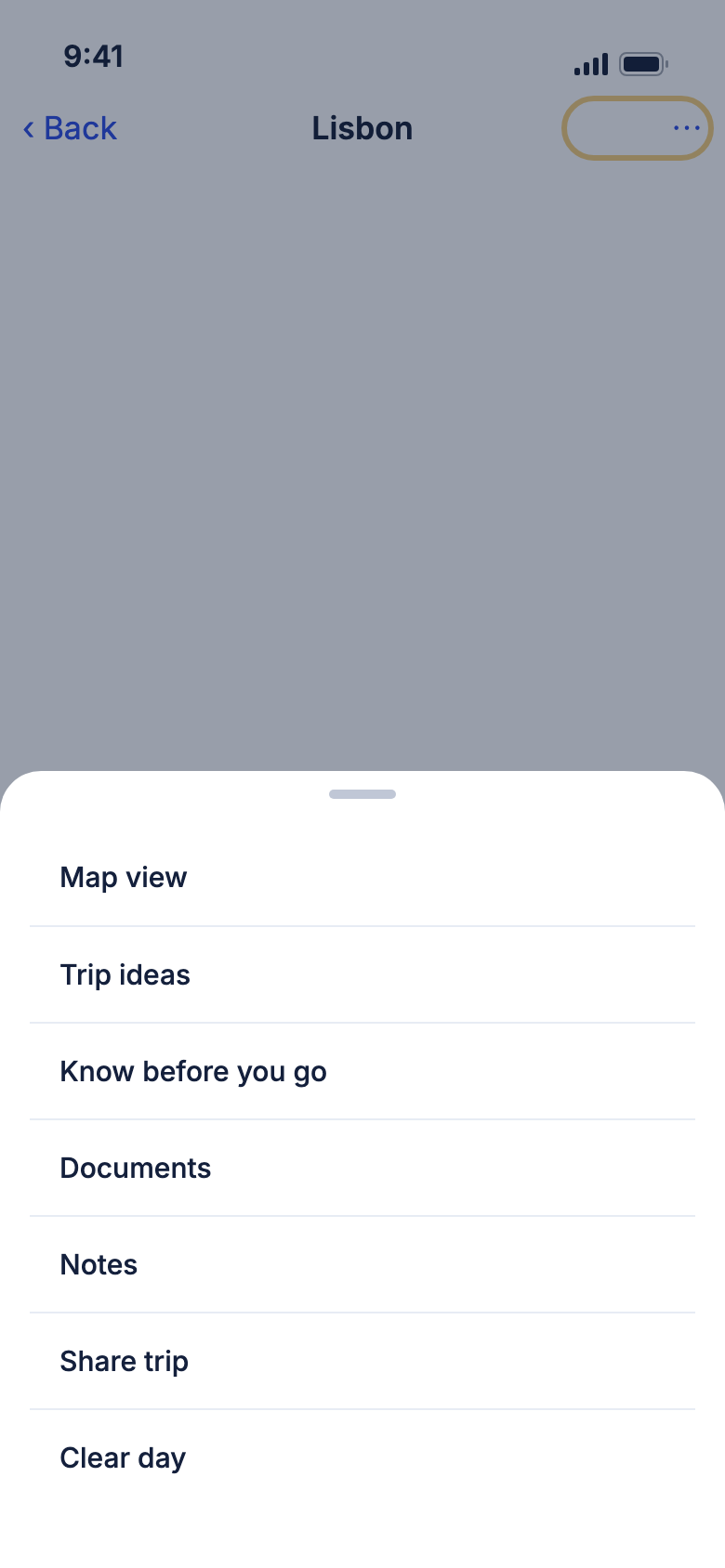
- Tap ⋯ at the top right.
- Tap a row, such as Map view, Documents, Notes or Trip ideas.
Good to know
- You only see the rows that apply to you and the trip. For example, Share trip is for the owner.
- On a trip someone shared with you, the menu offers Leave trip or Remove shared trip.
- To change the trip's name, dates or travellers, tap Edit on the trip's card in the Trips list.
Change a trip's name, dates and budget
Edit trip is where you change the basics.
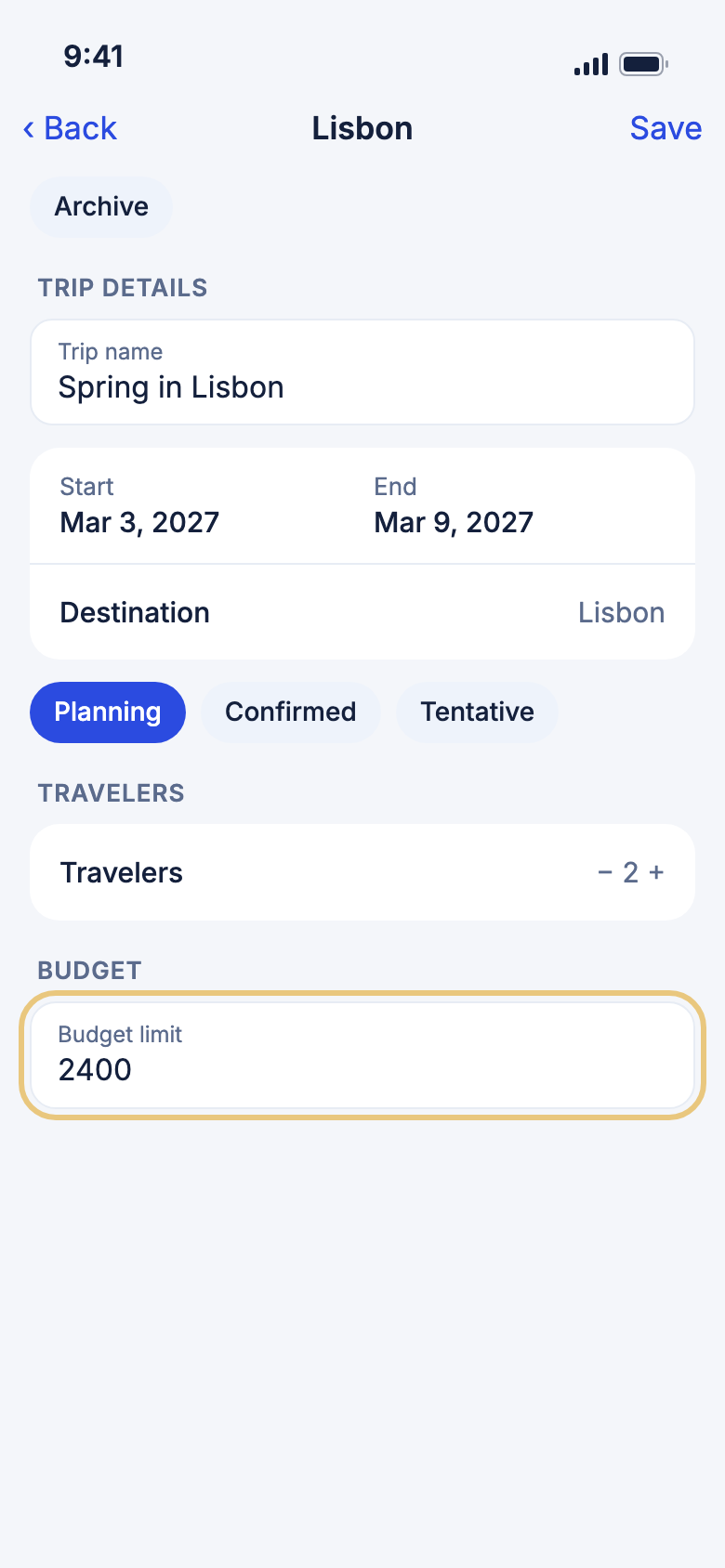
- On the Trips tab, tap Edit on the trip's card.
- Change the Trip name, the dates, or Status.
- Use − and + under Travelers.
- Type an amount under Budget limit.
- Tap Save.
Good to know
- If you change the dates, WeiiGo asks what to do with your activities. Choose Shift to the new dates, Move to ideas or Remove them.
- On a finished trip, you can still change the name, dates and travellers.
- The Archive button puts a trip away without deleting it. You can restore it.
- To delete a trip and all its activities, tap Delete in the Danger zone. Only the owner can do this, and it removes the trip for everyone it is shared with.
WeiiGo Pro — Estimated cost, Use estimate and Download trip for offline use need Pro. Free travellers can still set a budget.
Tell your contacts when you arrive
Auto-Notify tells the trusted contacts you choose when you reach a place on your trip, even with WeiiGo closed.
WeiiGo alerts people here. Each chosen contact gets a notification when your phone comes within about 100 metres of a place on the day it is planned. No text or email is sent. Your location stays on your phone.
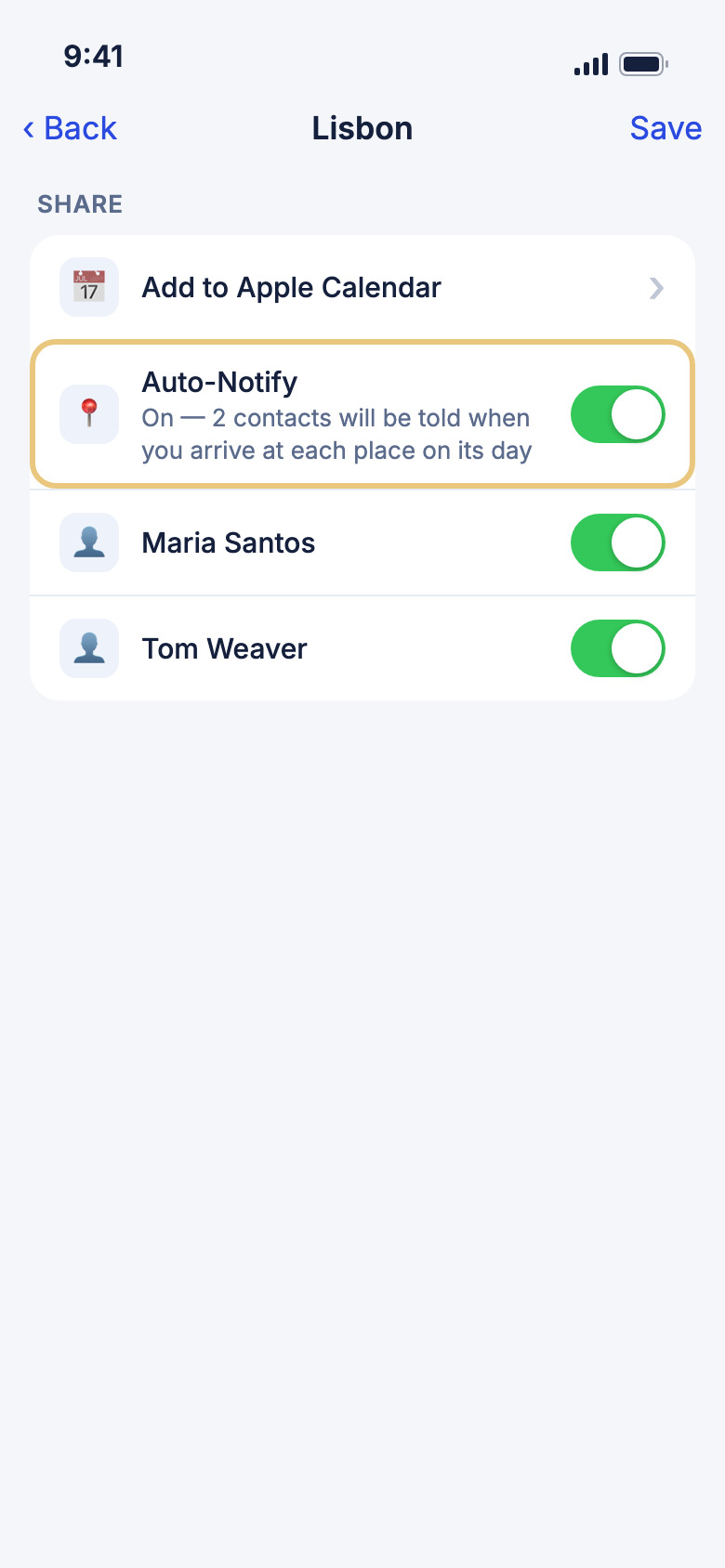
- Open Edit trip and scroll to Share.
- Tap Auto-Notify.
- If asked, tap Allow always and answer your phone's location prompts. On iPhone, leave Precise on.
- Untick anyone who should not be told.
- Tap Auto-Notify again to turn it off.
Good to know
- With no accepted trusted contacts on WeiiGo, it says Add a trusted contact with WeiiGo first. Invite one first (see Trusted contacts).
- It is Free, not on a finished trip, and set for one trip on this phone.
- Places with no map position are never watched.
- With no signal, an arrival is sent when you are back online.
Add the trip to Apple Calendar
Put the plan in a calendar of its own so it shows on your other Apple devices.
- Open Edit trip and scroll to Share.
- Tap Add to Apple Calendar. Allow calendar access if asked.
- To take it off, tap the row again and tap Delete.
Good to know
- iPhone only, with iCloud Calendar on. Without it the row is hidden.
- Removing it deletes only the calendar WeiiGo made, not your trip.
Save a trip for offline use
Download the plan, photos, directions and safety information so it works without a signal.

- On Edit trip, tap Download trip.
- Tap Download when asked.
- Wait for Trip saved for offline use.
- Later, tap ⋯ then Offline on the itinerary to update it.
Good to know
- A trip that is too big shows Trip too large to download.
WeiiGo Pro — Offline download needs Pro. A Free traveller sees the upgrade prompt.
Capture where you are
Save your current spot as a point in the trip's journal.
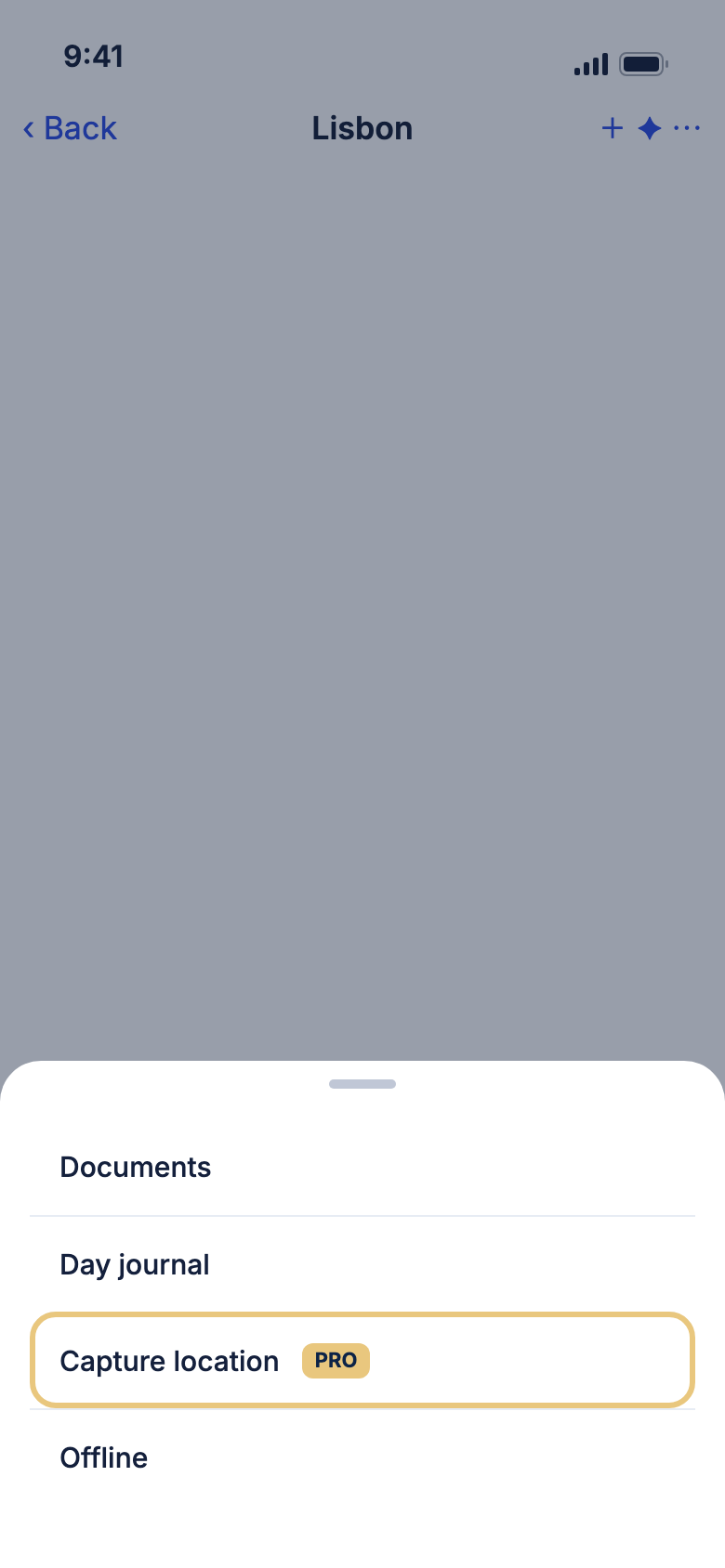
- During the trip, select today.
- Tap ⋯, then Capture location.
- Location captured shows. The point appears in Day journal.
Good to know
- It needs location access and Trip Tracker turned on in your profile.
- Pick today. A future day can't be captured.
WeiiGo Pro — A Free traveller sees the upgrade prompt and nothing is captured.
Join a trip someone shared with you
Ask the owner to add you so the trip becomes one of yours.
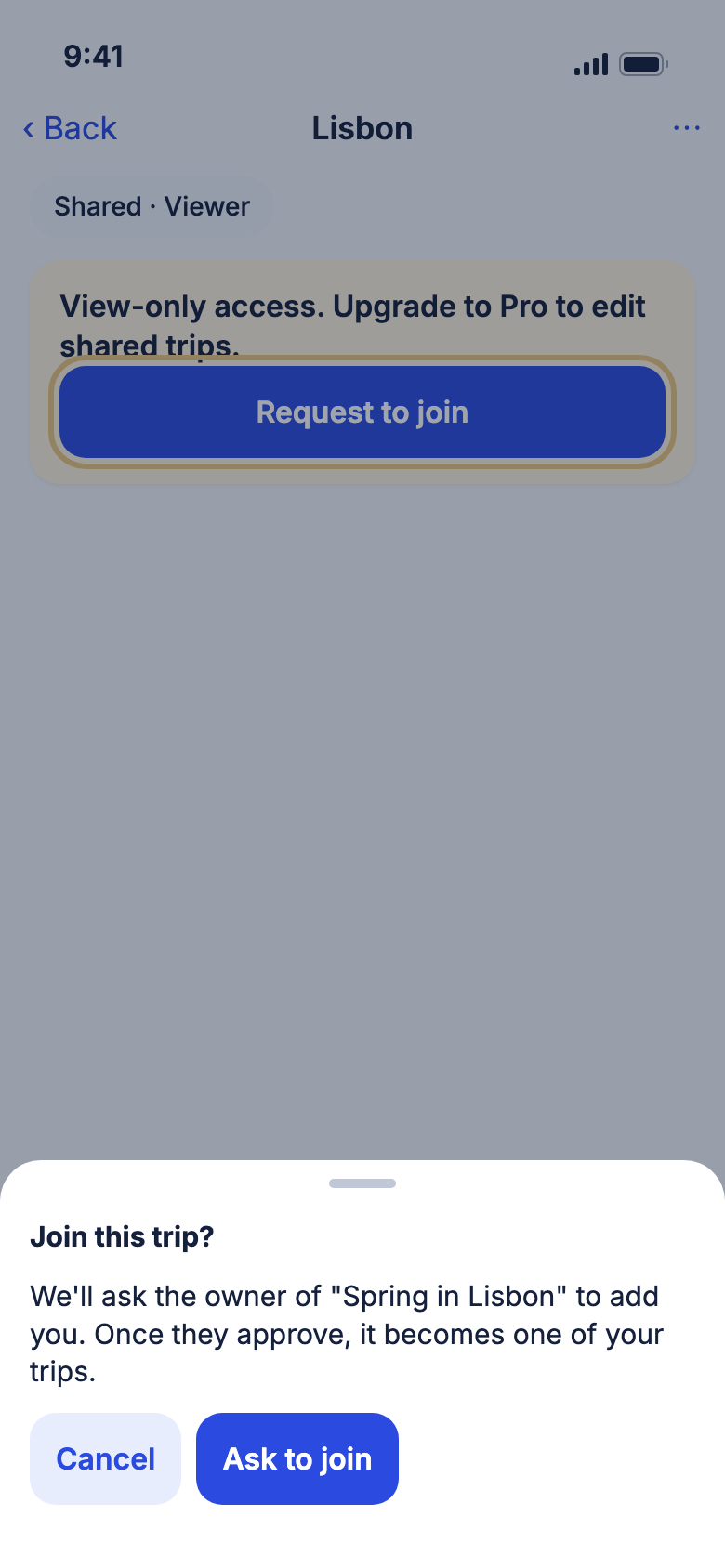
- Open the shared trip. A pill reads Shared with your role.
- Tap Request to join.
- Tap Ask to join.
- Wait for Request sent. The owner is notified.
Good to know
- Until you join, you can only view the trip. Editing a shared trip needs Pro.
- The trip updates by itself when others change it.
Leave or remove a shared trip
Stop a shared trip counting as yours, or take it off your list.
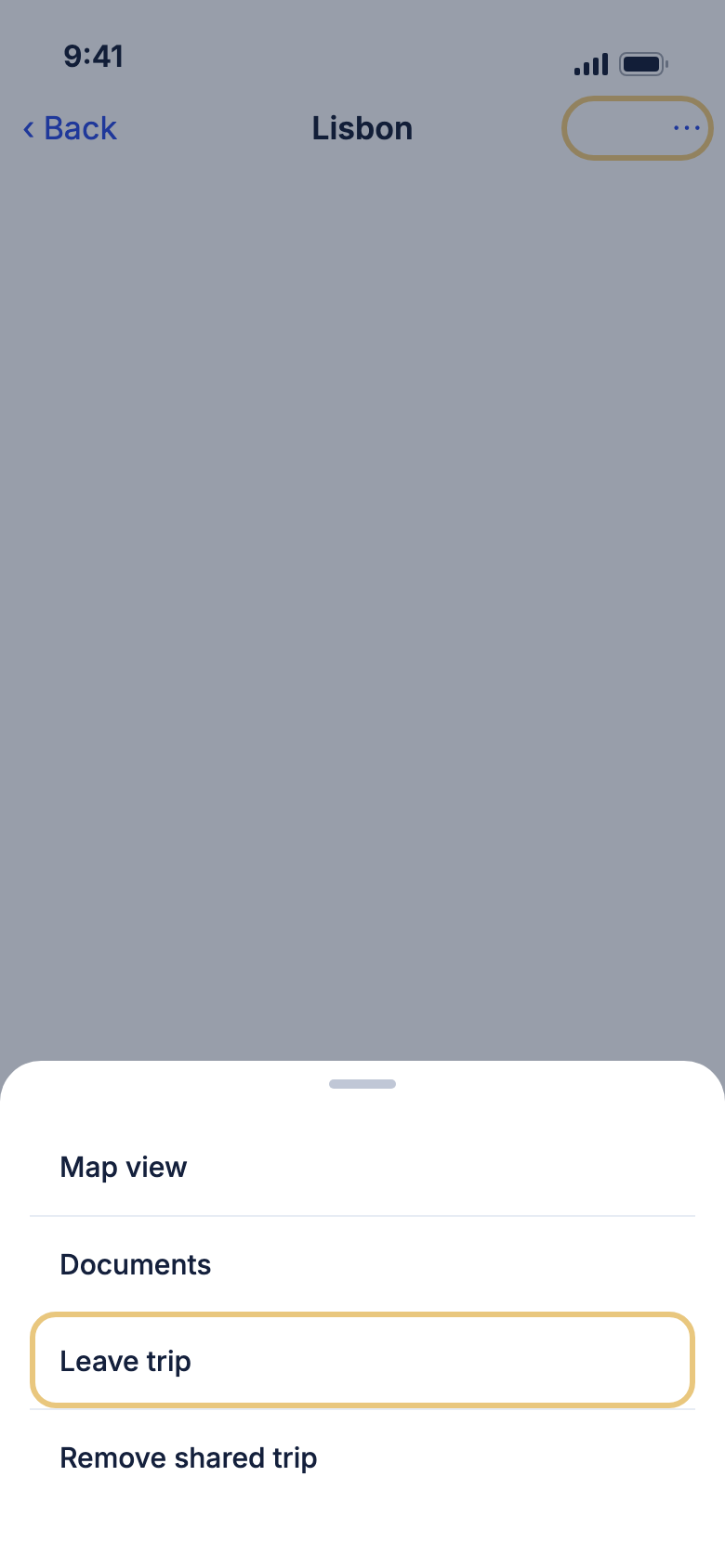
- Tap ⋯.
- Tap Leave trip, then Leave. You can still view the trip.
- Or tap Remove shared trip, then Remove. You lose access and your notes on it are deleted.
Good to know
- Leave trip shows only after you have joined.
- The person who shared it keeps their own copy.
Keep a list of ideas
Trip ideas hold places you might do, apart from your day-by-day plan.
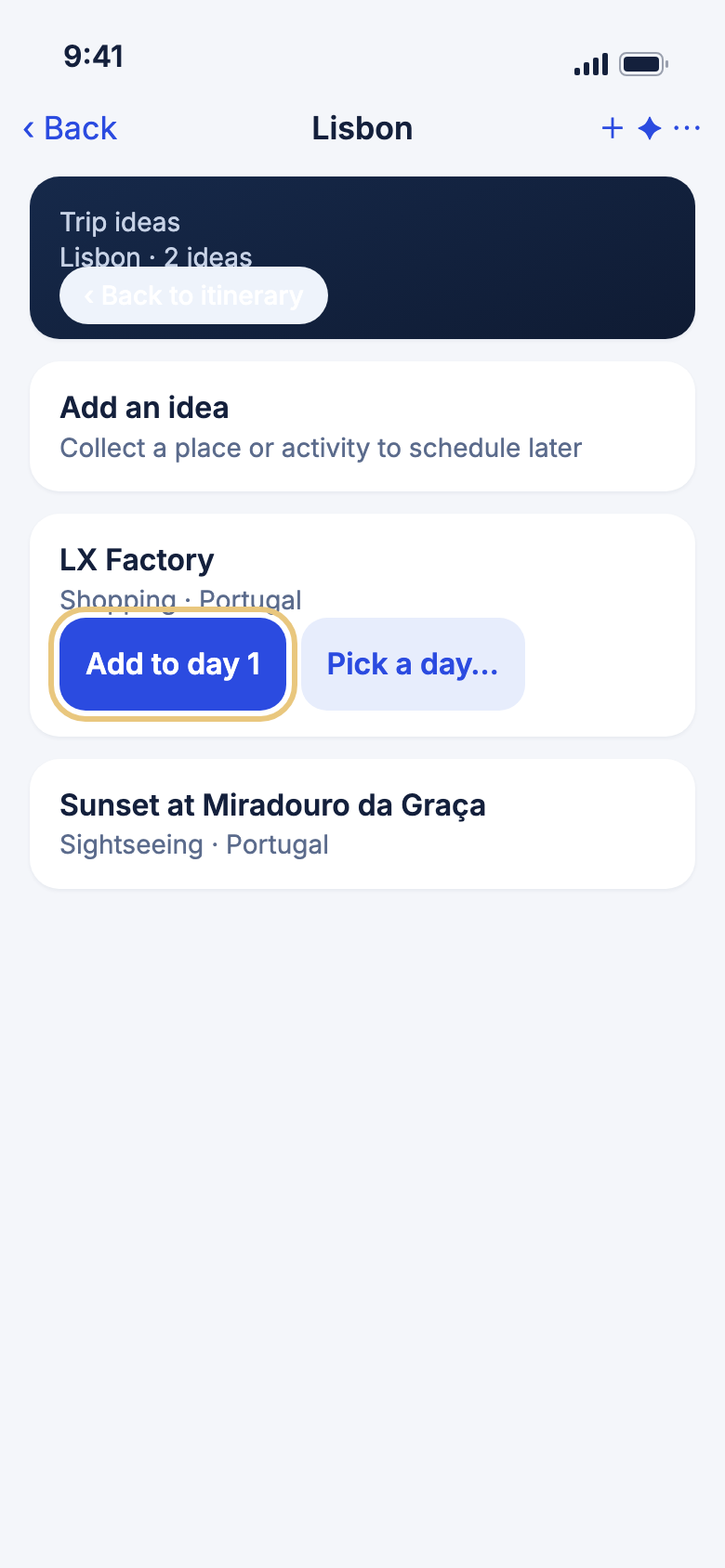
- Tap ⋯, then Trip ideas.
- Tap Add an idea to search, type one in, or pick from your ideas library.
- Tap Add to day 1 (or Add to today during the trip) to put an idea in your plan.
- Or tap Pick a day… to choose the day and time yourself.
- Tap ‹ Back to itinerary when you are done.
Good to know
- To remove an idea, swipe it left and tap Remove idea.
- Only the owner and editors can add or remove ideas.
WeiiGo Pro — Trip ideas need Pro. A Free traveller sees the upgrade prompt.
Check opening hours and access
For a place you found through search, see its opening hours, wheelchair access and more.
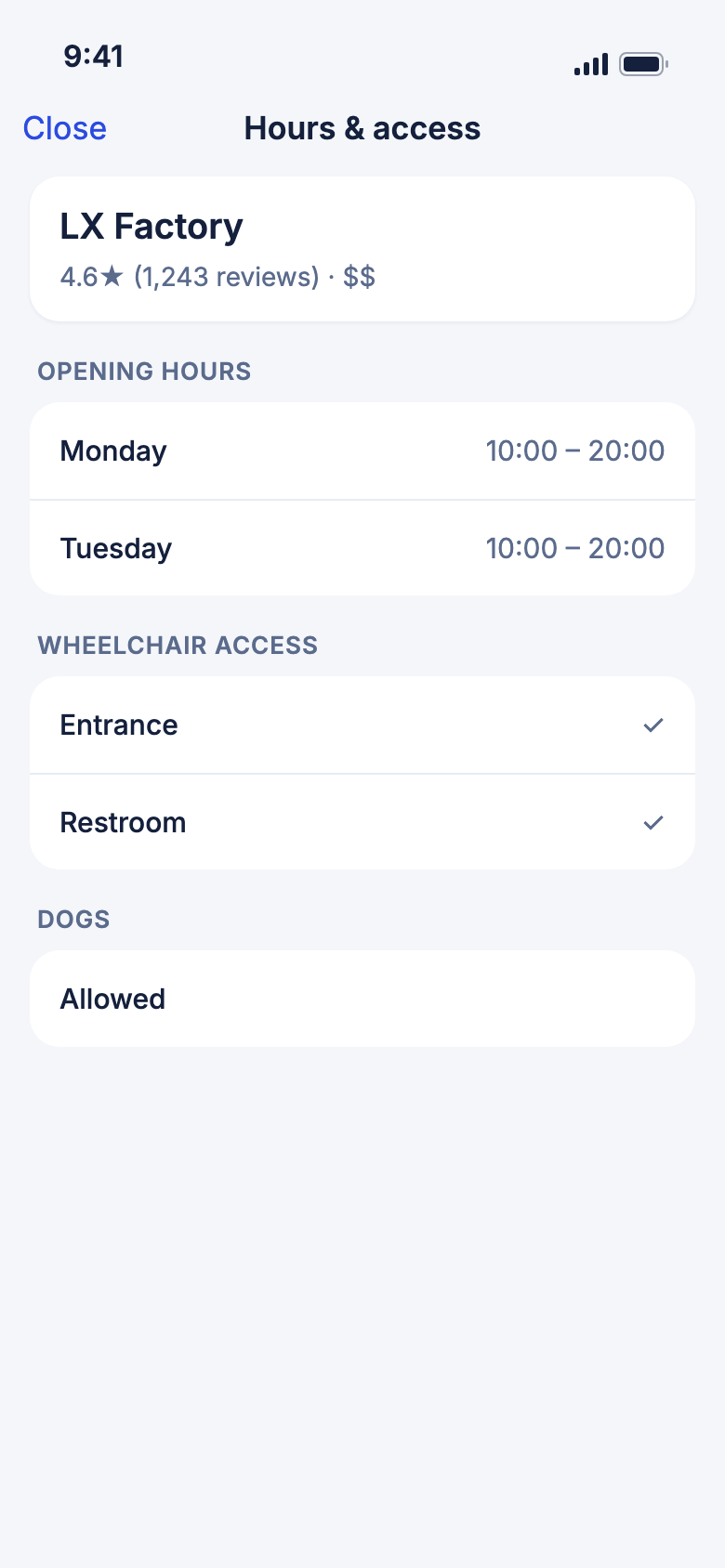
- Open Trip ideas.
- On an idea card, tap Hours & access.
- Read the stars, price, Opening hours and Wheelchair access.
- Tap Close.
Good to know
- Only ideas found through a place search have it. An idea you typed yourself does not.
- A section shows only when Google Maps has details for it.
- With nothing to show, it says Hours and access details aren't available for this place right now.
WeiiGo Pro — Trip ideas need Pro.