
Documents, bookings and checklist
Keep a trip's tickets and confirmations in one place, turn booking emails into itinerary items, and tick off what is left to do before you go.
WeiiGo Pro — Documents, emailed bookings and the checklist are part of WeiiGo Pro. If your Pro plan has ended you can still open and read everything you saved, but you cannot change it. The travel readiness check is free.
Trip documents
Open your trip's documents
Files saved here are also kept on your phone, so you can open them with no signal, for example at the airport.
- Tap Trips, then open your trip.
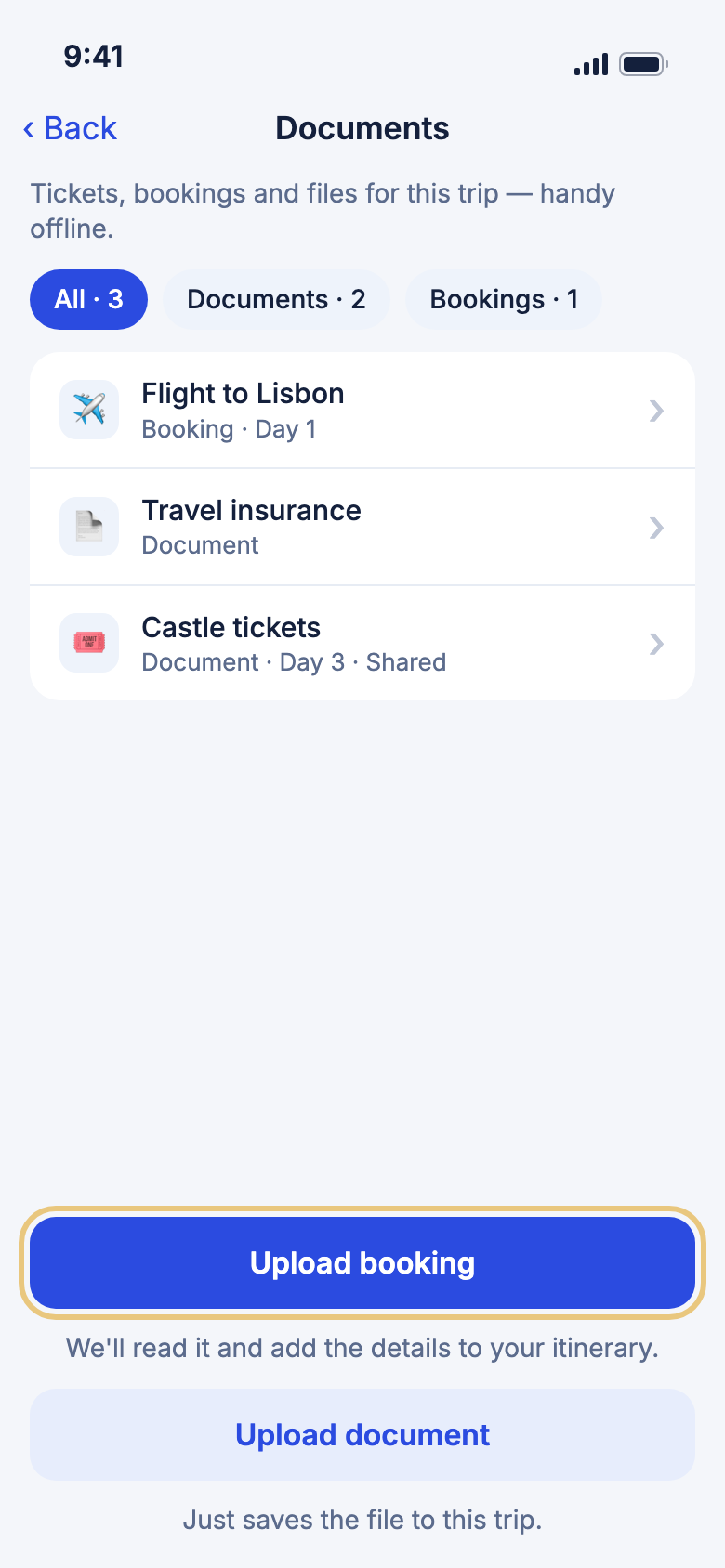
- Tap the Documents button.
- Tap All, Documents or Bookings to narrow the list.
- Tap a row to open it.
Good to know
- Swipe a row right for Share, Day and Attach to activity. Swipe it left for Remove, Re-import and Rename.
- Only the trip's owner sees Documents.
- Offline, you see the list from the last time it loaded.
Save a ticket or other file to a trip
Use this for anything you want to keep with the trip: a ticket, a barcode, a visa or a photo of a confirmation.
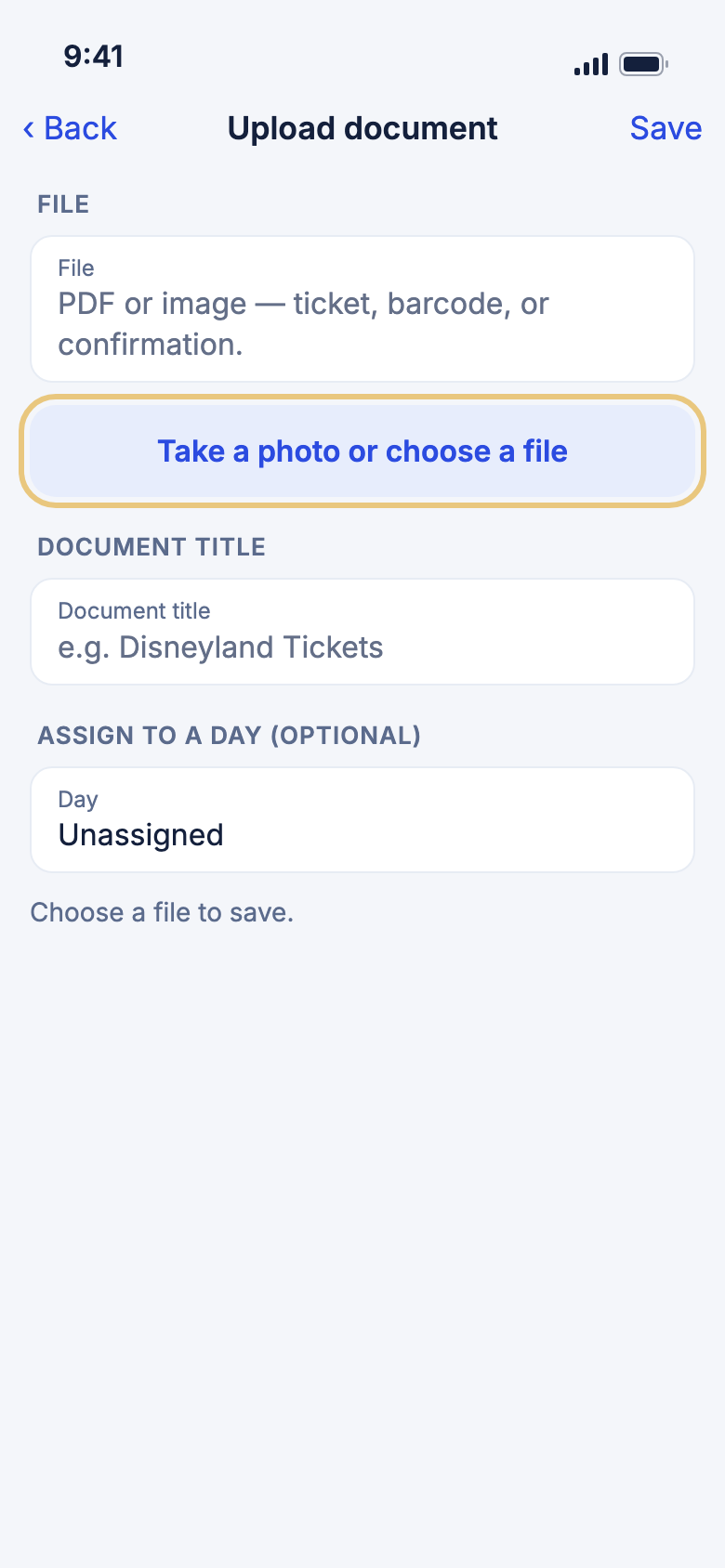
- On the Documents page, tap Upload document.
- Tap Take a photo or choose a file, then pick Take photo, Choose from library or Choose from Files.
- Type a name under Document title.
- If you like, pick a day under Assign to a day (optional).
- Tap Save.
Good to know
- Save stays grey until you have a file and a title.
- You can upload PDFs and images, up to 25 MB each.
- If the camera or photos are blocked, turn them on for WeiiGo in your phone's Settings.
Read, share, rename or remove a document
Open a file full screen, send it on, or tidy up the name.
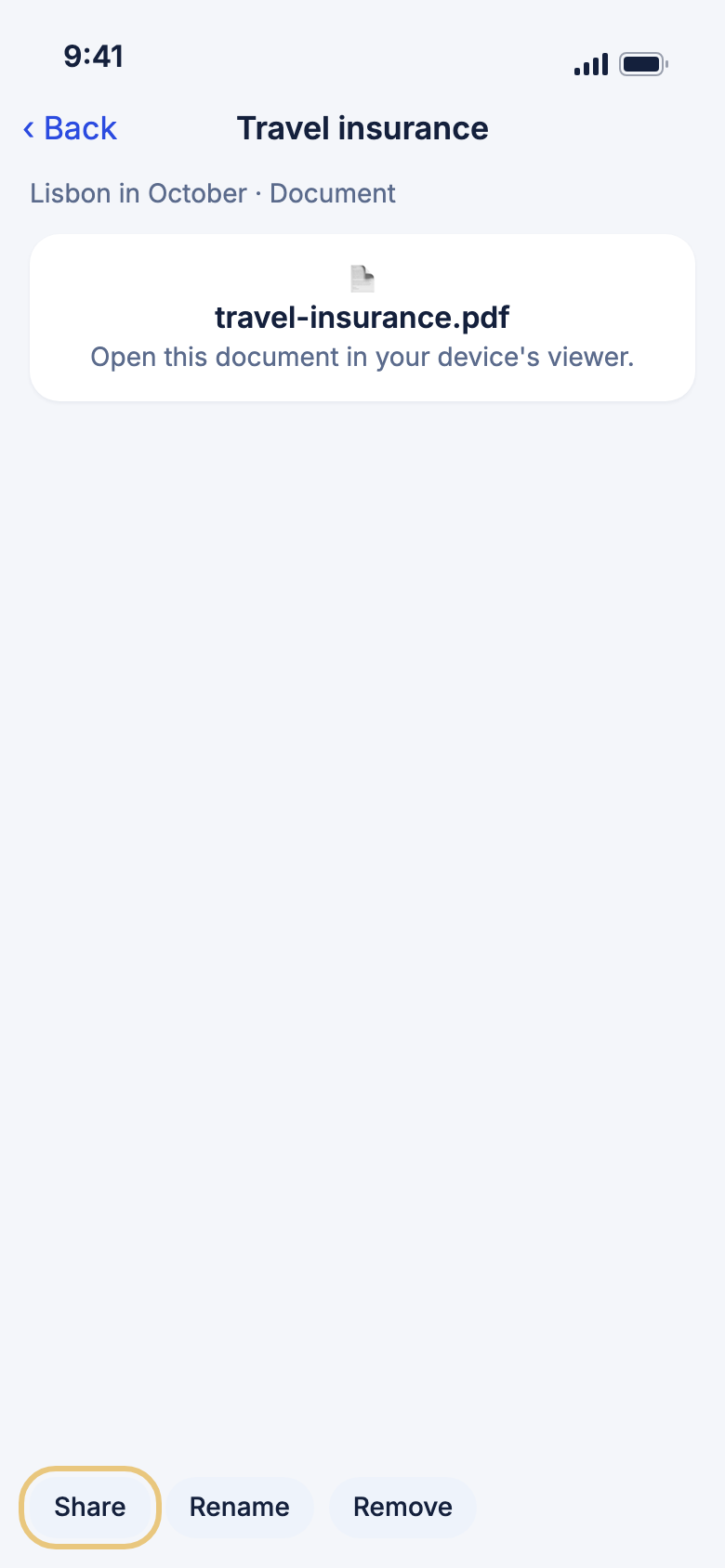
- On the Documents page, tap a document.
- Pinch to zoom a photo. A PDF scrolls on the page.
- Tap Share to send the file with your phone's share sheet.
- Tap Rename, type a new name and tap Save.
- Tap Remove, then Remove again to delete it.
Good to know
- Removing a document cannot be undone.
- To send a trusted contact a private link to one document, tap the share icon on its row in the list. They are told by notification, email or text. The link stops working after 72 hours, or when you tap Revoke.
Put a document on a day or an activity
A museum ticket then shows on the day you visit, and a boarding pass sits with its flight.
- On the Documents page, swipe a document right.
- Tap Day, then pick a day. Choose Unassigned to take it off.
- Or tap Attach to activity and pick the activity. Tap Remove from activity to unlink it.
Add a booking and let WeiiGo read it
WeiiGo reads a booking document and adds what it finds to your itinerary.
- On the Documents page, tap Upload booking.
- Pick the file and check what WeiiGo found.
- Confirm. The items are added to this trip.
Good to know
- To read a saved file again, swipe it left and tap Re-import.
Bookings you forward by email
Find your forwarding address
Forward a confirmation email to your own WeiiGo address and it turns into itinerary items.
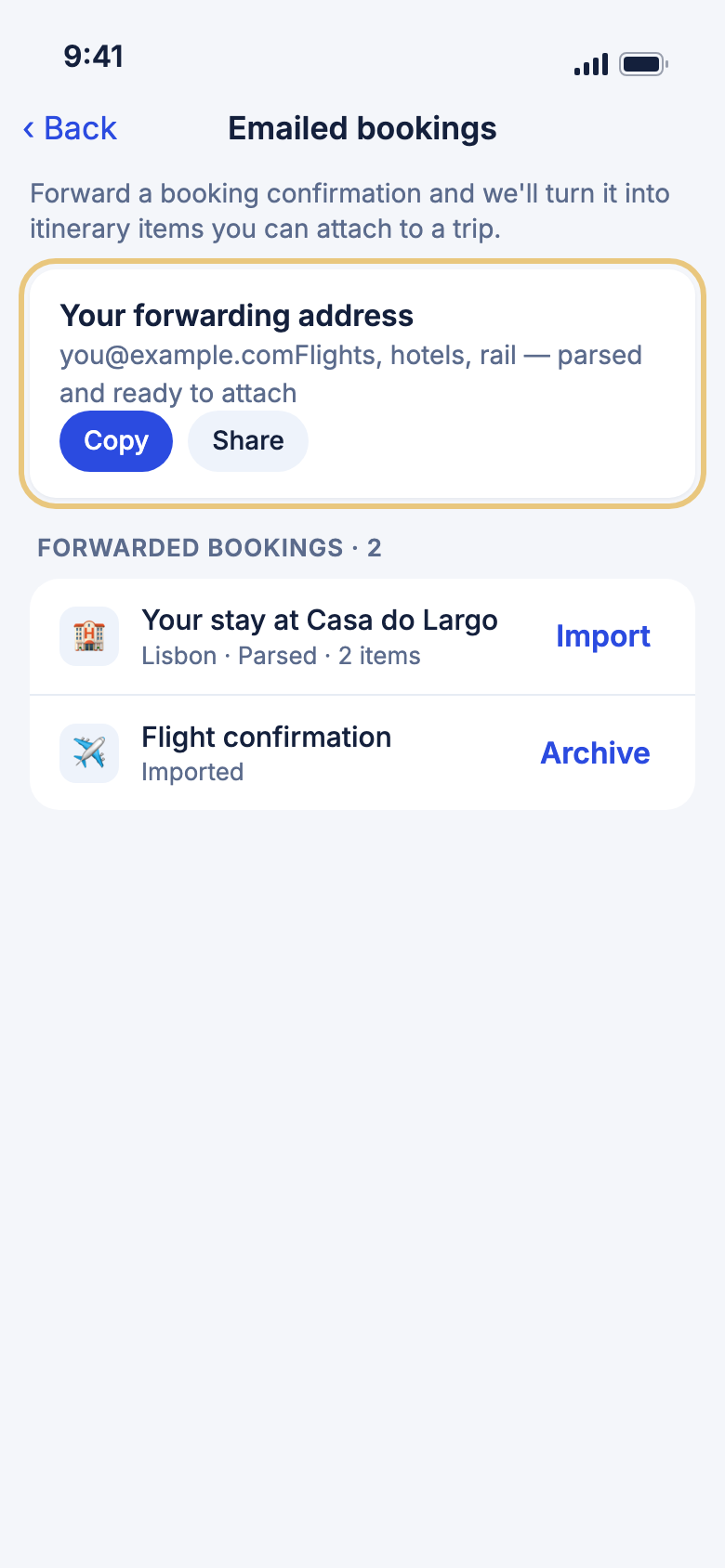
- Tap Tools, then tap Emailed bookings.
- Under Your forwarding address, tap Copy.
- In your mail app, forward the original confirmation email to that address.
Good to know
- A PDF or photo attached to the email is read too.
- On the free plan, the row shows a Pro badge.
Check on a forwarded booking
Each email shows how far it has got, so you know when it is ready.
- Open Emailed bookings and look under Forwarded bookings.
- Pull down to refresh while an email is still being read.
- Tap Archive to hide a row, or Discard to remove it. Turn on Show archived to see hidden rows.
- On a row that could not be read, tap Save as document instead.
Good to know
- A row says Pending, Parsing, Parsed, Imported or Failed.
- You can forward a discarded email again at any time.
Add a forwarded booking to a trip
Choose which activities to keep and which trip they go on.
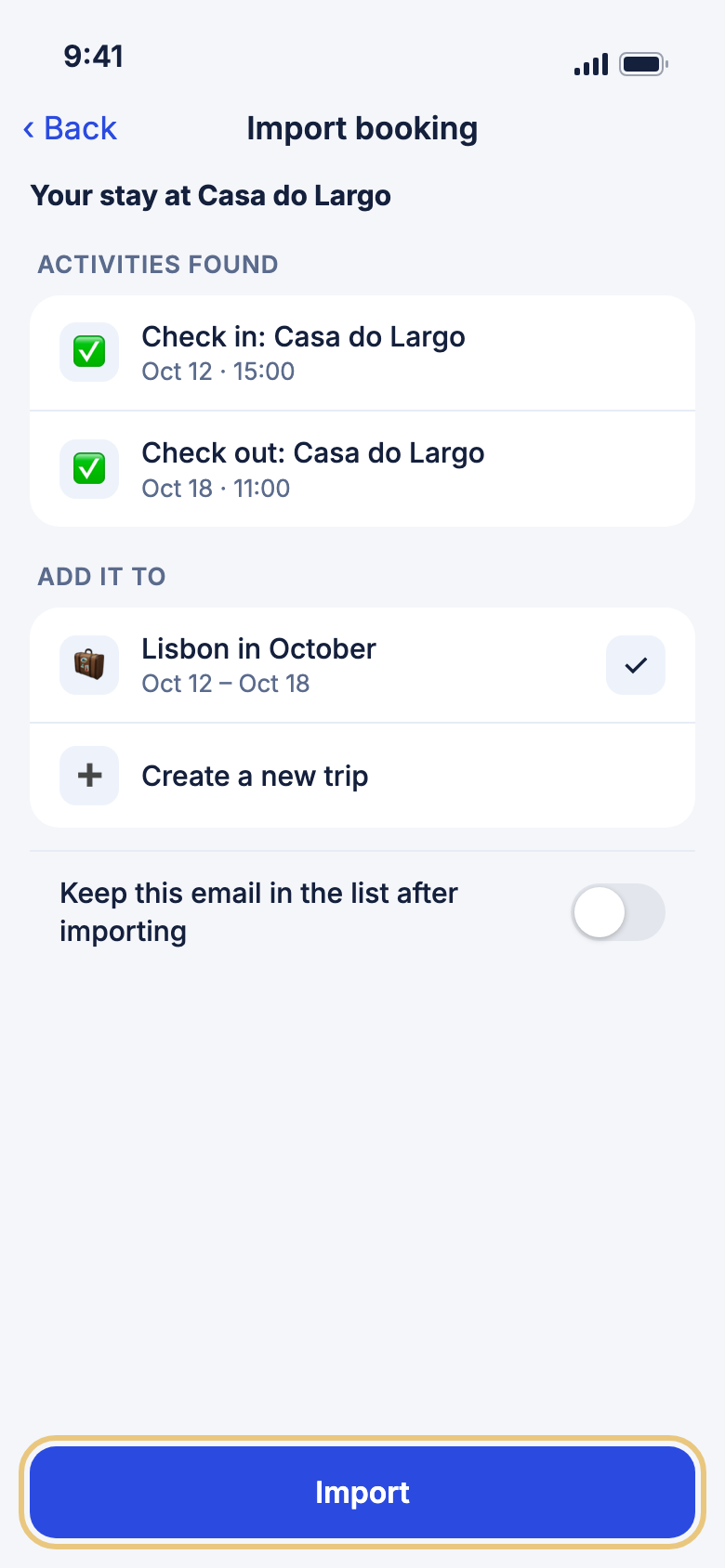
- On a Parsed row, tap Import.
- Untick any activity under Activities found that you do not want.
- Under Add it to, choose a trip or Create a new trip.
- Tap Import.
Good to know
- A flight's departure and arrival, or a stay's check-in and check-out, are kept or dropped together.
- If an activity falls outside your trip dates, WeiiGo asks whether to extend the trip. If it matches one you already have, it asks whether to replace it, add it again or skip it.
- For a trip that has finished, tap Add to a past trip…, pick the trip and tap Add to that trip.
The checklist
Tick off what is left to do
The checklist groups things by how much they matter: Need, Should and Optional.
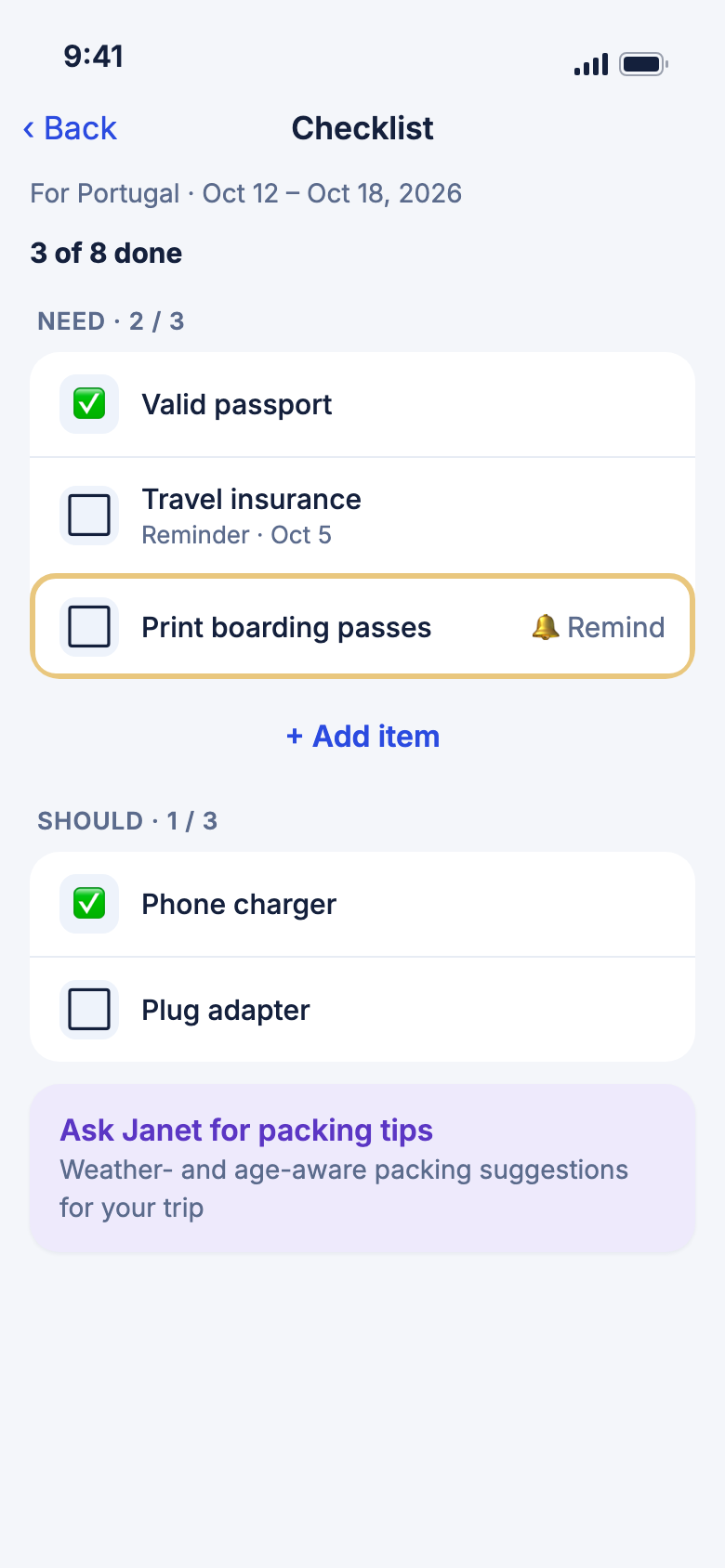
- Tap Trips, then tap the Checklist pill on your trip's card.
- Tap an item to tick it. Tap again to untick it.
- Tap Get ready to open the trip's Know before you go page.
Good to know
- Entry rules such as visas are on Know before you go, not in the list.
- If you have not set your passport country, tap Select your nationality on the card at the top.
Add your own checklist item
Add anything the built-in list does not cover.
- Tap + Add item under a section.
- Choose Need, Should or Optional under Priority.
- Type a Title, and a note if you like.
- Tap Save.
Good to know
- To change or delete an item you added, swipe it left and tap Edit or Delete. Built-in items can only be ticked.
Get a reminder for an item
The reminder goes into your phone's own reminders, so it can show on your lock screen.
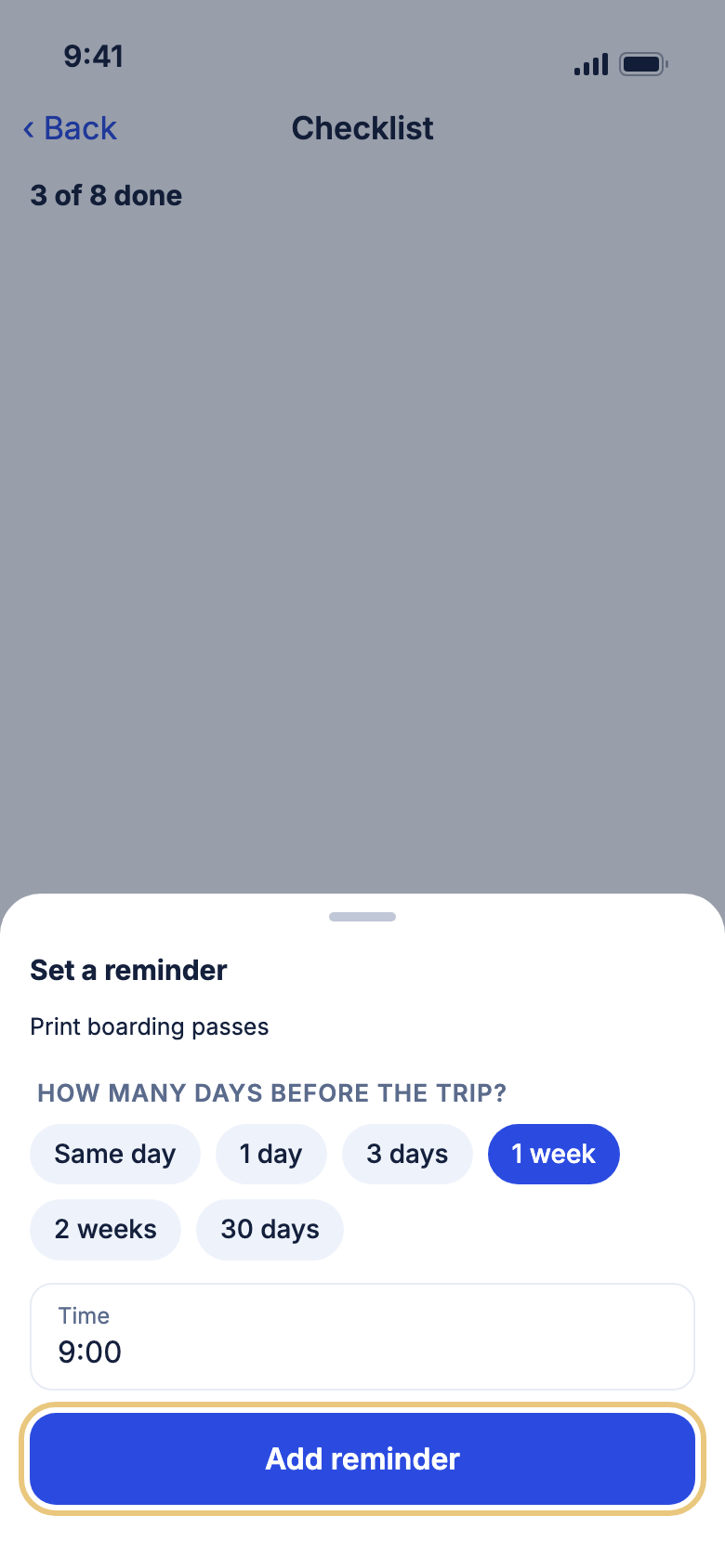
- Tap the bell next to an item that is not ticked.
- Allow the phone to use Reminders (iPhone) or Calendar (Android) if it asks.
- Choose how many days before the trip.
- Set the Time.
- Tap Add reminder.
Good to know
- To change it, tap the bell again, then Update reminder or Remove reminder.
- A time that has already passed is refused. Pick a later time.
Ask Janet for packing tips
Janet suggests what to pack based on the weather and who is going.
- On the checklist, tap Ask Janet for packing tips.
- Tap a group, for example Add: {group}.
Good to know
- The items are added under Should, and you can edit or delete them.
- Items already on your list are not added twice.
Check you are ready to travel
See what still needs attention
The readiness card checks your passport, entry rules, flight and hotel confirmations, getting to the airport and travel insurance.
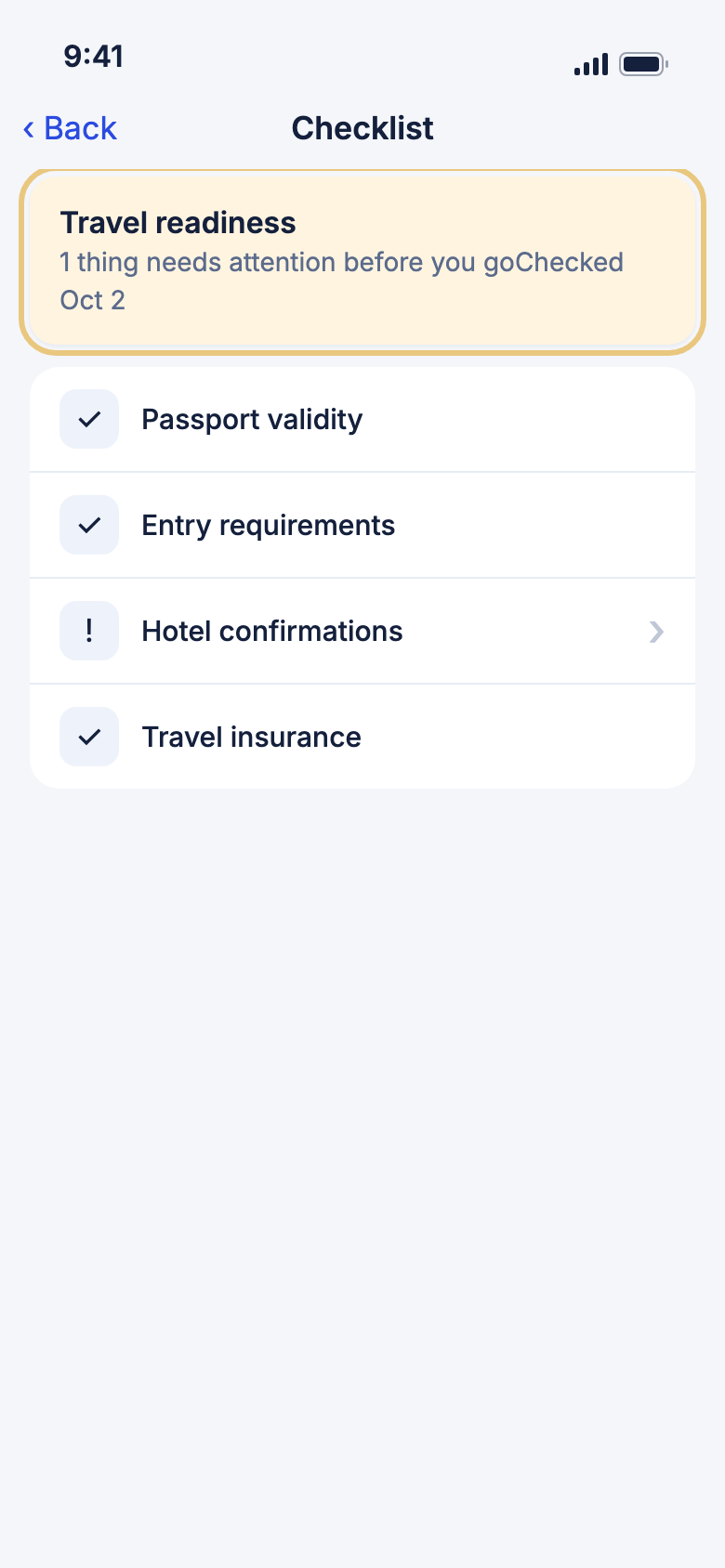
- Open the checklist and find Travel readiness below Get ready.
- Tap the card's header to show or hide the rows.
- Tap a row marked ! or ✕ to fix it.
Good to know
- ✓ means fine, ? means no data.
- Flight confirmations and Hotel confirmations open the trip's Documents page.
- The passport and insurance rows use your travel documents. Without them the rows say so.
- Always check entry rules with the embassy or destination authority before you travel.