
Trusted contacts
Trusted contacts are the people who hear from you when something goes wrong, and who can follow your trips if you let them. You choose who they are and what they can see. Everything on this page is free.
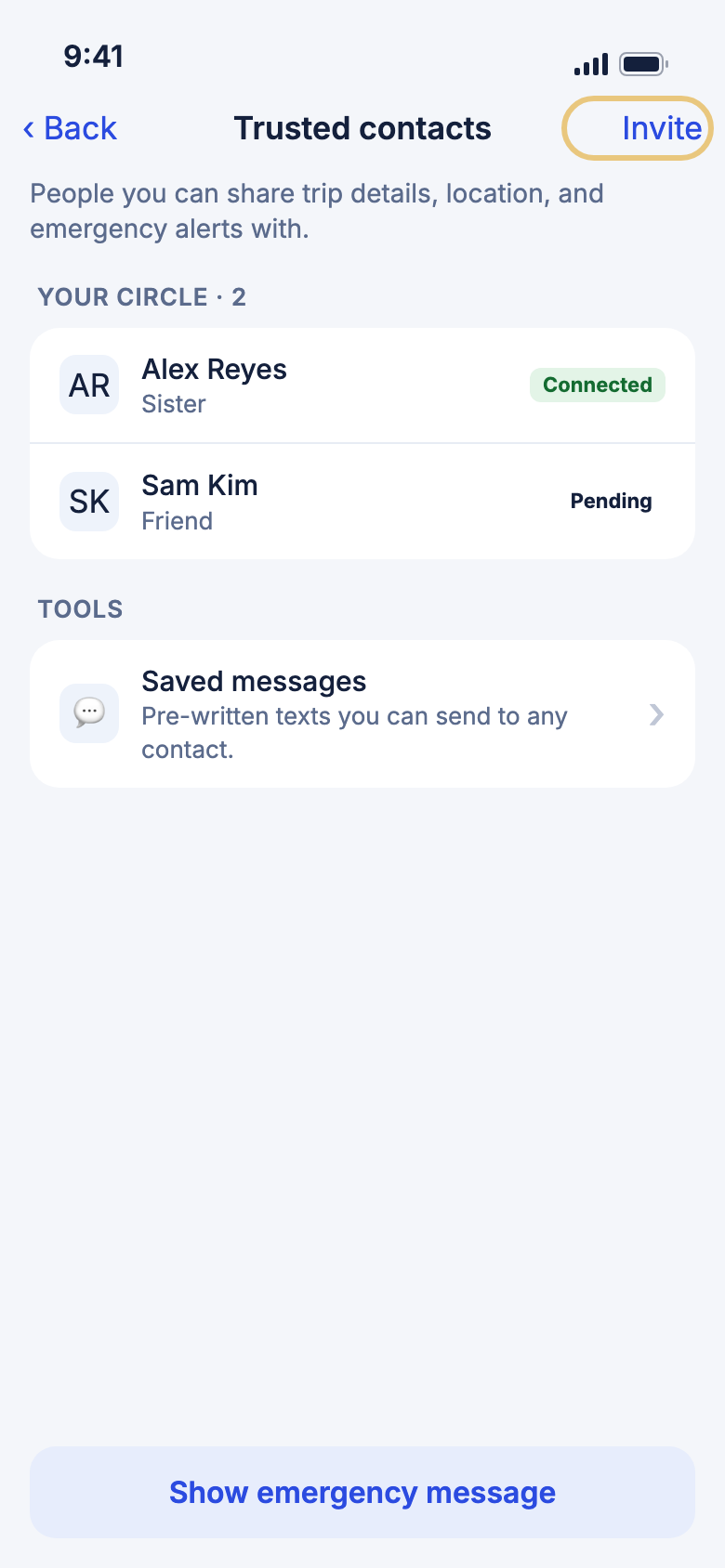
To open it, tap the people icon at the top right of the Safety tab. You can also use Account → Safety → Trusted contacts.
Adding people
Invite someone to be a trusted contact
Your contact gets a personal link. They tap it and accept on their own phone.
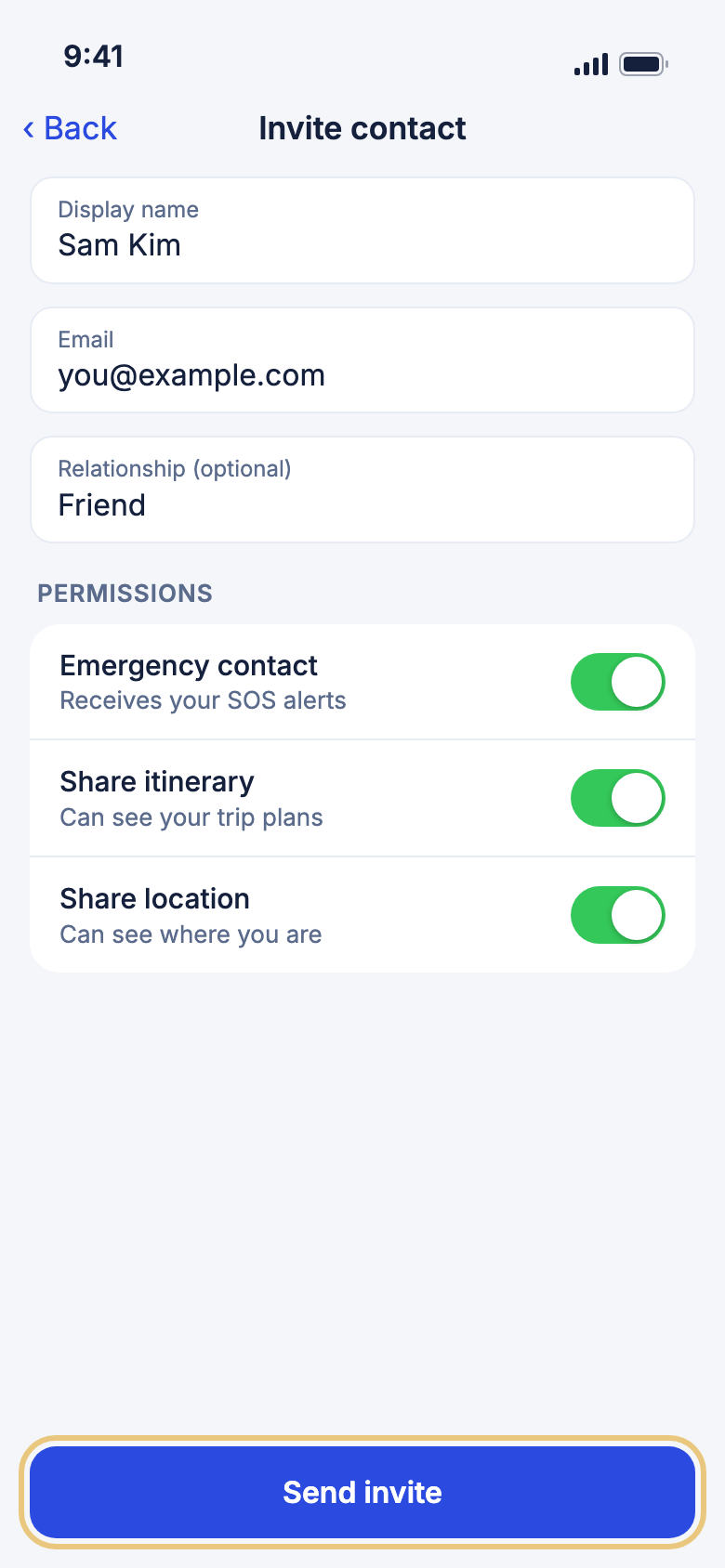
- Tap Invite.
- Type a Display name.
- Type their Email, their Phone, or both. One is enough.
- Under Permissions, choose what they can do: Emergency contact, Share itinerary and Share location. All three start on.
- Tap Send invite.
- Tap Share to send the link yourself, or Copy to keep it. Then tap Done.
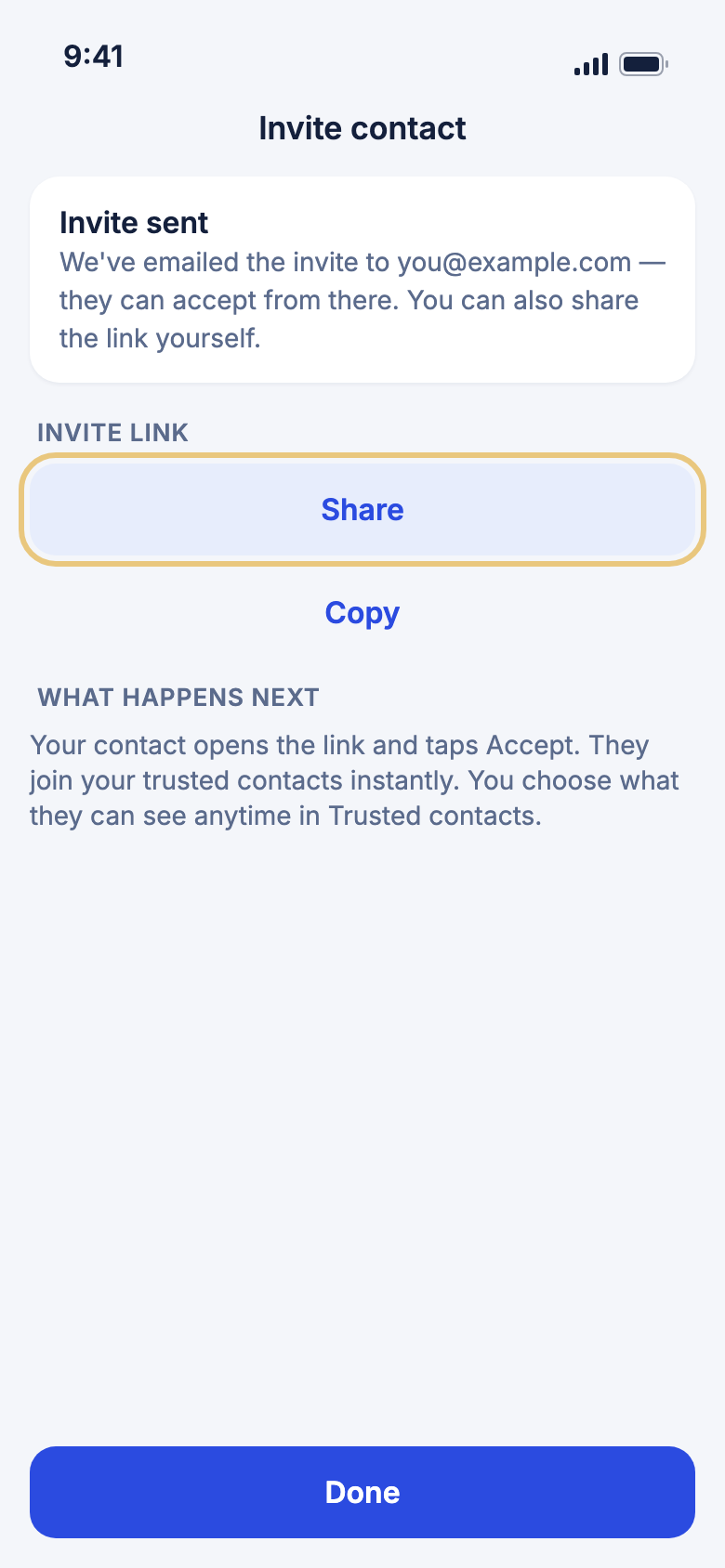
Who is told: if you gave an email address, WeiiGo emails them the link. WeiiGo never texts a phone-only invite, so share the link yourself.
Good to know
- The link works for 7 days.
- If you only gave a phone number, the person confirms it with a one-time code when they open the link.
- A new contact gets SOS alerts as a notification in the WeiiGo app. To reach them by email, text or WhatsApp, turn those on from their page. SMS also needs their own OK: WeiiGo texts them only if they ticked Text me WeiiGo safety alerts in the WeiiGo app, when they accepted your invite or later.
Remind someone who has not answered yet
A waiting invite shows Pending. You can send it again.
- Open Trusted contacts.
- Find the person marked Pending.
- Tap Resend.
Good to know
- Resending makes a new link. The old one stops working, so share the new one.
Answering an invite
Accept an invite someone sent you
When someone invites you, you decide whether to become their trusted contact. They are told what you choose.
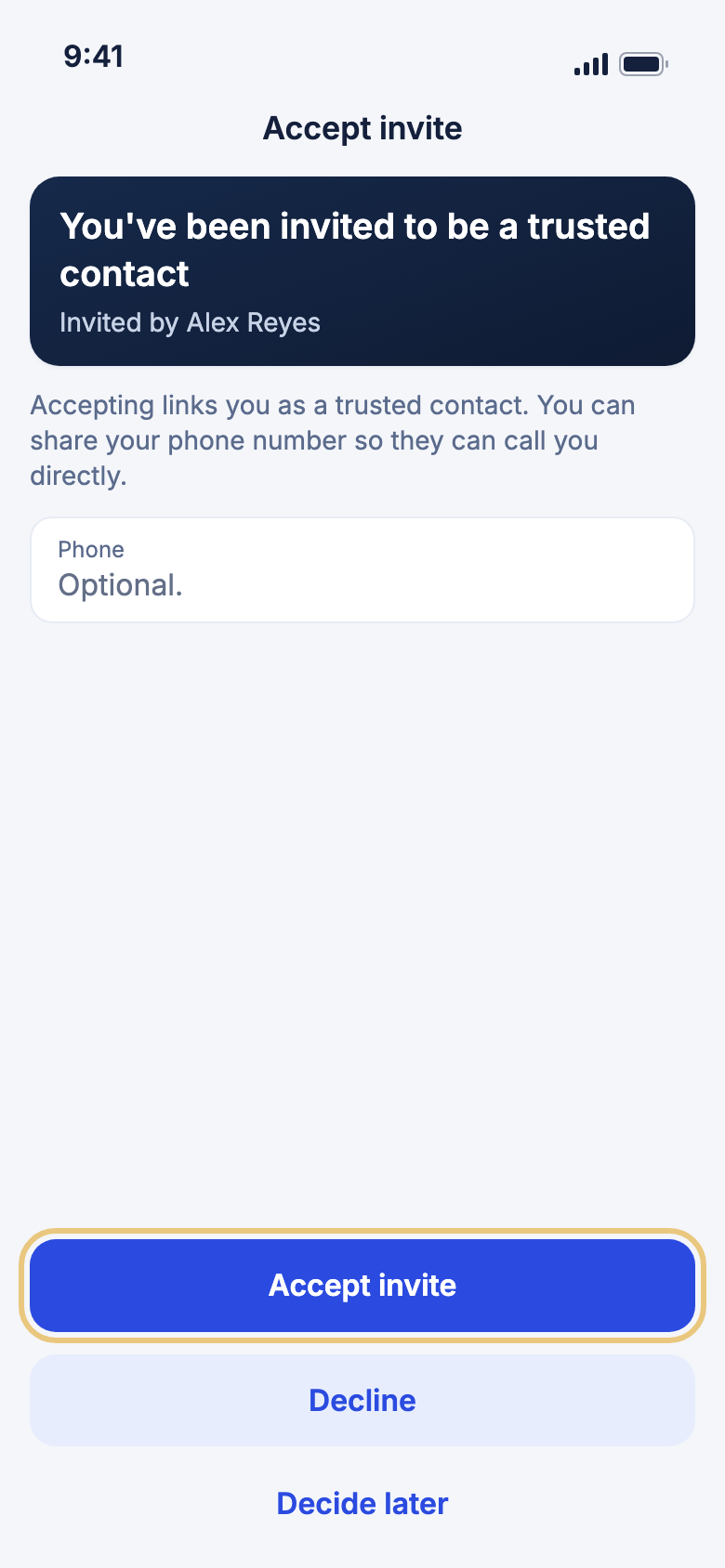
- Tap the invite link you were sent. Sign in first if WeiiGo asks.
- Read who invited you.
- If the invite was sent to a phone number, tap Text me a code and type the code you get.
- Add your phone number if you want them to be able to call or text you. It is optional.
- Tap Accept invite, then Done.
- WeiiGo may ask Add as trusted contact? Tap Yes to invite them back, or No.
To say no, tap Decline. To leave it for now, tap Decide later. Nothing is sent when you decide later.
Who is told: the person who invited you, whether you accept or decline.
Good to know
- Texts are off unless you tick the box that starts Text me WeiiGo safety alerts. WeiiGo texts only a number you have proved is yours with a code.
- If the link has expired, ask them to send a new one.
- An invite sent to a different email or phone only works when you sign in with that account.
Answer an invite from inside the app
If someone invited the email you use for WeiiGo, the invite also waits at the top of Trusted contacts.
- Open Trusted contacts.
- Look under Invites for you.
- Tap Accept or Decline.
Who is told: the person who invited you.
Looking after a contact
Choose what a contact can see and how they hear from you
Each contact has their own page. Every switch saves as soon as you tap it.
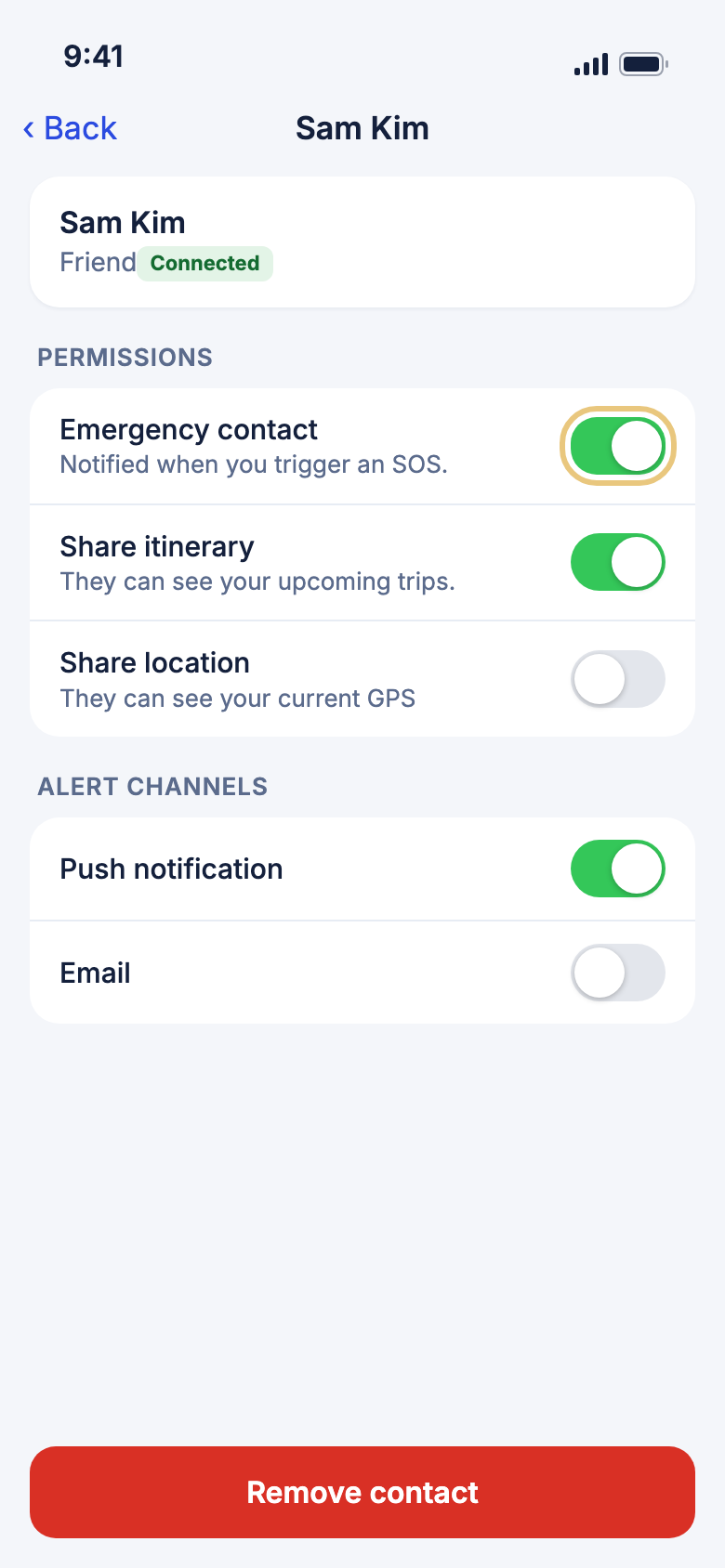
- Under Your circle, tap the person.
- Under Permissions, turn Emergency contact, Share itinerary or Share location on or off.
- Under Alert channels, turn Push notification, SMS, Email or WhatsApp on or off.
Good to know
- SMS also needs their own OK: WeiiGo texts them only if they ticked Text me WeiiGo safety alerts in the WeiiGo app, when they accepted your invite or later. If they have not, you can tap the ask button to send them a request.
- Email needs an email address and SMS or WhatsApp need a phone number.
- To change a contact's phone or email, use Account → Safety → Emergency contacts.
Call, text or share where you are
Reach one person quickly from their page.
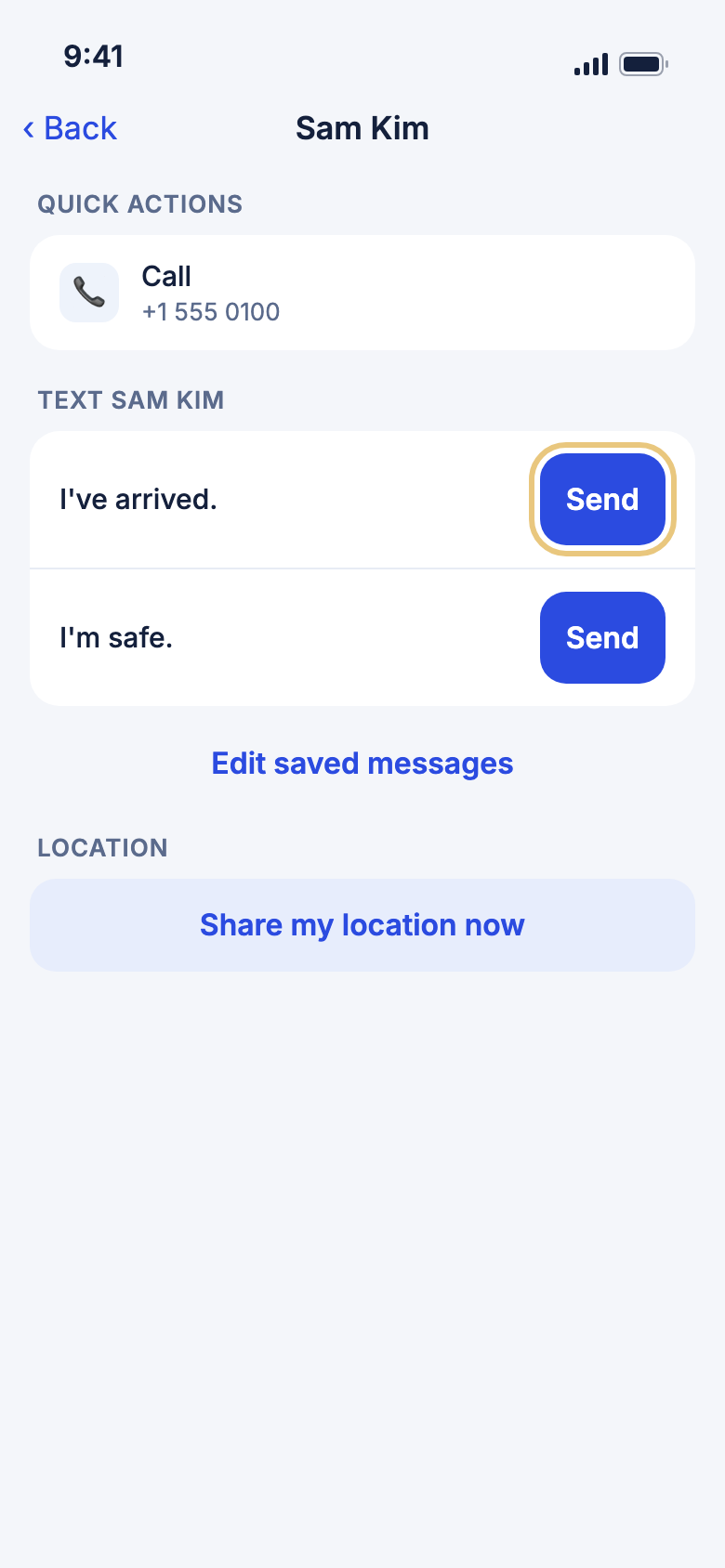
- Open the contact.
- Tap Call to open your phone's dialler.
- Tap Send next to a saved message. Your messages app opens with the text ready.
- Tap Share my location now to send them a map link to where you are.
Who is told: this person. Nothing is texted until you tap send in your messages app. Share my location now sends them a notification with the map link.
Good to know
- If a contact has no phone number yet, a card lets you add one.
- Share my location now is only on the page of a contact who has accepted.
Remove a contact
They stop getting your alerts and lose access to what you shared.
- Open the contact.
- Tap Remove contact.
- Tap Remove to confirm.
Who is told: if they use WeiiGo, they get a notification that you stopped sharing.
Messages
Save texts you send often
Write a message once and send it to any contact in one tap.
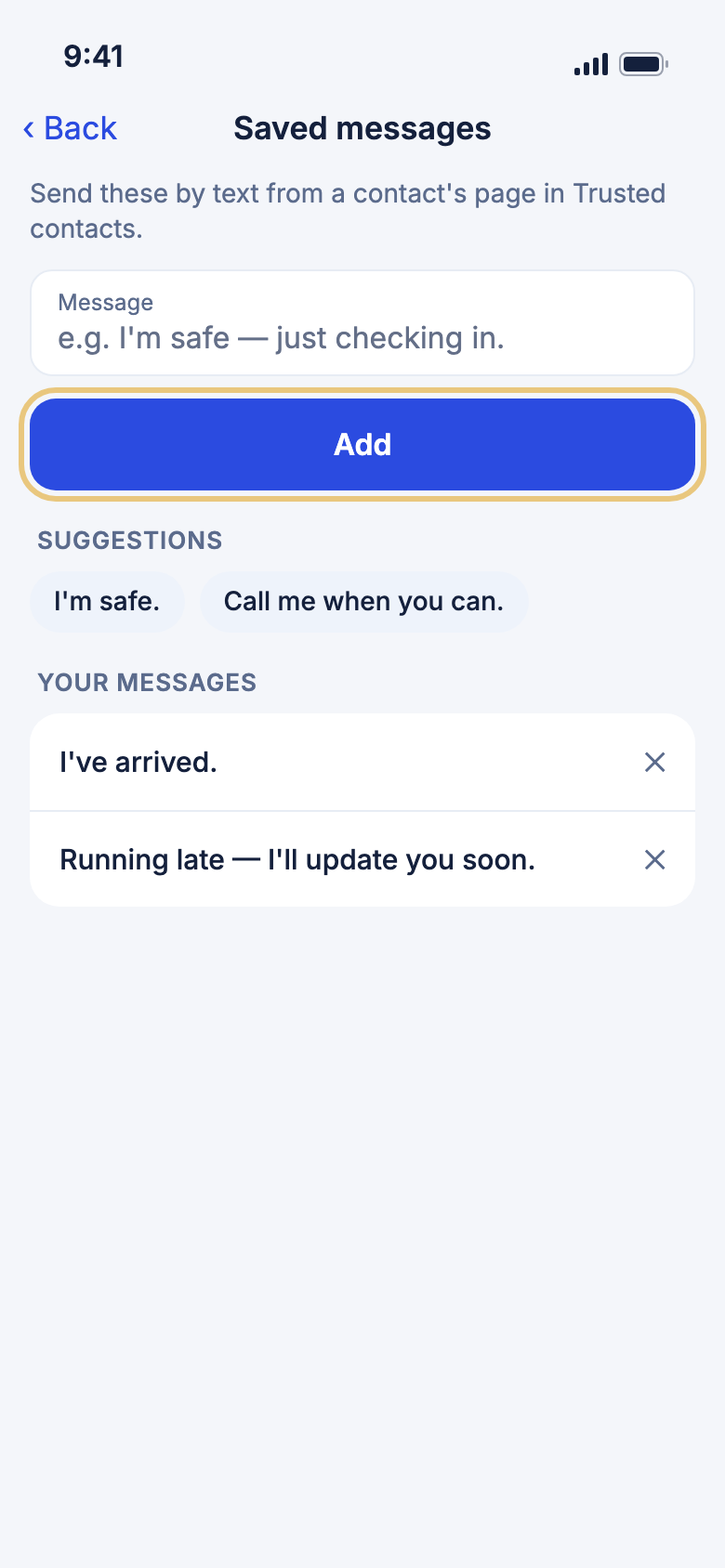
- In Trusted contacts, tap Saved messages. You can also tap Edit saved messages on a contact's page.
- Type a message and tap Add. Or tap a ready-made one such as I've arrived.
- To change one, tap its text, edit it and tap Save.
- To delete one, tap the cross. Tap Undo within a few seconds to bring it back.
Good to know
- The same list is used for all your contacts and follows you to a new phone.
Change the message your check-in timer sends
When you tap I'm OK on a check-in, this is the text your contacts get.
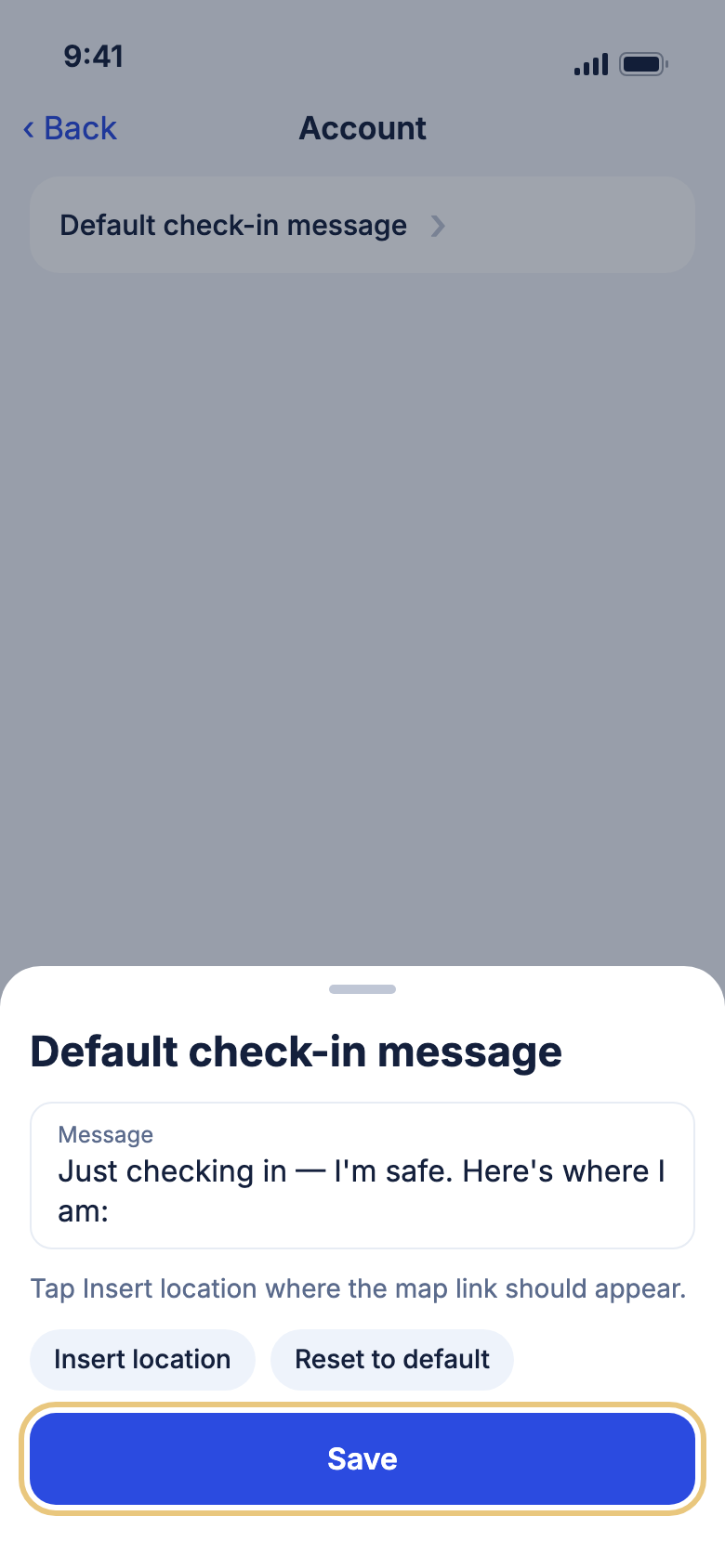
- Tap Account → Safety → Default check-in message.
- Edit the text.
- Tap Insert location where you want the map link to go.
- Tap Save.
Who is told: your contacts get this text when a check-in is sent. Saving it alerts no one.
Good to know
- Reset to default puts the original wording back.
- Closing the sheet without tapping Save drops your changes.
- It is kept on this phone only.
Seeing what someone shares with you
See a contact's location and trips
When you are someone's trusted contact, you can see what they choose to share.
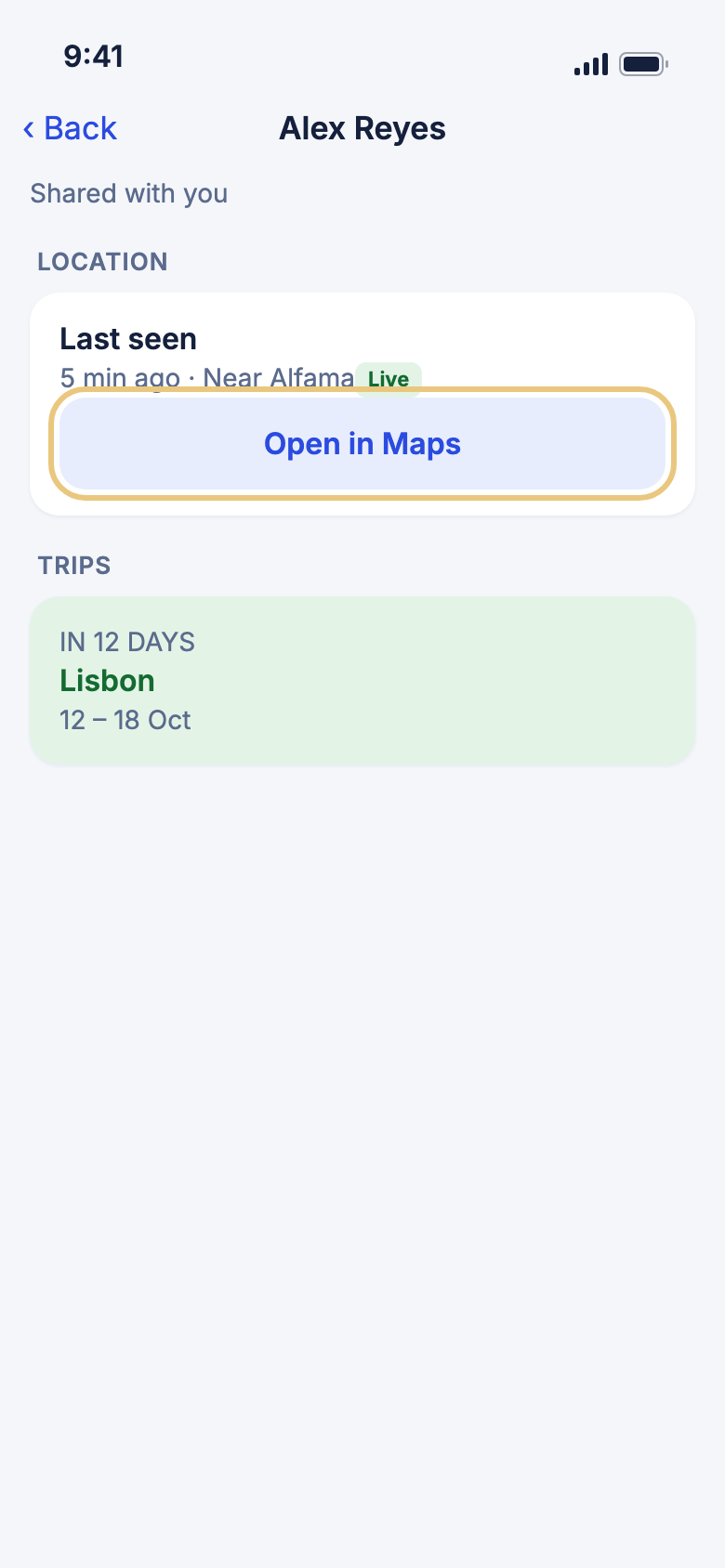
- Open Trusted contacts.
- Under Sharing with you, tap the person.
- Look under Location for where they were last seen.
- Tap Open in Maps to see the spot.
- Under Trips, tap a trip to see its plan.
Good to know
- You only see a location while they are sharing it live, and only trips they share with you.
- Live means their location is updating now. It goes away if their phone loses signal.
- To stop being their trusted contact, tap Remove on their card. They are told.