
Profile, settings and subscription
Here you tell WeiiGo who you are and how you like to travel, set up safety and documents, and see where you've been. For the basics, like your name, language and plan, see The Account tab.
How you travel
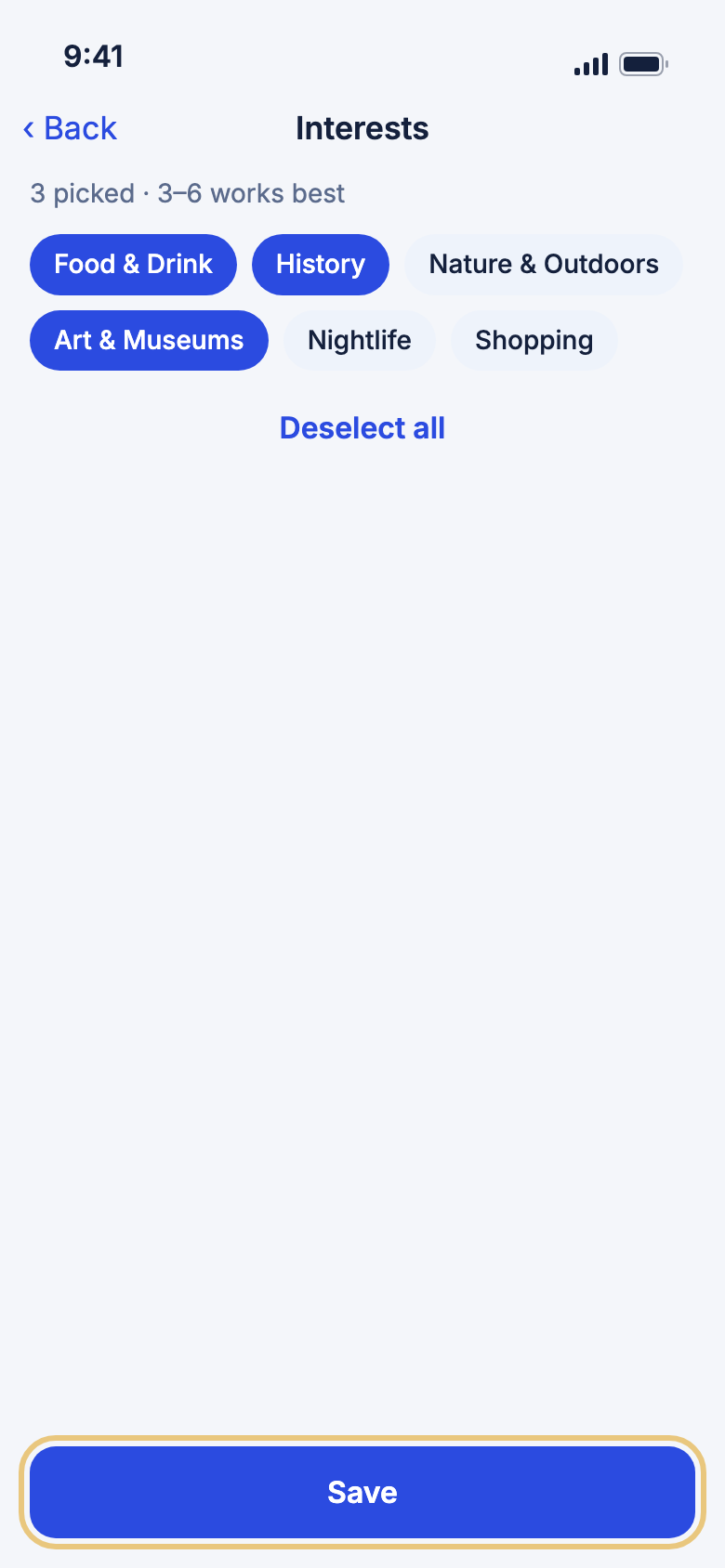
Pick your interests
Interests help WeiiGo and Janet suggest things you'll enjoy, and they fill in the Plan a Trip form for you.
- Tap the Account tab, then Settings.
- Under Planning defaults, tap Interests.
- Tap topics like Food & Drink, History or Art & Museums to pick them. Tap again to unpick.
- Tap Save.
Good to know
- Three to six interests work best. Tap Deselect all to start again.
- If you go back without saving, WeiiGo asks if you want to Discard or Keep editing.
Choose your travel style
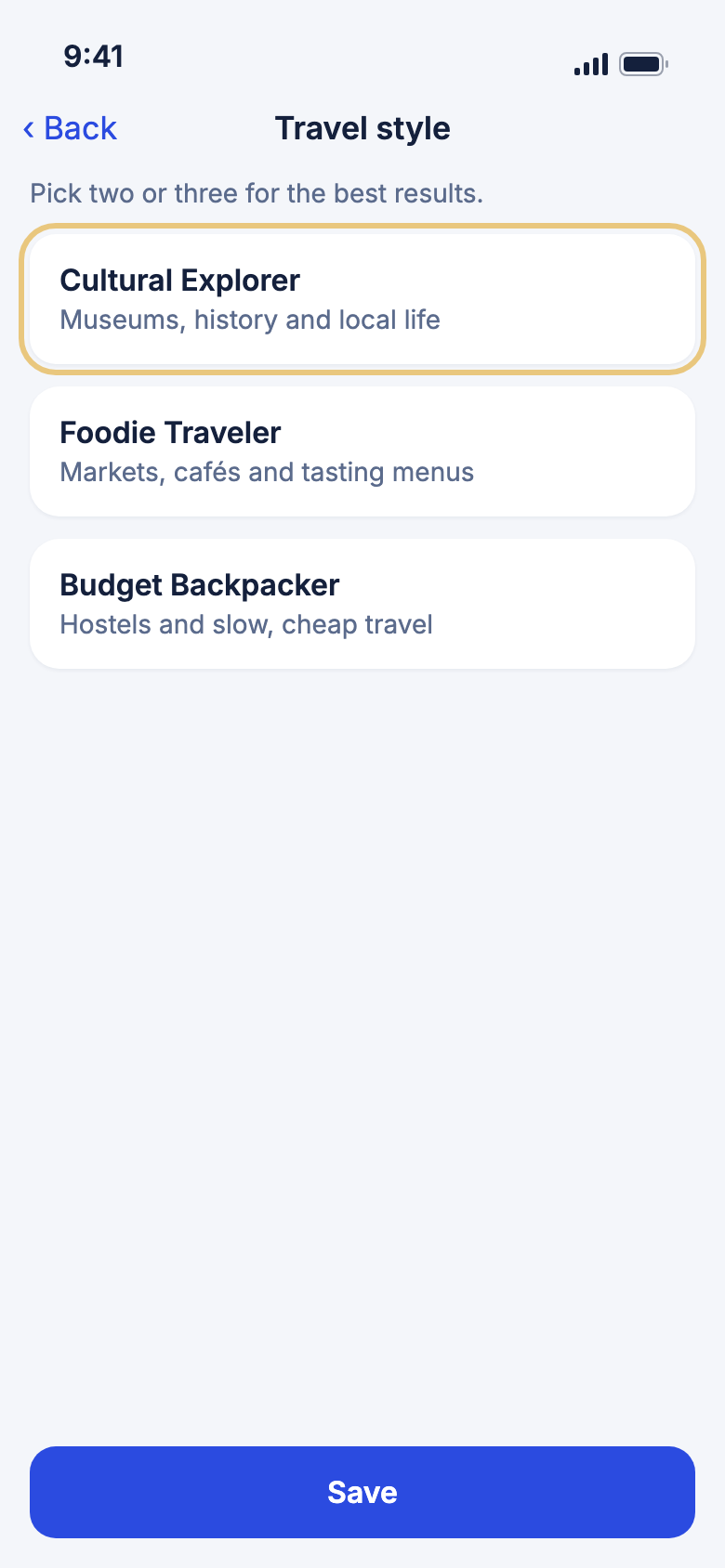
Your style shapes the plans and ideas you get.
- Tap the Account tab, then Settings.
- Under Planning defaults, tap Travel style.
- Tap the cards that fit you, like Cultural Explorer or Foodie Traveler.
- Tap Save.
Good to know
- Pick two or three for the best results.
Say who you travel with
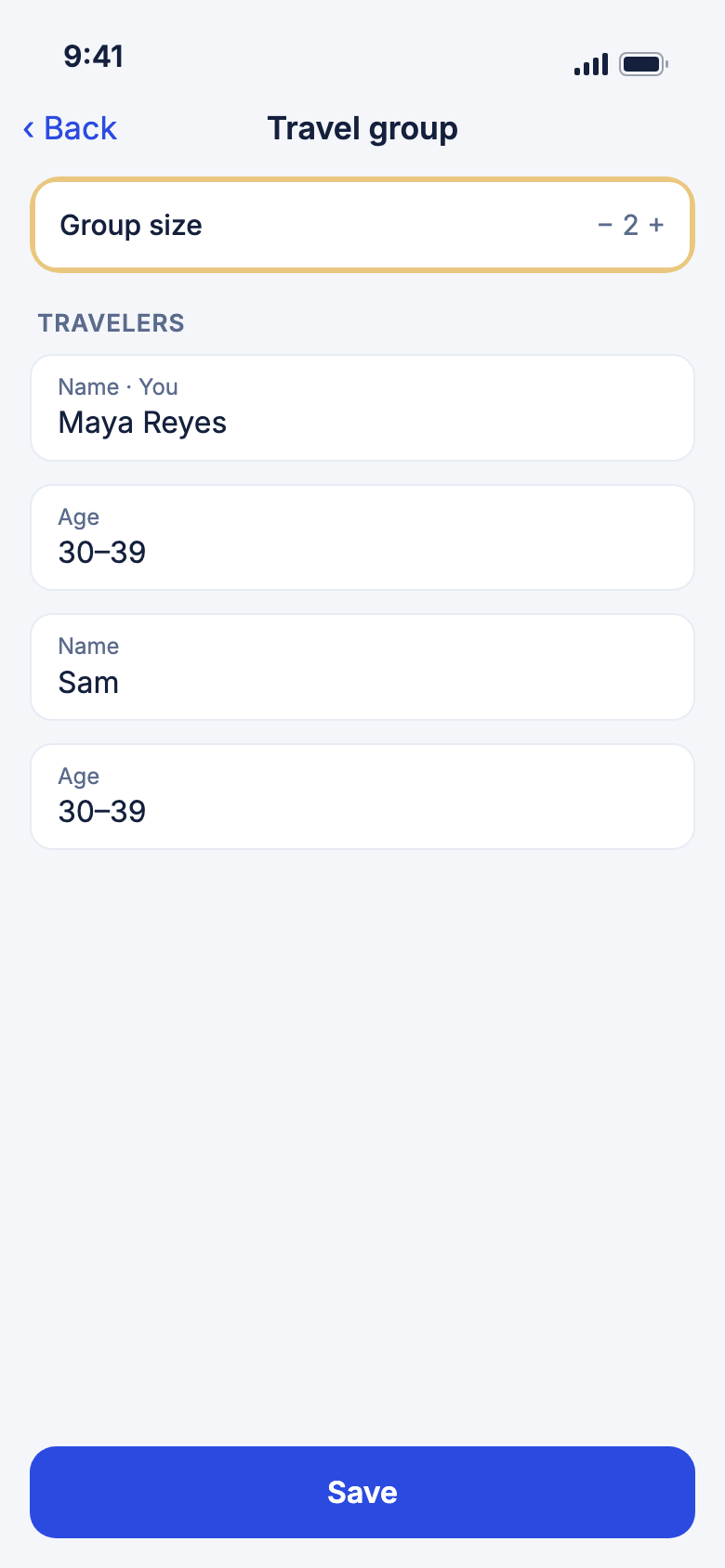
WeiiGo can start every new trip with your usual group.
- Tap the Account tab, then Settings.
- Under Planning defaults, tap Travel group.
- Tap − or + next to Group size. You can choose 1 to 10 travelers.
- Under Travelers, add a Name and an Age band for each person if you like.
- Tap Save.
Good to know
- Names and ages are optional. Ages help Janet pick things that suit everyone, like kid-friendly activities.
- The first traveler is you, marked You.
Set your usual meal times and activity mix
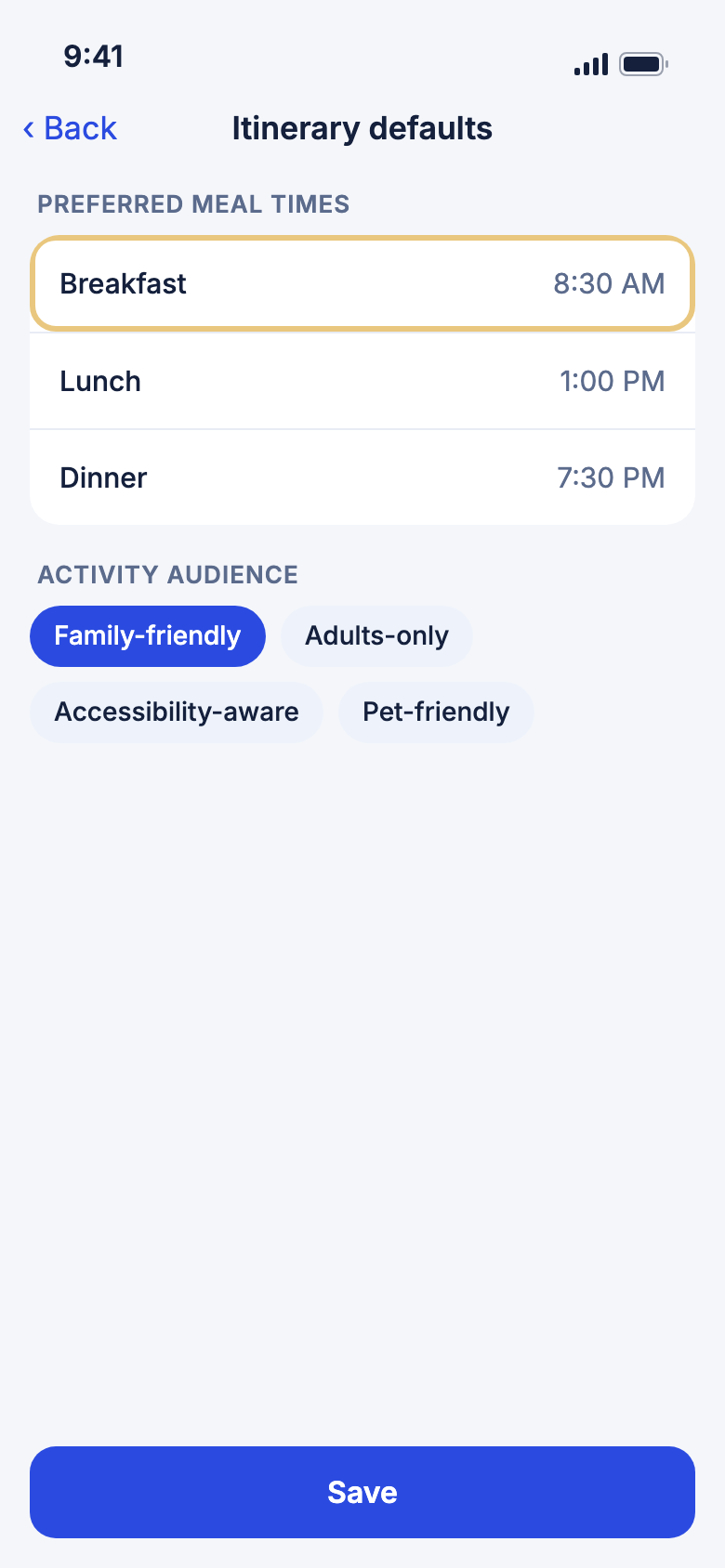
Janet uses these when she plans a trip or reworks a day.
- Tap the Account tab, then Settings.
- Under Planning defaults, tap Itinerary defaults.
- Under Preferred meal times, set Breakfast, Lunch and Dinner.
- Choose Family-friendly or Adults-only. You can also turn on Accessibility-aware or Pet-friendly.
- Tap Save.
Good to know
- Family-friendly and Adults-only can't both be on. Picking one turns the other off.
- Trips you've already planned don't change.
Set how Janet plans your trips
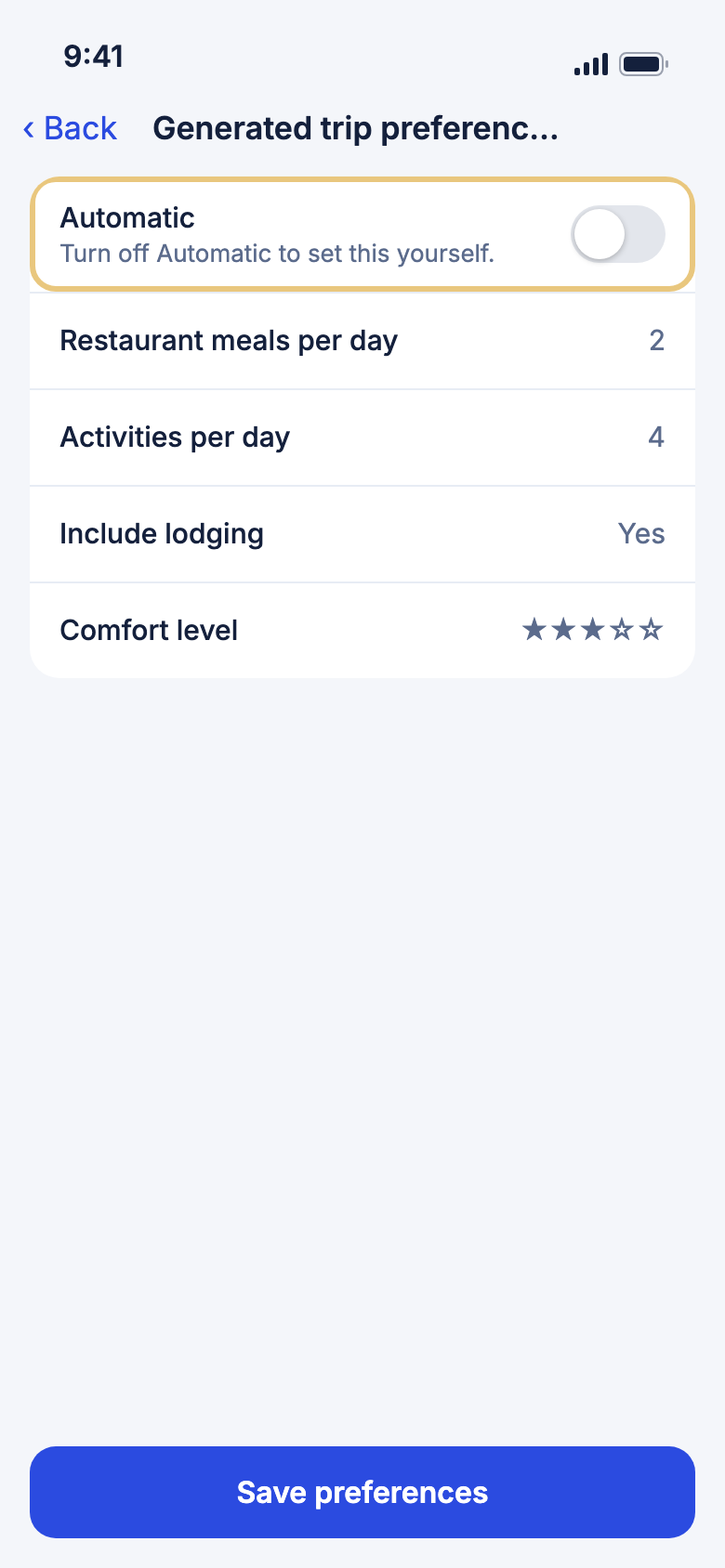
Choose how many meals and activities Janet adds each day, and how comfortable you like to travel.
- Tap the Account tab, then Settings.
- Under Planning defaults, tap Generated trip preferences.
- Turn off Automatic for any setting you want to choose yourself.
- Set Restaurant meals per day, Activities per day, Include lodging and Comfort level.
- Tap Save preferences.
WeiiGo Pro — On Free, this page says Upgrade required and the settings can't be saved.
Good to know
- You can still change these for one trip while you plan it.
Safety and documents
Choose your emergency contacts
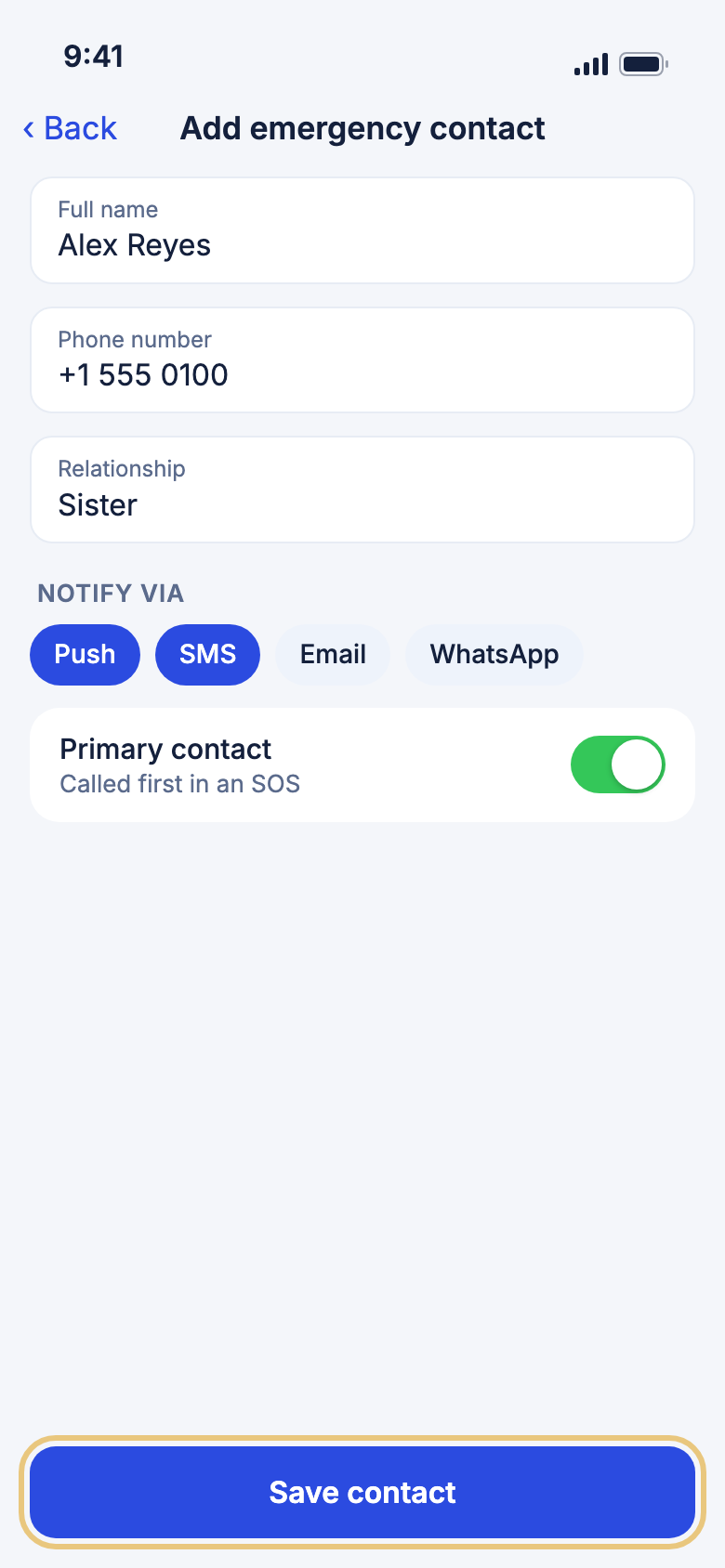
These are the people WeiiGo alerts if you send an SOS. Each person gets a notification, text, email or WhatsApp message, depending on what you pick for them.
- Tap the Account tab, then Emergency contacts.
- Tap Add.
- Enter their Full name and Phone number. Relationship and Email (optional) help too.
- Under Notify via, tap how to reach them: Push, SMS, Email or WhatsApp.
- To have them called first in an SOS, turn on Primary contact.
- Tap Save contact.
Good to know
- Your contact gets an invitation first, by email or a link you send. Until they accept, they show as Pending and can't be reached.
- Texts only go to a contact who has agreed to them. WeiiGo never texts the invitation itself.
- To change or take someone off the list, tap Edit or Remove on them. They stay in your trusted contacts.
Choose which safety scores you see
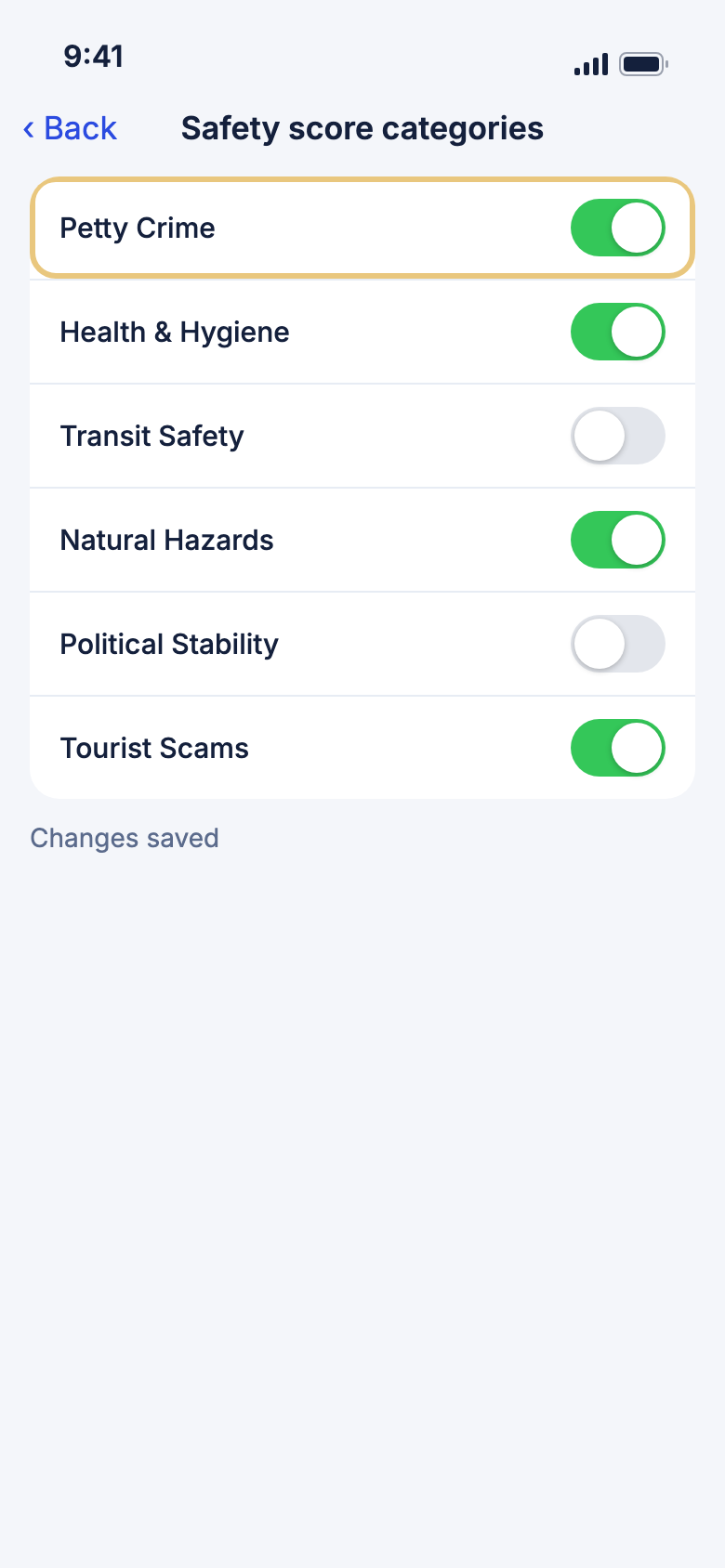
Show only the kinds of risk you care about when you open a country's safety score.
- Tap the Account tab.
- Under Safety, tap Safety score categories.
- Tap a switch to turn a category on or off.
Good to know
- At least one category always stays on.
- This is saved on this phone only.
Keep your travel documents on your phone
Store your passport, visas and insurance where you can open them without a signal. They are locked and kept on this phone only. WeiiGo never gets a copy.
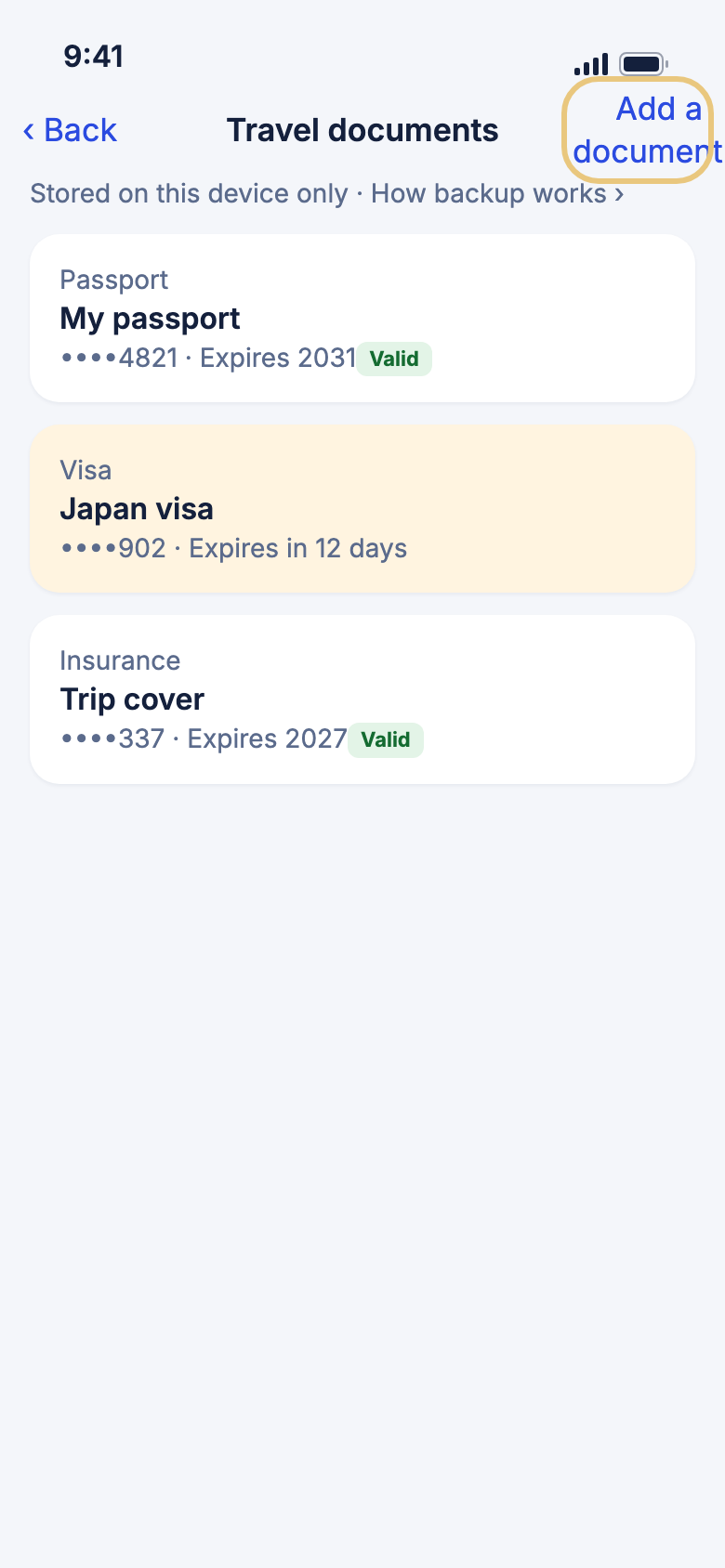
- Tap the Tools tab, then Travel documents.
- Tap Add a document.
- Pick a Type, like Passport or Visa, and give it a Nickname.
- Add a number, an expiry date or a photo if you like.
- Tap Save document.
WeiiGo Pro — On Free, tapping Travel documents shows what Pro adds. If Pro ends, you can still open and read what you saved, but not add or change anything.
Good to know
- Each card shows Valid, Expires in N days or Expired.
- Documents are in your phone's own backup (iCloud or Google). Without a backup, a lost phone means the documents are gone.
Lock and unlock your documents
A PIN keeps your documents private, even if someone borrows your phone.
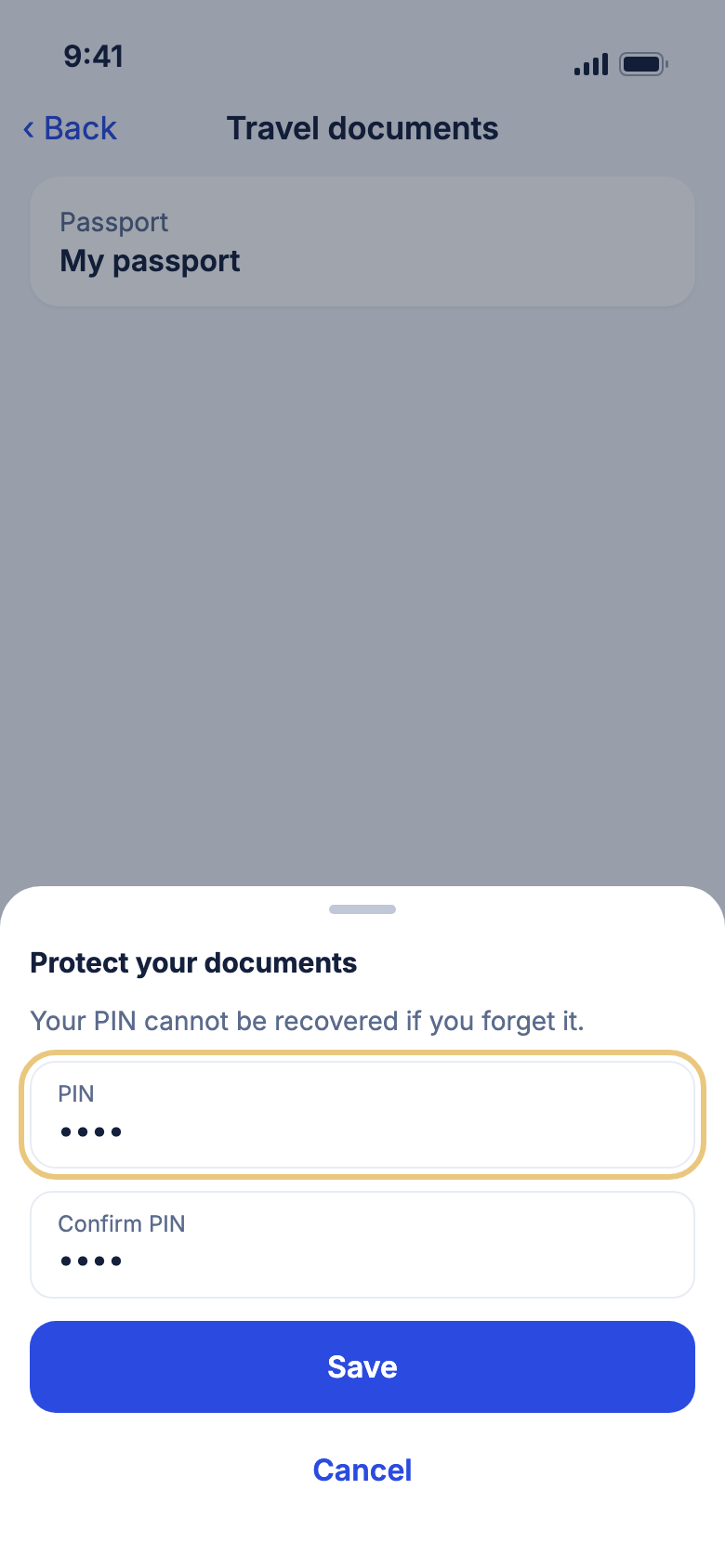
- The first time you save a document, enter a PIN of at least 4 characters.
- Enter it again in Confirm PIN, then tap Save.
- Later, tap Unlock on a document and enter your PIN.
- If asked, tap Use Face ID / fingerprint to unlock faster next time.
Good to know
- WeiiGo can't recover a forgotten PIN. Tap Forgot PIN?, then Delete and reset. That deletes every document on this phone, then lets you choose a new PIN.
Your trips in numbers
See your travel stats
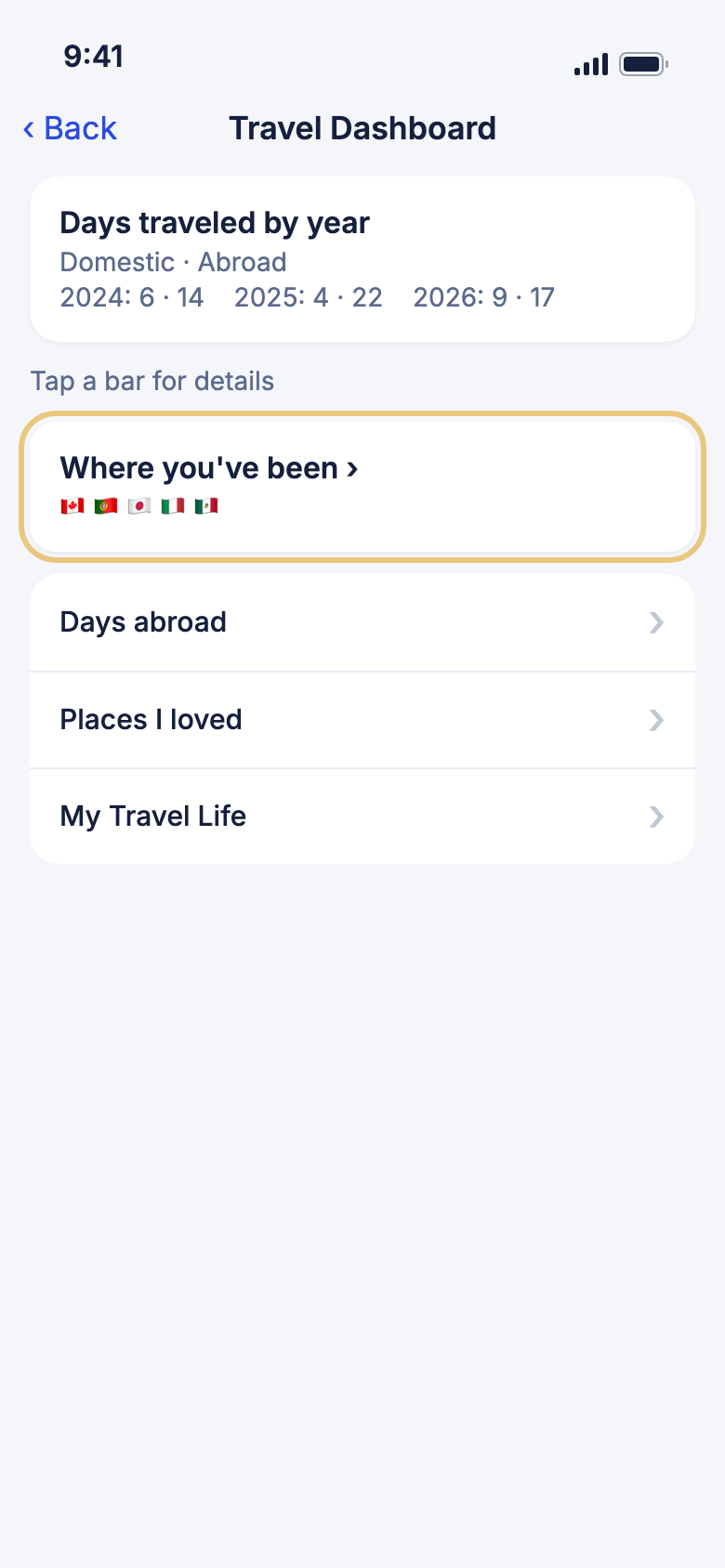
See the days you've travelled each year and the countries you've visited.
- Tap the Tools tab, then Travel stats.
- Tap Travel Dashboard.
- Tap a bar to see the trips for that year.
- Tap Where you've been › to see each country.
- Tap Days abroad, Places I loved or My Travel Life for more.
Good to know
- Only finished trips count.
- Set your home country in your profile, so WeiiGo can tell home days from days abroad.
- Places I loved lists the places you've hearted. My Travel Life puts every trip on one timeline.
WeiiGo Pro — On Free, My Travel Life shows a Dream trips card in place of your dream trips.
Janet
Give your assistant a name
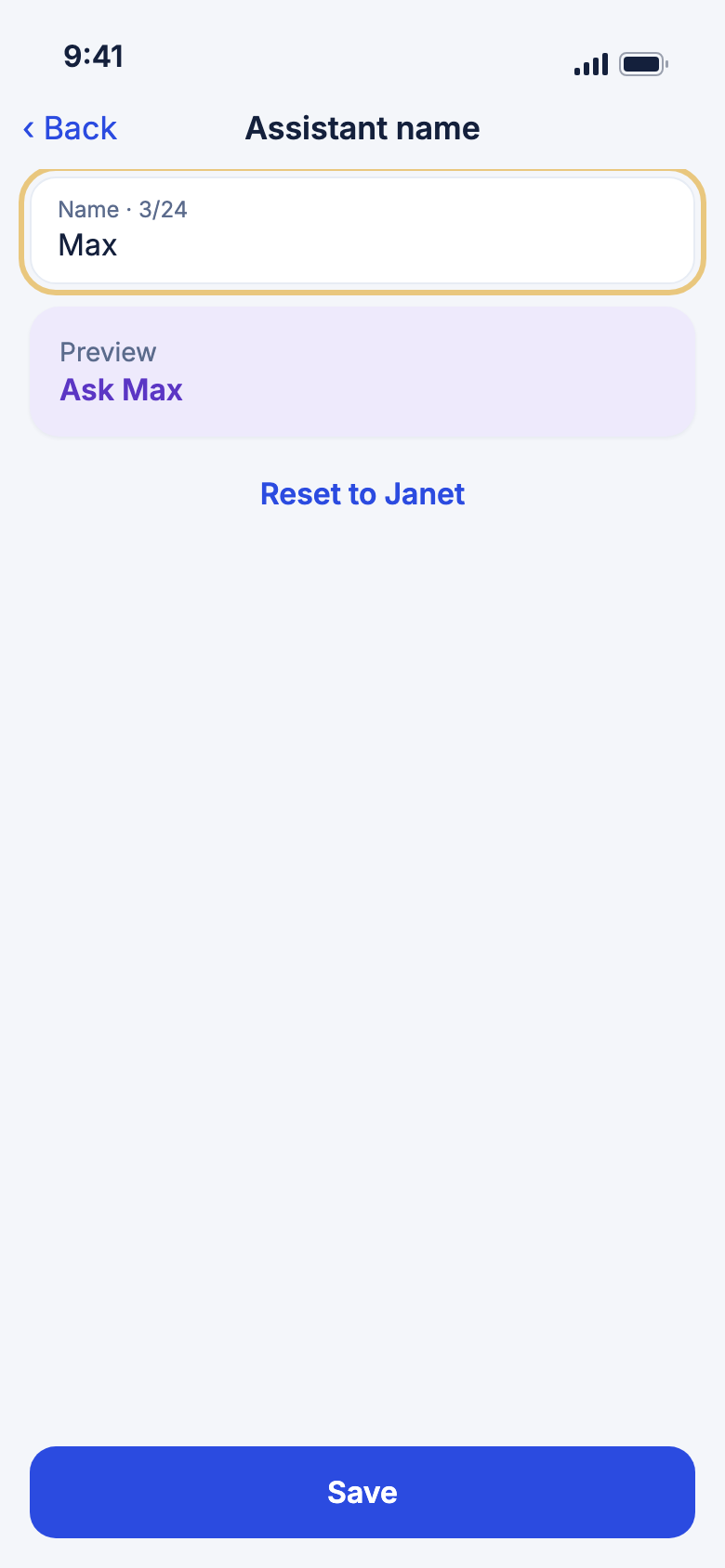
Rename Janet to anything you like. The new name shows across the app.
- Tap the Account tab.
- Under Janet AI, tap Assistant name.
- Type a name, up to 24 letters. Preview shows how it will look.
- Tap Save.
Good to know
- Tap Reset to Janet to go back to the original name.
See and change what Janet remembers
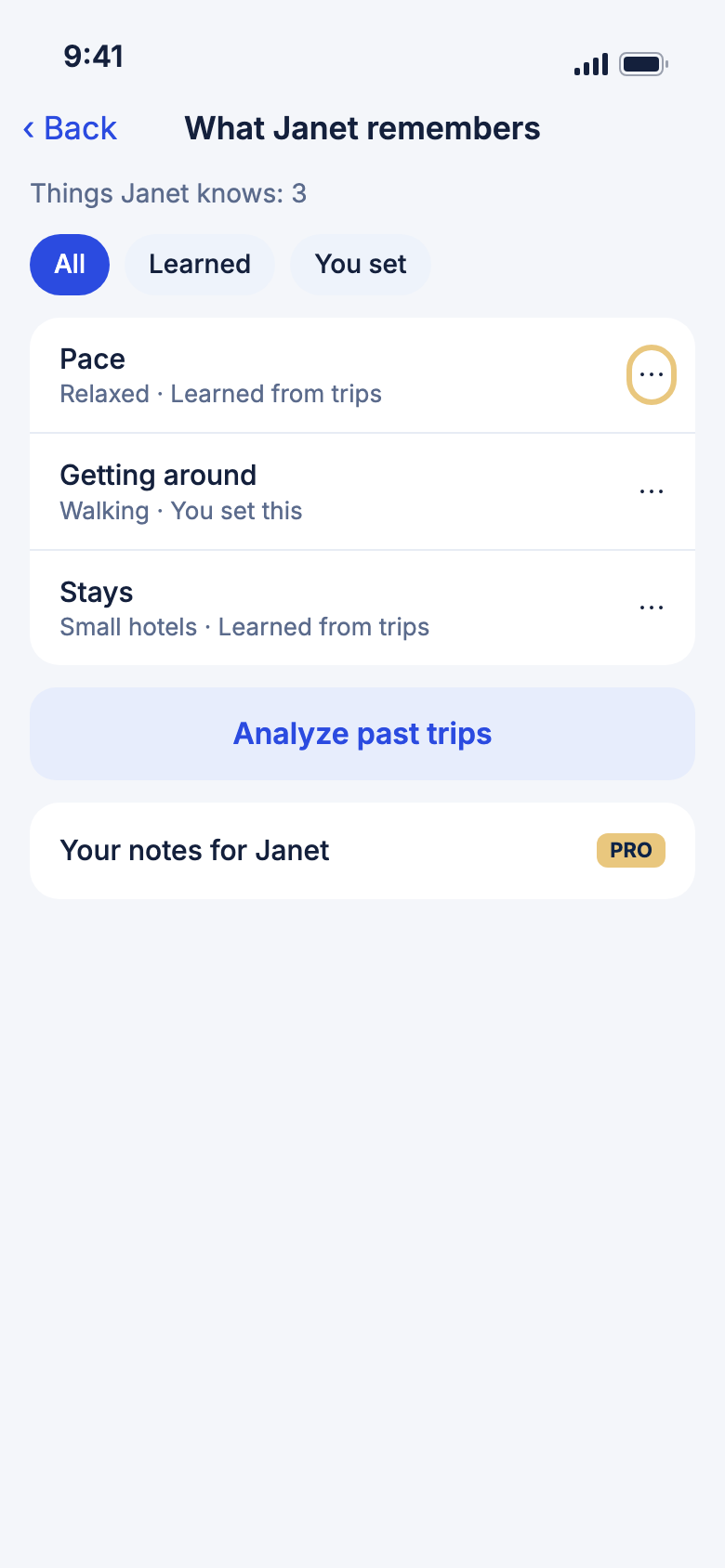
Janet learns from your finished trips, like your pace and where you stay. You can see all of it, and change or delete anything.
- Tap the Account tab.
- Under Janet AI, tap What Janet remembers.
- Tap All, Learned or You set to filter the list.
- Tap ⋯ on a row, then Forget this to delete it, or Edit to change it.
- To ask Janet to learn from more trips, tap Analyze past trips, tick the trips, and tap Analyze.
Good to know
- After you tap Forget this, you have about 5 seconds to tap Undo.
- Turn off Let Janet learn from my trips to stop new learning. What she knows stays until you delete it.
- Anything you set yourself is never changed by an analysis.
WeiiGo Pro — Your notes for Janet lets you write standing notes she keeps in mind for every trip, like how far you can walk. On Free, tapping it shows what Pro adds.
Connect a bank or card
Connect a bank or card and WeiiGo offers the purchases dated inside a trip for you to review on that trip's Budget page. It keeps only each purchase's category, date and amount.
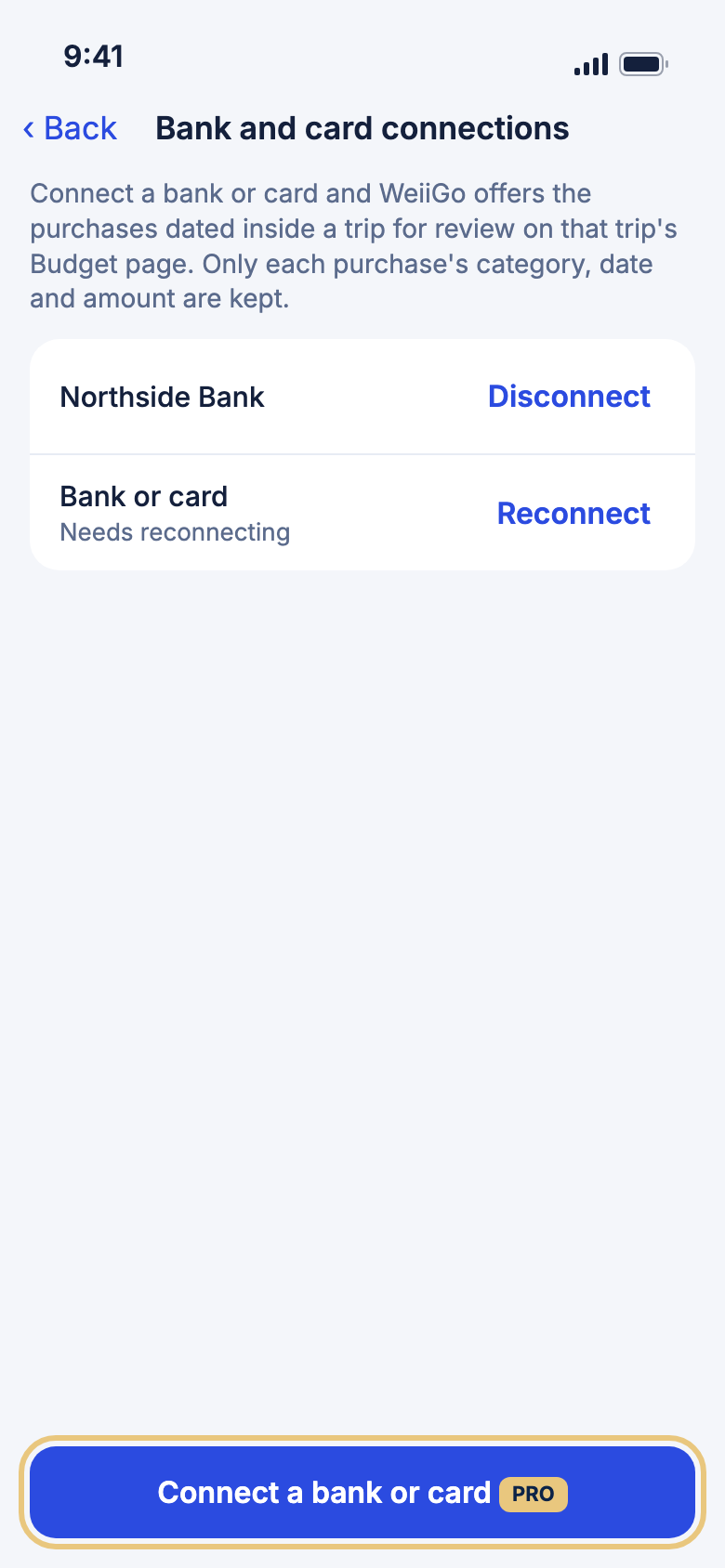
WeiiGo sends a text with a code to the phone number on your account, which is your own. Before you connect, make sure that number is right.
- Tap the Account tab, then Settings.
- Under Trip preferences, tap Bank and card connections.
- Tap Connect a bank or card.
- Confirm it's you with Face ID or your fingerprint. If asked, type the code in Enter the code and tap OK.
- Sign in to your bank in the secure window that opens. When it finishes, your bank shows in the list.
WeiiGo Pro — Connecting needs Pro. On Free, tapping Connect a bank or card shows what Pro adds. You can always see your list and tap Disconnect, even if Pro ends.
Good to know
- If a row says Needs reconnecting, tap Reconnect and repeat steps 4 and 5.
- To remove one, tap Disconnect on its row, then Disconnect again. Expenses you already added stay on your trips. Purchases still waiting for review are removed.
- If you have no verified phone number, WeiiGo asks you to Verify your number first.
- Connecting needs Face ID or a fingerprint set up on your phone.
Storage and extras
Manage your offline trips
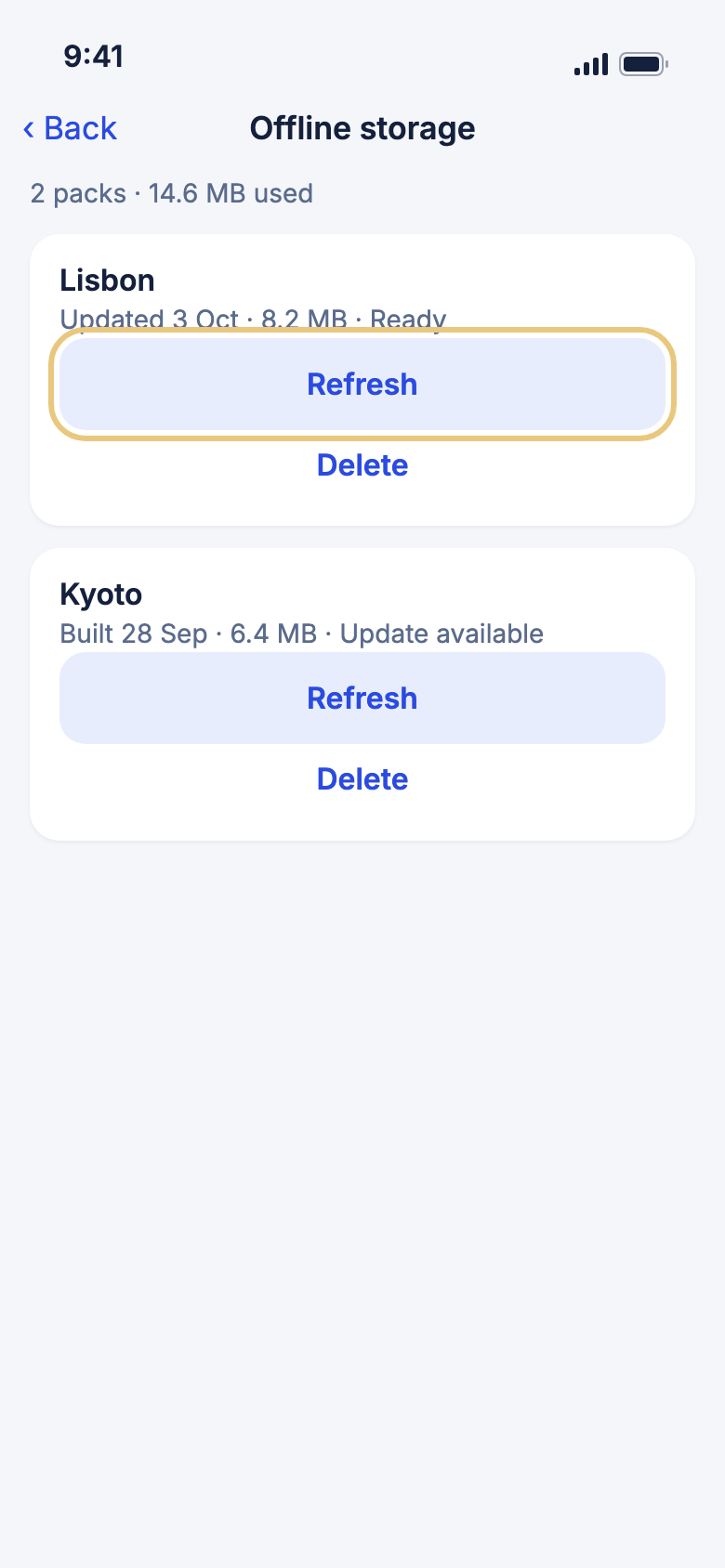
Trips you download for offline use take space on your phone. See how much, then refresh or delete them.
- Tap the Account tab, then Settings.
- Under App, tap Offline storage.
- Tap a trip to open it.
- Tap Refresh to get the latest copy, or Delete to free up space.
WeiiGo Pro — Refresh needs Pro. On Free, offline trips you already have stay available until you delete them.
Good to know
- Map backgrounds aren't saved. The page shows how to download map areas in Google Maps or Apple Maps instead.
- To download a trip, open it and tap Download for offline.
Make your own activity categories
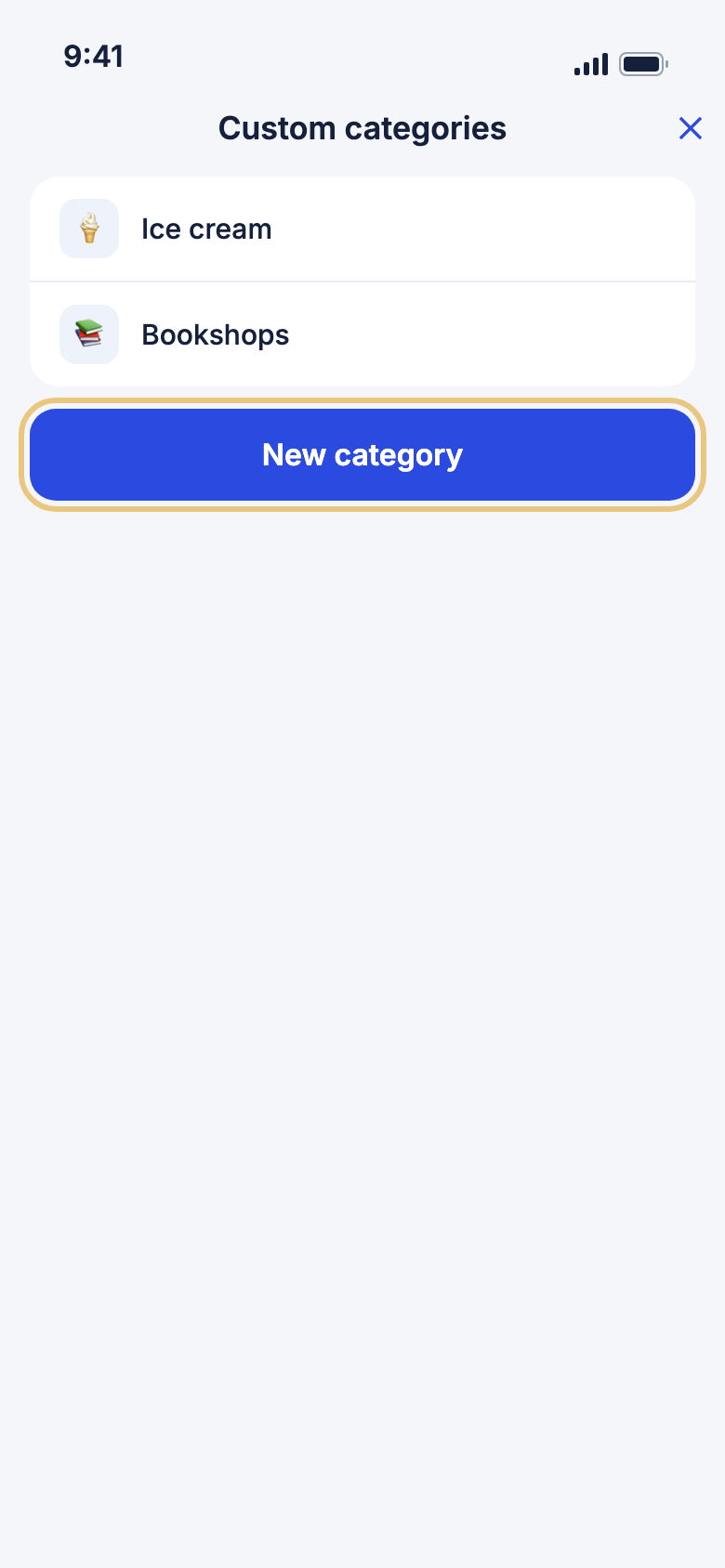
Add categories like "Ice cream" so you can search for them when you look for things to do.
- Tap the Account tab, then Settings.
- Under App, tap Custom categories.
- Tap New category.
- Type a name, pick an icon, and tap Save.
Good to know
- Names must be under 40 characters, and each name can be used once.
- To delete one, tap its bin. It goes straight away.