
Trip planning progress (Steps)
Every trip follows nine steps, from starting it to the day you leave. The Trip planning progress page shows which steps are done, which one is next, and a button that takes you straight to the right screen.
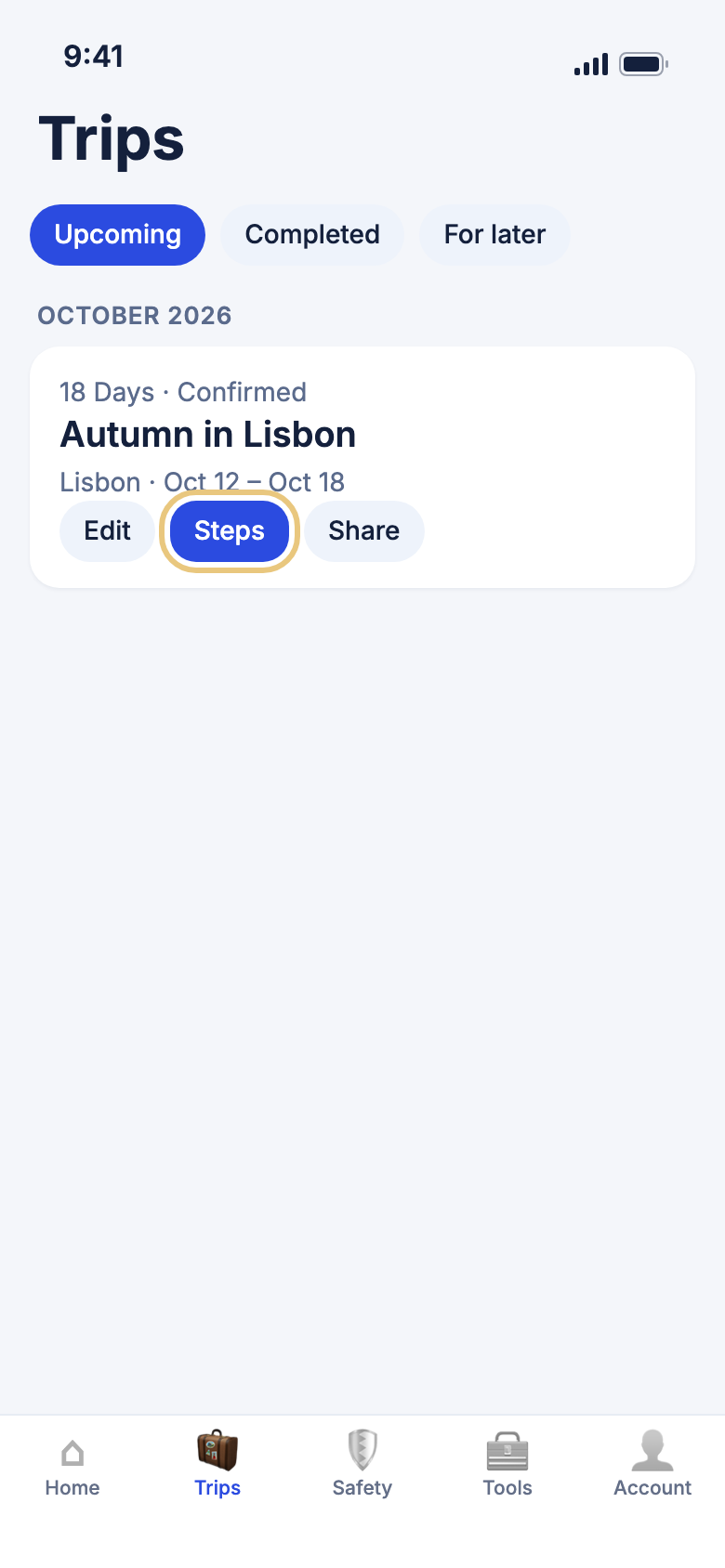
Opening the page
See how far along a trip is
Use this when you are not sure what to do next for a trip.
- Tap the Trips tab, then Upcoming.
- Find the trip's card.
- Tap Steps.
Good to know
- Steps shows on upcoming trips you can edit. A trip shared with you as a viewer has no Steps button.
- It is the same page on Free and Pro. Free is blue and Pro is purple.
Reading the page
Understand the nine steps
The top card shows the trip's name, dates and travellers, and a Free or Pro tag. Below it a bar of nine pieces fills in as you go, and Step 3 of 9 names the step you are on.
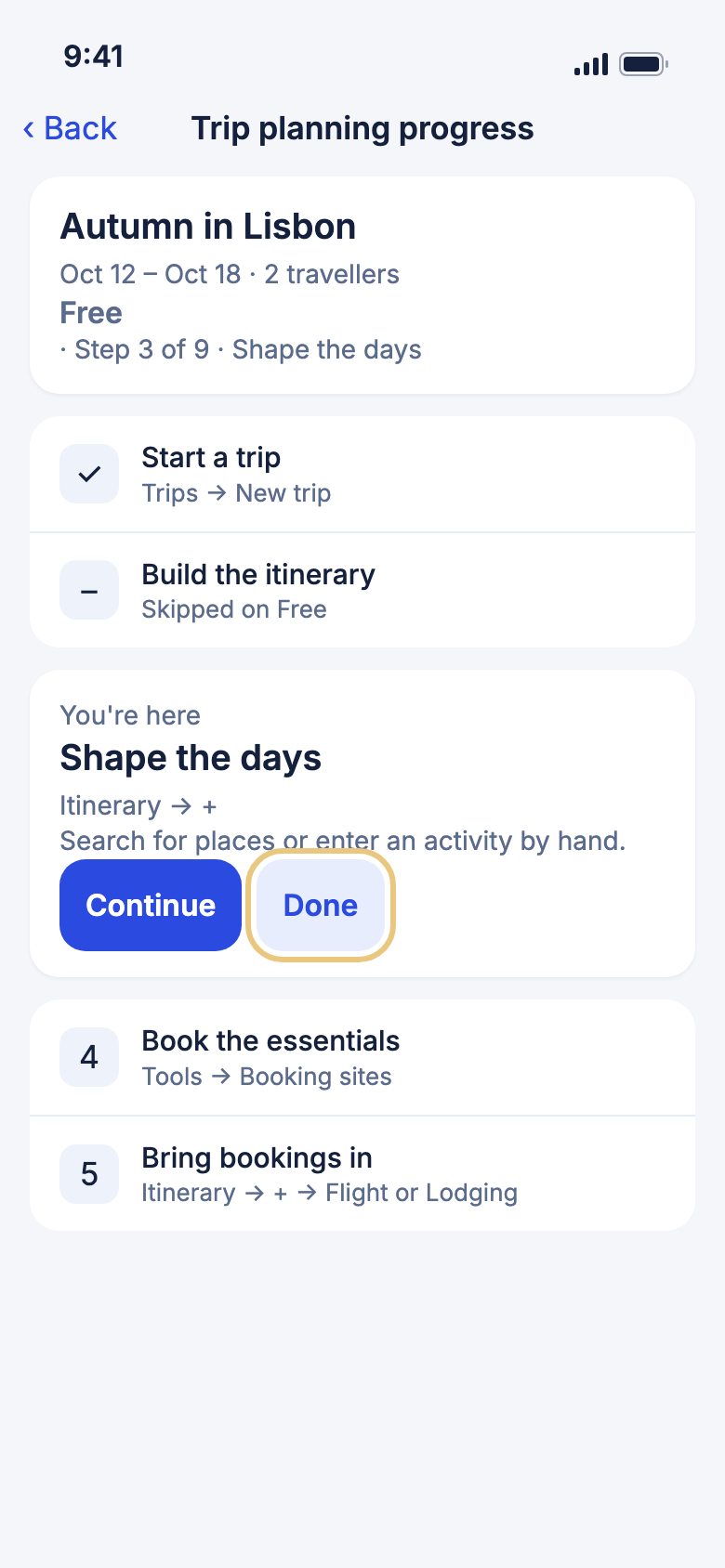
The steps are:
- Start a trip
- Build the itinerary
- Shape the days
- Book the essentials
- Bring bookings in
- Track the budget
- Get ready
- Share and stay safe
- Departure day
A tick means done. The step you are on sits in a coloured card headed You're here. Other steps show their number. Tapping a step in the list does nothing. Only the card for your current step has buttons.
WeiiGo Pro — Step 2 is Janet building your itinerary. On Free it shows Skipped on Free, and you fill the days in yourself at step 3. Tap Have Janet build it with Pro under it to see the upgrade screen.
Good to know
- Steps tick themselves from what is on the trip, such as an itinerary item, a booking, a budget or a trusted contact. You can finish them in any order. Your current step is always the first one not done.
- On Free, step 7 ticks once you have opened Know before you go for this trip on this phone.
- Step 9 only becomes your current step once steps 1 to 8 are done and the trip starts within 24 hours of your phone's clock. Until then the top card says Step 9 of 9 and Departure day is shown as what comes next. Step 9 has no Continue button. It tells you which reminders you will get.
Doing a step
Go to the right screen with Continue
Use this when you want to do the step you are on.
- Open Trip planning progress.
- In the You're here card, read what to do.
- Tap Continue.
- Do the step. When you come back, the page refreshes and a finished step is ticked.
Where Continue goes depends on your plan:
| Step | Free | Pro |
|---|---|---|
| 3 Shape the days | The trip's itinerary | Janet's chat for this trip |
| 4 Book the essentials | Booking sites | Flight search for this trip |
| 5 Bring bookings in | The trip's itinerary, to add a flight or stay | Emailed bookings |
| 6 Track the budget | The trip's budget | The trip's budget |
| 7 Get ready | Know before you go | The trip's checklist |
| 8 Share and stay safe | Edit trip | Share trip |
WeiiGo Pro — On a Free plan, step 2 has no button and steps 1 and 9 never have one. Pro's step 2 opens Janet's plan for the trip, and Pro's step 5 opens Emailed bookings. Free travellers see the upgrade screen if they reach these.
Ask Janet about a step
Use this on Pro when you would like help with the step you are on.
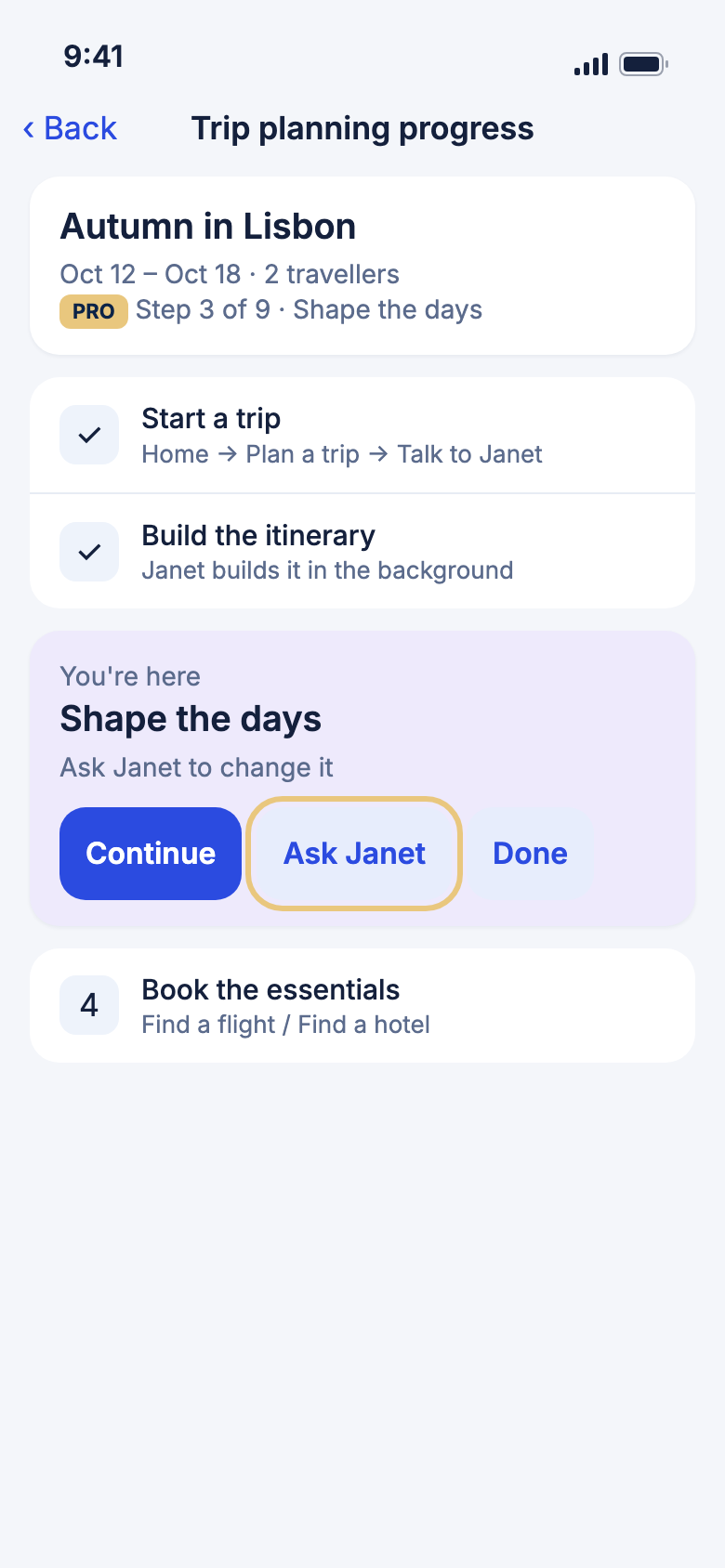
- In the You're here card, tap Ask Janet.
- Janet's chat for this trip opens with a question about the step already typed in.
- Change it if you like, then send it.
WeiiGo Pro — Free travellers see Continue and Done only.
Good to know
- The question is not sent until you send it.
Mark a step done yourself
Use this when you finished a step somewhere WeiiGo cannot see, such as booking a flight on an airline's own site.
- In the You're here card, tap Done.
- The step gets a tick and the card moves to the next step.
Good to know
- Done is remembered on this phone, for this trip only. It does not move to another phone and cannot be undone.
- It only adds ticks. Step 2 stays Skipped on Free.
When it does not load
Fix "Couldn't load your progress"
If your phone is offline, or the trip will not load, a yellow notice appears. The nine steps still show, but nothing is ticked and there are no buttons.
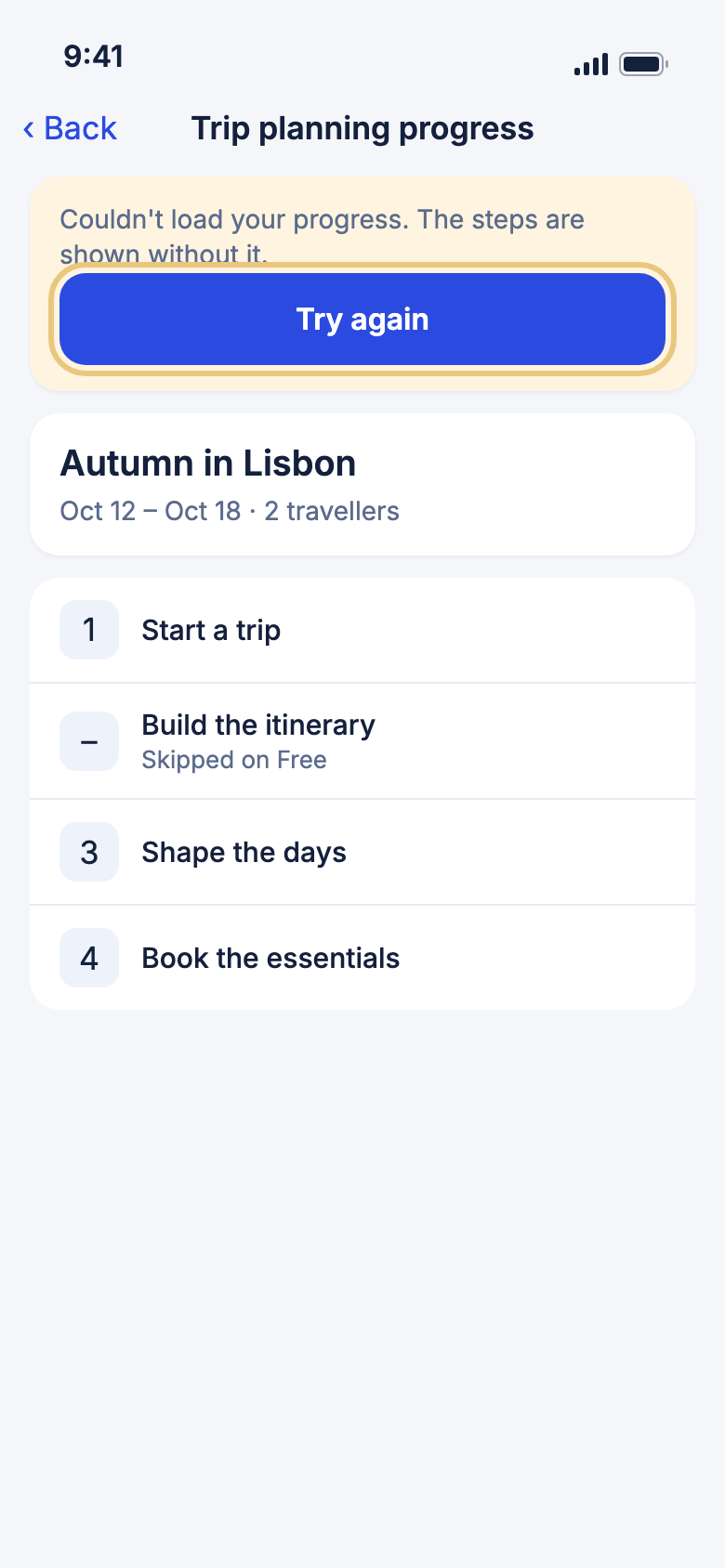
- Get back online.
- Tap Try again.
- The notice goes and your real progress shows.
Good to know
- If your sign-in has ended, WeiiGo takes you to sign-in instead of showing the notice.