
Home
The Home tab is your starting point. This page covers what the Home tab tour does not: searching for ideas, reading a destination guide, the all-clear message after an SOS alert, and the Go Pro page.
Find things to do
Search for ideas near you
Find food, sights and fun close to where you are, then save the ones you like.
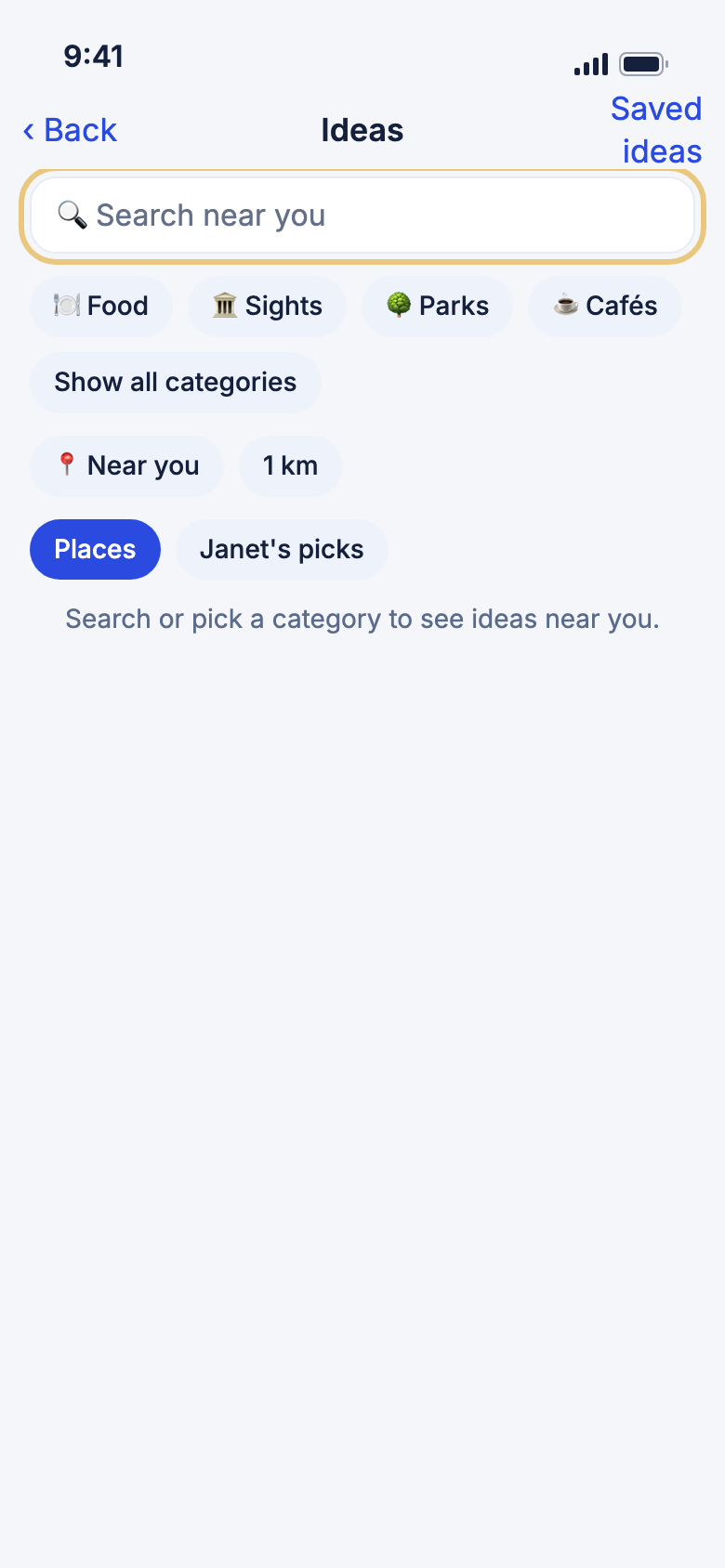
- On Home, scroll to Quick actions and tap Ideas.
- Type in Search near you. Results update as you type.
- Or tap a category. Tap Show all categories to see more.
- Tap the distance to pick 1, 3, 5, 10 or 10+.
- Choose Places for places from the map, or Janet's picks for ideas chosen for how you travel.
WeiiGo Pro — Ideas is Pro. On Free, tapping it shows what Pro includes and how to upgrade.
Good to know
- Idea search needs an internet connection. With none, it says so.
- If WeiiGo cannot find where you are, tap Search a city instead.
- If Janet's picks are not available, you see places instead.
Search somewhere else
Planning ahead? Search around a trip or any city.
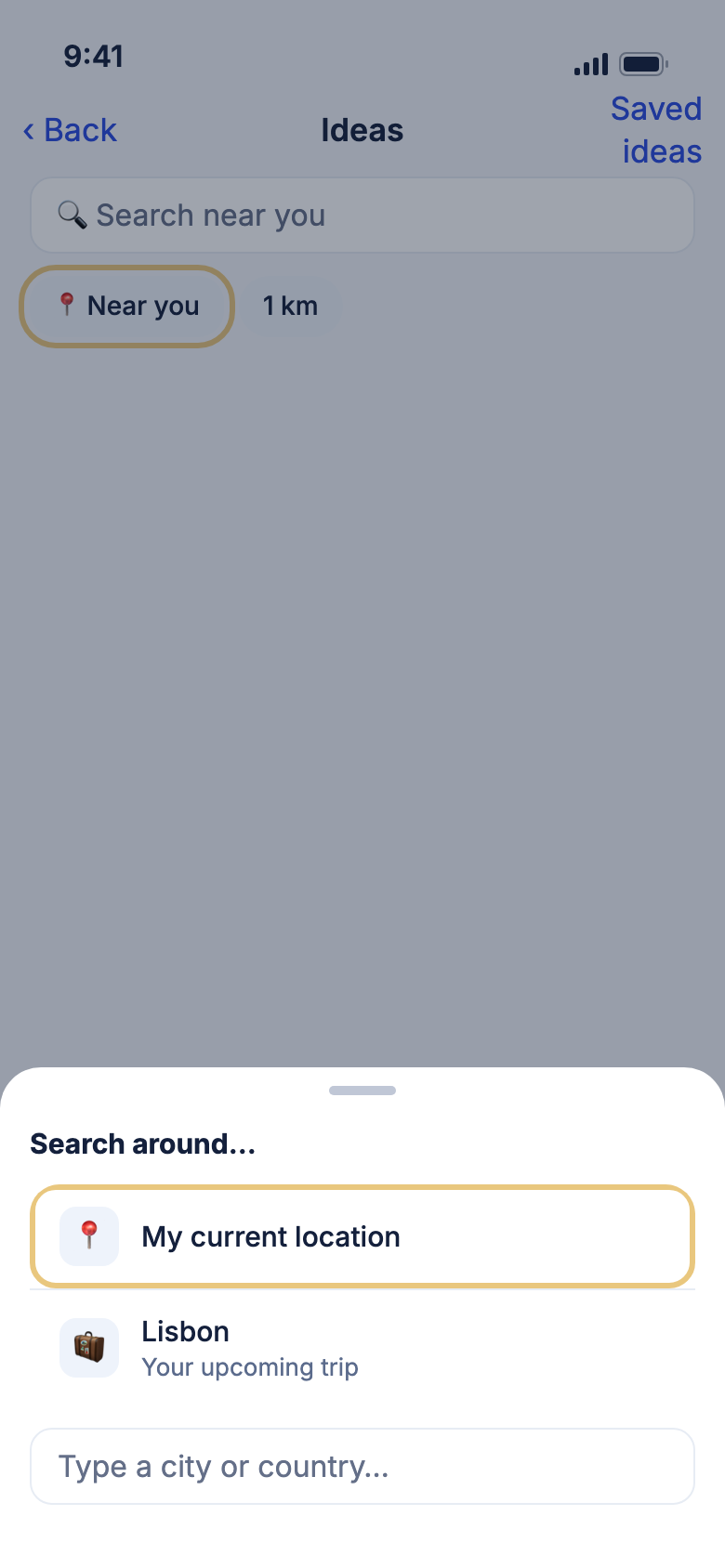
- On the Ideas screen, tap the place button, for example Near you.
- Under Search around…, tap My current location, or one of your upcoming trips.
- Or tap Type a city or country… and pick a result.
Save a place or add it to a trip
Keep a place for later, or put it in a trip.
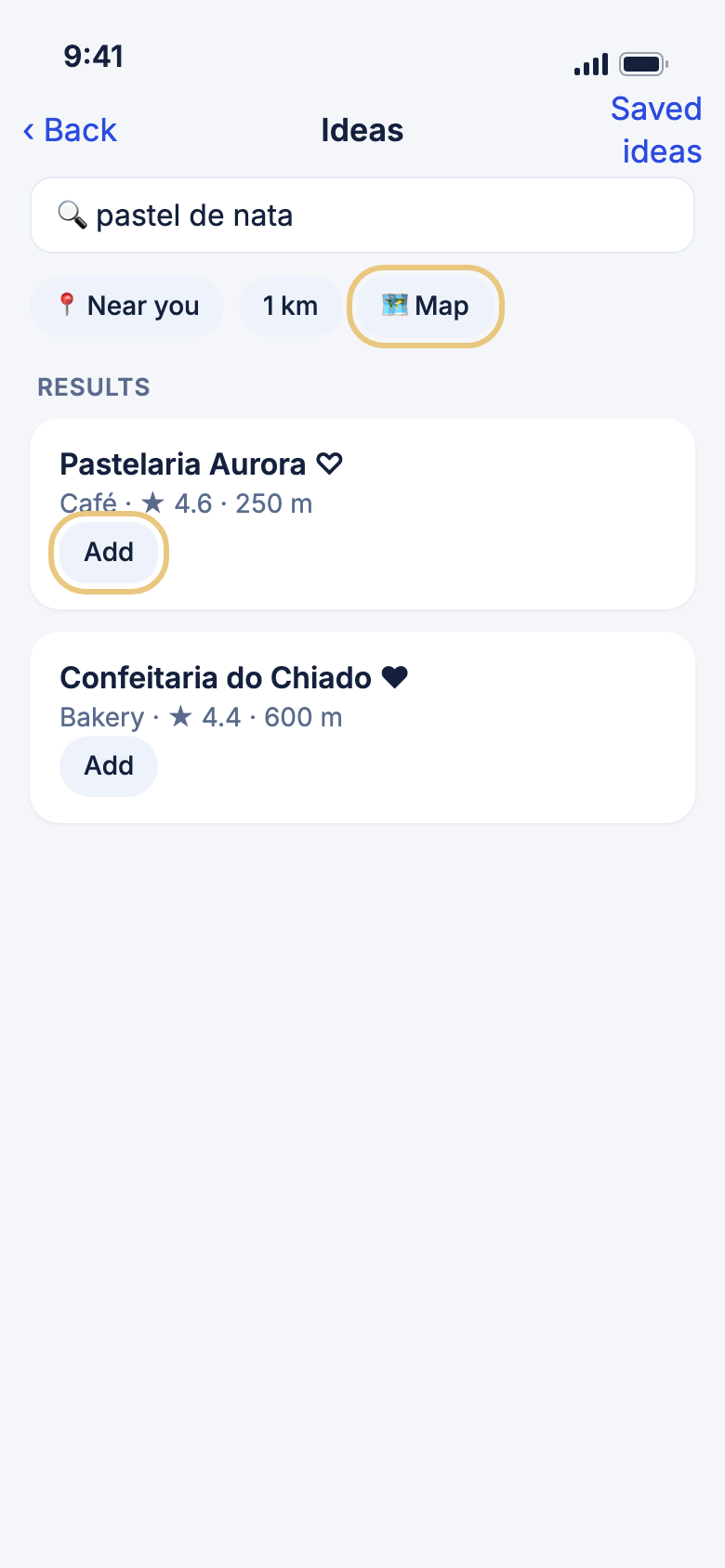
- Under Results, tap the heart on a place to save it to a collection. Tap it again to remove it.
- Tap Add, or tap the place, to add it to a trip or a collection.
- Tap Saved ideas at the top to see everything you saved.
See the results on a map
A map helps you pick places that are close together.
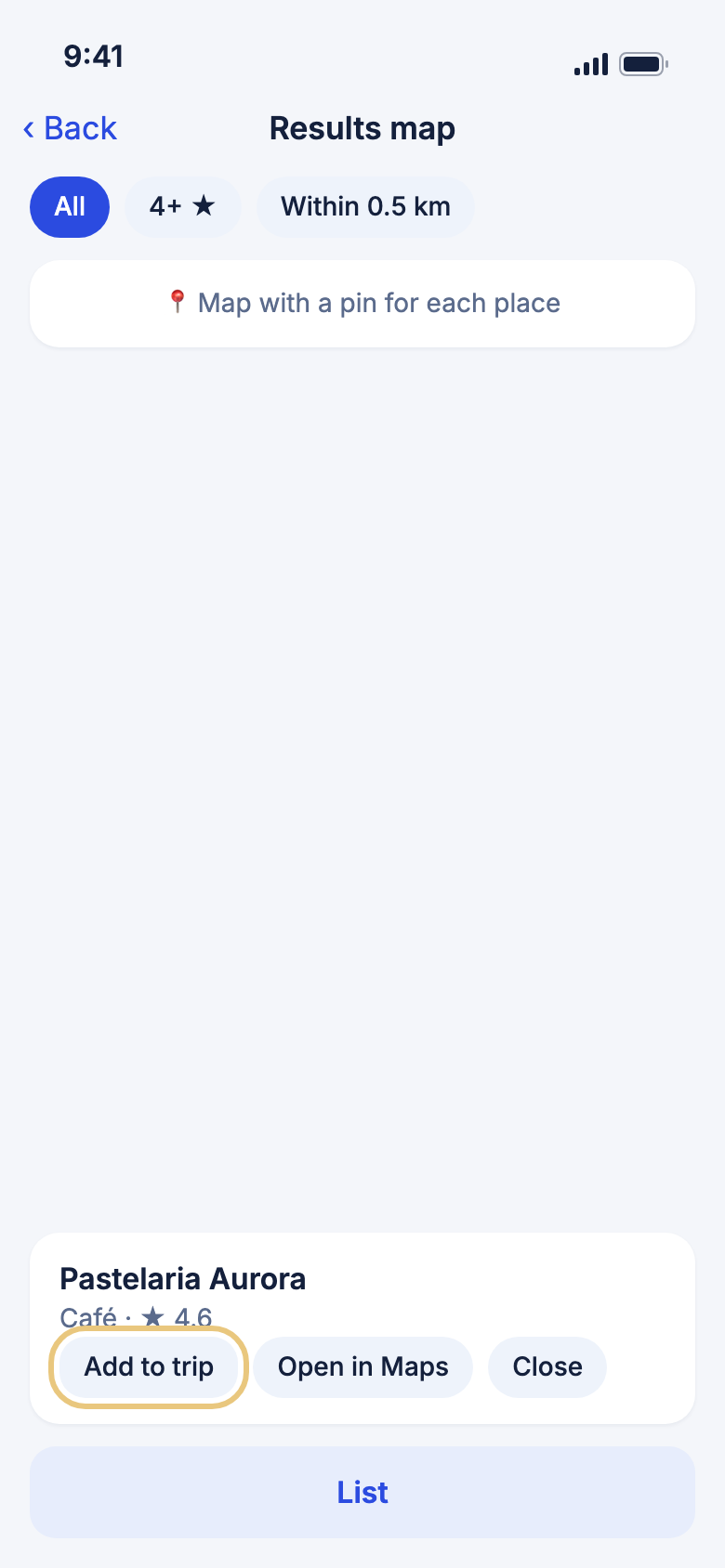
- After a search, tap the map button next to the distance.
- Tap a pin to see the place.
- Tap Add to trip, or Open in Maps to open it in your phone's maps app.
- Tap List to see the places as a list.
- Use the chips at the top, such as 4+ ★, to narrow the places.
Good to know
- The map button shows only when a result has a place on the map.
Explore a destination
Read a destination guide
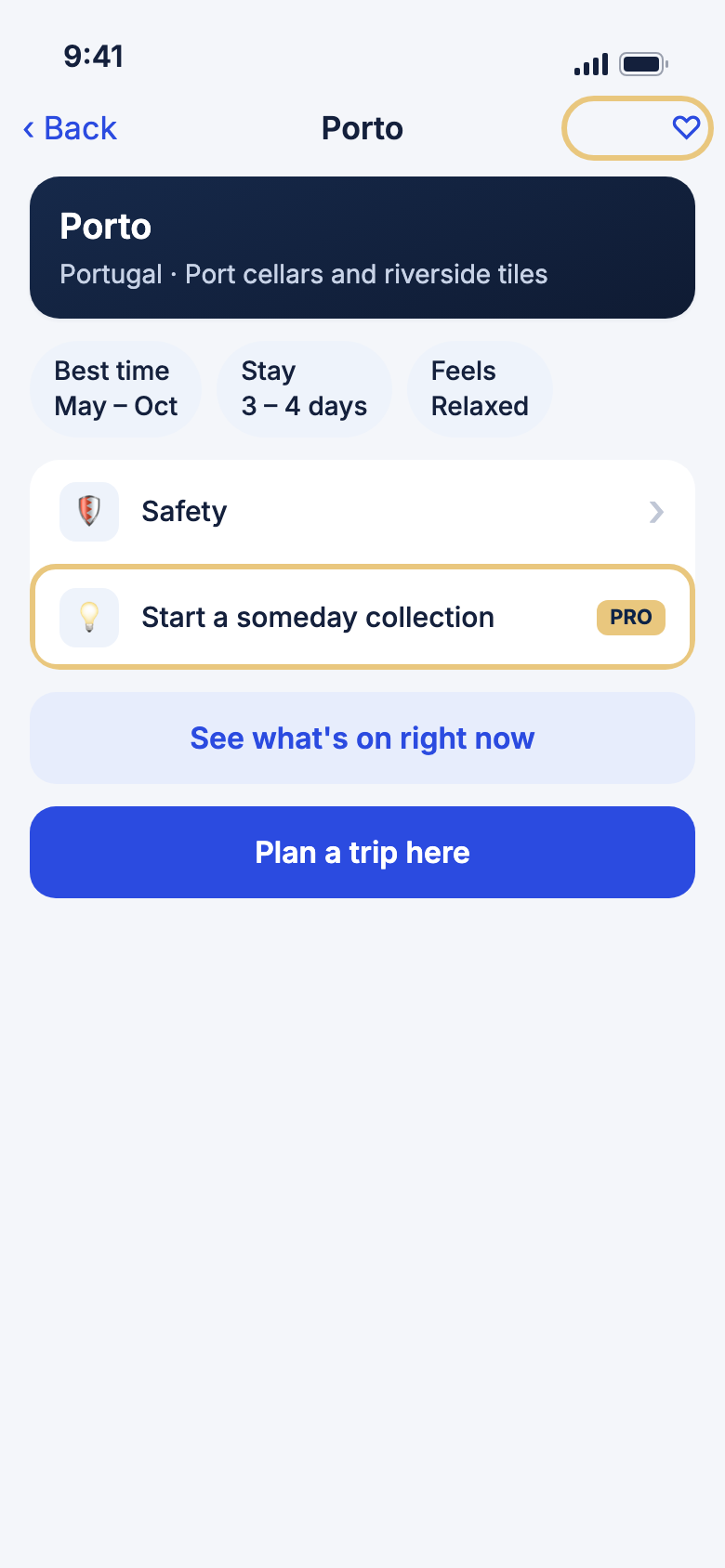
A guide tells you the best time to go, how long to stay and what a place feels like.
- Tap Trips, then Plan a trip.
- Tap Info on a destination card.
- Look at Best time, Stay and Feels, then read the guide.
- Tap the heart to save the destination.
- Tap See what's on right now to see things to do there.
- Tap Plan a trip here to plan a trip to this place.
WeiiGo Pro — Start a someday collection is Pro. On Free, it shows what Pro includes.
Good to know
- For some places, WeiiGo has only a short country guide.
- Bookable experiences are completed on a partner's site.
Check how safe a country is
The safety page gives a score from 1 to 10, where a higher score is safer.
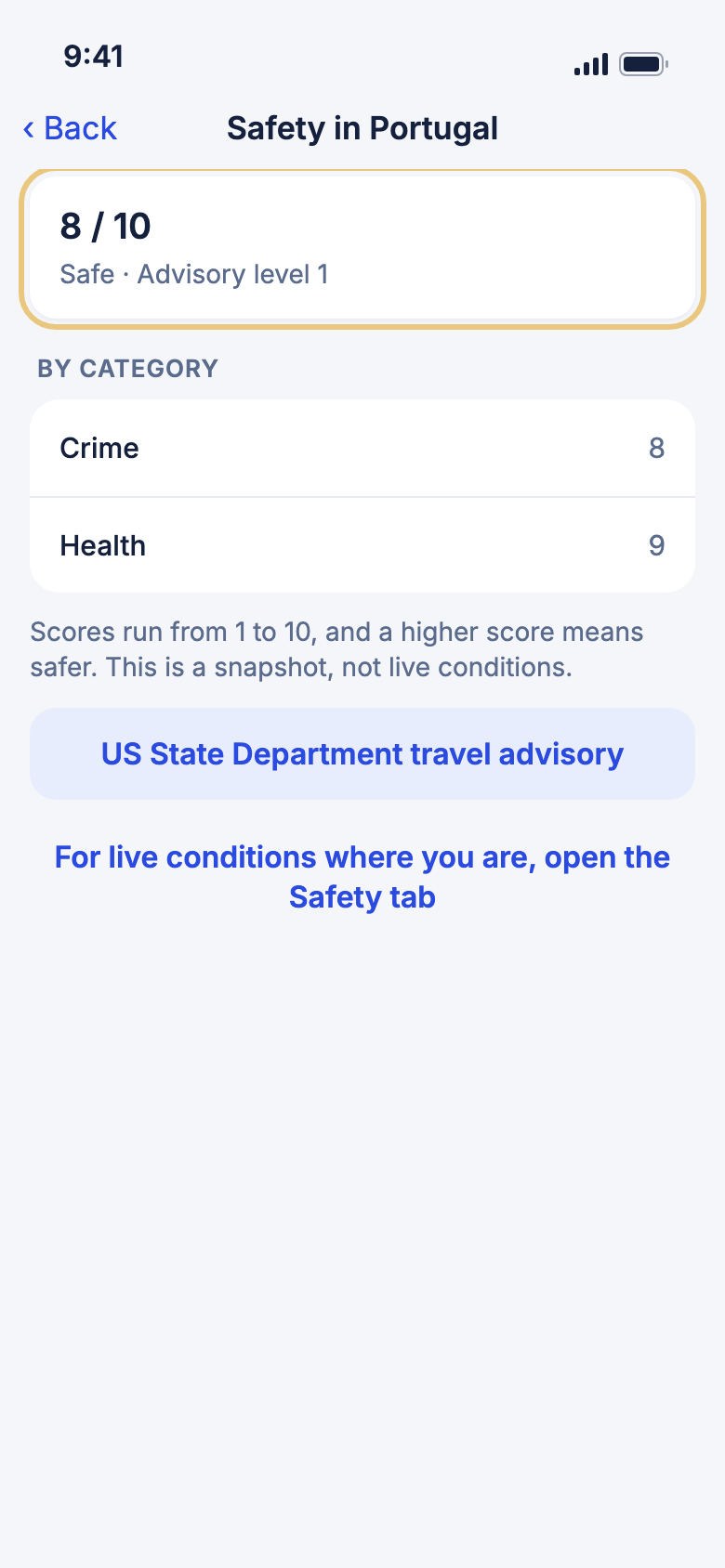
- In a destination guide, tap Safety.
- Read the score and Advisory level.
- Under By category, see scores such as Crime and Health.
- Tap US State Department travel advisory to read the advice.
Good to know
- This is a snapshot, not live conditions. For where you are now, open the Safety tab.
- A country can have no rating yet. The page tells you.
Before your trip
Work through "Know before you go" on Home
Before you leave, Home can walk you through the things to sort out for your next trip, one step at a time.
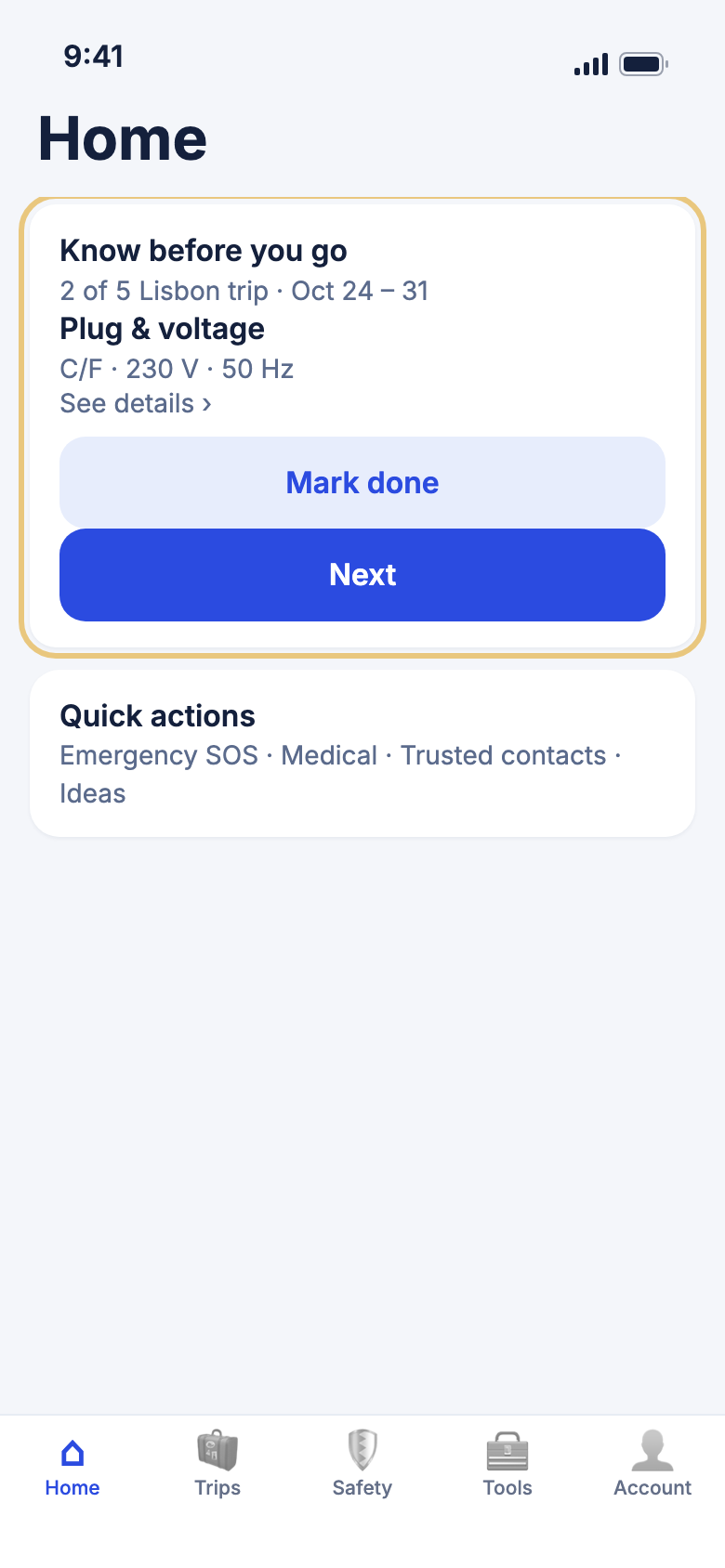
- On Home, find the Know before you go card. It shows the trip and dates, with a count such as 2 of 5.
- Read the step. A short line under it tells you why it matters.
- Tap See details to open that part of your trip's Know before you go page.
- Tap Mark done when you have dealt with it. Tap it again to undo.
- Tap Next for the next step. After the last one, you see a summary.
- On the summary, tap a step still listed to go back to it, or tap Review the list again.
WeiiGo Pro — Free shows the steps that are plain facts, such as Entry requirements, Plug & voltage and public holidays under Events. Pro adds the written steps, such as bookings to make ahead, Getting around and What to pack.
Good to know
- The steps come from your trip's Know before you go page: Entry requirements, bookings to make ahead, Connectivity, Plug & voltage, Getting around, Events and What to pack. A part with nothing to show is left out.
- The card is only for your next trip, before it starts. With no steps, or no connection and nothing saved yet, Home shows no card.
- When every step is done, the card says You're all set for your place.
- Your Done marks are saved on this phone and are still there after you close the app.
- It is on by default. To hide it, tap Edit Home at the bottom of Home, then tap the red minus beside Know before you go. Add it back from More Items.
After an alert
Tell your contacts you are safe
After you send an SOS alert, Home shows a message that lets your contacts know you are okay.
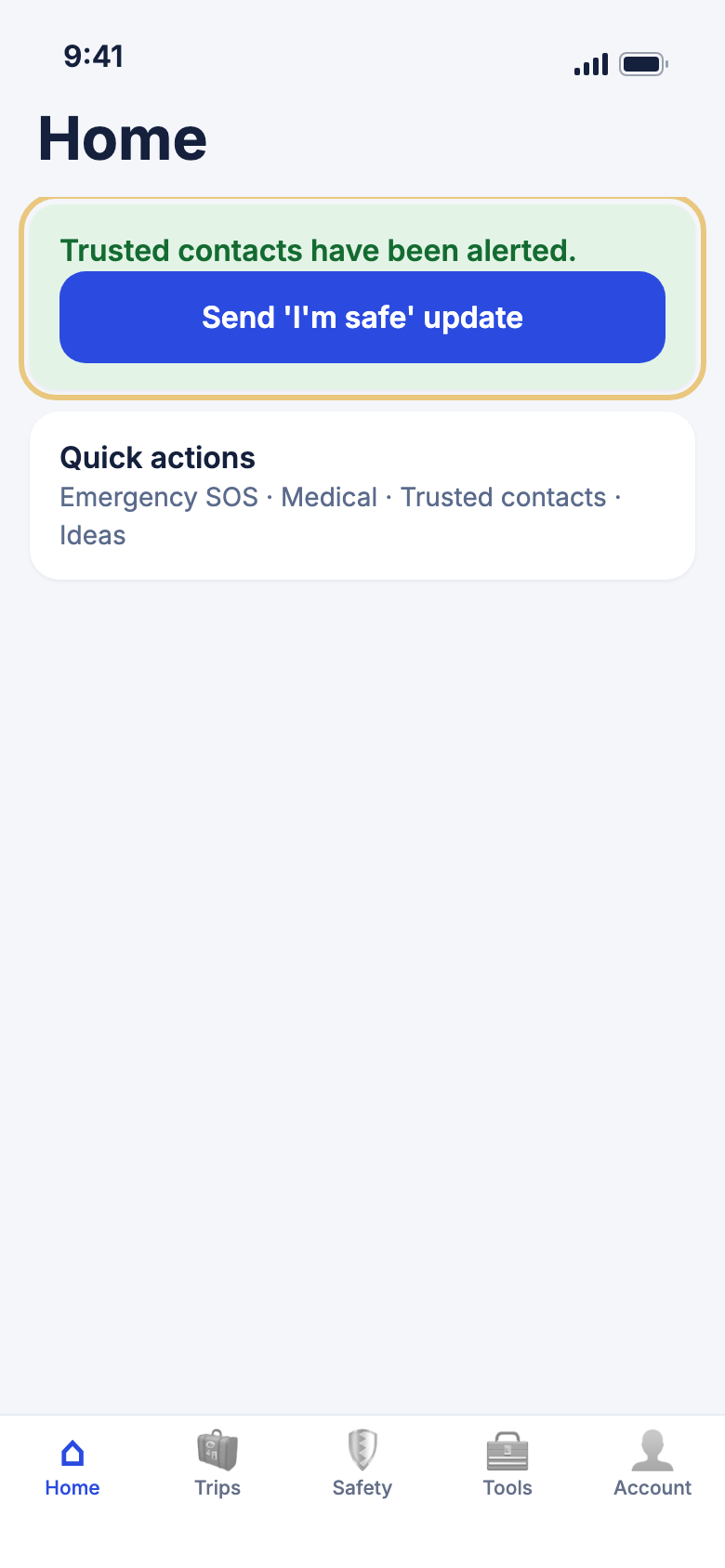
- Look at the top of Home for Trusted contacts have been alerted.
- Tap Send 'I'm safe' update. WeiiGo sends your contacts an all-clear message.
Good to know
- With no internet, tap Retry once you are back online.
- If you try too many times, WeiiGo asks you to wait an hour.
Get WeiiGo Pro
See what Pro adds
The Go Pro page shows what is free and what Pro adds.
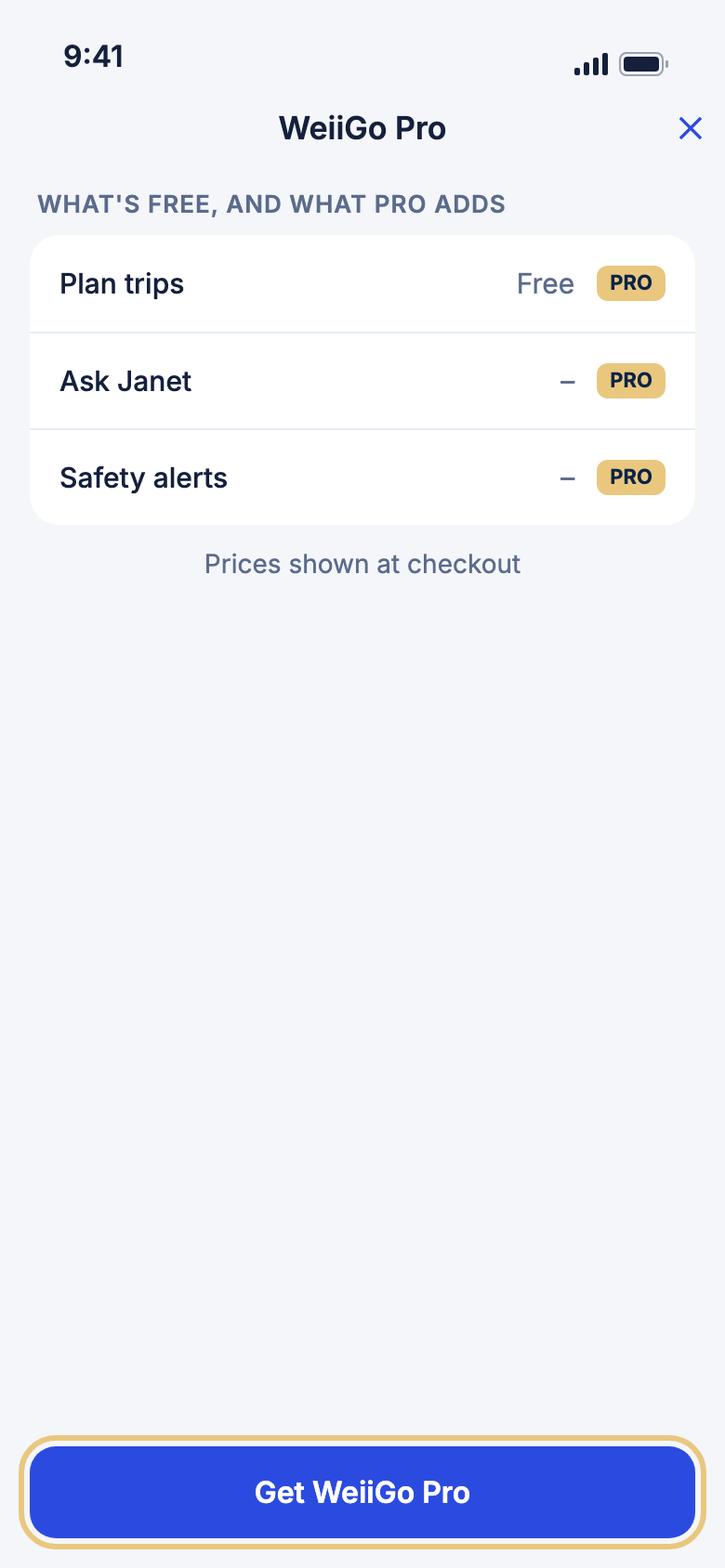
- Tap Account, then Subscription.
- Scroll through What's free, and what Pro adds.
- Tap Get WeiiGo Pro to go on to the Subscription page.
- Tap ✕ to close the page.
Good to know
- The page itself buys nothing. The price shows on the next page, or Prices shown at checkout.
- This page is for Free travellers. With Pro, Subscription opens your plan.