
Tools: search, bookings, ideas and travel utilities
The Tools tab is where you search for flights, stays and cars, open trusted booking sites, keep a library of ideas, and use helpers for the road such as weather, currency, translation and nearby medical help.
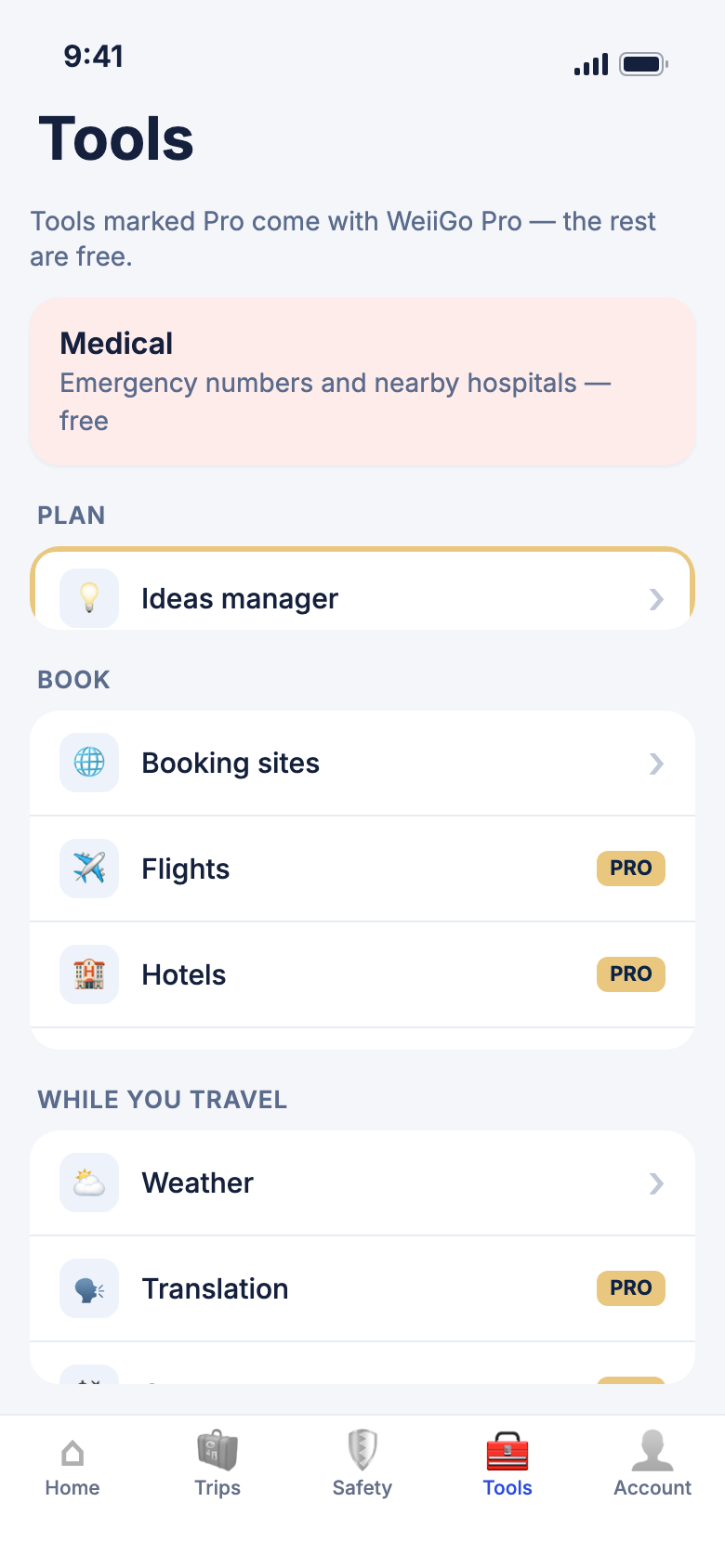
WeiiGo Pro — Flights, Hotels, Cars, Translation and Currency are part of WeiiGo Pro. On a Free plan each shows a Pro badge, and tapping it asks you to upgrade. Medical, Weather, Booking sites and the Ideas manager open for everyone.
Find and book travel
Search for a flight
Compare flights between two airports, then open the one you like on the booking partner's site.
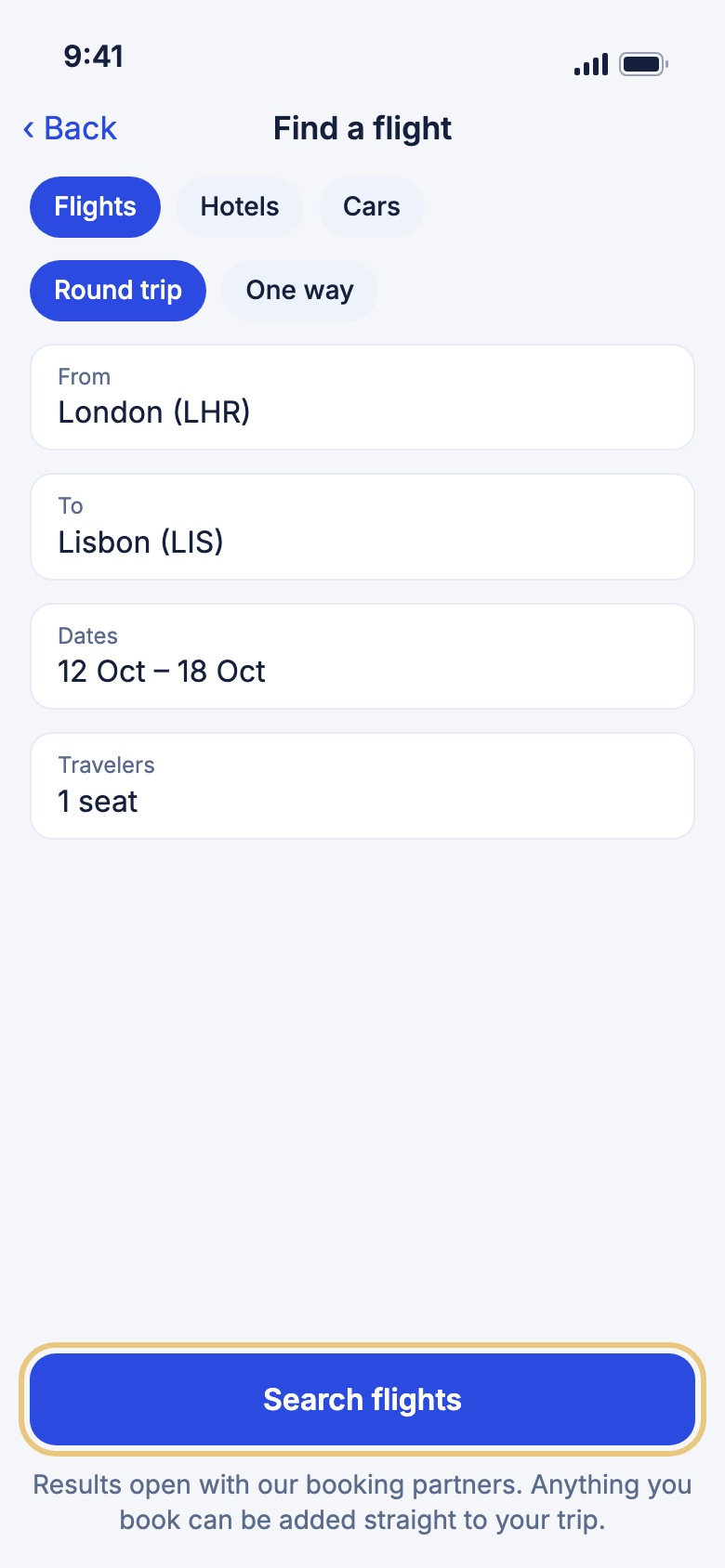
- Tap Tools, then Flights.
- Choose Round trip or One way.
- Tap From and To, type a city or airport code, and tap the airport.
- Tap Dates and set when you leave, and when you come back.
- Tap Travelers to set the number of seats.
- Tap Search flights.
- Sort the Flight offers by Price, Duration or Departure, or tap Filters to narrow them.
Good to know
- Tap Flight details on an offer to see each leg, layovers and bags.
- If you open search from a trip, your dates and airports are filled in for you. Tap Use this trip to fill them again.
- Fares go out of date after a while. A banner then offers Refresh prices.
- Your last few searches are kept on your phone under Recent searches.
Find a place to stay
Search a city for your dates and see each hotel before you book.
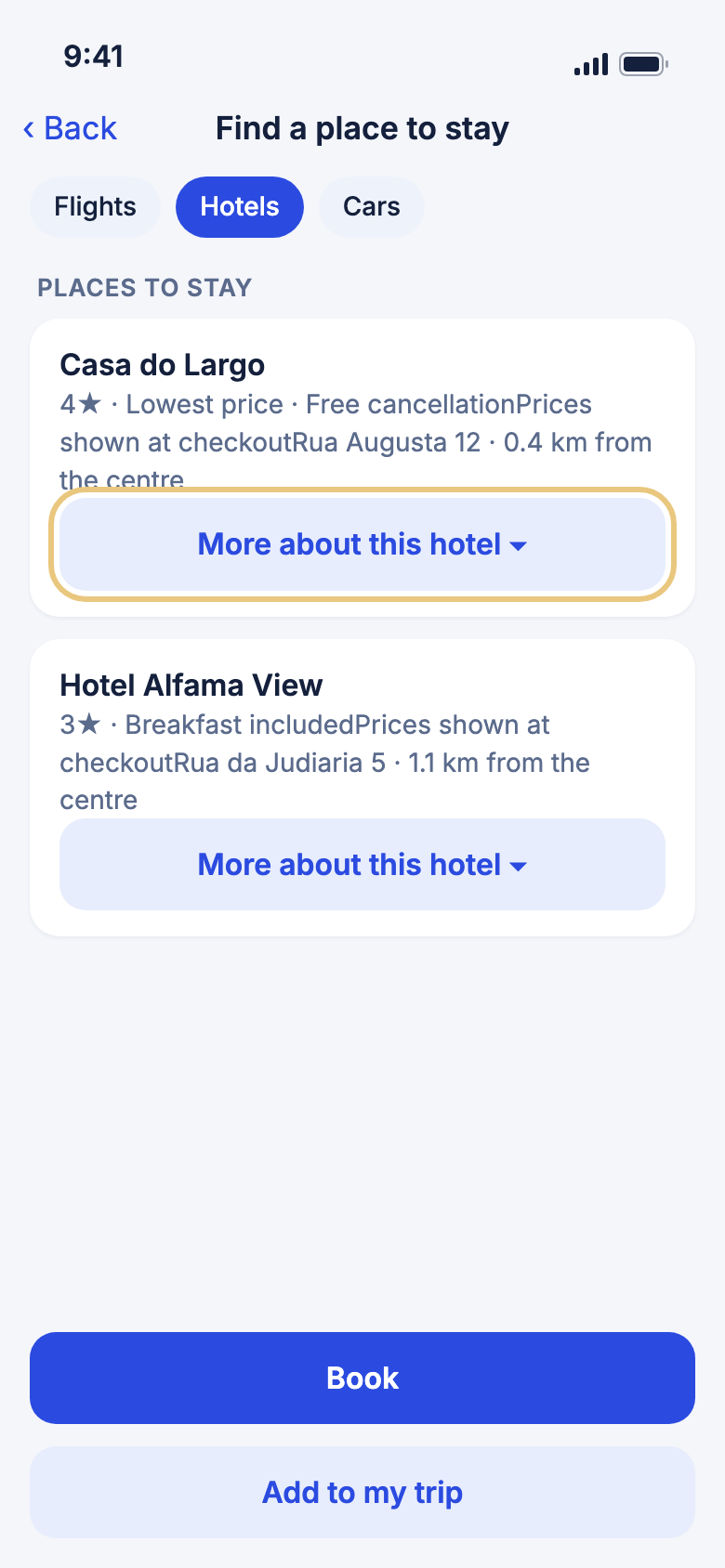
- Tap Tools, then Hotels.
- Tap Where and pick a city.
- Tap Dates and set Check-in and Check-out.
- Tap Guests and set guests and children.
- Tap Search hotels.
- Tap More about this hotel on a card to read guest scores, what is nearby, check-in times and policies.
Good to know
- A hotel with no booking link has no More about this hotel row.
- Tags such as Free cancellation or Breakfast included only show when the hotel's data says so.
Find a rental car
Search for a car at a pick-up place, with the option to drop it somewhere else.
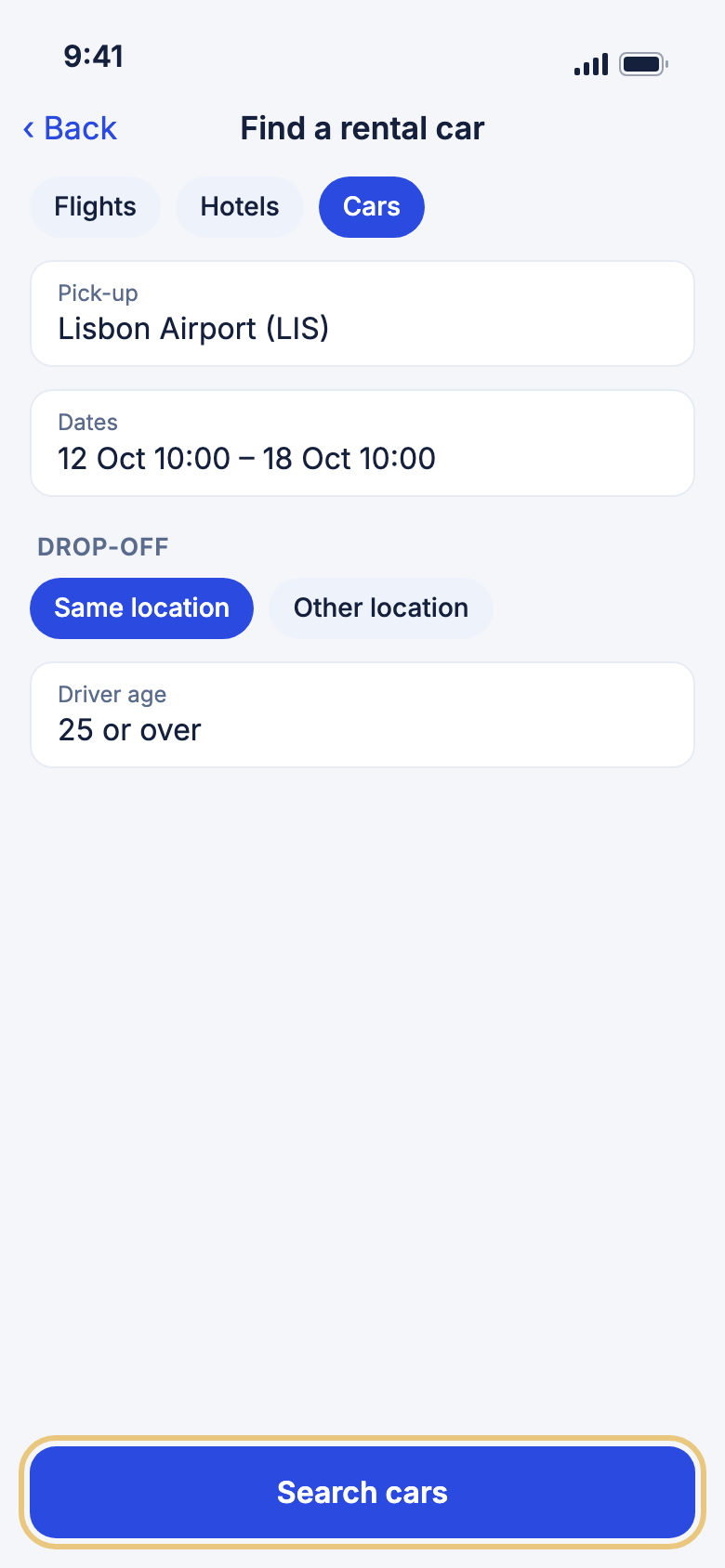
- Tap Tools, then Cars.
- Tap Pick-up and choose an airport or city.
- Tap Dates and set pick-up and drop-off times.
- Keep Same location, or tap Other location and choose a Drop-off location.
- Tap Driver age and choose 25 or over or Under 25.
- Tap Search cars.
Good to know
- Search cars stays unavailable until you have chosen a pick-up place.
- Cars cannot be added to a trip from here.
Book a flight, stay or car
WeiiGo never sells you a ticket or a room itself. Book takes you to our travel partner's secure checkout, where you choose and pay.
- Run a search.
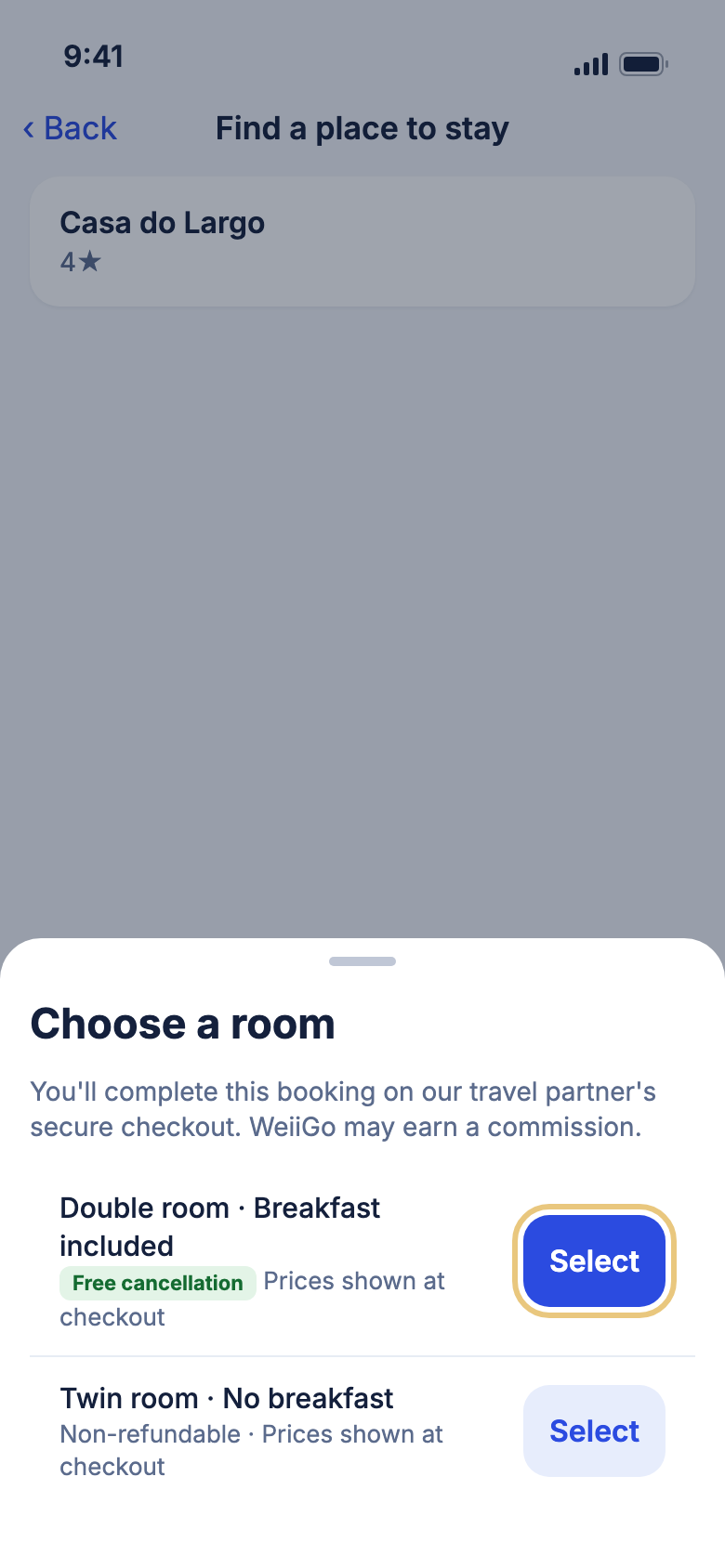
- Tap Book on the result you want. For a hotel, a Choose a room sheet opens first.
- Tap Select on the room and rate you want.
- Finish the booking on the partner's page.
Good to know
- WeiiGo may earn a commission when you book this way. A note under the button says so.
- Nothing is booked or paid for inside WeiiGo.
- If the price changed, you see Price changed with the new price. If the fare ran out, search again.
- A result with no partner checkout shows Book on followed by the company's name, and opens that company's own site.
Add a flight or stay to your trip
Put what you found into your itinerary so it shows on the right days.
- Tap Add to my trip on a flight offer or a hotel.
- If you did not start from a trip, pick one, or tap New trip… and name it.
- If the dates fall outside the trip, tap Add anyway or Cancel.
Good to know
- You see "Added to your plan — complete the booking on" and the partner's name. This does not book anything.
- With no current or upcoming trip, create one first.
- Find the new items on your itinerary. See Your itinerary.
Open a booking site
Open a well-known booking site, or keep your own list, with each link checked before it opens.
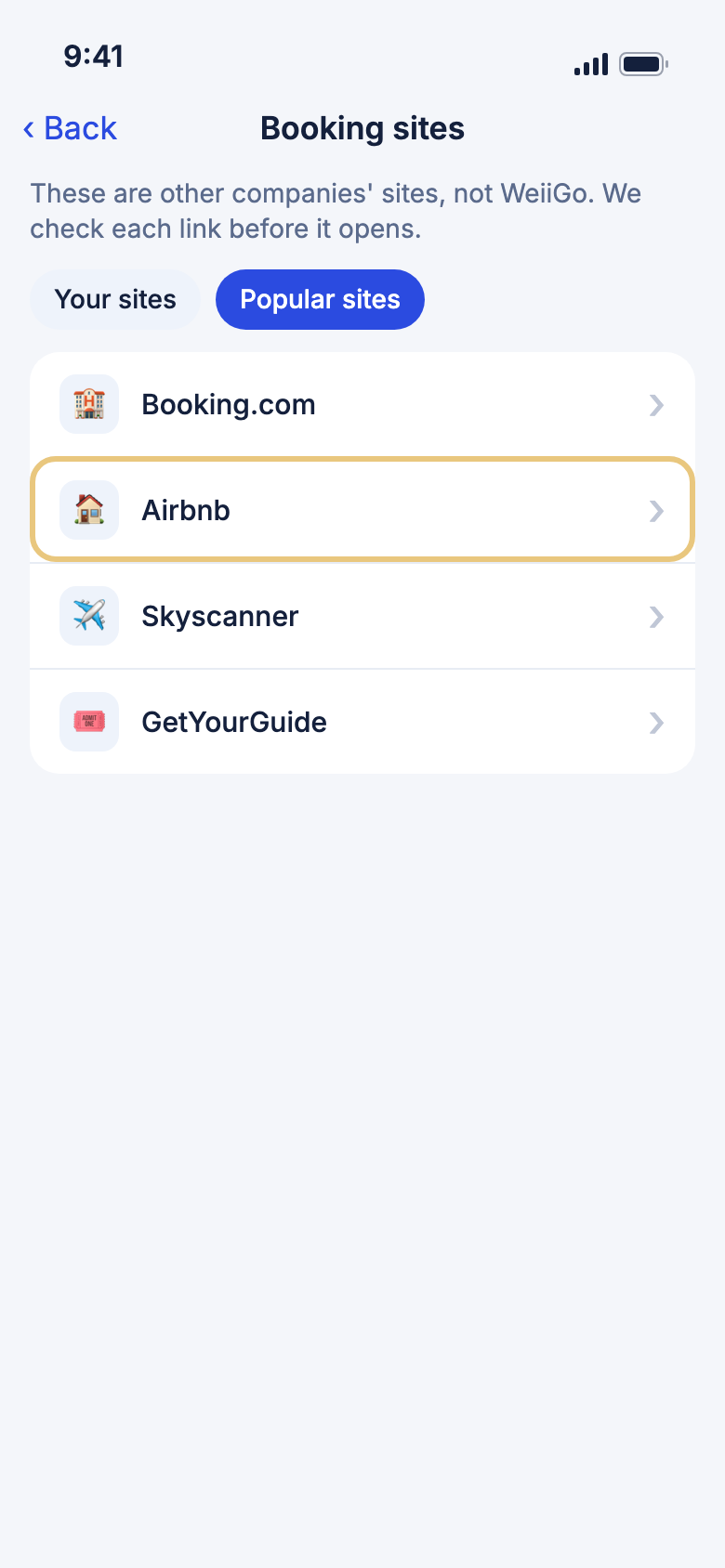
- Tap Tools, then Booking sites.
- Tap Your sites or Popular sites.
- Tap a site to open it.
- To add your own, tap Your sites, then Add a site. Type the address and tap Add.
- To remove one, swipe it left and tap Remove.
Good to know
- Booking sites are free for everyone.
- If a link does not pass the checks you see Link not opened and it is not opened.
- Only secure (https) addresses can be added, up to 25 of your own.
- A few sites open in your phone's browser instead of inside WeiiGo.
- On Popular sites, tap Restore at the bottom to bring back sites you hid.
While you travel
Check the weather
See today's weather and the coming days, for where you are or for your trip.
- Tap Tools, then Weather.
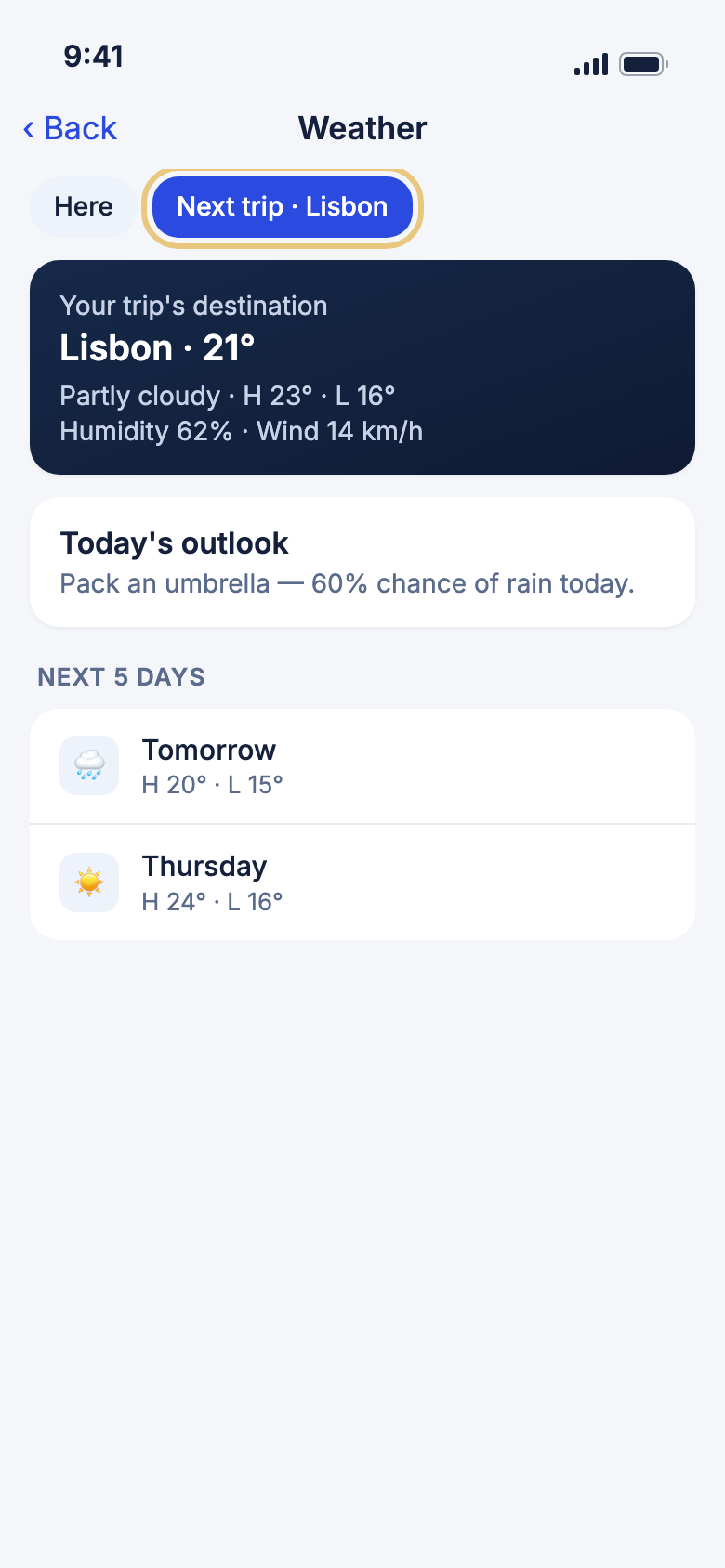
- Read the top card for the temperature, conditions, humidity, wind and sun times.
- If you have a trip, tap Here or the trip chip to switch place.
- Read Today's outlook for tips like packing an umbrella.
- Scroll to the Next days list. Pull down to refresh.
Good to know
- If location is off, you see Couldn't load the weather. Turn on location services and tap Reload forecast.
Convert money
Change an amount from one currency to another at the live rate.
- Tap Tools, then Currency.
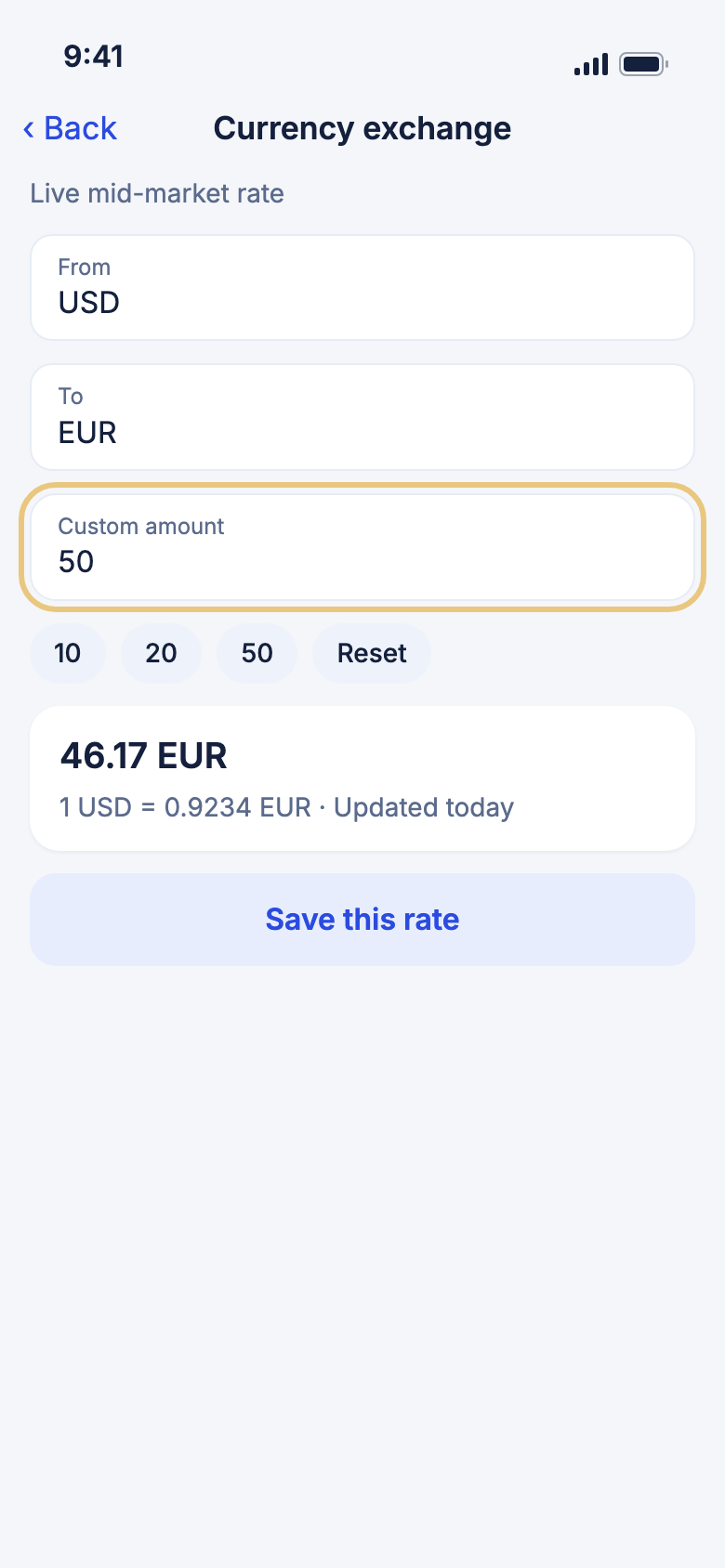
- Check the From and To currencies. Tap one to pick another.
- Type an amount under Custom amount, or tap a pill under Quick amounts.
- Read the result and the rate under it.
- Tap Save this rate to keep it as a reference.
WeiiGo Pro — Currency exchange is part of WeiiGo Pro. A Free traveller sees an upgrade prompt.
Good to know
- On a trip, From is the place you are visiting and To is your home currency.
- Tap the result to copy it.
- Only one saved rate is kept. Saving again replaces it.
- If the rate cannot load, try again when you have a signal.
Translate a phrase
Type something, see it in the local language, hear it, and copy it.
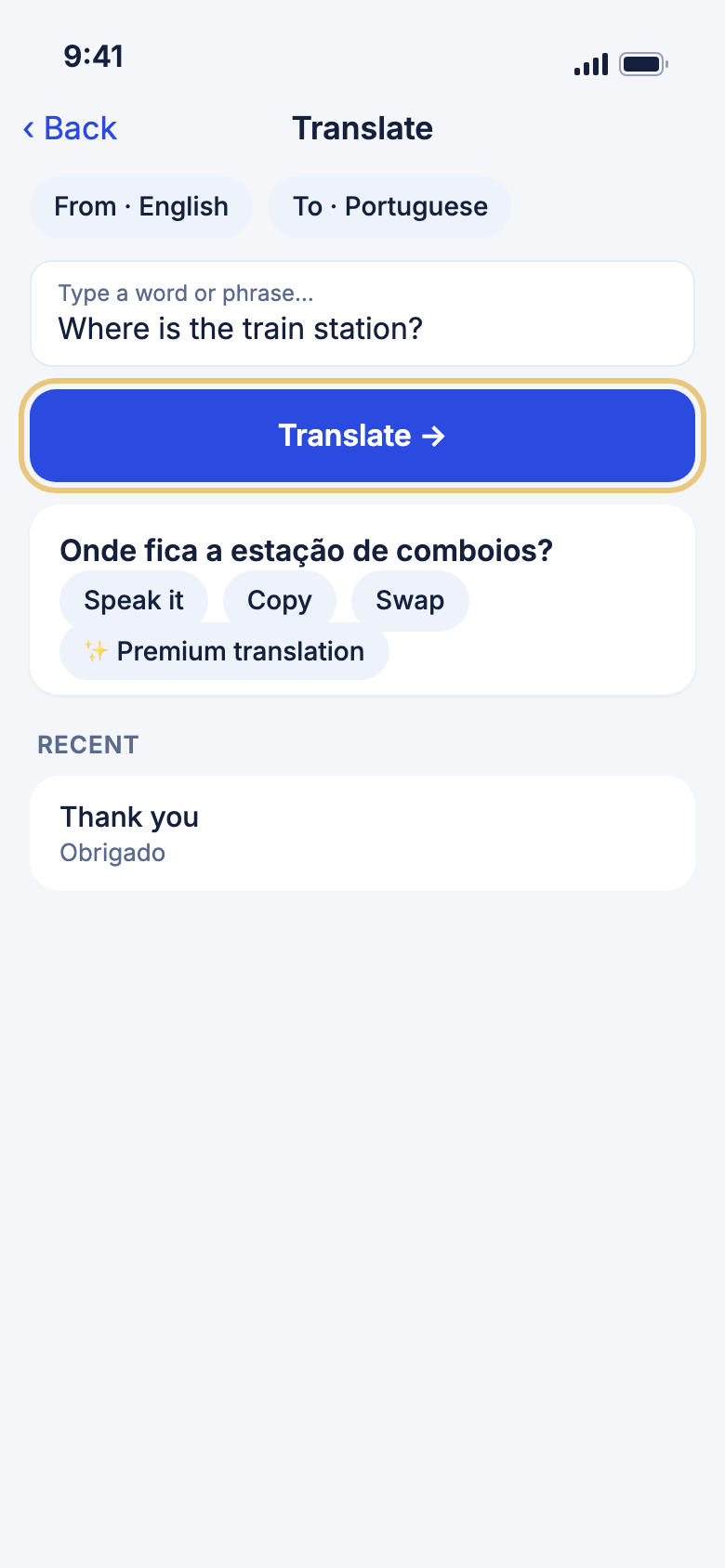
- Tap Tools, then Translation.
- Check the From and To language chips. Tap one to change it.
- Type your phrase. You can use up to 500 letters.
- Tap Translate →.
- Tap Speak it to hear it, or Copy to copy it.
- Tap Swap to translate the other way.
WeiiGo Pro — Translation is part of WeiiGo Pro. A Free traveller sees an upgrade prompt.
Good to know
- With the box empty, Common phrases lists ready-made phrases such as Greetings, Directions and Food. Tap one to translate it.
- ✨ Premium translation rewrites a result so it sounds more natural. You get a monthly allowance, and it counts down.
- Your recent phrases are kept on your phone under Recent. Swipe left and tap Delete, or tap Clear history.
Medical help
Find a hospital, pharmacy or doctor
See local emergency numbers and the nearest medical places within 10 km. This is free.
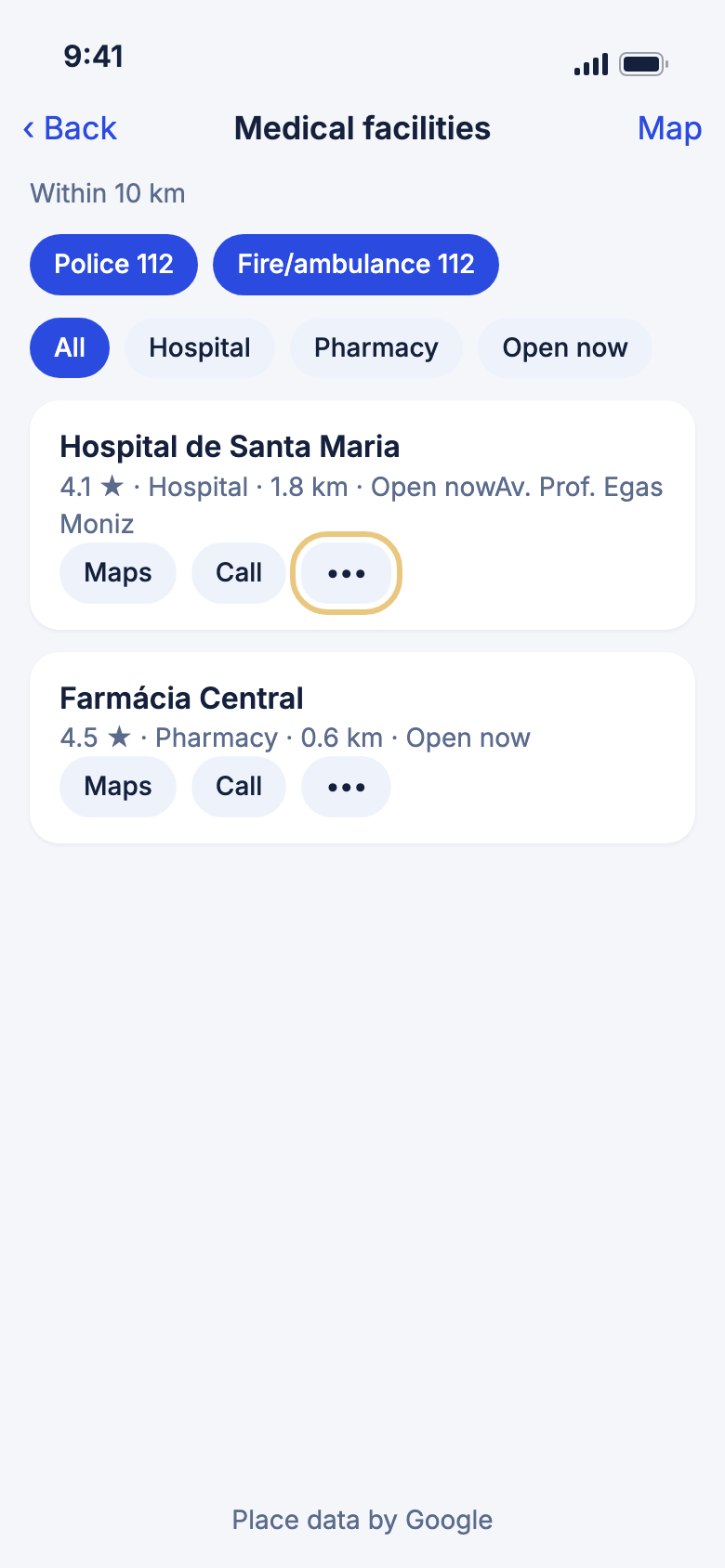
- Tap Tools, then the red Medical card.
- Tap Police or Fire/ambulance to call that number.
- Tap a type such as Hospital, or tap Open now.
- Tap Maps, Call or the website on a card.
- Tap Map (top right) to see them as pins.
Good to know
- Your phone must have location on. If not you see Couldn't load facilities and a Reload facilities button.
- A number marked "Not confirmed for this area" is a general default, so check it locally.
- Call opens your phone's dialer. In a real emergency, use Safety and SOS.
Save a medical place to your trip
Keep a clinic or pharmacy on a day of your itinerary.
- On a card, tap •••, then Add to trip.
- If asked Which trip?, pick one.
- Under Which day?, pick a day.
Good to know
- You see "Added to day" and the day number. You need a current or upcoming trip.
Ideas
Keep a library of ideas
Save things to do anywhere, in collections, and pull them into a trip later.
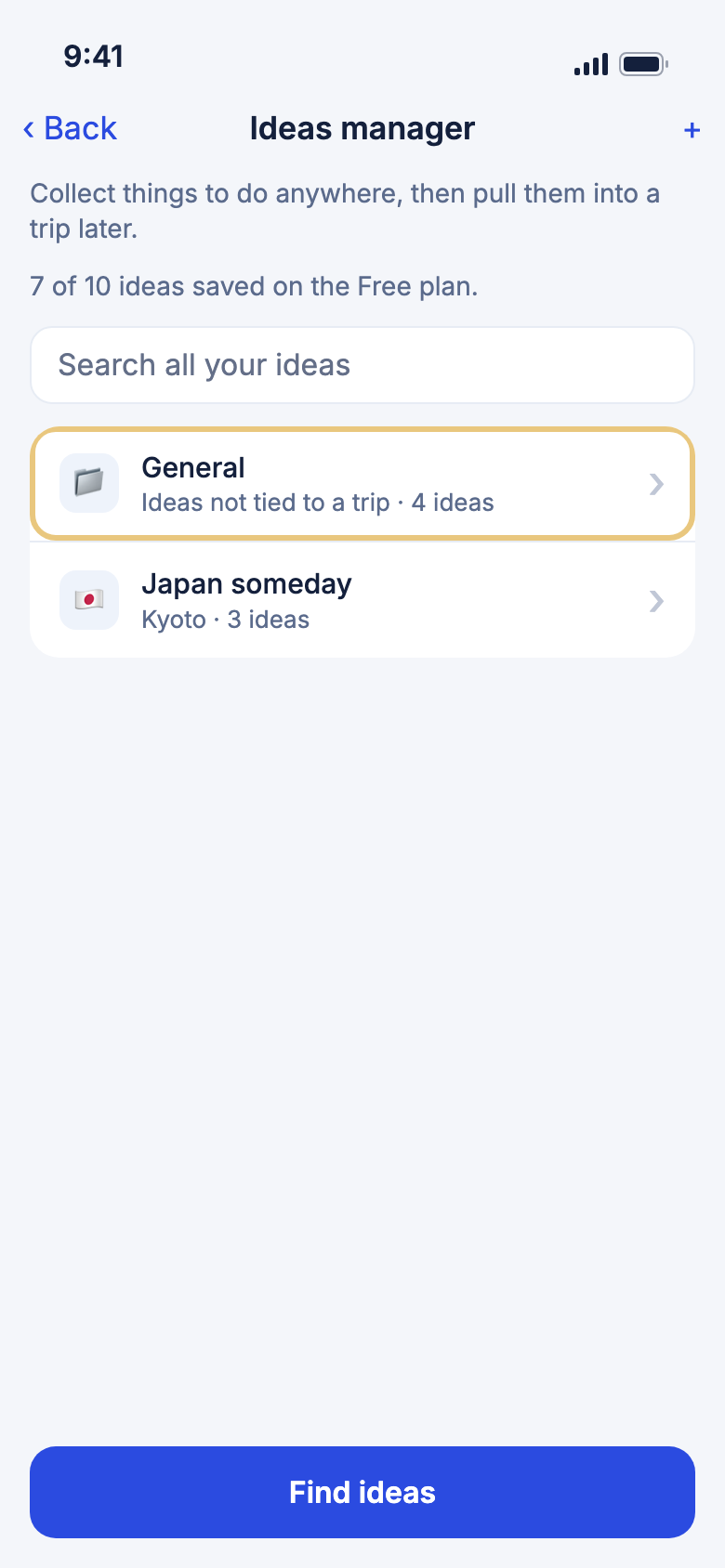
- Tap Tools, then Ideas manager.
- Tap a collection to open it. General is always there.
- Type in Search all your ideas to look across every collection.
- Tap +, then name it, to make a new collection.
- Tap Find ideas to look for new places.
WeiiGo Pro — Without Pro you can keep 10 ideas, all in General. Making, renaming or deleting collections needs Pro, and the + is greyed out.
Good to know
- On a Free plan, "of 10 ideas saved on the Free plan." shows how many you have used. Remove an idea to make room.
- If your Pro plan ends, you keep and can read every idea you saved.
- Offline, you can browse your ideas but not change them.
Work with the ideas in a collection
Rank your ideas, add notes, move them and turn a collection into a trip.
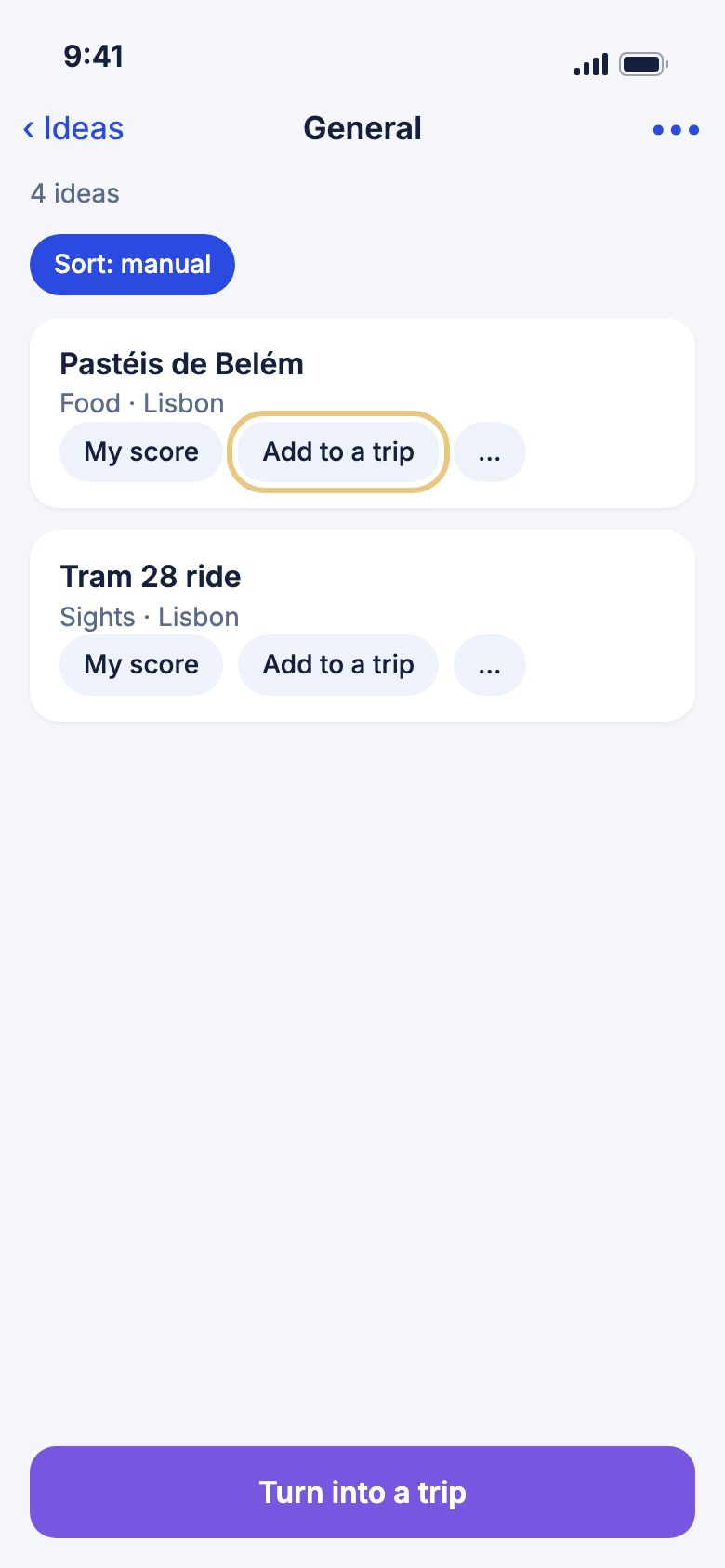
- Open a collection.
- Tap the sort chip to switch between Sort: manual and Sort: my score.
- Tap My score on an idea to rate it from 1 to 10.
- Tap … on an idea for Edit details, Move to another collection, Show on map, Website or Remove idea.
- Tap Turn into a trip to start planning from this collection. See Planning a trip.
WeiiGo Pro — Editing an idea, changing its score or category and moving it need Pro. Viewing, scheduling and removing ideas do not.
Good to know
- Remove idea? cannot be undone.
- Tap Make it a someday collection under ••• to give a collection a destination, icon, best months, budget and cover picture (Pro).
- … also has Add photo to attach up to five of your own photos to an idea (Pro).
Put an idea on a trip day
Schedule a place on a trip, or save it for later.
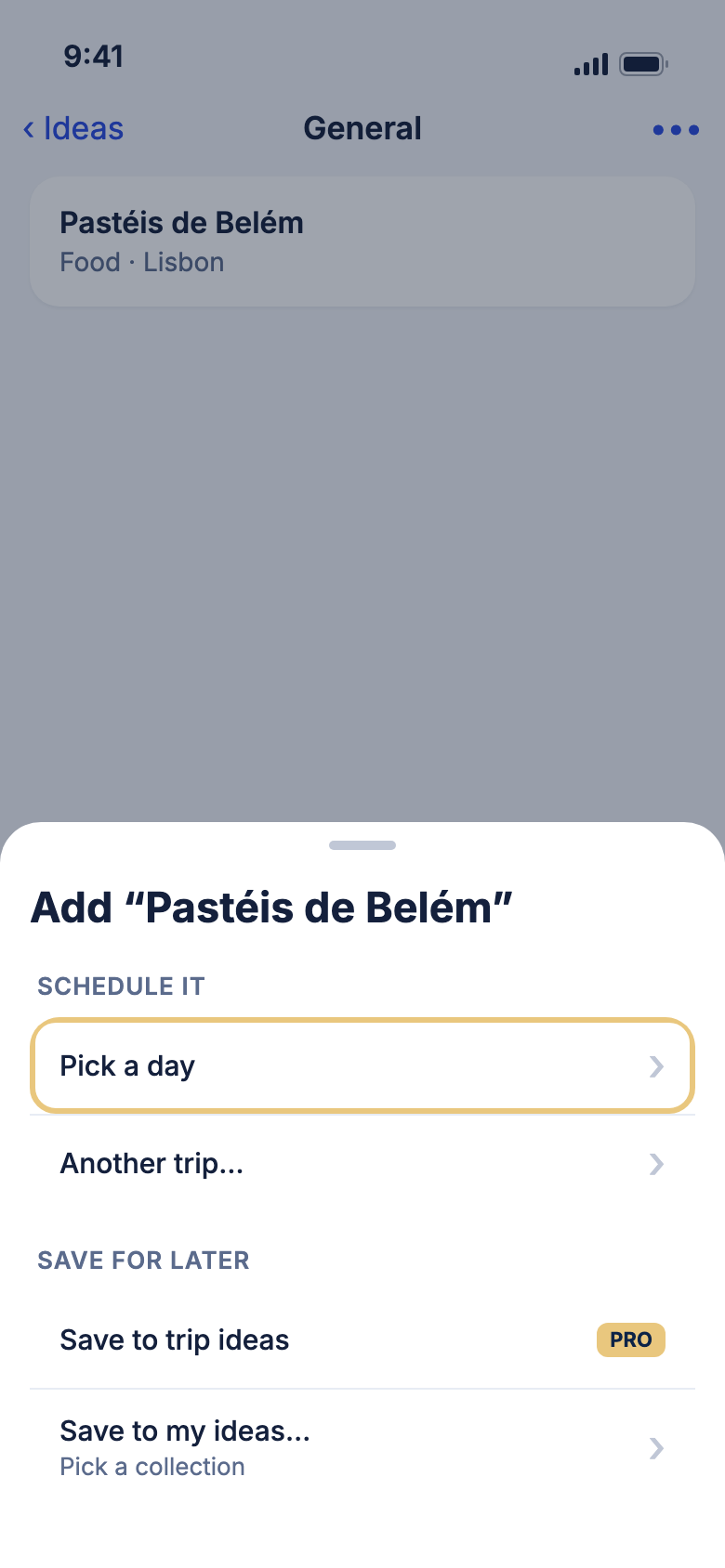
- On an idea, tap Add to a trip.
- Under Schedule it, tap Add to today, Pick a day, or A trip….
- Pick the day and a time, then tap Add.
- Or under Save for later, tap Save to my ideas… and choose a collection.
WeiiGo Pro — Scheduling an idea on a day is free. Save to trip ideas, named collections and New collection… need Pro.
Good to know
- Walking directions and Driving directions are on the same sheet.
- If the time has passed today, WeiiGo moves it to the next free slot and asks you to confirm.
- You see "Already in" if you saved the idea there before.