
Sharing into WeiiGo and links
Send a place, a booking or a note to WeiiGo from any other app, and open invites and trip links with one tap.
Sharing into WeiiGo
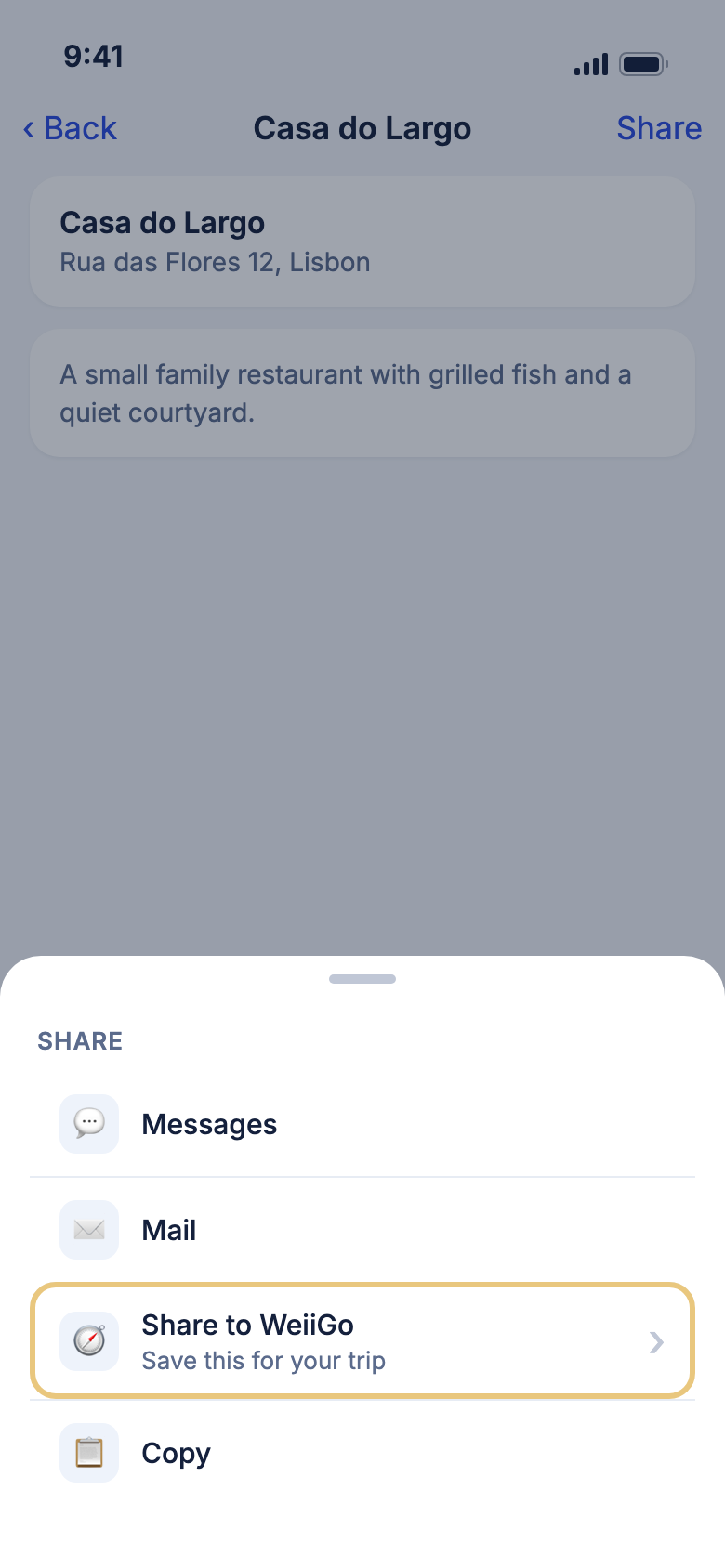
Share something from another app
Found a restaurant on a website or a booking PDF in your email? Share it to WeiiGo without leaving that app.
- In the other app, tap Share.
- Tap Share to WeiiGo (on Android, tap WeiiGo).
- On iPhone, a small sheet says Saving to WeiiGo…, then closes. Tap the Saved to WeiiGo notification to open WeiiGo.
- On Android, WeiiGo opens right away.
- WeiiGo files it and a message at the bottom of the screen tells you where it went.
WeiiGo Pro — Sharing into WeiiGo is part of WeiiGo Pro. On a Free plan you see This feature requires Pro. and nothing is saved.
Good to know
- You can share links, text, photos and files. Keep the files under 24 MB in total.
- On iPhone, the first time you may need to tap More in the share sheet and turn on Share to WeiiGo.
- If you are signed out, sign in first. After you upgrade to Pro, open WeiiGo once before you share.
- If notifications are off, nothing is lost. WeiiGo files the item next time you open it.
- With no signal, WeiiGo keeps your share and files it when you are back online.
See where a shared item went
WeiiGo works out what you shared and files it where you would look for it. You never have to choose.
- Share something and open WeiiGo.
- Read the message at the bottom of the screen.
- Added to forwarded bookings: means it is a booking. Open Tools, then Emailed bookings.
- Saved to your ideas: means it is a place. Open Tools, then Ideas manager, then Imported.
- Saved to documents: means it is a note.
Good to know
- If WeiiGo cannot tell what a place is, it asks What should we call it? Type a name and tap Save, or tap Cancel to keep the name Shared place.
- If WeiiGo is not sure what you shared, it saves a note. Nothing is lost.
- On a note, tap Save as an idea instead within about eight seconds to move it to your ideas.
Add a place Janet found to a trip
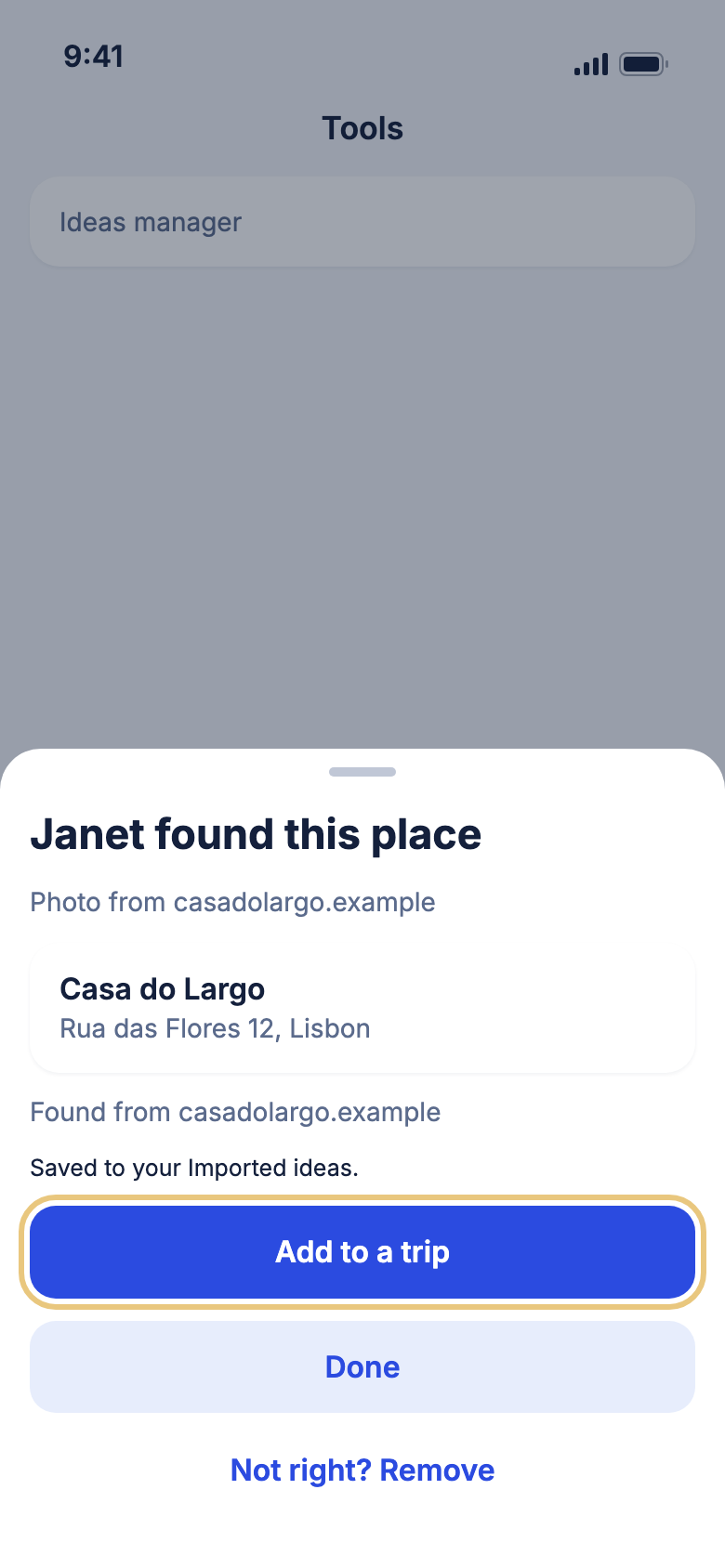
When you share a web page about a place, Janet can read it, name the place and offer to add it to a trip.
- Share a web page about a place and open WeiiGo.
- The card Janet found this place opens, with the name, address and photo.
- Tap Add to a trip.
- Tap the trip you want from Add to which trip?.
- Tap Done to leave it in Imported instead.
- If it is the wrong place, tap Not right? Remove, then Undo within five seconds to keep it.
Good to know
- Only trips you can edit that have not ended are listed.
- If you have no such trip, the place stays in your ideas.
- If you renamed your assistant, the card uses that name.
Forward a booking email
You can also email a booking to your own WeiiGo address from any device. See Bookings you forward by email.
Links that open WeiiGo
Open an invite link
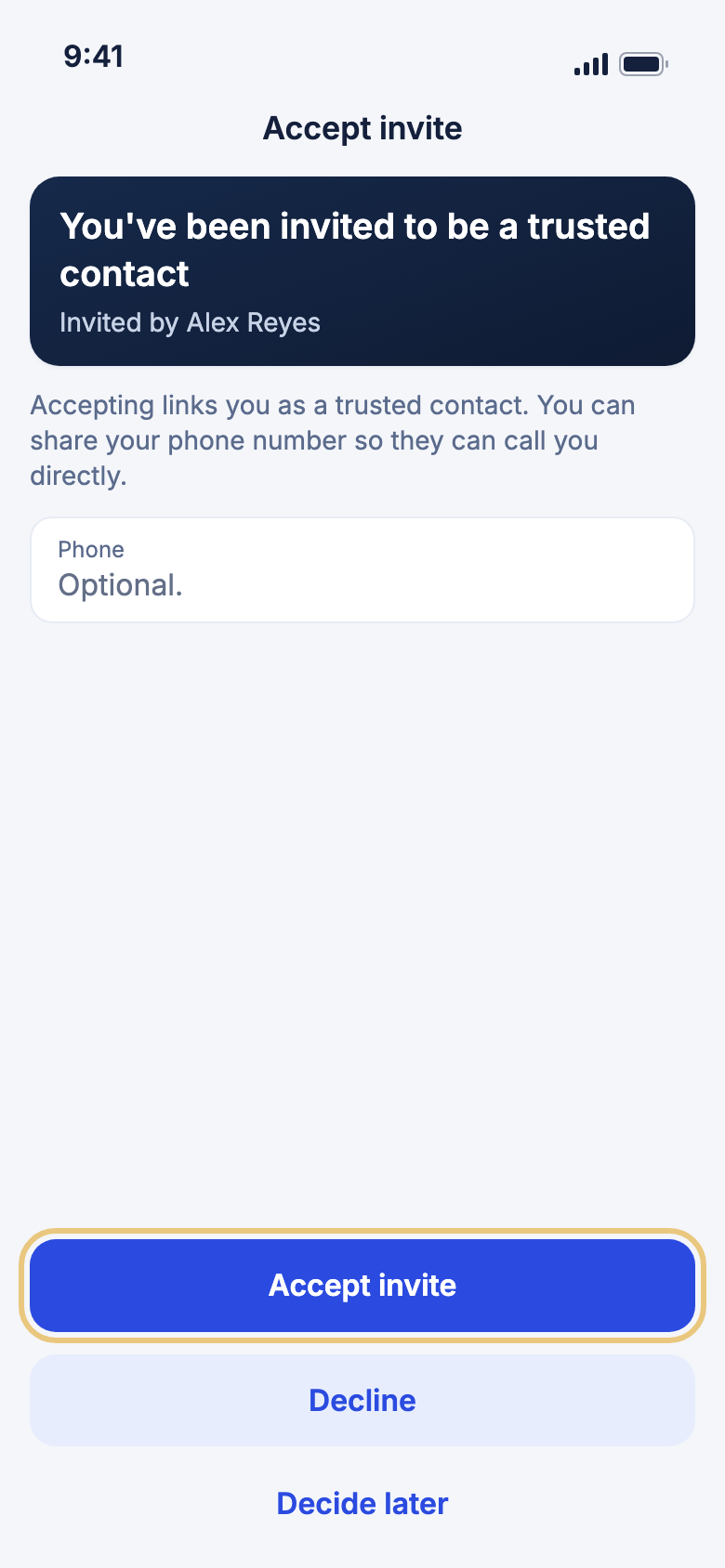
A friend can invite you to be a trusted contact or to join a trip. Tapping the link opens the invite.
- Tap the link in your email or message.
- With WeiiGo installed, WeiiGo opens on Accept invite.
- Tap Accept invite, Decline or Decide later.
Good to know
- Without WeiiGo, a web page opens: You've been invited to WeiiGo. Tap Open in WeiiGo, or install the app and tap the link again.
- Opening the link tells nobody. Accepting or declining does. See Trusted contacts.
Tap a link while signed out
WeiiGo remembers the link, so you do not have to find it again.
- Tap a WeiiGo link while you are signed out. WeiiGo opens on Sign in.
- Sign in or create an account.
- WeiiGo opens what the link was for.
Good to know
- If you still need to finish first-time setup, a link other than an invite is dropped. Tap it again once you are in.
Open a trip someone shared
A trip's owner can send you a link to a read-only web page of their plan. You need no app and no account.
- Tap the link. It opens in your browser.
- Scroll through each day, then Where you're staying, Reservations and Emergency numbers.
Good to know
- Booking references and prices are never shown.
- The page says Read-only — the trip may have changed since. Reload it to see the latest plan.
- If the owner stops sharing, the page reads This link is no longer active. Ask for a fresh link.