
The More tab
More is the last tab on the bar. It is a short list of places that don't have a tab of their own: your profile, your trips, saved destinations, the help guides, Settings, support and a page about WeiiGo. My Profile opens the Account page, where you keep your profile up to date, check your plan and sign out. Settings is where you set how WeiiGo looks and talks to you.
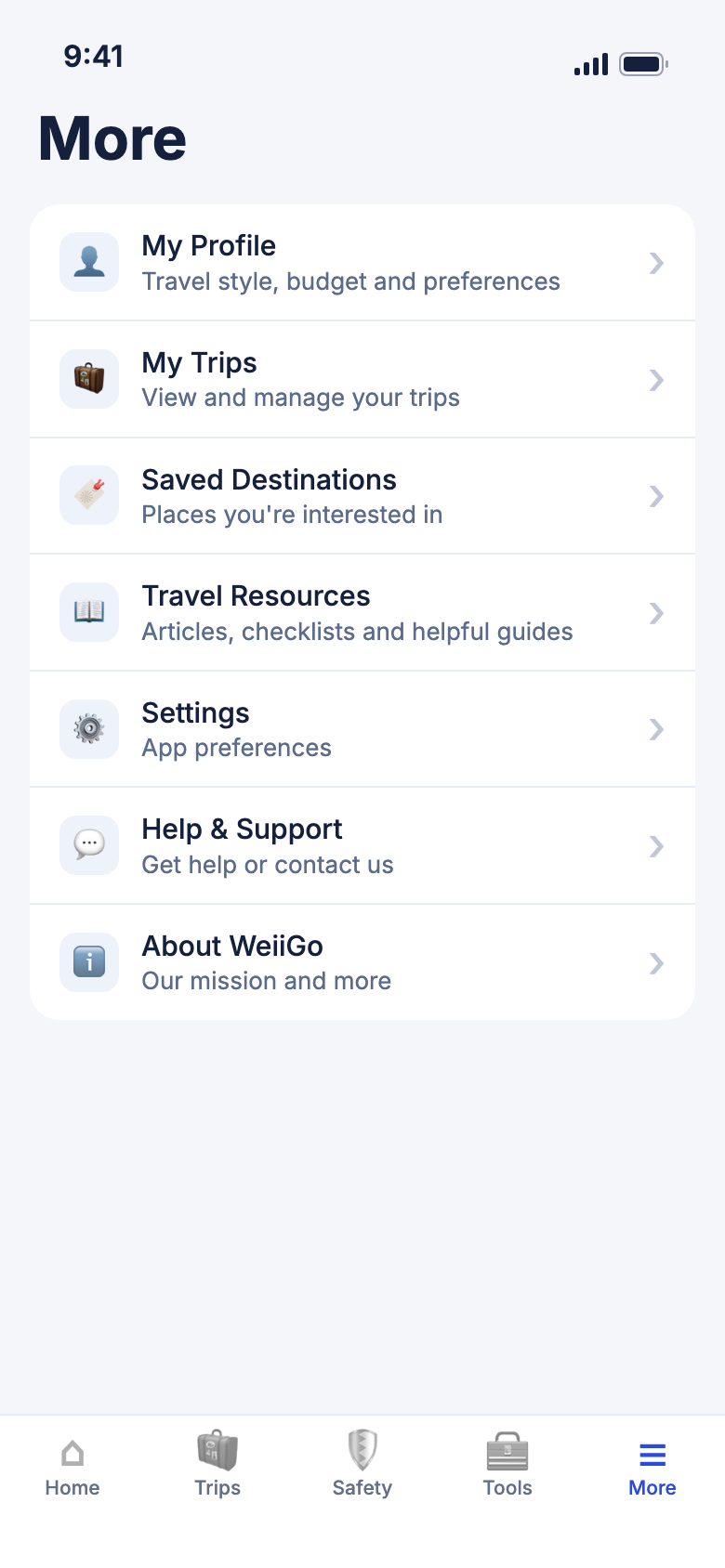
What's on More
Each row opens a screen that WeiiGo already has.
- My Profile opens the Account page: your profile, your plan, safety details and sign out.
- My Trips opens your upcoming trips.
- Saved Destinations opens the places you saved on the Trips tab.
- Travel Resources opens the help guides, inside WeiiGo.
- Settings opens app preferences: notifications, language, currency, appearance and planning defaults.
- Help & Support opens our support page, inside WeiiGo.
- About WeiiGo opens our story and mission, inside WeiiGo.
Good to know
- The Account page is not a tab. Tap My Profile to open it, and tap Back to return to More. The tab bar is hidden while you are on it.
- The help guides, support and About open inside WeiiGo, so you need an internet connection for them.
Your profile
Change your name, photo or home city
Your home country and city help WeiiGo count your days abroad and plan trips from the right place.
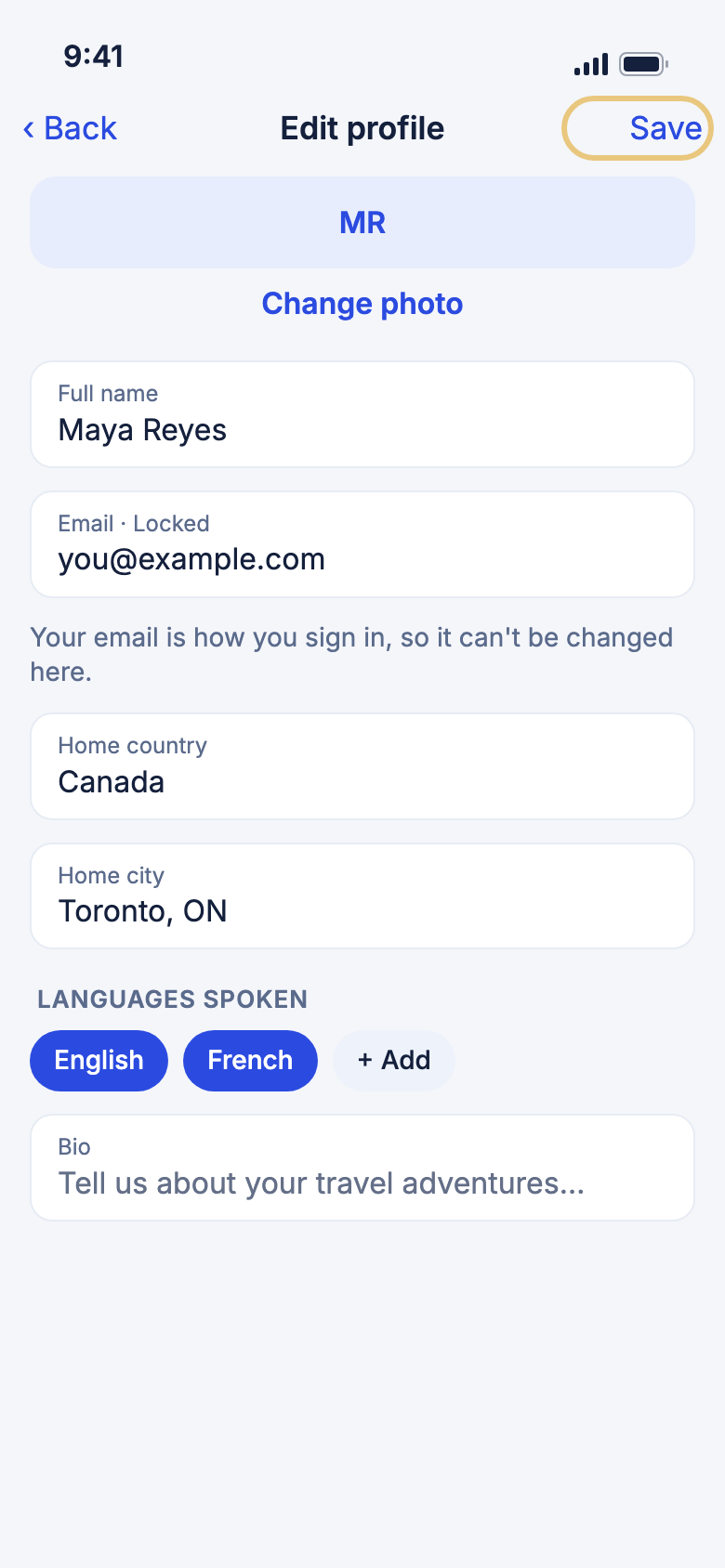
- Tap the More tab.
- Tap My Profile.
- Tap your name at the top.
- To change your picture, tap Change photo, then Take photo or Choose from gallery.
- Change your Full name, Home country or Home city.
- Under Languages spoken, tap + Add to pick the languages you speak.
- Tap Save.
Good to know
- Your email is how you sign in, so you can't change it here. Tap Contact support to change it and we will help.
- For Home city, just type your city. We never need your street address.
Settings
Choose which notifications you get
Turn off the alerts you don't want, and keep the ones that matter to you.
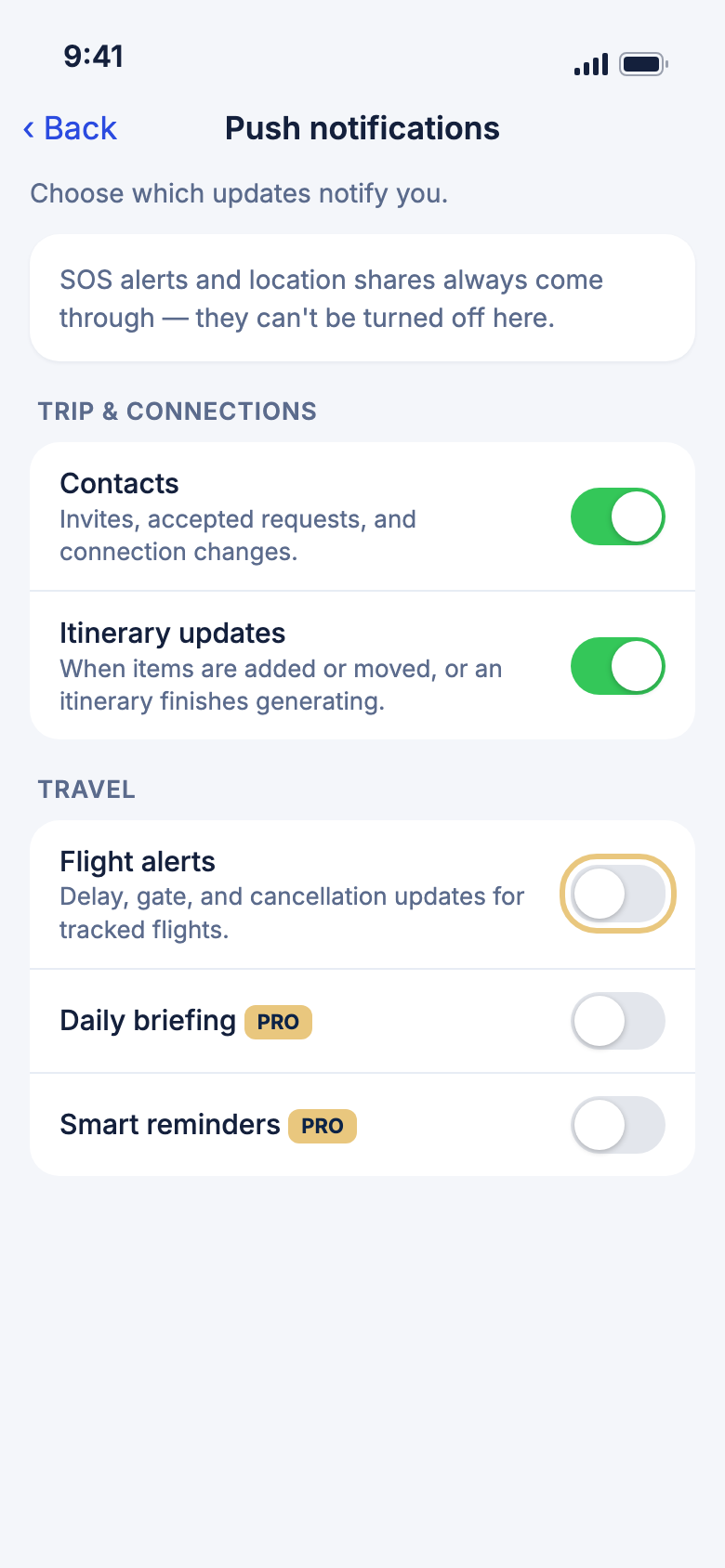
- Tap the More tab.
- Tap Settings.
- Tap Push notifications.
- Tap the switch next to each kind of alert to turn it on or off.
WeiiGo Pro — Daily briefing and Smart reminders are part of Pro. On the Free plan their switches show a lock, and tapping one tells you what it does.
Good to know
- SOS alerts and location shares always come through. You can't turn them off here.
- If notifications are off for WeiiGo on your phone, none of these will arrive. Tap Open phone settings at the top of the page, or System notifications in Settings, to allow them.
- To see alerts you already got, tap Notifications in Settings.
Change the app language
WeiiGo can show its buttons and screens in your language.
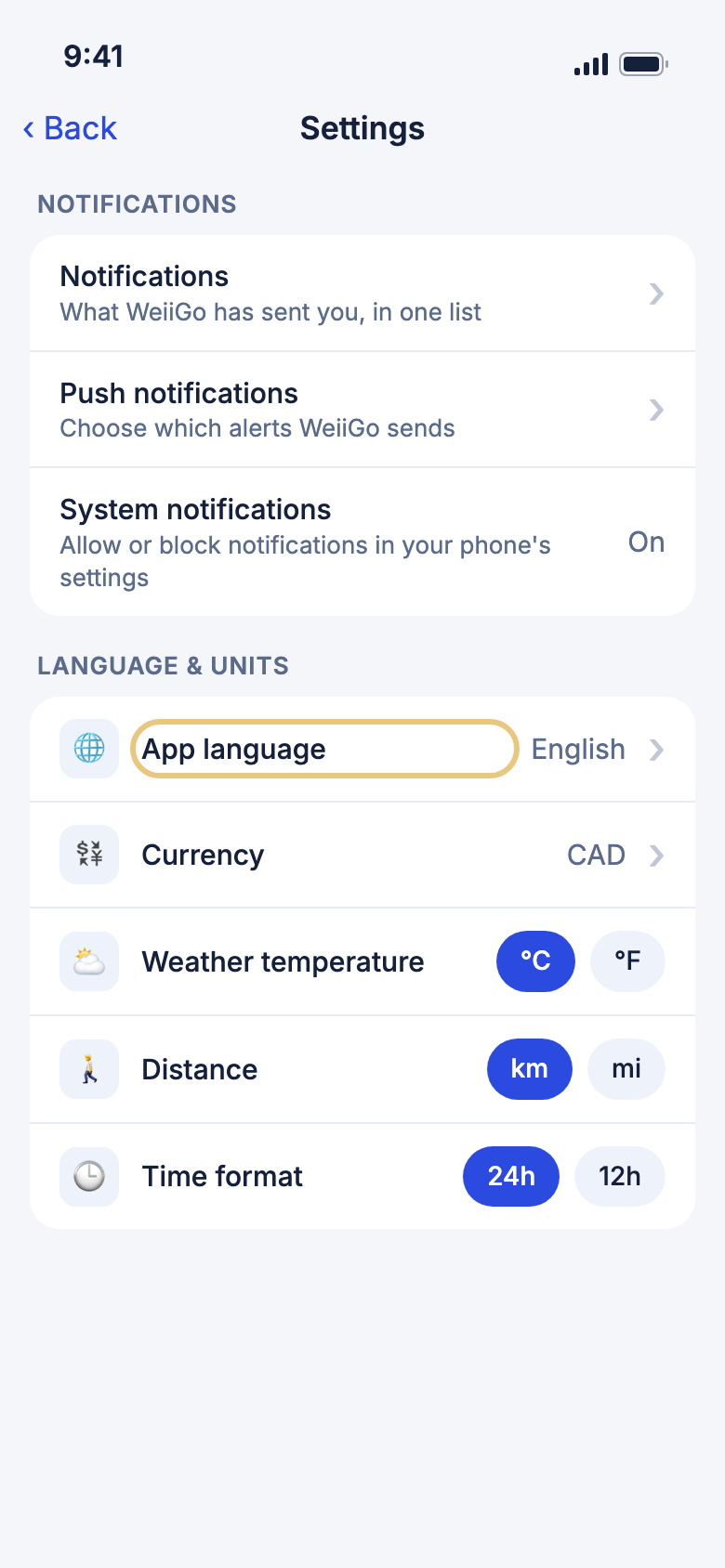
- Tap the More tab.
- Tap Settings.
- Under Language & currency, tap App language.
- Tap a language, or type in Search languages to find one.
- Tap OK to switch.
Good to know
- WeiiGo comes in 32 languages. Portuguese is two of them: Português (Brasil) and Português (Portugal).
Set your currency
Pick the money you're used to.
- Tap the More tab.
- Tap Settings.
- Under Language & currency, tap Currency, then tap your currency. Tap Show all currencies if you don't see it.
Good to know
- Distances (km or miles) and temperatures follow your phone's own language and region settings, and the 12- or 24-hour clock follows your phone's clock setting. There are no switches for them in WeiiGo.
- Your currency is used for the currency converter, trip cost estimates and prices you add to bookings.
Switch between light and dark
Choose a look that is easy on your eyes.
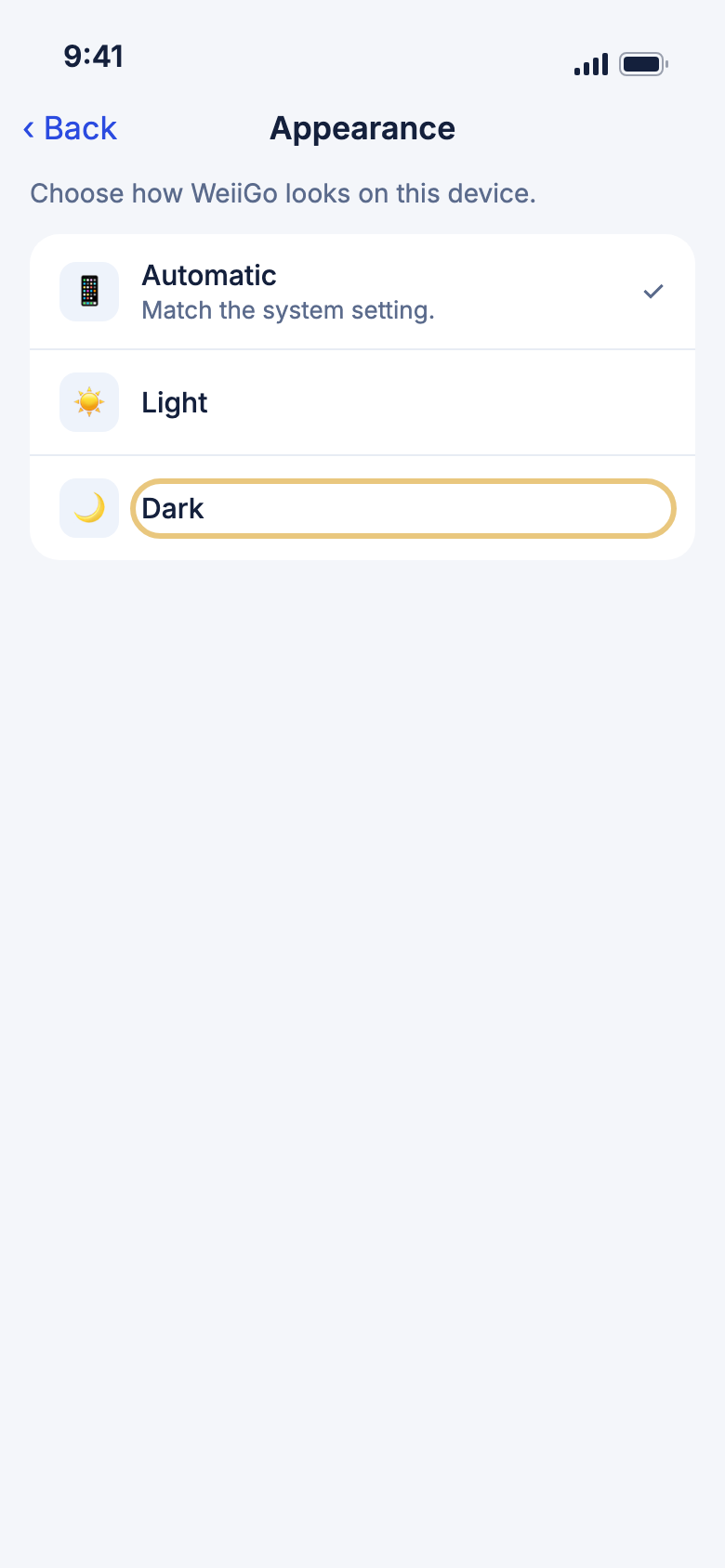
- Tap the More tab.
- Tap Settings.
- Tap Appearance.
- Tap Automatic, Light or Dark.
Good to know
- Automatic follows your phone's own light or dark setting.
- This only changes WeiiGo on this phone.
Set the airport you usually fly from
When you plan a trip and fly, WeiiGo starts from this airport, so you don't have to pick it each time.
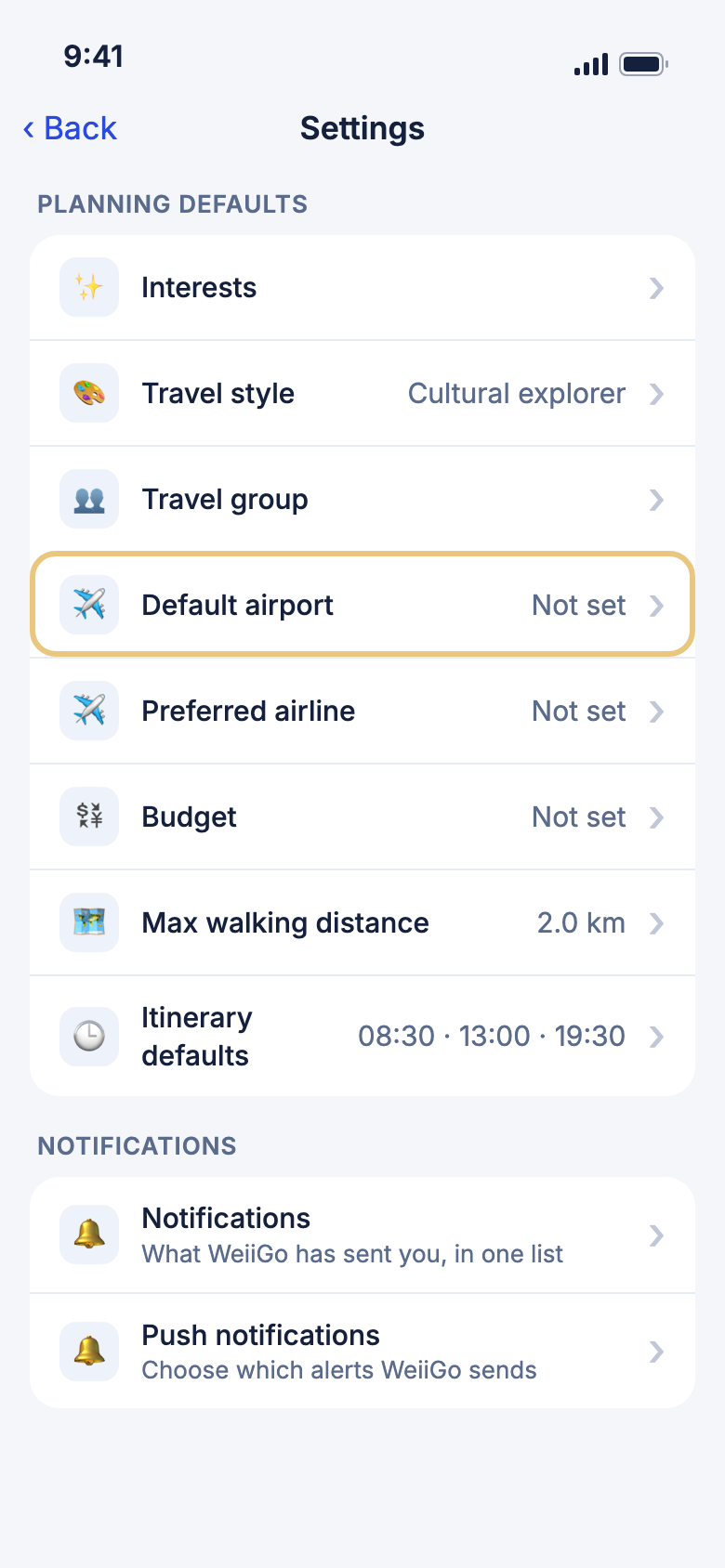
- Tap the More tab.
- Tap Settings.
- Under Planning defaults, tap Default airport.
- Type your city, then tap your airport.
Good to know
- The row then shows your airport's code, like YYZ. Until you set one, it says Not set.
- When you plan a trip, Flying from starts filled in with this airport. You can still change it for that trip.
- If you tell Janet which airport you're flying from, she uses that one instead.
Choose your preferred airline
Tell WeiiGo which airline you like to fly, and its flights come first when you look for one.
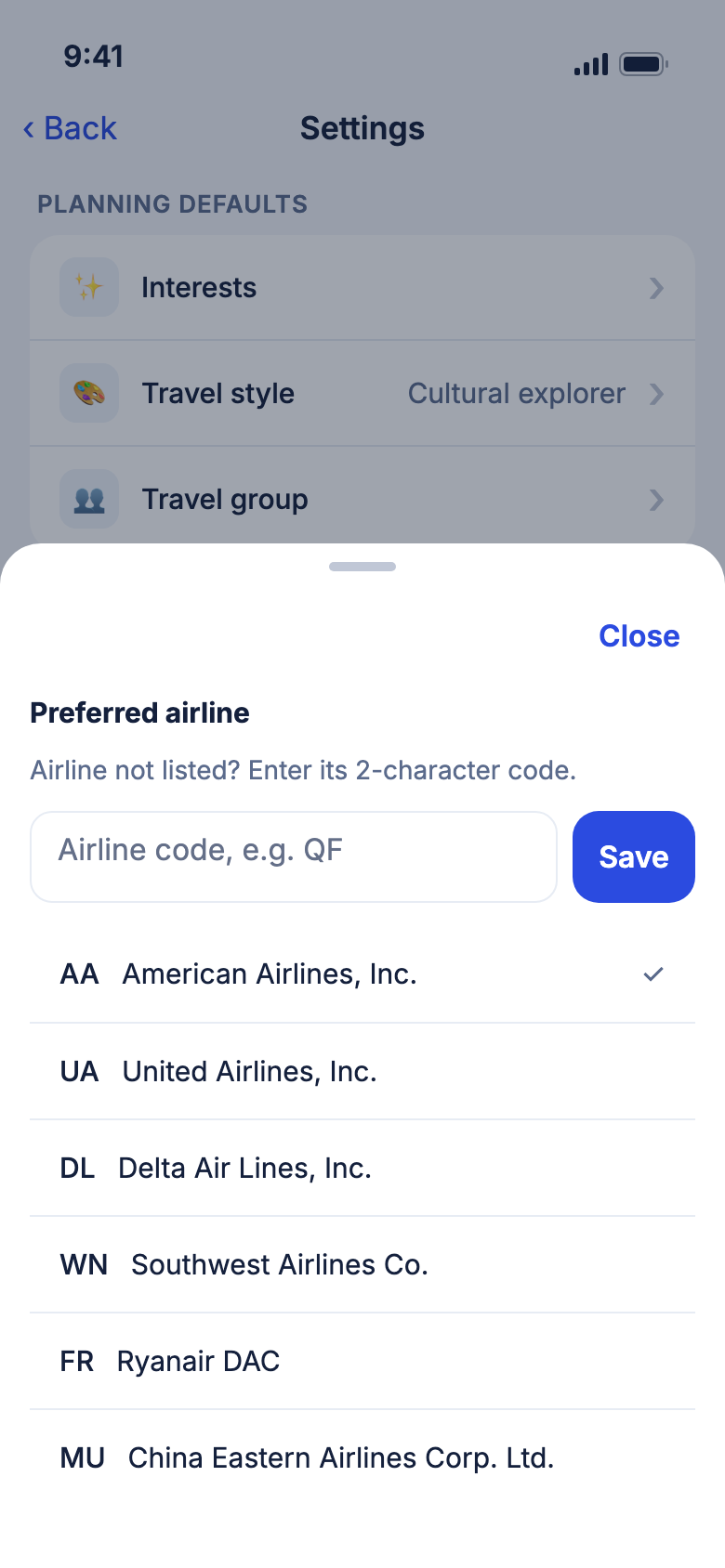
- Tap the More tab.
- Tap Settings.
- Under Planning defaults, tap Preferred airline.
- Tap your airline in the list. If it isn't there, type its two-character code (like QF) and tap Save.
Good to know
- The row then shows your airline's code, like AA. Until you pick one, it says Not set.
- When Janet looks for flights, your airline's come first. When she plans a trip, she picks its flight if one fits your budget.
- In Tools, Flights marks your airline's fares and puts them first among fares that are otherwise equal.
Set your usual trip budget
When you plan a trip, your usual budget is already picked. You just keep it or change it.
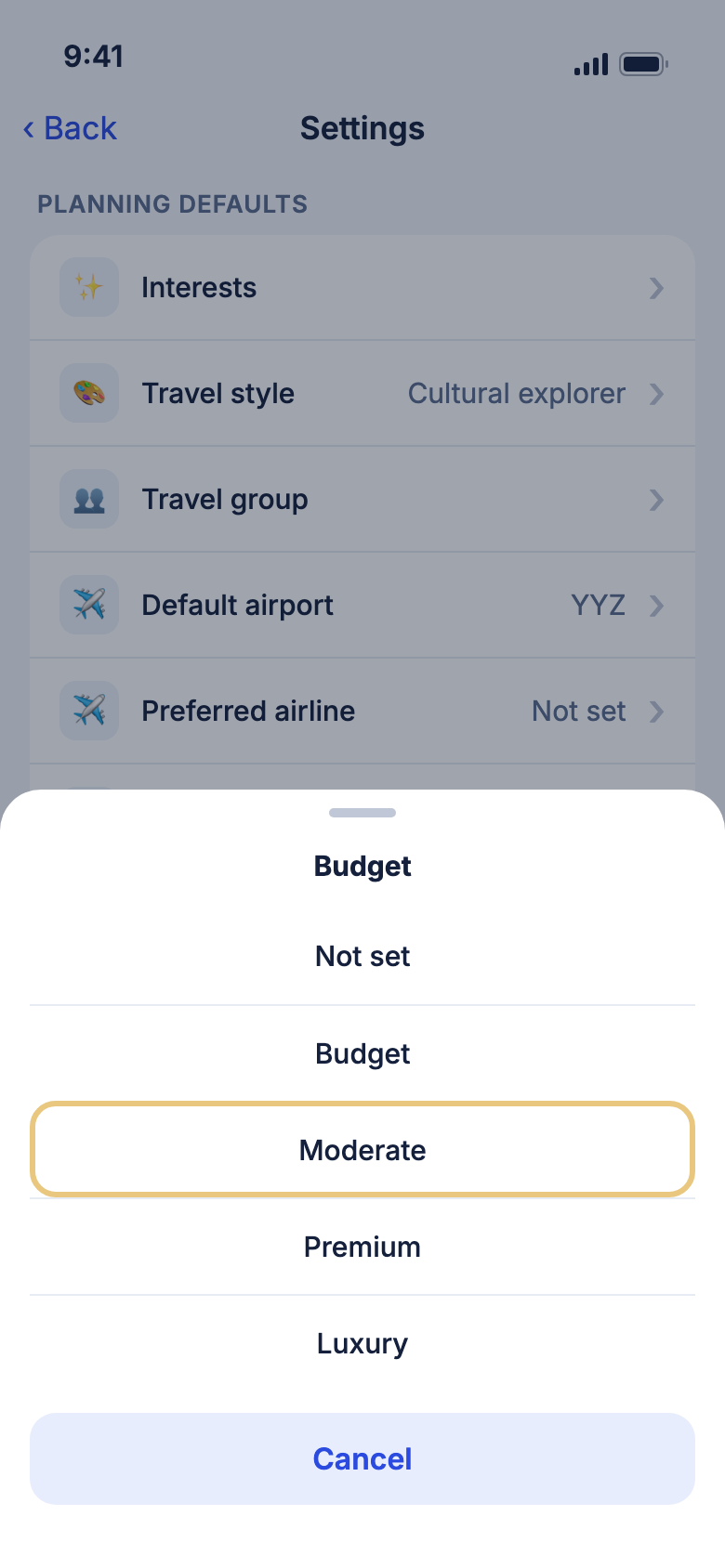
- Tap the More tab.
- Tap Settings.
- Under Planning defaults, tap Budget.
- Tap Budget, Moderate, Premium or Luxury.
Good to know
- When Janet asks about your budget, your usual one is already lit. Tap it, or tap another one. Janet has three choices, so Premium lights Luxury.
- On Tell me about your trip, Budget starts on your usual one too.
- To clear it, tap Not set. Then Janet's budget question starts with nothing lit.
- This is saved on this phone only.
Your subscription
See your plan or upgrade
The Subscription row on the Account page shows which plan you're on.
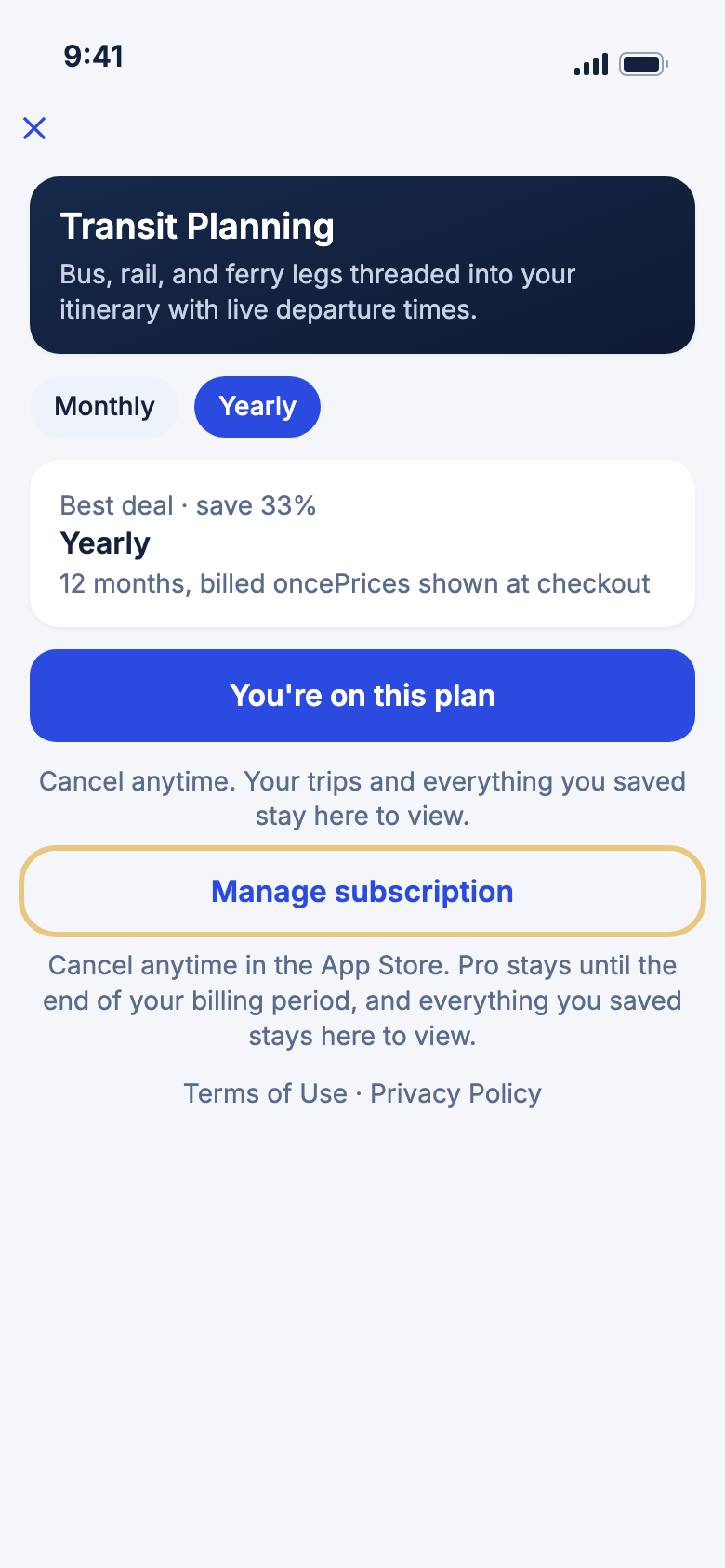
- Tap the More tab, then My Profile.
- On the Free plan, tap Upgrade to Pro. The Subscription page shows what Pro adds, with its plans and prices.
- On Pro, tap Subscription to see your plan. The button says You're on this plan.
Good to know
- If your store account can try Pro for free, the button says Try 7 days free before the price.
- During a free trial, the Subscription page shows the day your trial ends.
- Under the button, tap All Plans to see every plan side by side, pick one, and subscribe from there. Tap What's Included to see what Free and Pro each give you.
Get Pro back after changing phones
If you already paid for Pro, you can bring it back without paying again.
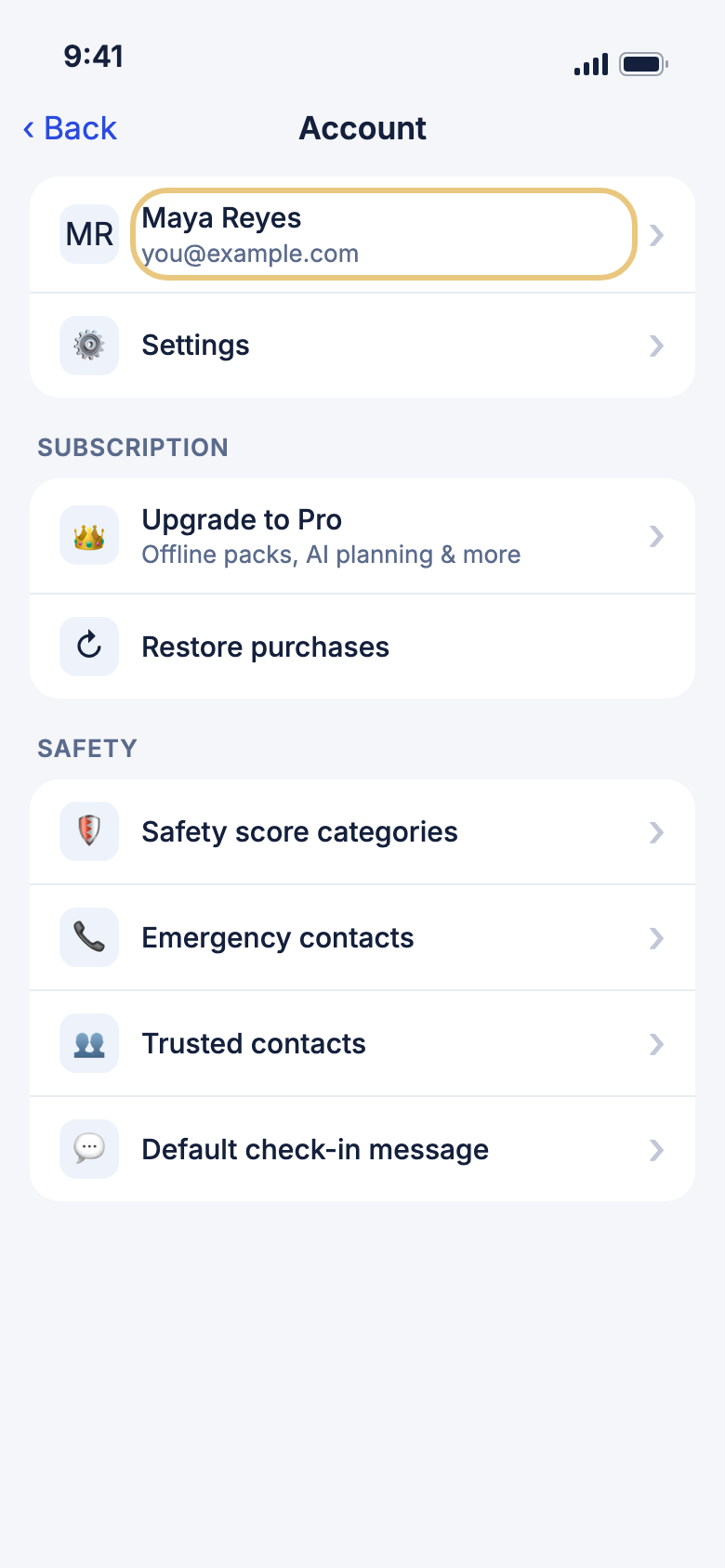
- Sign in with the same account you used before.
- Tap the More tab, then My Profile.
- Tap Restore purchases.
- Wait for the message that tells you what was found.
Good to know
- Use the same App Store or Google Play account that bought Pro.
Cancel WeiiGo Pro
Subscriptions are cancelled in the App Store or Google Play, not in the app. WeiiGo takes you there.
- Tap the More tab, then My Profile.
- Tap Subscription.
- Tap Manage subscription.
- Cancel in the App Store or Google Play screen that opens.
Good to know
- Pro stays on until the end of the time you've paid for. Then you move to the Free plan.
- Your trips and everything you saved stay in WeiiGo for you to view.
Getting help
Read the help guides
The help guides show you, step by step, how to use each part of WeiiGo.
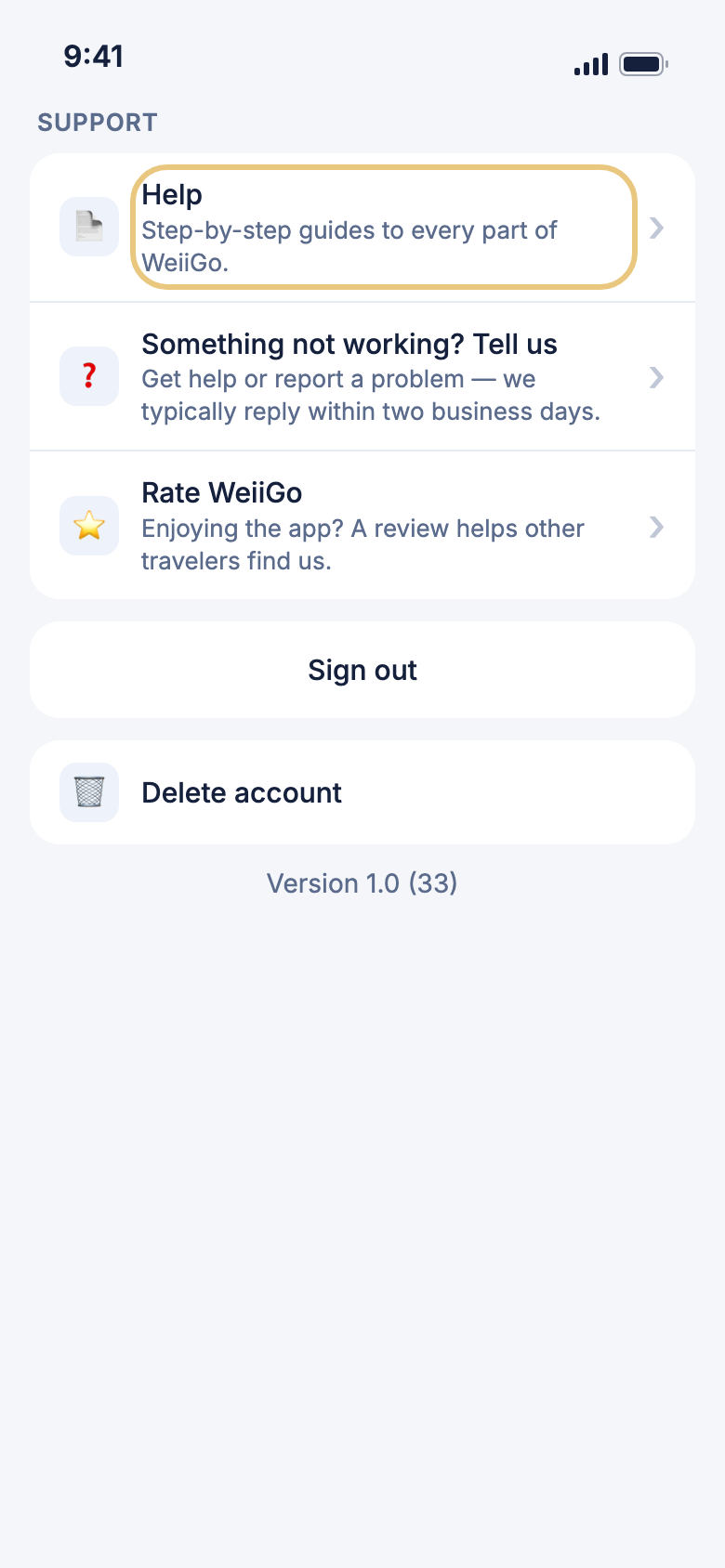
- Tap the More tab.
- Tap Travel Resources to open the guides at once. Or tap My Profile, scroll down to Support and tap Help.
Good to know
- The guides open inside WeiiGo, so you need an internet connection.
- To reach us instead, tap Help & Support on More.
- Still stuck? Tap Something not working? Tell us to send us a message.
Signing out
Sign out
Sign out when you hand your phone to someone else or switch accounts.
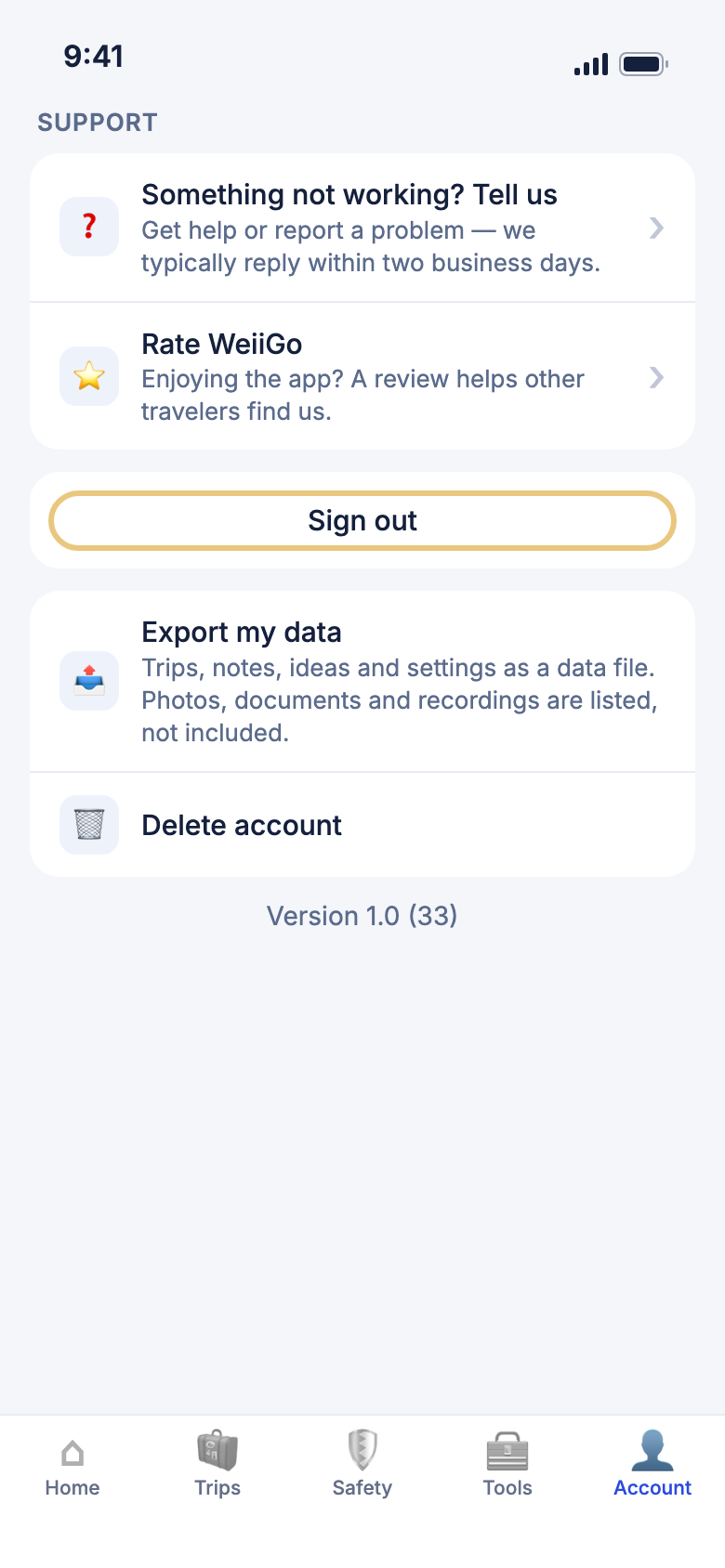
- Tap the More tab, then My Profile.
- Scroll to the bottom.
- Tap Sign out.
- Tap Sign out again to confirm.
Good to know
- Your trips are saved to your account. Sign in again and they are all there.
Delete your account
This removes your account and your trips for good. It can't be undone.
- Tap the More tab, then My Profile.
- Scroll to the bottom and tap Delete account.
- Read what will be deleted, then tap Delete account.
- Type your email address.
- Tap Delete forever.
Good to know
- Deleting your account does not cancel Pro. Cancel it first in the App Store or Google Play, or you may still be charged.